
Your invoice might be the last thing standing between an order and a payment or the first thing that makes a customer question your business.
A missing tax number, inconsistent invoice details, broken PDF, or poorly configured email attachment can turn a simple transaction into unnecessary back-and-forth. And because WooCommerce doesn’t generate PDF invoices by default, the quality of that experience depends largely on the plugin you choose and how you set it up.
This guide takes you beyond simply generating a PDF. You’ll learn how WooCommerce PDF invoices work, what information they should contain, where store owners commonly get the setup wrong, and how to build an invoicing system that is accurate, professional, properly branded, and easy for both you and your customers to use.
Chapter 1: What Is a WooCommerce PDF Invoice?
A PDF invoice is more than a receipt—it’s the official record of a customer’s purchase.
It shows what was bought, who bought it, the applicable taxes, and the total amount. A complete invoice typically includes an invoice number, order date, billing and shipping details, and itemized products with their prices.
Here’s the important part for WooCommerce: there’s no built-in PDF invoice generator. Stores typically rely on a third-party plugin to create and manage these documents. Depending on the plugin, invoices can be generated automatically when an order reaches a specific status or when payment is received, and they can often be attached directly to order emails.
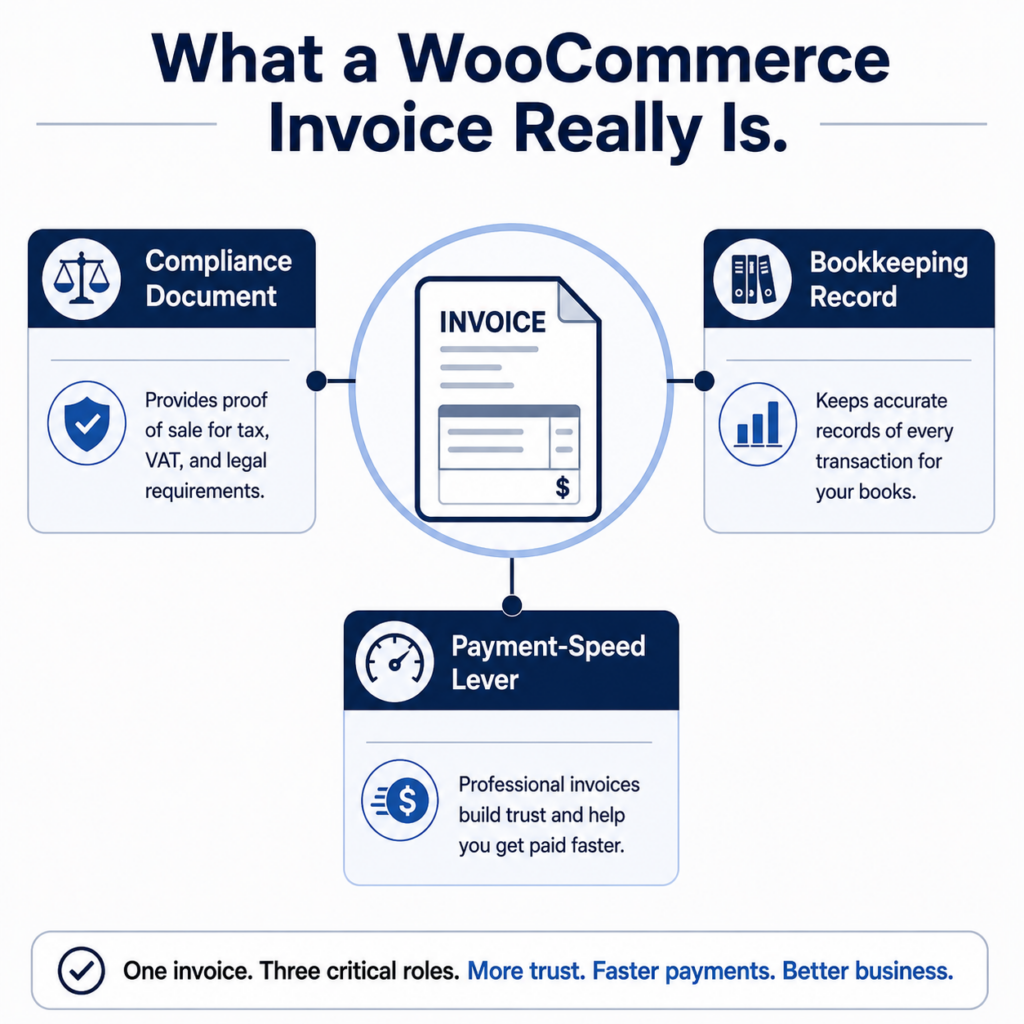
It’s also important to distinguish an invoice from two documents it is often confused with:
- Invoice: A financial document showing what was purchased, the applicable charges or taxes, and the amount due or paid. It is primarily intended for the customer and their accounting records.
- Packing slip: A document listing the items included in a shipment. It is mainly used by warehouse and fulfillment teams and typically does not include pricing.
- Credit note: A document used to record a full or partial reversal of an invoice, often following a refund or return. It generally references the original invoice and reflects the amount being reversed.
A single WooCommerce plugin can often generate all three documents, but they serve different purposes: the invoice records the transaction, the packing slip supports fulfillment, and the credit note records a reversal or adjustment.
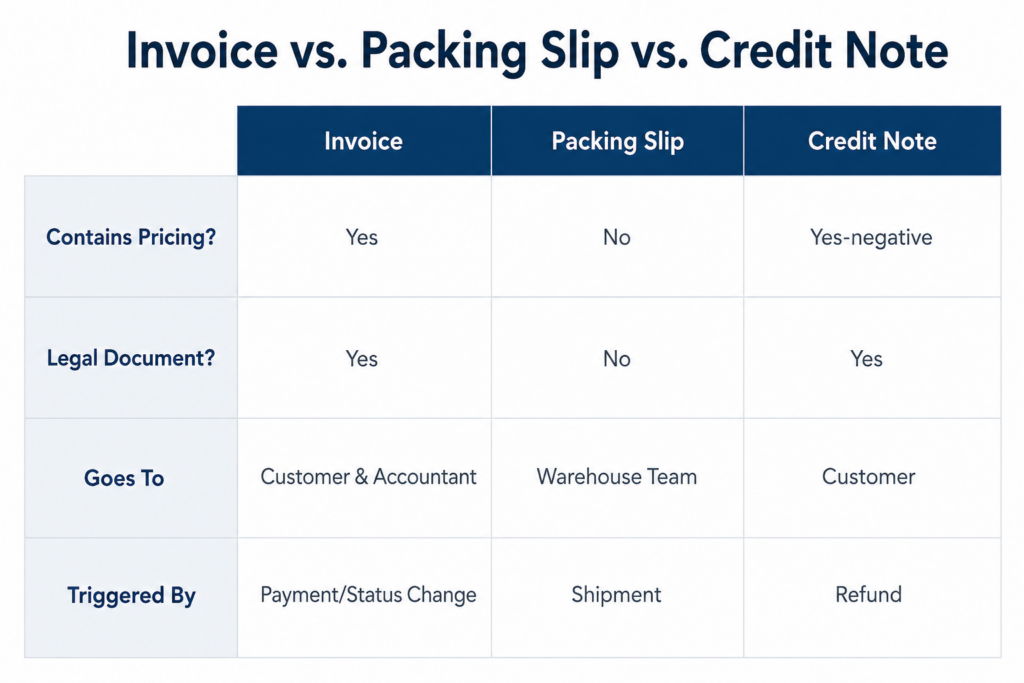
See what a WooCommerce invoice is and how it works for a fuller breakdown of what belongs on the document itself.
Chapter 2: Why WooCommerce PDF Invoices Matter
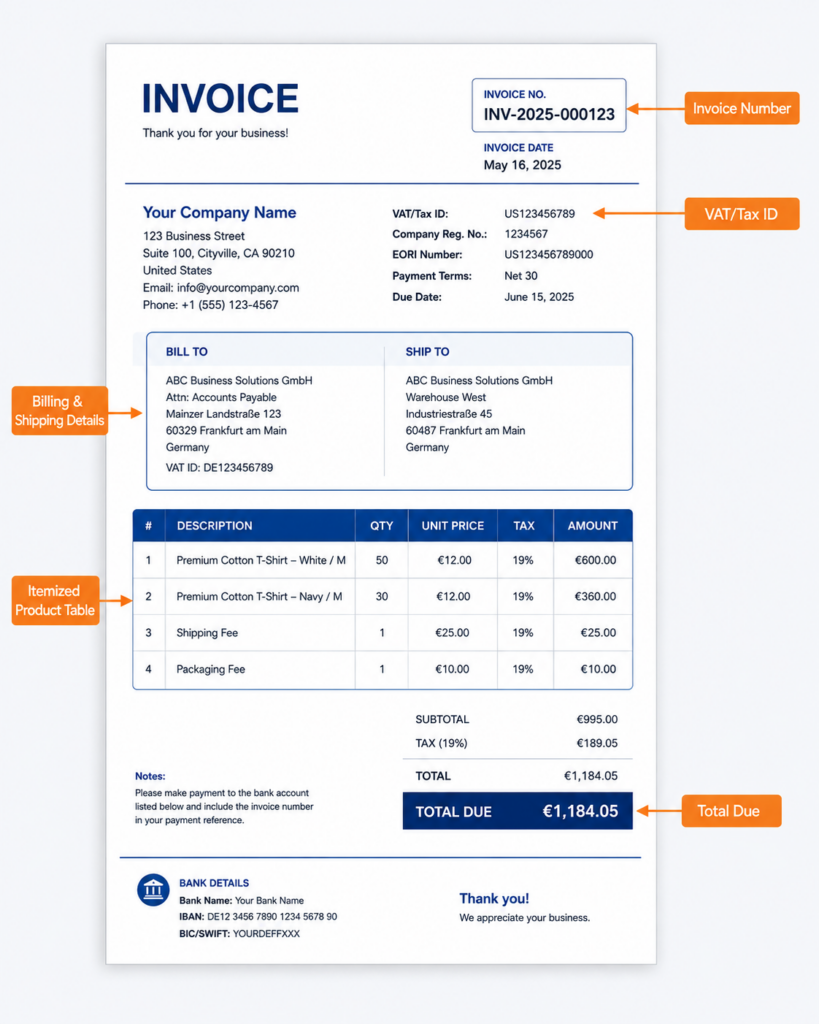
Compliance is the obvious reason. Depending on the country and transaction, invoices may need to include specific information such as a sequential invoice number, seller and buyer details, tax information, and itemized amounts. For VAT-registered businesses, missing required information can make an invoice unsuitable for accounting or VAT purposes.
The less obvious reason is behavioral. Sage’s research into the psychology of late payments points to cognitive biases such as present bias and task avoidance as factors that can influence when people pay, not just whether they can afford to. A document that looks incomplete or unprofessional can add friction at the moment someone decides whether to deal with it now or later.
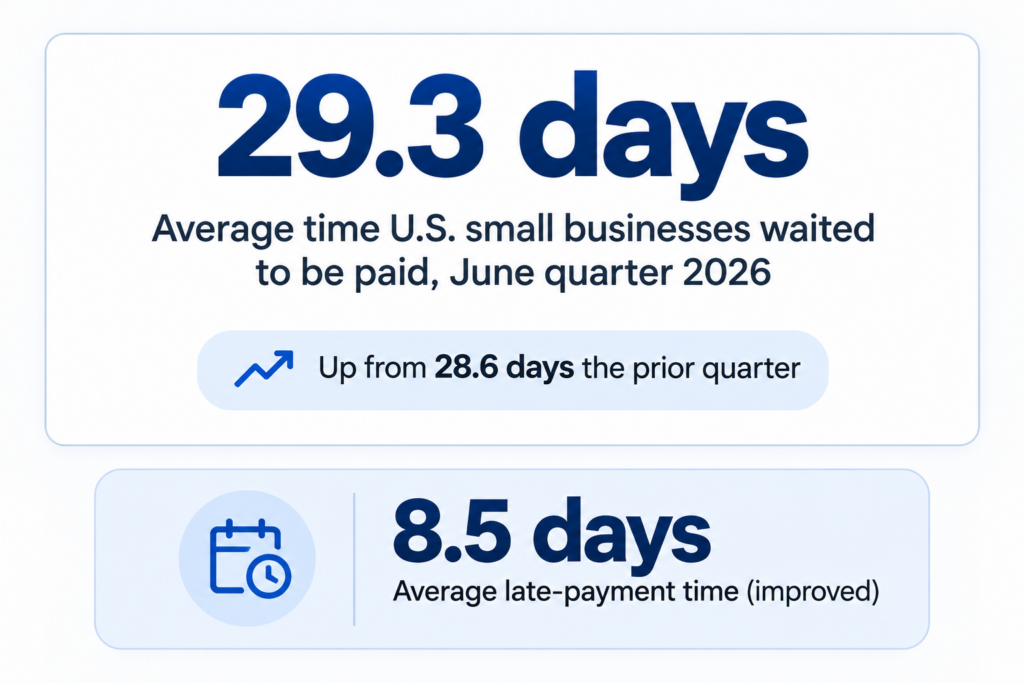
The scale of the problem is significant. Xero reports that U.S. small businesses waited an average of 29.3 days to be paid in the June quarter of 2026, up from 28.6 days in the previous quarter, while average late-payment time improved slightly to 8.5 days (Xero Small Business Insights, 2026). A clean, professional invoice won’t solve late payments on its own, but it is one of the payment-related factors a store owner can directly control.
And automating invoice generation doesn’t remove accountability. As Bill D’Alessandro, CEO of Elements Brands, explained on the Ecomm Breakthrough podcast, outsourcing your books “does not absolve you, the founder, from understanding accounting.” The same principle applies here: a plugin generates the document, but you are still responsible for making sure the information on it is correct.
Chapter 3: Benefits of WooCommerce PDF Invoices
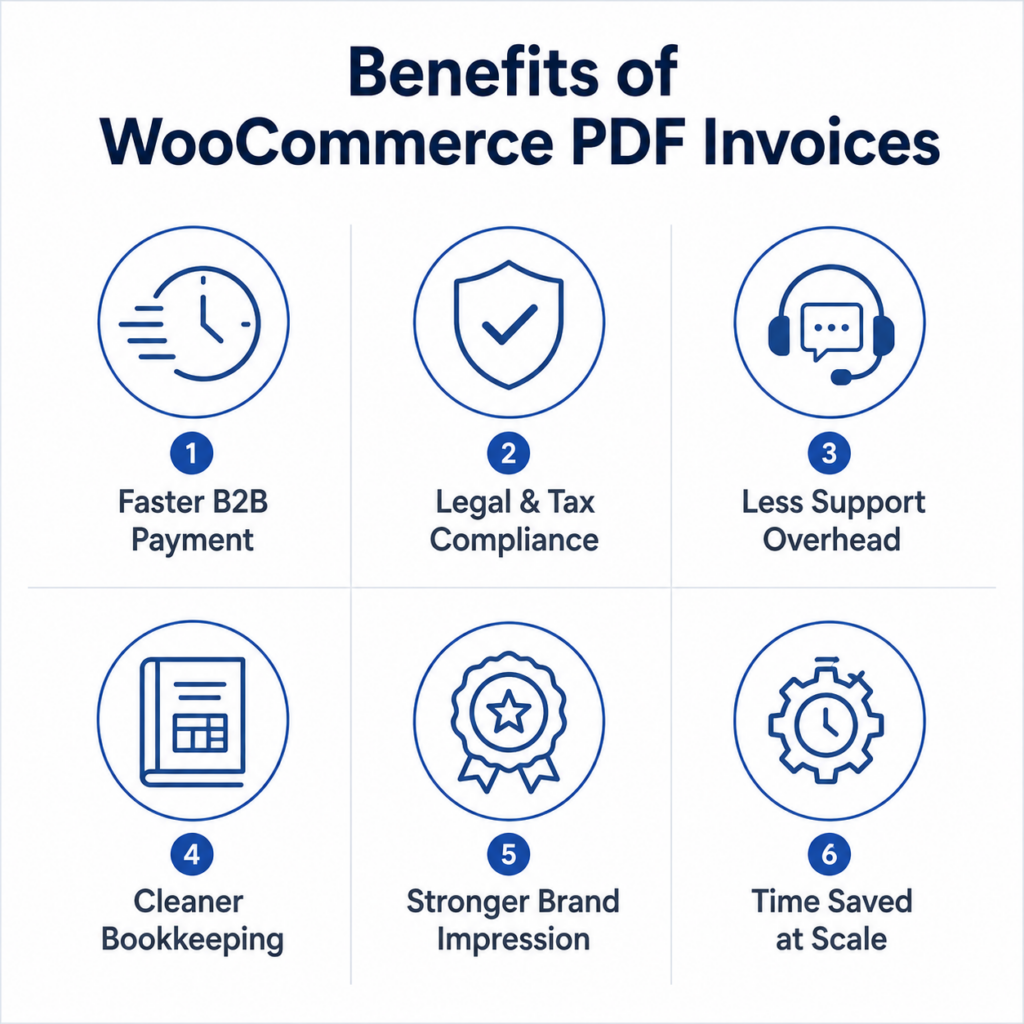
- Faster payment on B2B orders. A complete, professional invoice reduces friction and back-and-forth for the buyer, which can help shorten the gap between delivery and payment.
- Better legal and tax compliance. Proper invoice numbering, seller and buyer details, tax information, and itemized charges help businesses meet applicable invoicing requirements. Exact requirements vary by country and transaction type.
- Reduced support overhead. When customers can download invoices from their account, they are less likely to contact support just to request a copy. This can save time as order volume grows.
- Cleaner bookkeeping. Structured, consistently numbered invoices are easier to organize and reconcile than manually created documents, helping reduce accounting errors downstream.
- A stronger brand impression. An invoice can be one of the final touchpoints a customer has with your store. A clean, branded document helps maintain a professional experience after the purchase.
- Time saved as you scale. Automatic invoice generation removes the manual process of creating invoices order by order, saving time and reducing the risk of repetitive errors as your store grows.
Chapter 4: Common Mistakes with WooCommerce PDF Invoices
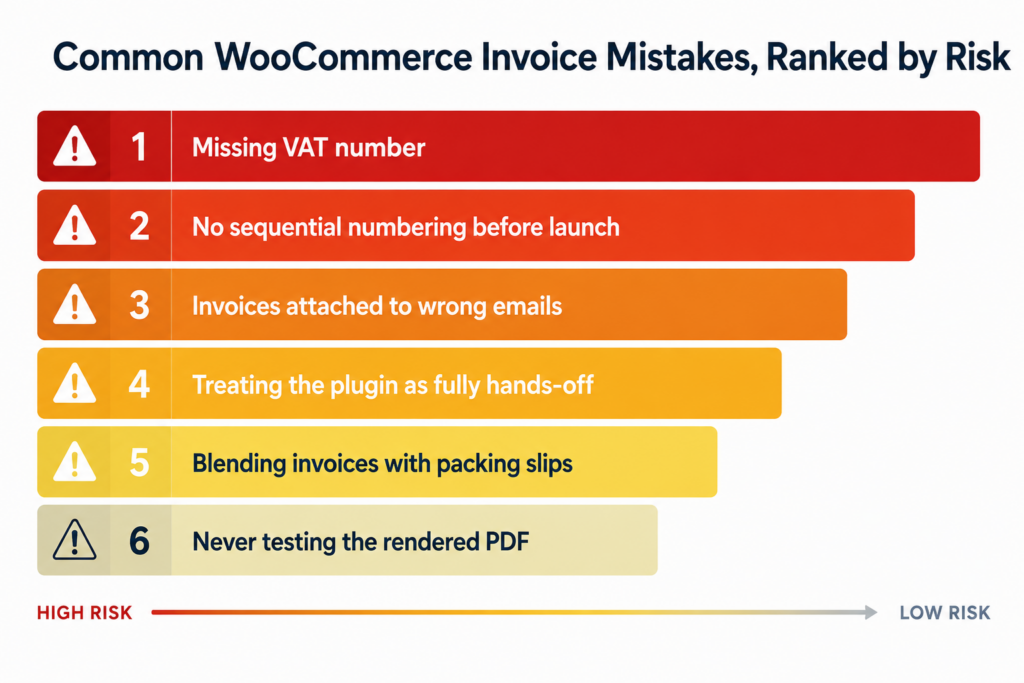
- Leaving the VAT number out of the template. It’s easy to configure the logo and store address and forget the VAT field. For businesses that need to show VAT information, this can make the invoice unsuitable for certain B2B or tax purposes. See how to add a VAT number to a WooCommerce invoice for the exact setup.
- Not setting sequential numbering before going live. Issuing invoices before the numbering system is configured can lead to duplicate or inconsistent invoice numbers. Depending on the jurisdiction, invoice numbering may be subject to specific legal requirements, so it’s better to configure and test it before processing real orders.
- Attaching invoices to the wrong order emails. A common setup problem is attaching invoices to only one order email, such as the “Processing” email. Orders paid by bank transfer or manually marked as complete may follow a different status flow, meaning the invoice may never reach the customer.
- Treating the plugin as fully hands-off. As covered in Chapter 2, automation doesn’t remove the store owner’s responsibility. A wrong tax rate, missing field, or incorrect business detail can be included in invoices at scale if nobody checks the setup.
- Never testing the actual rendered PDF. Settings can look correct in the configuration screen while the generated PDF has a cropped logo, misaligned product table, or missing information. Always open a real test invoice and check the final PDF before going live.
- Confusing invoices with packing slips. These documents serve different purposes. Using one document for both can expose customer pricing, internal SKUs, or warehouse notes to the wrong audience. Keep customer-facing invoices separate from fulfillment documents when the information they contain differs.
Chapter 5: How to Set Up WooCommerce PDF Invoices
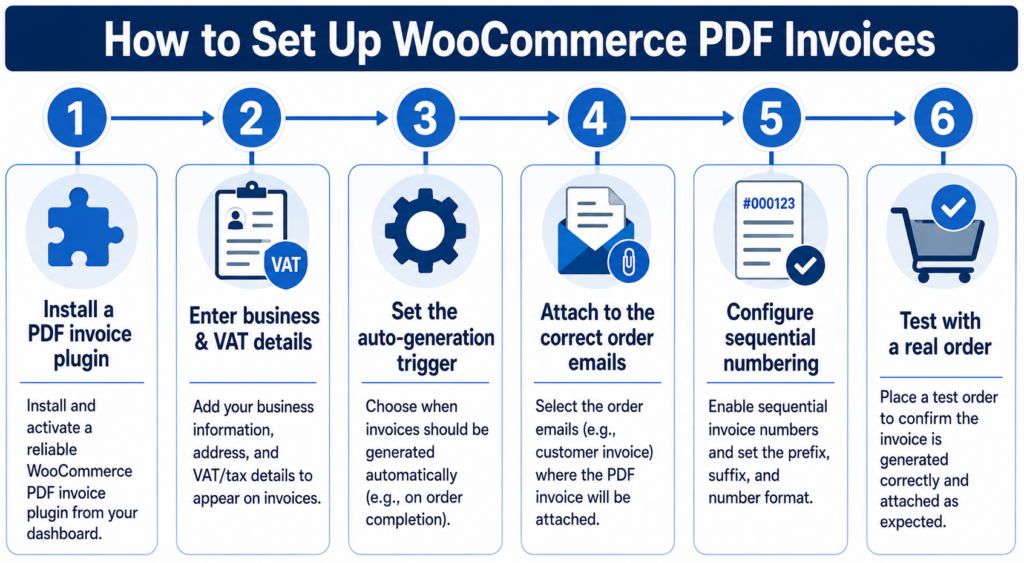
- Install a PDF invoice plugin. Free versions typically cover basic invoice generation, templates, and email attachments, while Pro versions may add advanced customization, credit notes, and bulk tools.
- Enter your business details. Add your company name, address, logo, and—where required—your VAT or tax ID. Make sure these details match the information you use for your business and tax records.
- Set the auto-generation trigger. Choose when the invoice should be generated: after payment, when an order reaches a specific status, or manually if certain B2B orders need to be reviewed first. The right trigger depends on how your store processes and fulfills orders.
- Attach the invoice to the right emails. Match the invoice attachment to your actual order flow rather than relying on the plugin’s default settings. If some orders skip “Processing,” make sure their relevant order-status email also includes the invoice.
- Configure sequential numbering. Set the invoice number format using a prefix, suffix, year, or other supported options, and confirm the starting number before your first live order. See how to create and customize a WooCommerce invoice number for the available formatting options.
- Test with a real order. Place a test order and open the actual generated PDF—not just the settings-page preview. Check that the logo, invoice number, tax information, customer details, and line items all appear correctly before going live.
Chapter 6: Best Practices for WooCommerce Invoicing
A good invoice should be accurate, easy to understand, and useful for both your customers and your business. These practices help you avoid common problems as your store grows.
- Make your invoice look professional. Use your logo, brand colors, readable fonts, and a clean layout. Customers should be able to quickly find the invoice number, order details, products, taxes, and total amount.
- Let customers download invoices themselves. Add an invoice download option to the customer account page so they can access their documents whenever they need them. This can also reduce requests to your support team.
- Keep invoices, packing slips, and credit notes separate. An invoice shows what the customer purchased and paid or owes. A packing slip helps with fulfilment, while a credit note records a refund or reversal. Each document should contain only the information its purpose requires.
- Check your invoice against current tax requirements. Invoice requirements vary by country and transaction type. Review your template regularly to make sure required details such as tax numbers, invoice numbers, and tax breakdowns are still included.
- Keep a separate archive of your invoices. Don’t rely on email attachments as your only record. Store completed invoices in a reliable archive so you can find them when customers, accountants, or tax authorities need them.
- Use numbering and language that fit your market. Set a consistent invoice numbering system before processing live orders, and use the language your customers understand. If you sell internationally, consider providing localized invoice templates where needed.
Chapter 7: Advanced Invoice Customization
Once the basic invoice is working correctly, you can customize it to better fit your brand, customers, and business needs.
- Match the invoice to your brand. Add your logo, brand colors, fonts, and preferred layout so the invoice looks like a natural part of your store—not a generic document.
- Add QR codes or barcodes when they serve a purpose. Use them for faster order lookup, document scanning, shipping workflows, or specific compliance requirements where needed.
- Offer invoices in multiple languages. If you sell to customers in different countries, localized invoices make order details, taxes, and payment information easier to understand.
- Use separate templates for B2B and B2C customers. Business customers may need detailed tax and VAT information, while consumers usually benefit from a simpler, easier-to-read invoice.
- Add custom information your business actually needs. Include details such as SKUs, parcel weight, order notes, payment references, or other order data when they are useful for customers, accounting, or fulfillment.
Chapter 8: Troubleshooting WooCommerce PDF Invoices
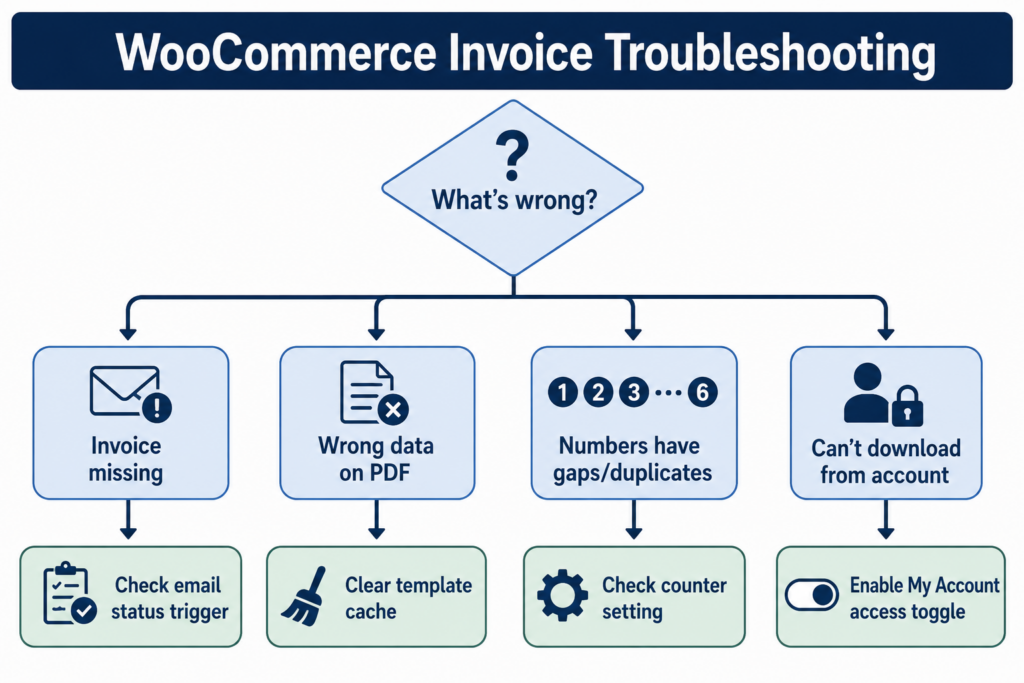
Invoice isn’t attaching to the order email: Check which order statuses your plugin is set to attach invoices to. Some orders, such as bank-transfer payments or manually completed orders, may skip the status that normally triggers the invoice. Make sure the invoice is attached to a status that your actual order flow uses.
VAT number or logo is missing from the PDF: If the information is saved in your settings but doesn’t appear in the generated PDF, the template cache may be outdated. Clear the plugin cache, regenerate the invoice, and check the actual PDF again before changing your settings.
Invoice numbers have gaps or duplicates: This usually happens when sequential numbering wasn’t configured before invoices were generated, or when the same order triggers invoice generation more than once. Check your starting number and numbering format, then make sure only one order event generates the invoice.
Customers can’t download invoices from their account: Invoice generation and customer downloads are often controlled by separate settings. Check that the plugin’s My Account / Customer Download option is enabled, then test the download using a customer account.
The PDF looks correct in preview but breaks on a real order: A plugin preview may not use the same order data as a live invoice. Always place a real test order and open the generated PDF to check the logo, customer details, tax information, product table, and invoice number.
Chapter 9: Recommended Tool — Challan
Challan lets you create invoices, packing slips, shipping labels, and credit notes from one WooCommerce dashboard. You can customize each PDF with your logo, colors, fonts, and layout, while sequential numbering helps keep invoices and credit notes organized.
With Pro, you also get:
- Multilingual invoices: Support multiple languages with WPML and Polylang.
- GST and SSN tax fields: Add region-specific tax information to your documents.
- Custom stamps and signatures: Add branded stamps or signatures where needed.
- Barcodes and QR codes: Make order and document tracking easier.
- Dropbox storage: Store invoice records securely outside your email inbox.
- Bulk downloads: Download invoices, packing slips, and shipping labels in bulk.
Plans start at $69/year for one site.
For stores that need more than basic PDF generation, Challan brings invoice customization, localization, document management, and multiple document types into one WooCommerce solution. This makes it particularly useful when your invoicing needs go beyond simply generating a PDF for each order.
Chapter 10: WooCommerce PDF Invoicing — Key Takeaways
A WooCommerce PDF invoice is more than just a document attached to an order. It can serve as a compliance document, bookkeeping record, customer-facing document, and part of your overall brand experience.
Setting one up is straightforward: choose the right plugin, add your business and tax details, configure invoice generation and numbering, and test the final PDF with a real order before going live.
From there, the goal is to keep the system accurate and useful as your store grows. Review your tax and invoice requirements, keep invoices separate from packing slips and credit notes, offer customers easy access to their documents, and customize your templates when your business needs more than the default setup.
The key takeaway from this guide is simple: automate the process, but don’t stop checking it. A good WooCommerce invoice system should save time, support compliance, look professional, and work reliably for both your business and your customers.

Free version on WordPress.org. Every Pro licence includes a 30-day money-back guarantee.

