To add an attribute in WooCommerce Product, go to Products > Attributes, enter the attribute name, slug, and type, then click ‘Add Attribute.’ Next, click ‘Configure Terms’ to add terms like sizes or colors. Finally, assign the attribute to a product by editing the product, going to the Attributes tab, selecting the attribute, adding terms, and saving changes.
Adding product attributes in WooCommerce enhances your store by providing detailed and organized product information.
Attributes such as size, color, material, brand, weight, pattern, and product specifications not only improve product descriptions but also enable variations, filtering, and better product search.
So, in this guide, we’ll show you step-by-step how to add attributes to your WooCommerce products, including global attributes, custom product attributes, variable product attributes, and some useful attribute settings.
If you’re new to WooCommerce attributes and want a deeper understanding, check out What Are WooCommerce Attributes? Explained with Examples and Best Practices.
How to Add Attributes in WooCommerce (Step-by-Step Guide)
To add a global attribute (which is mostly used) to WooCommerce products, you need to create an attribute first. So, we are going to divide the entire process into two parts. Have a look.
Method 1: Create Global Attributes (WooCommerce Taxonomies)
Here’s how you can create an attribute:
Step 1: Access Attributes Settings
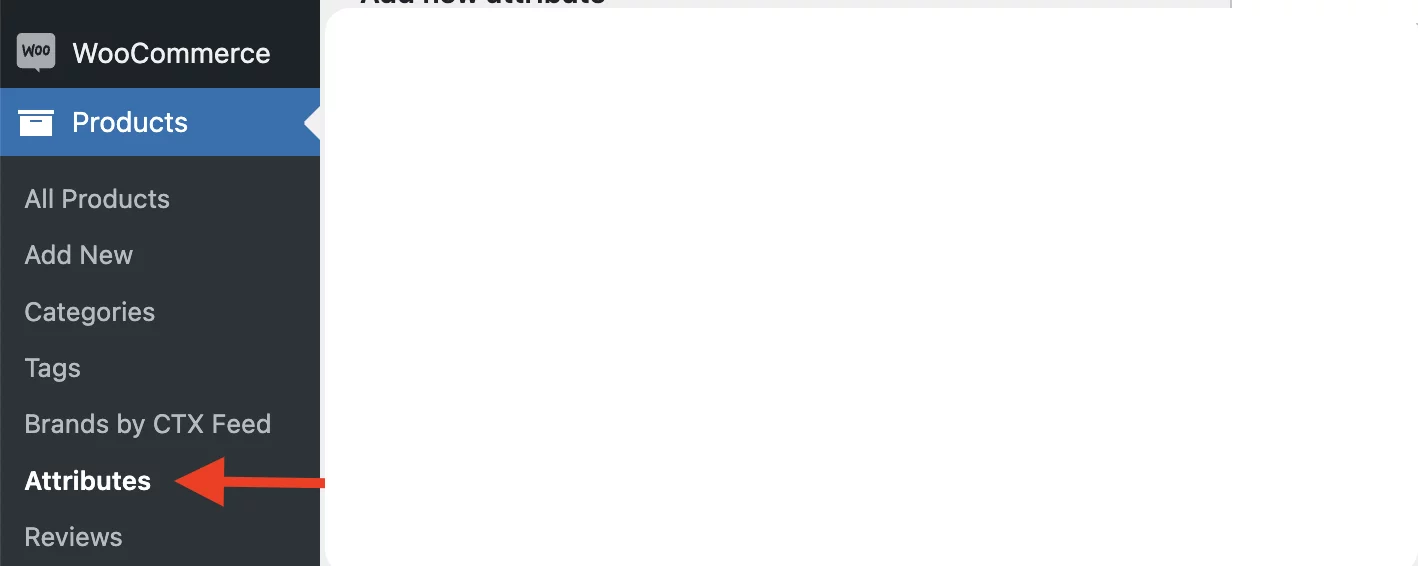
The first thing you need to do is go to your WordPress dashboard. Then, navigate to Products > Attributes.
Products>>Attribute
Step 2: Add a New Attribute
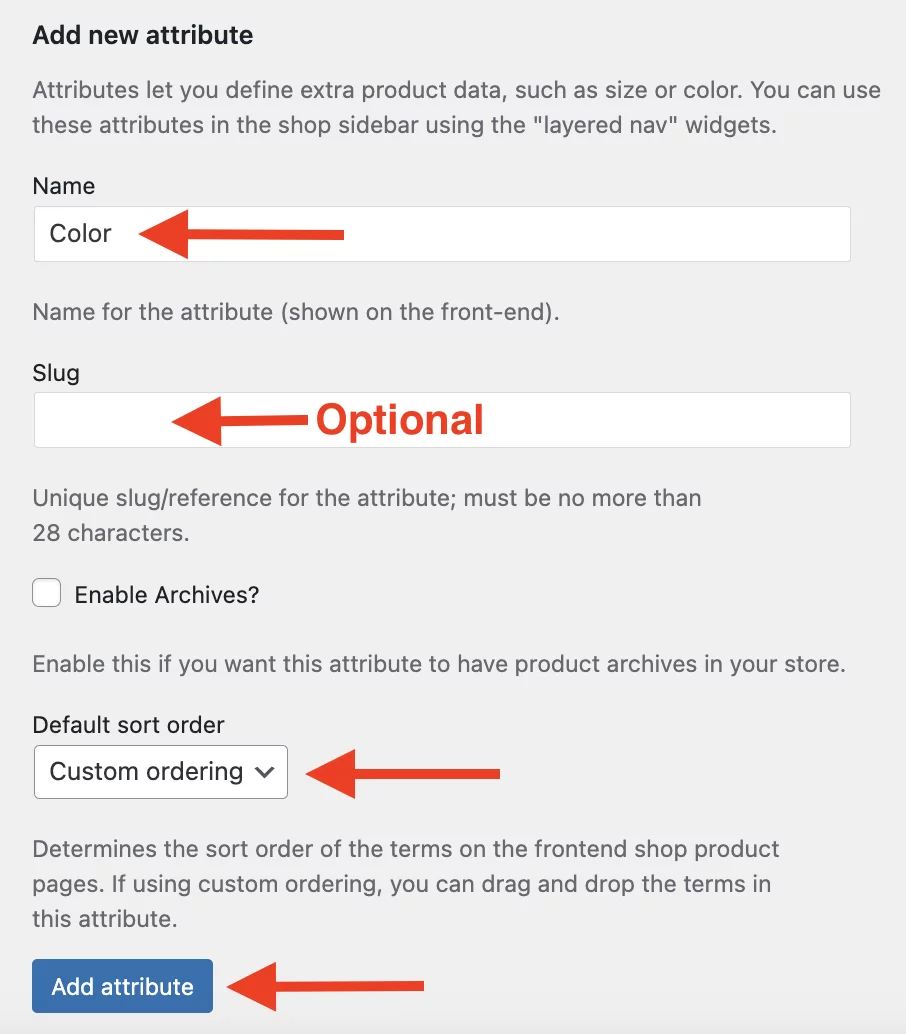
In the “Add New Attribute” section you need to enter the attribute name(e.g., “Color”). Then you can provide a slug under slug if needed (make sure it is a URL-friendly version).
For example:
- Name: Color
- Slug: color
- Type: Select
Down below, In the “Default Sort Order” section, we have chosen “Custom Ordering” as we want to manually rearrange the values. You can do the same or go for any other options.
Now, simply click on the “Add Attribute” option.
Add a New Attribute
Step 3: Configure Terms for the Attribute
After creating the attribute, click Configure Terms.
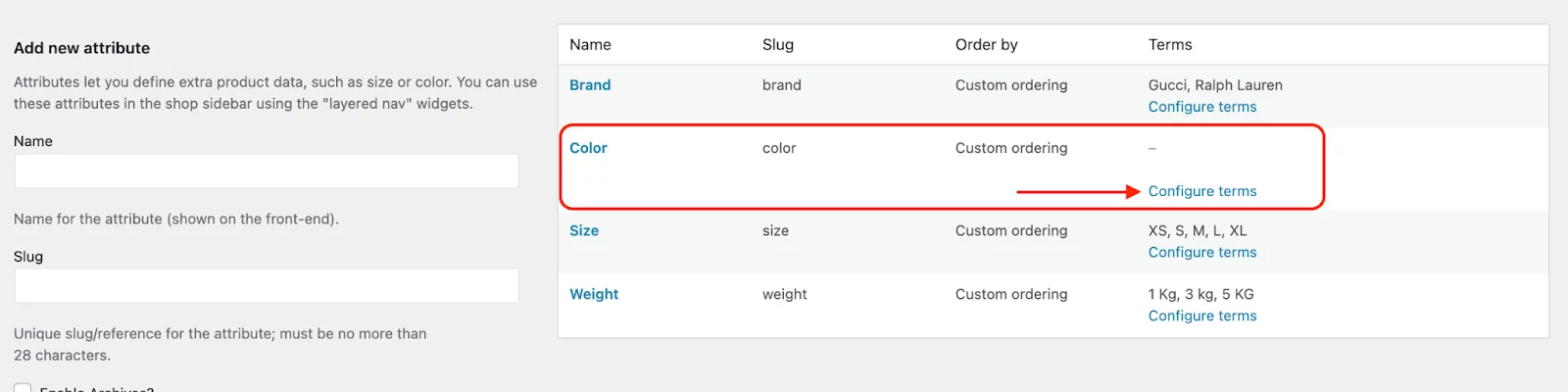
On the next page, you will be able to add different terms or values. (e.g., “Red,” “Blue,” “Green” for a “Color” attribute). As you can see down below we have selected Blue, White, and Yellow.
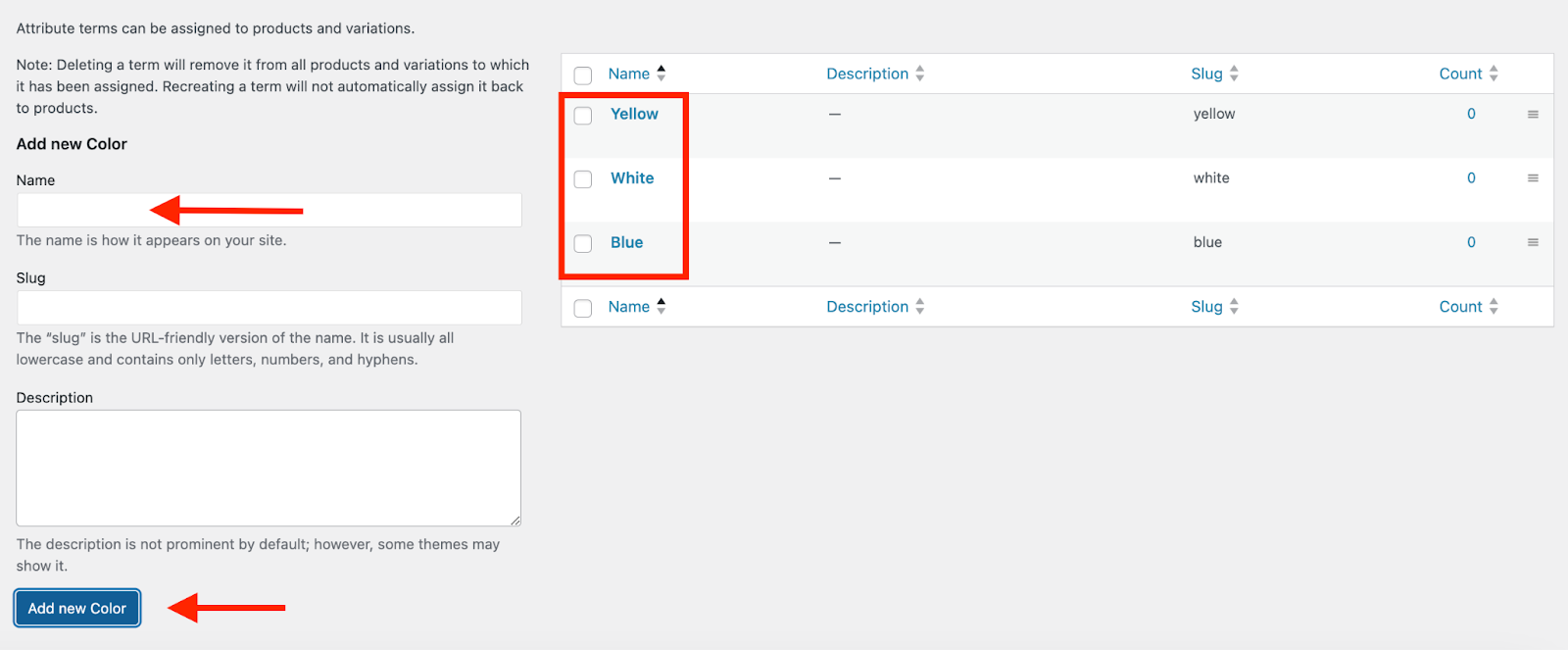
It will automatically be saved and your Attribute has been successfully created.
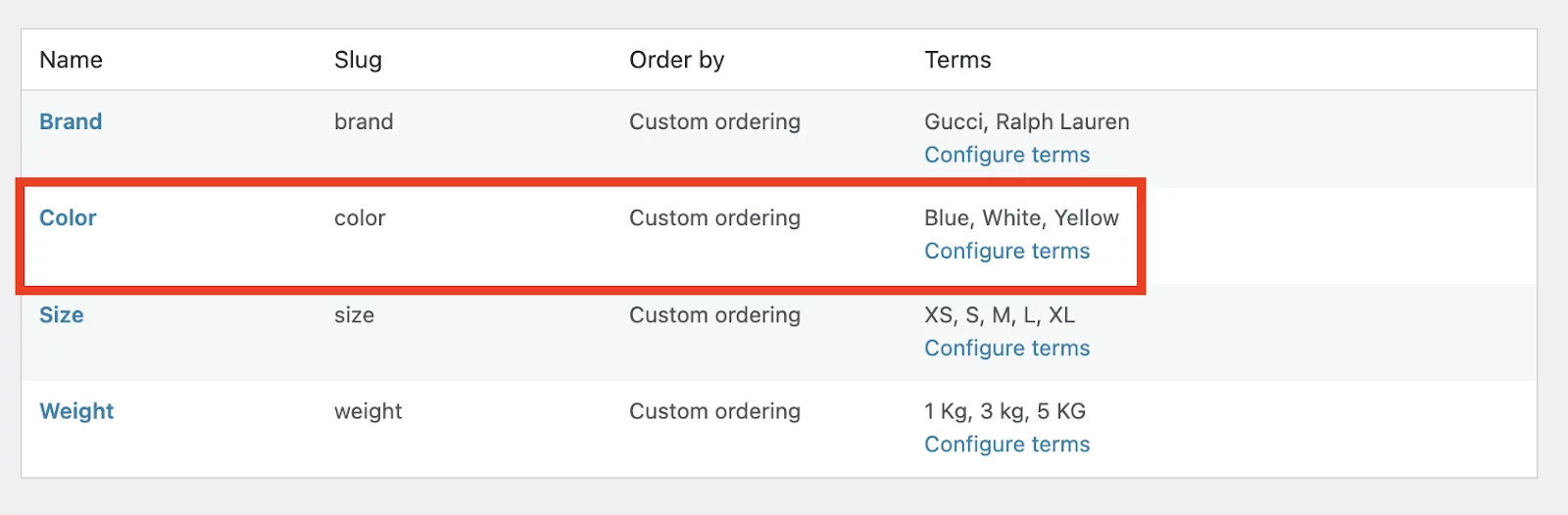
Should You Enable Product Archives for Attributes?
While creating a global attribute, you may notice an option like “Enable Archives.”
This means WooCommerce can create a product attribute URL or archive page for that attribute. For example, a Color attribute may create pages for products with Blue, White, or Yellow.
You can enable this if you want this attribute to have product archives in your store. It can be useful for SEO and browsing, especially when customers search for specific product characteristics.
However, only enable it for important attributes like brand, color, size, or material. Don’t enable archives for every small attribute because too many thin archive pages may not be useful.
Method 2: Add Attributes to a Product
Now that you’ve created global attributes, you can assign them to products. Usually, the global attributes are mostly used for variable products. So here, we will be applying the attribute to a variable product. Here are the steps you need to follow.
Step 1: Go to “Edit a Product”
From the WordPress Dashboard, go to Products > All Products and select a product to edit.
Step 2: Choosing the Attribute
Then, scroll to the Product Data section. Click on the Attributes tab.
Now, Choose the attribute from the dropdown menu under “Add Existing”. Click and choose your attribute. In our case, we have selected the “Color” Attribute.
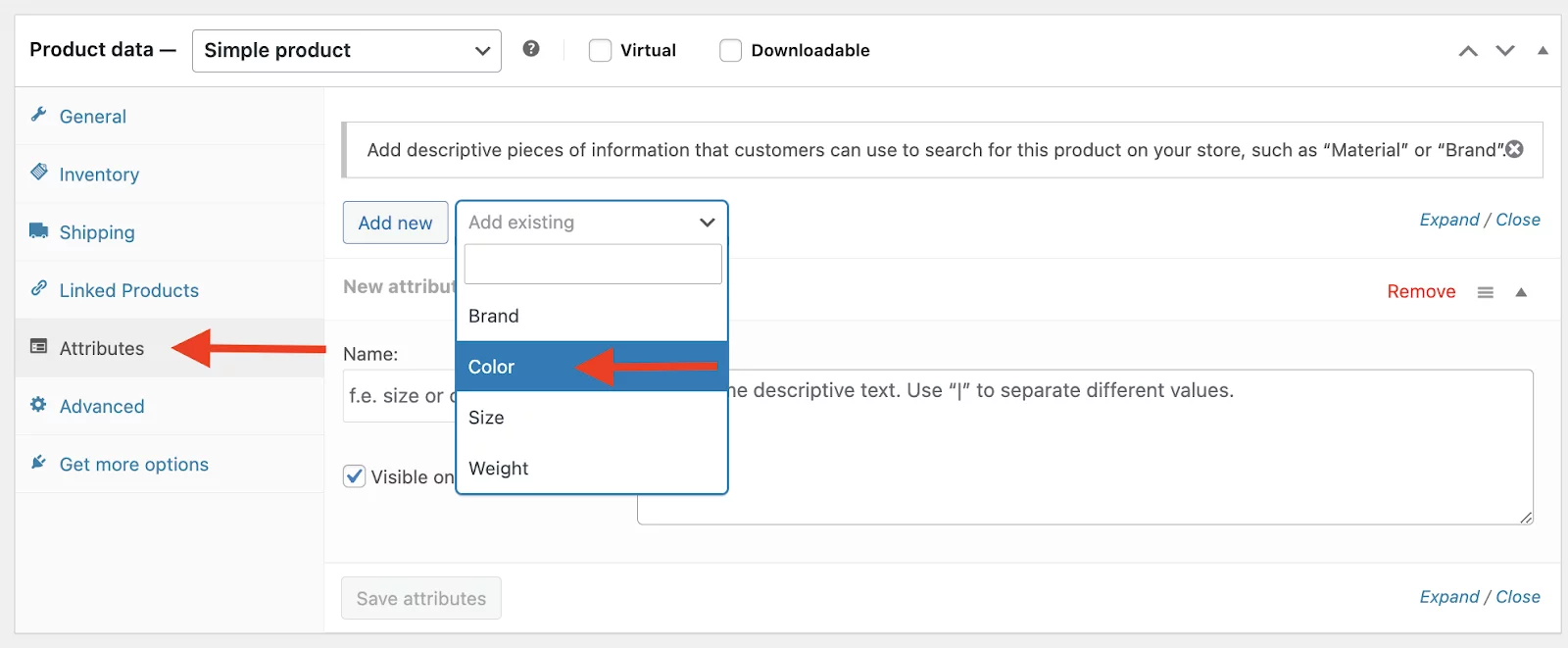
Step 3: Selecting the Values
Add and select the terms or values you want to apply. Here’s a good thing! You can select all the values at once with the “Select All” option or choose the ones you want to apply for this product.
After that, check “Visible on the product page” to display the attribute to customers. As we are giving attributes to a variable product, the “Used for Variation” option is also checked. Last, but not least, Click “Save Attributes”.
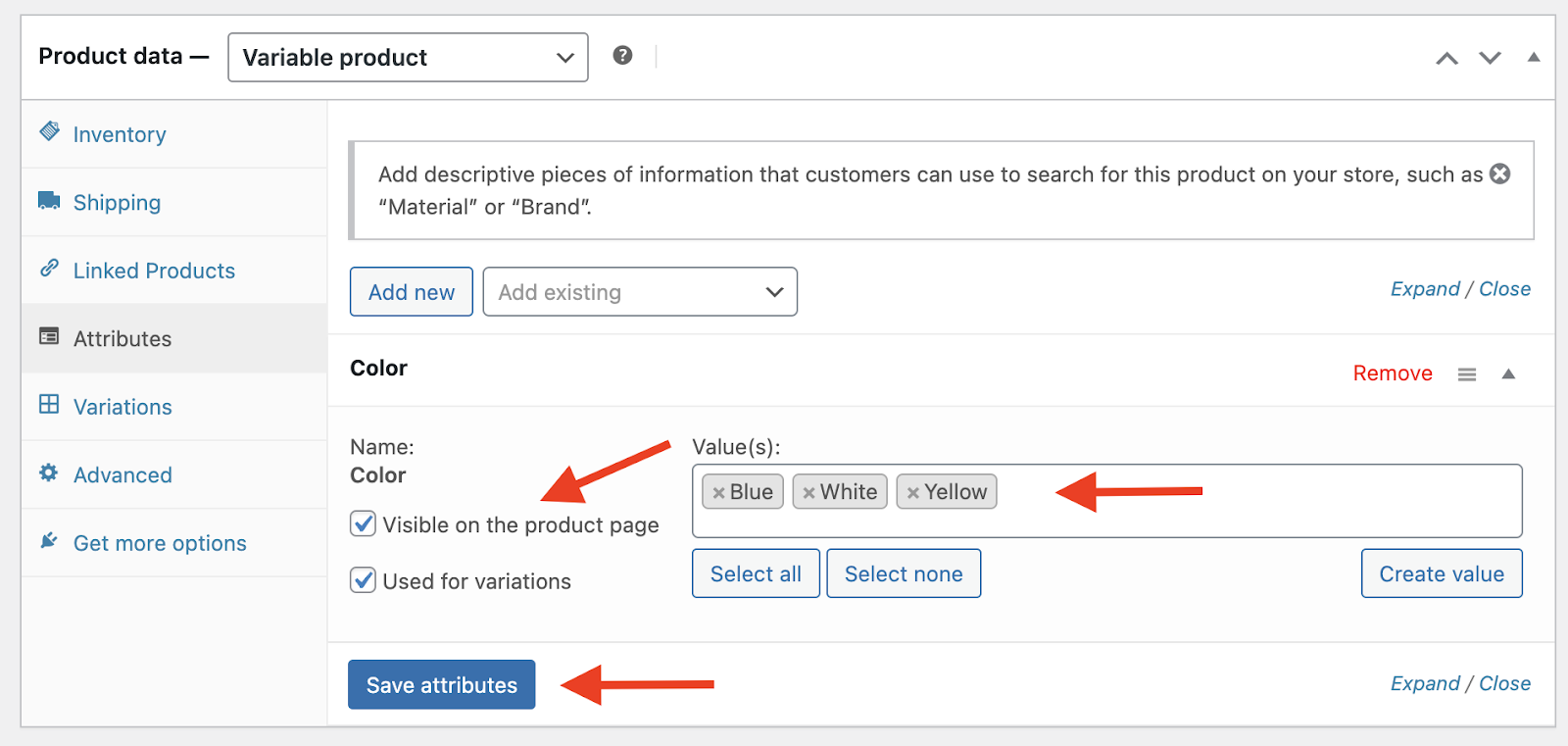
Step 4: Setting up Variations (Optional)
So, if you are using it for a variable product instead of a specific one, you will need to go through this step. Don’t worry, you just have to do two things.
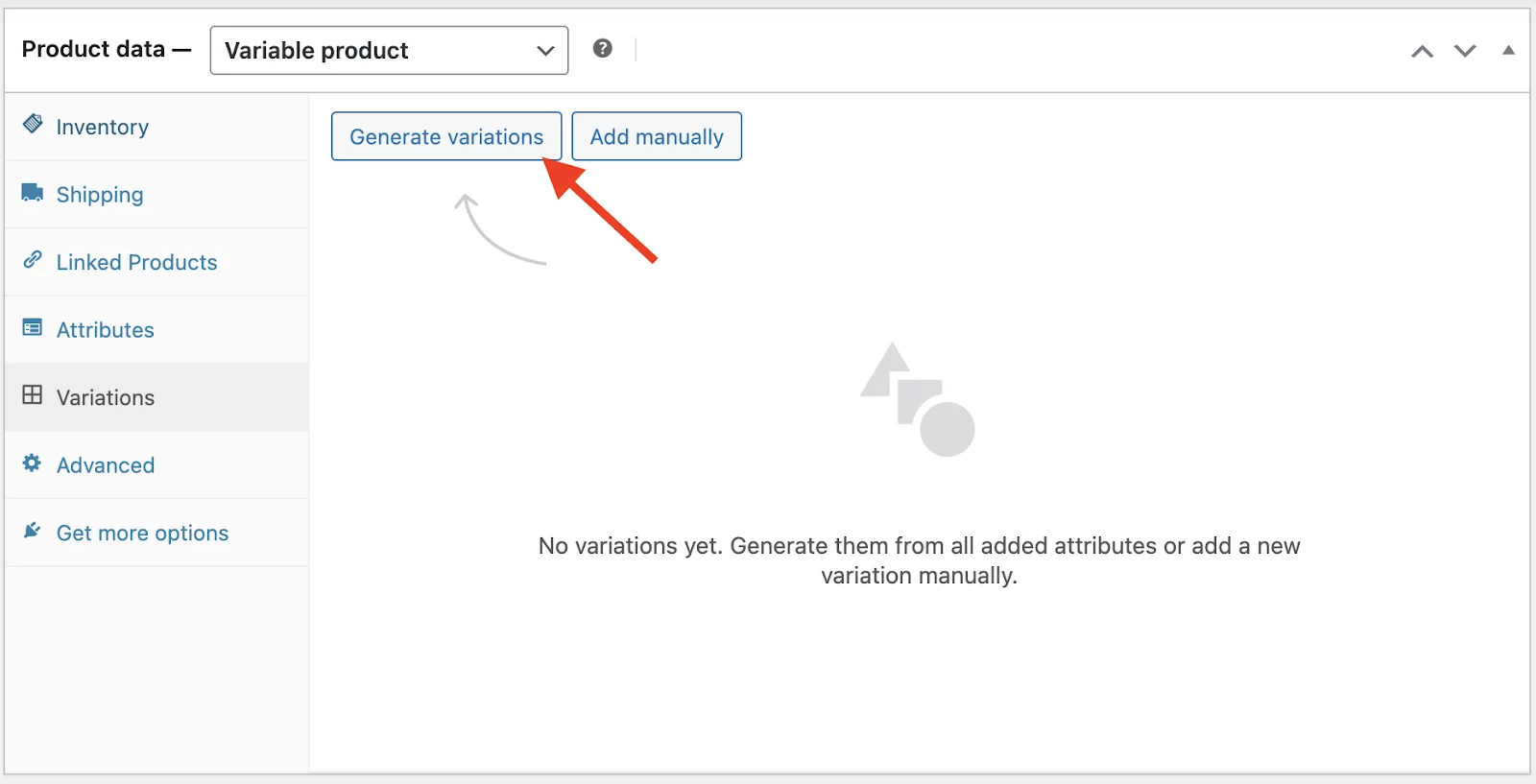
Go to the Variations tab, then click on “Generate Variations”.
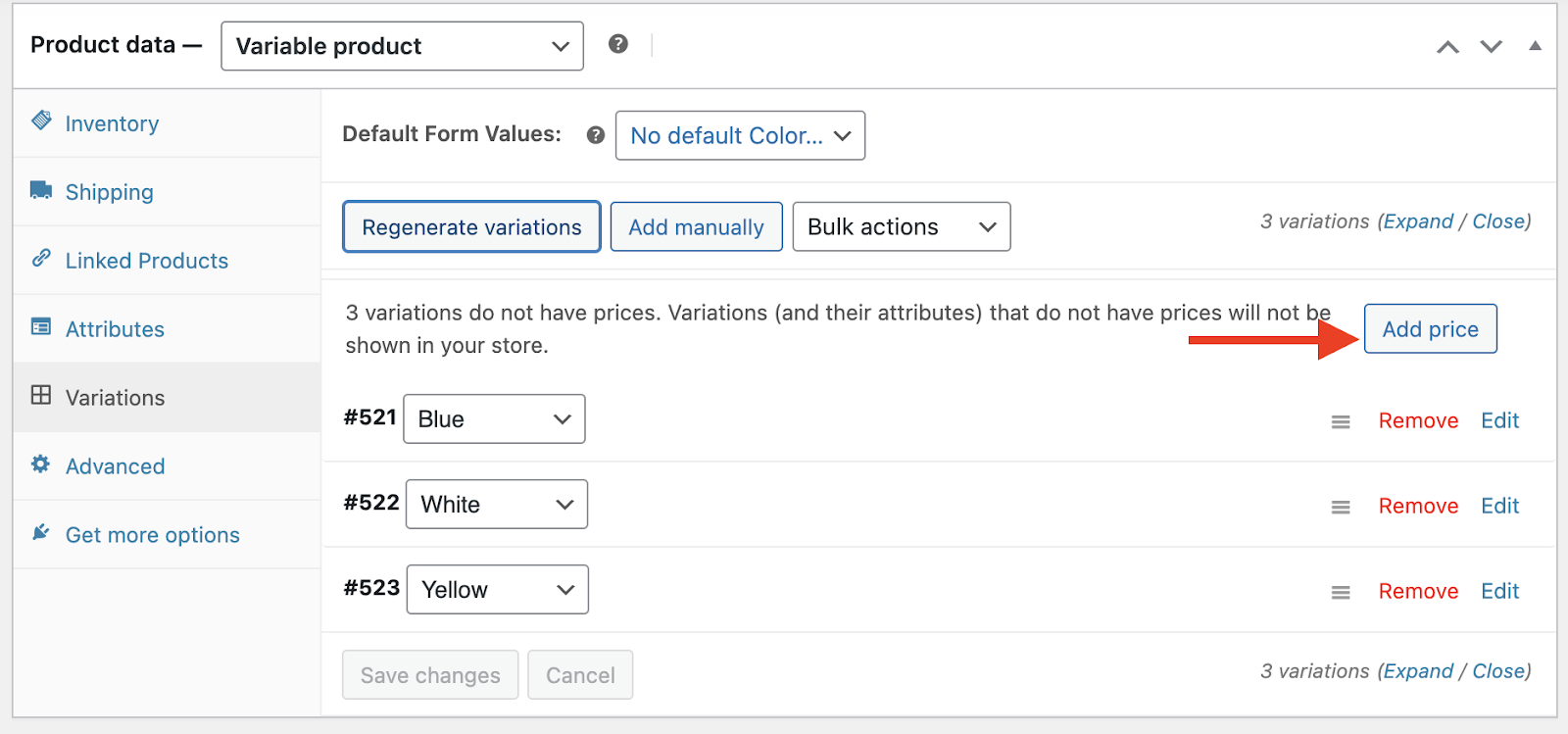
Now, don’t forget to set the prices.
Now save it and that’s it. Your product will show the attributes properly. Hope you’ve got a good idea of how to add attributes in WooCommerce. Now let’s check out some other scenarios.
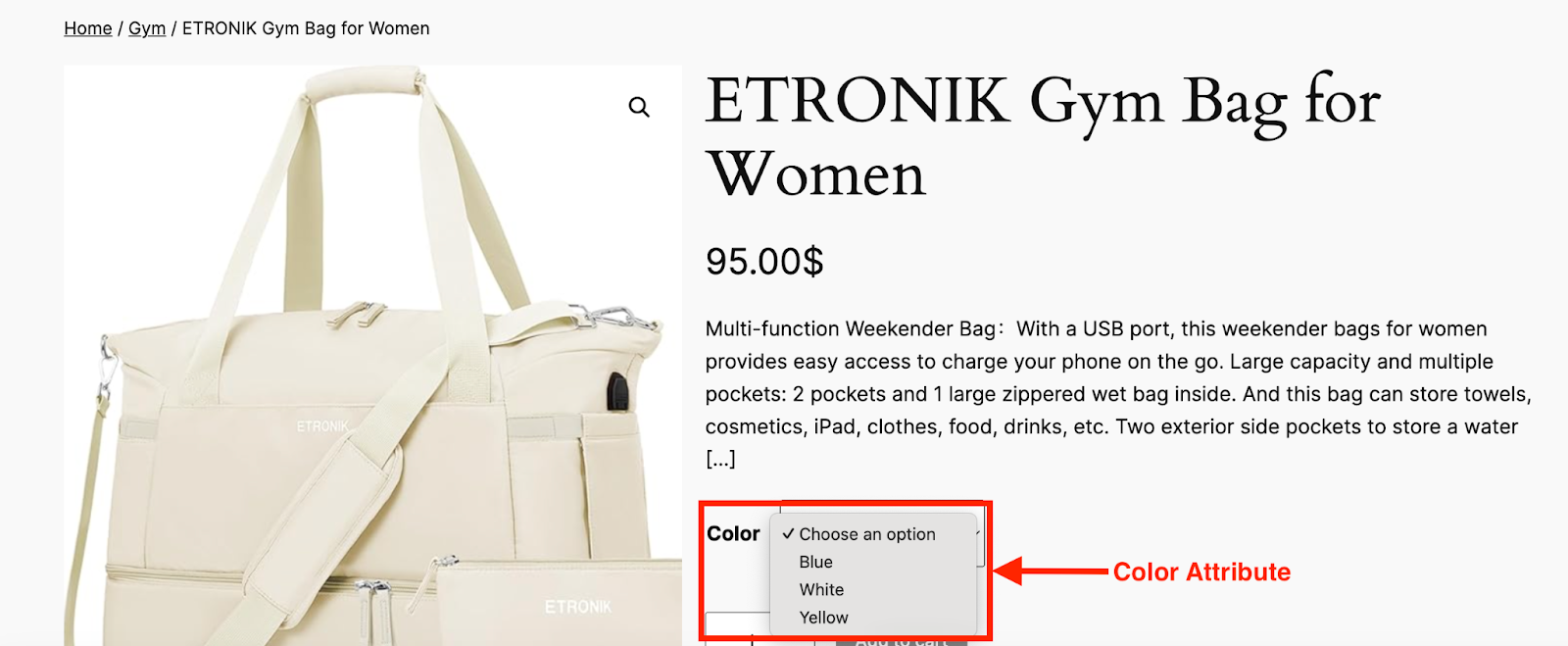
Key Note: Keep in mind that the main difference between setting up attributes for a variable product and a simple product is that, for variable products, customers can select options. But, for simple products, customers cannot select options—it’s just for display purposes and is shown in the additional information section.
How to Add Size Attributes in WooCommerce?
Adding a size attribute is almost the same as adding a color attribute.
Go to Products > Attributes and create a new attribute named Size. Then click Configure Terms and add terms like:
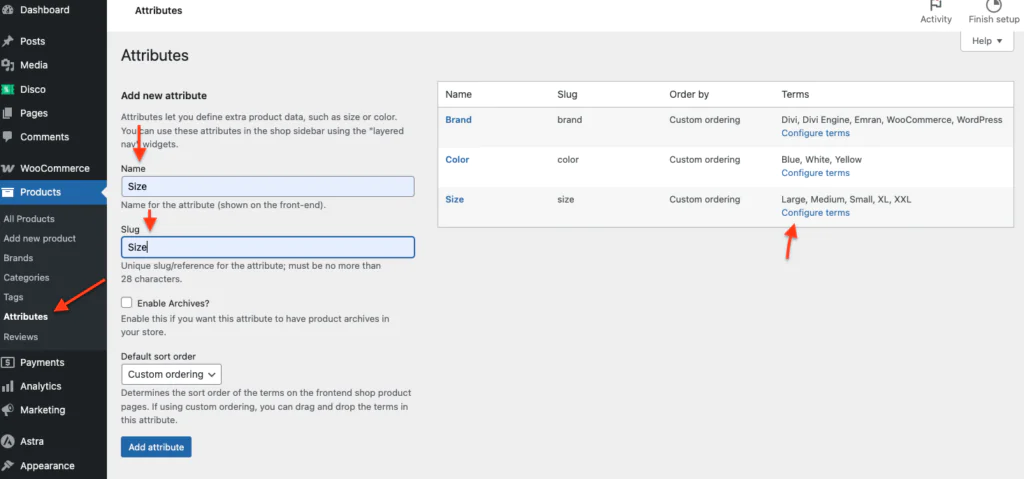
- Small
- Medium
- Large
- XL
- XXL
After that, edit your product, go to the Attributes tab, choose the Size attribute, select the values, and save the attribute.
If you want customers to choose the size before buying, make sure you also check Used for Variation and create product variations from the Variations tab.
This is one of the most common ways to add product size in WooCommerce.
How to Display Product Attributes in WooCommerce?
WooCommerce normally displays product attributes in the Additional information tab on the single product page.
To show attributes on the product page:
- Edit the product.
- Go to Product Data > Attributes.
- Add or select the attribute.
- Check Visible on the product page.
- Click Save Attributes.
- Update the product.
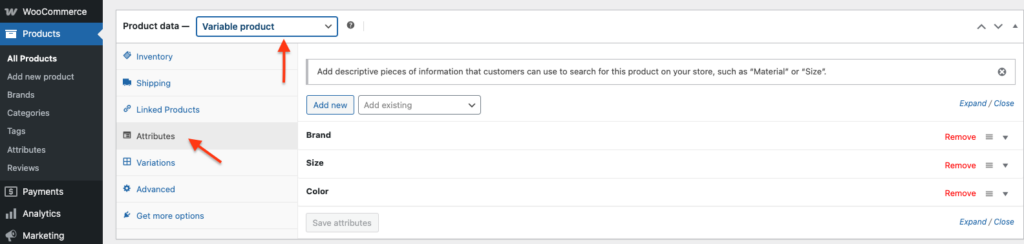
If your WooCommerce attributes are not showing, first check whether the Visible on the product page option is enabled.
Also, if you are using a custom theme or page builder like Elementor, the additional information tab or product attributes section may be hidden by the theme settings.
How to Filter WooCommerce Products by Attribute?
If you want to filter WooCommerce products by attribute, you should use global attributes.
For example, if you create global attributes like Color, Size, Material, or Brand, customers can filter products based on those values.
This is useful for:
- Shop page filtering
- Category page filtering
- Product search by attribute
- Better navigation
- Faceted search
- Product filter plugins
WooCommerce has built-in filtering widgets, but many stores also use WooCommerce product filter plugins for advanced filtering.
Key Note: Custom attributes are not always the best choice for filters. For better WooCommerce attribute filter results, use global attributes instead.
Can You Add Price to Attribute in WooCommerce?
This is a common question. WooCommerce does not directly add price to an attribute itself. Instead, price is usually added to the product variation.
For example, let’s say you have a Size attribute:
- Small
- Medium
- Large
If Large costs more, you need to create variations and add different prices for each variation.
So, instead of adding an attribute fee directly, you set the price from the Variations tab.
However, if you need advanced attribute pricing, attribute fee, markup by attribute, or conditional pricing, you may need a WooCommerce attribute pricing plugin or product options plugin.
How to Bulk Add or Bulk Edit Attributes in WooCommerce?
If you have many products, adding attributes one by one can take a lot of time. In that case, you may want to bulk edit attributes in WooCommerce.
You can do this in a few ways:
- Use WooCommerce bulk edit option
- Use product import/export
- Use CSV import with attributes
- Use a WooCommerce product attributes plugin
- Use custom code if you are comfortable with development
For simple changes, go to Products > All Products, select multiple products, choose Edit, and update available product data.
But for adding product attributes to many products, importing products with attributes through CSV is often more practical.
How to Add Custom (Local) Attributes in WooCommerce?
We often need specific information for some specific products. In order to do that, we can add custom attributes to our specific products. Here’s how you can do it.
- Select your specific product and navigate to the Attributes tab under the Product Data section.
- Click the “Add New” option.
- Enter the attribute name (e.g., “Material”).
- Specify the values (e.g., “Cotton”).
- Ensure the Visible on the product page option is checked. Click Save Attributes.
Here’s how it’d look:
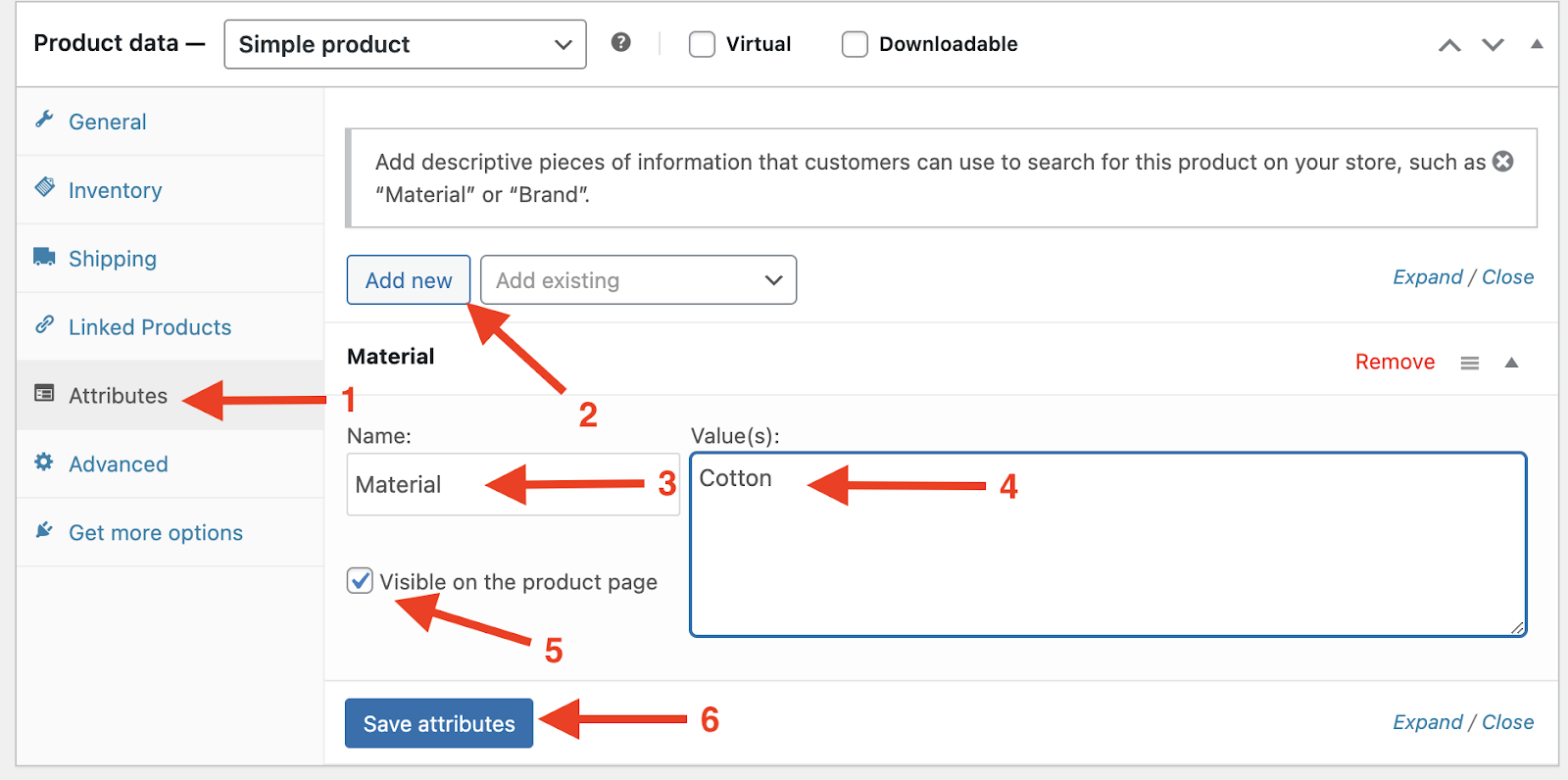
In the case of a “simple product”, the customers won’t be able to select from options as it doesn’t have variations and the attribute information will be shown in the Additional information section.
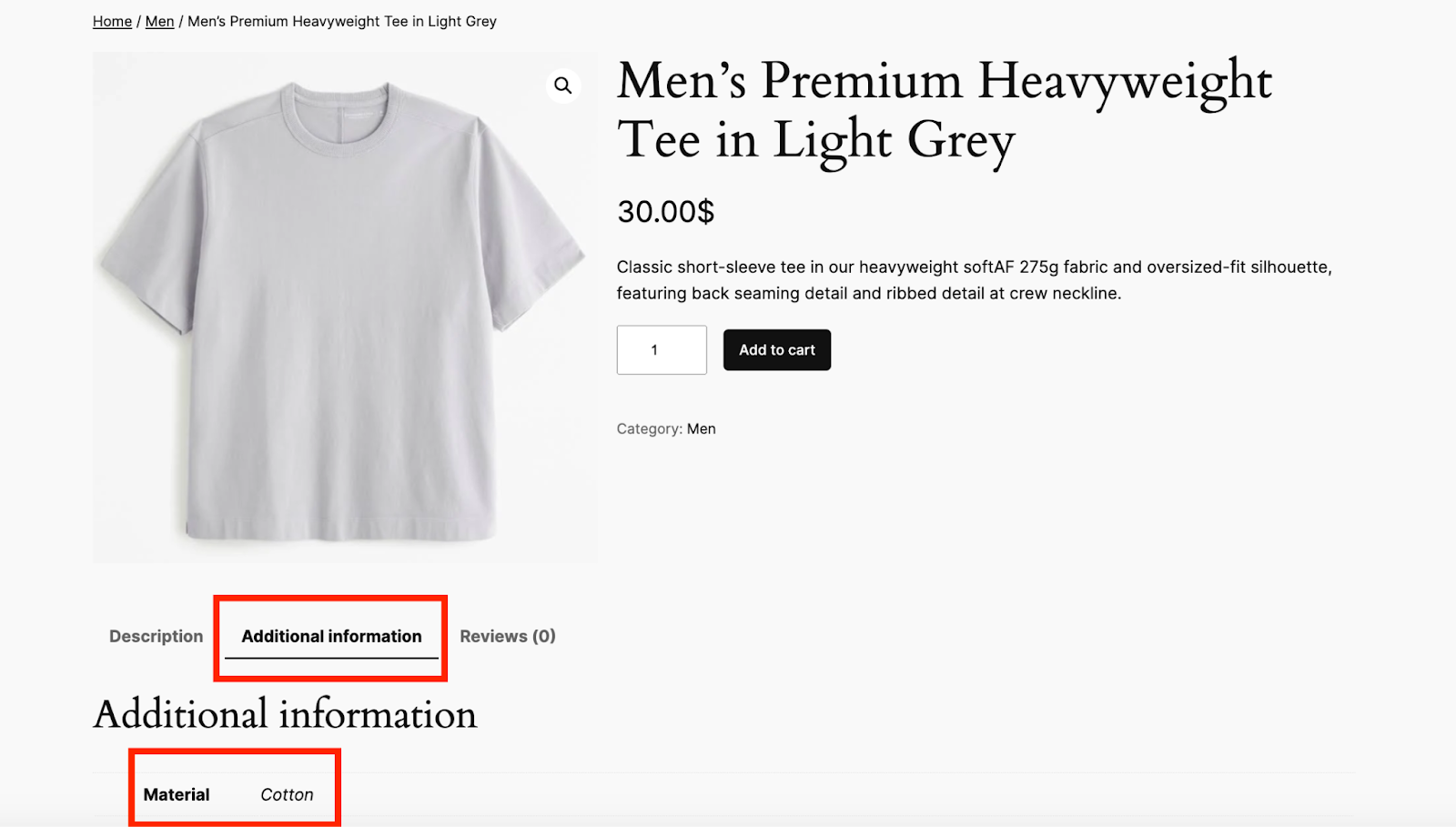
We believe now you have a proper idea on how to add Attribute to WooCommerce product. You can also have a look at How to Change the Order of Product Attributes in WooCommerce.
7 Best Practices for WooCommerce Attributes
Here are some simple best practices to help you make the most of product attributes in your WooCommerce store.
1. Organizing Attributes for Better Store Structure
Group related attributes, such as size, color, and material, together to create a more intuitive shopping experience. This helps customers find what they need faster.
2. Updating Attributes Regularly
As your product range grows or changes, ensure attributes remain relevant and up-to-date. Outdated or irrelevant attributes can confuse customers and lead to lost sales.
3. Maintaining Consistent Attribute Values
Use uniform terminology for attribute values to avoid confusion. For instance, use “L” across all products instead of mixing terms like “Large” and “L.”
4. Writing Clear and Descriptive Terms
Provide clear and descriptive terms for each attribute. For example, instead of “Blue,” you can use “Sky Blue” or “Navy Blue” for more specificity.
5. Testing Filters for Accuracy
Regularly test filters to ensure they work correctly and display accurate results. Poorly functioning filters can frustrate customers and harm your store’s reputation.
6. Prioritizing Attributes That Drive Conversions
Focus on attributes that are most important to your customer’s purchasing decisions, such as:
- size
- material
- color
- brand
- or warranty details.
7. Optimizing Attributes for Mobile Users
Ensure that attributes and filters are mobile-friendly. Use collapsible menus or dropdowns for a seamless shopping experience on smaller screens.
By following these best practices, you can create an organized, customer-friendly store that encourages sales and delivers a smooth shopping experience.
Frequently Asked Questions
Can I add multiple attributes to one WooCommerce product?
Yes, you can assign multiple attributes like size and color to a single product.
What is the difference between global and custom attributes in WooCommerce?
Global attributes are reusable across all products, while custom attributes are specific to individual products.
How do I add custom attributes in WooCommerce?
Edit the product, go to Product Data > Attributes, click Add New, enter the attribute name and value, check Visible on the product page, and save the attribute.
Why are WooCommerce attributes not showing?
Your attributes may not show if the Visible on the product page option is unchecked. It can also happen if your theme hides the Additional information tab.
Can WooCommerce product attributes be used for variations?
Yes, attributes can be used for variations. You need to check the Used for Variation option and then generate variations from the Variations tab.
Can I add WooCommerce attributes programmatically?
Yes, WooCommerce attributes can be added programmatically using PHP, but it is better for developers. For most users, creating attributes from Products > Attributes is the easiest method.
Final Thought
Properly managed attributes can always help you offer a more organized and user-friendly store. It can lead to better conversions and customer satisfaction.
Also, adding attributes to WooCommerce products enhances the shopping experience, improves SEO, supports product filtering, and makes your store more organized.
Hopefully, you found all the steps easy and straightforward on how to Add Attribute in WooCommerce products. So, follow the steps to set up attributes effectively and watch your online store thrive. Always try to keep the best practices in mind. That’s all for today. Enjoy your WooCommerce Journey!

Free version on WordPress.org. Every Pro licence includes a 30-day money-back guarantee.