
To display discount prices in WooCommerce, use the built-in Sale Price field or a dynamic pricing plugin like Disco to show strike-through pricing, sale badges, and “Percentage Saved” labels. These discount displays sync across product pages, shop archives, carts, and checkout, helping customers recognize savings instantly and improve conversion rates.
WooCommerce also supports advanced discount visibility through conditional pricing rules based on product categories, cart totals, or user roles. When configured correctly, your product schema markup updates automatically, allowing Google Search and Google Shopping to display sale prices directly in search results.
This guide covers manual setup, automated discount rules, and price display optimization for both shoppers and search engines.
Display Discount Prices Using a Plugin
WooCommerce allows manual sale pricing, but plugins make it easier to apply automatic discounts across multiple products and conditions.
In this example, we’ll create a 15% storewide discount that displays strike-through pricing and updated sale prices on product pages, shop archives, cart pages, and checkout.
This is helpful when you want to display a discounted price in WooCommerce without manually editing every product. A WooCommerce discount plugin can also help you automatically display the regular price, sale price, percentage discount, discounted price, and cart discount details.
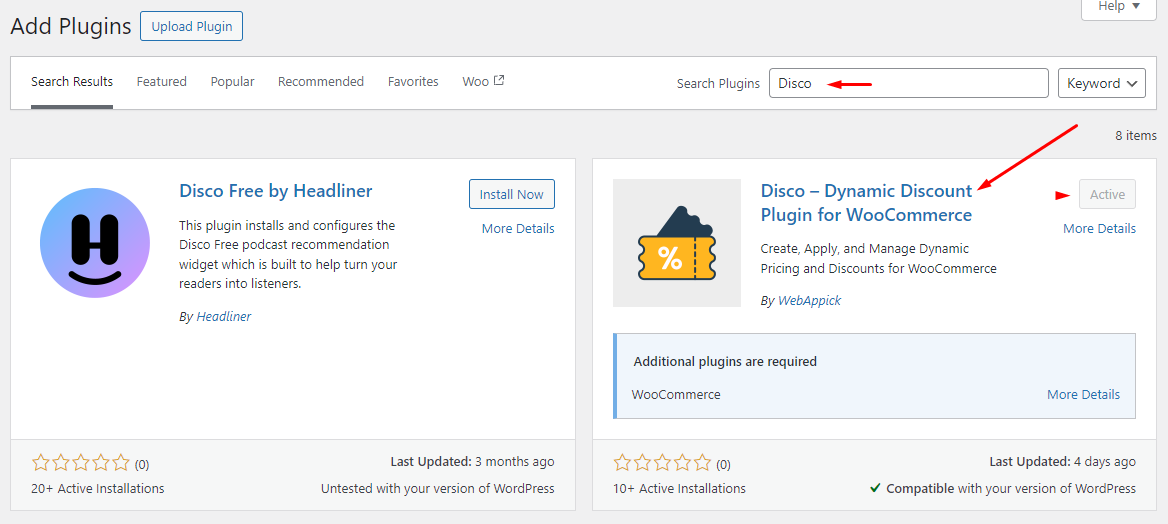
Step 1: Install a WooCommerce Discount Plugin (Disco)
Install and activate the plugin from your WordPress dashboard.
Install Disco
Step 2: Create a Discount Rule
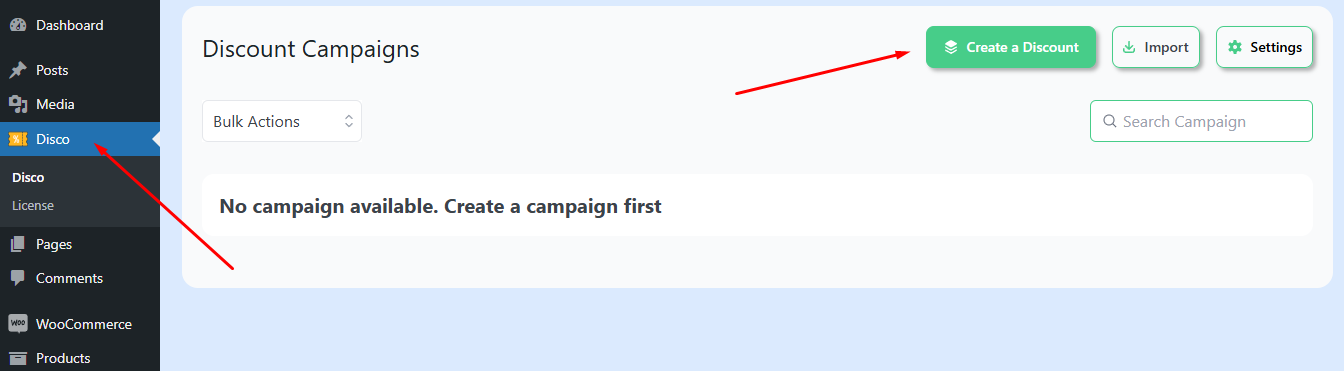
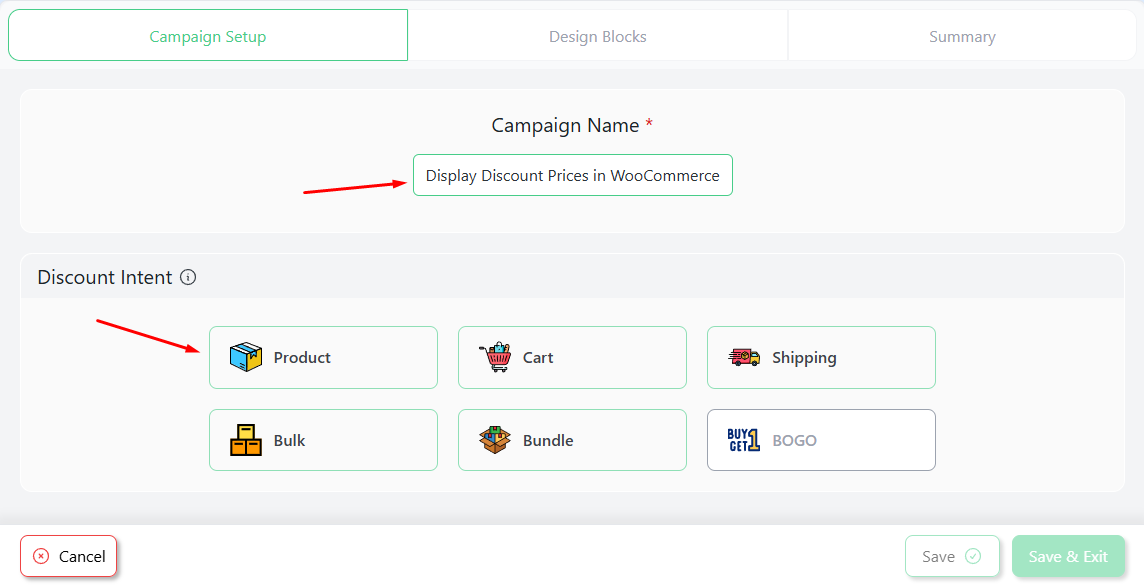
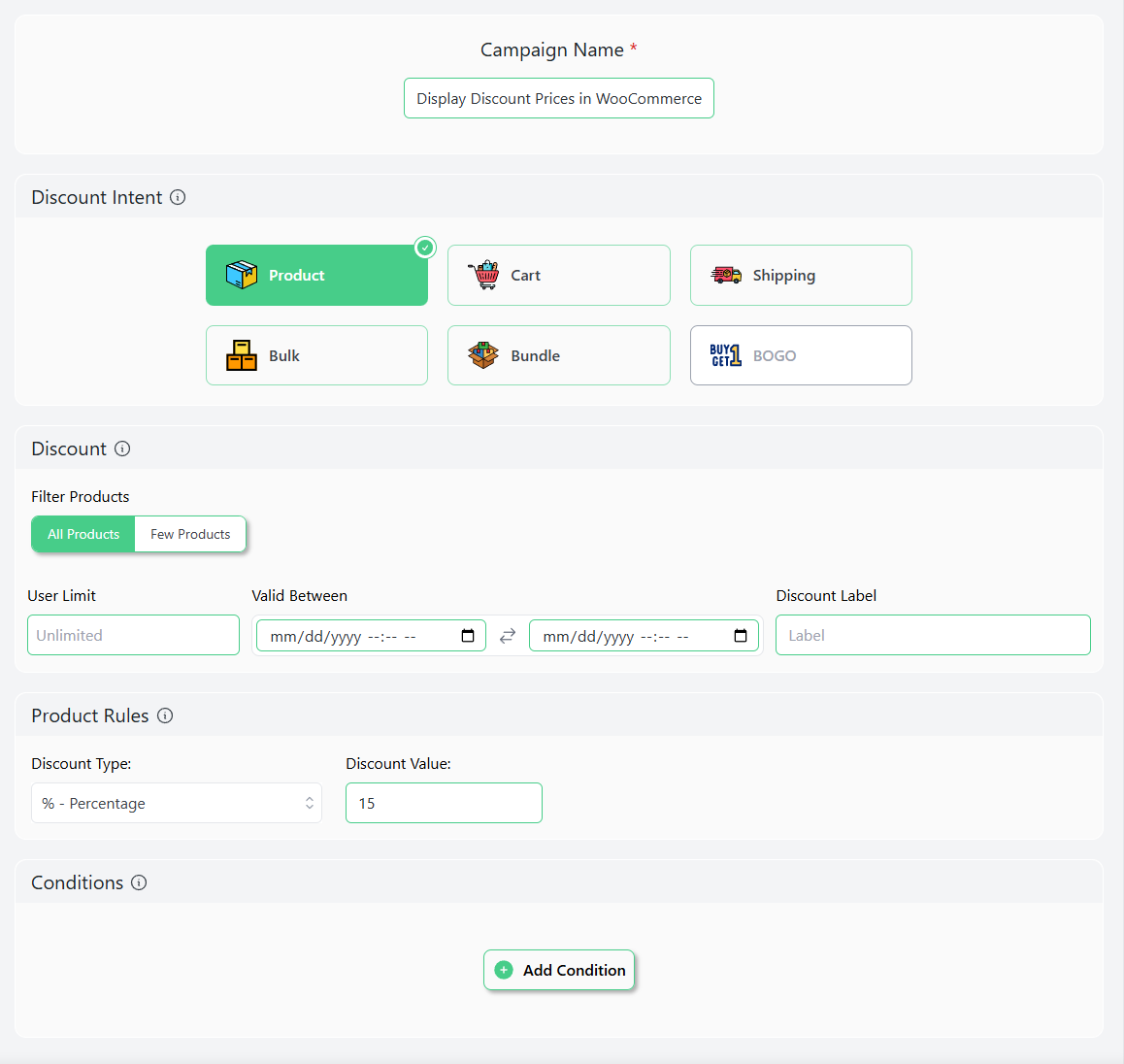
Go to the plugin’s dashboard and click the “Create a Discount” button.
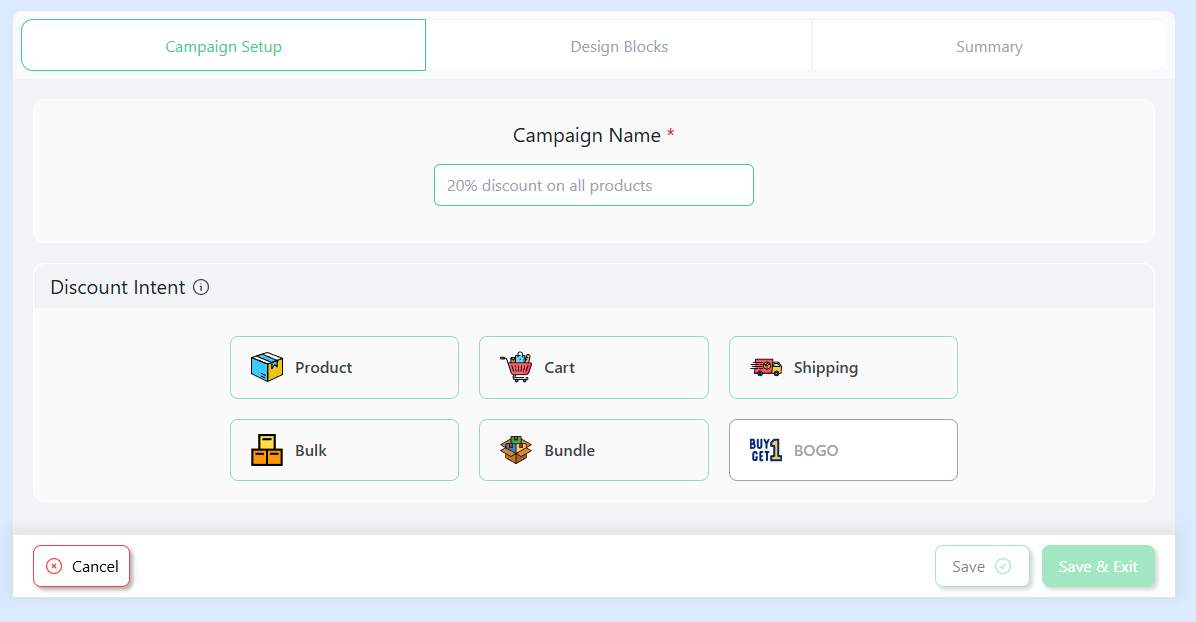
You will be redirected to the discount generation window, where you have to configure the discount settings.
Step 3: Select Discount Category and Products
From Discount Intention, select Product.
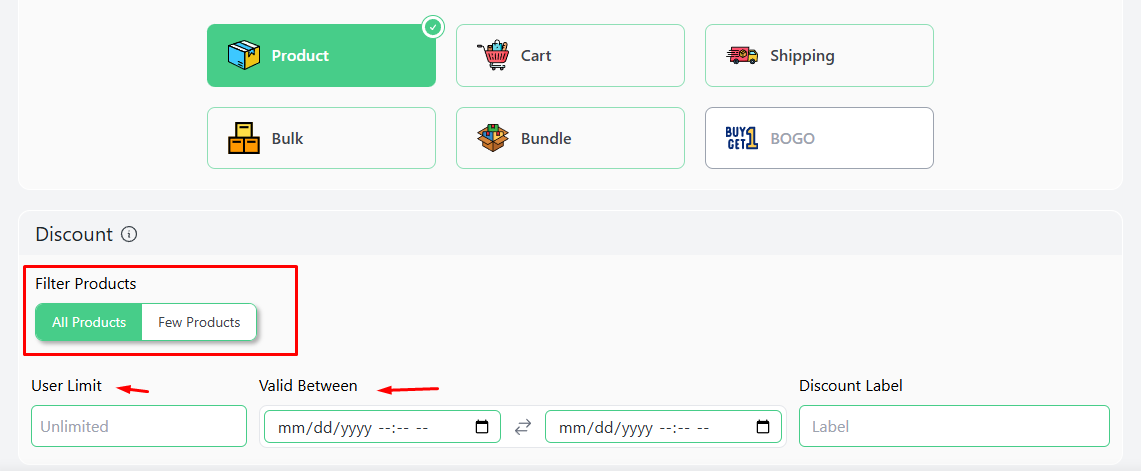
For this 15% storewide discount example, we will select All Products. You can also set discount expiry dates for time-sensitive discounts.
Step 4: Choose Discount Type and Set Value
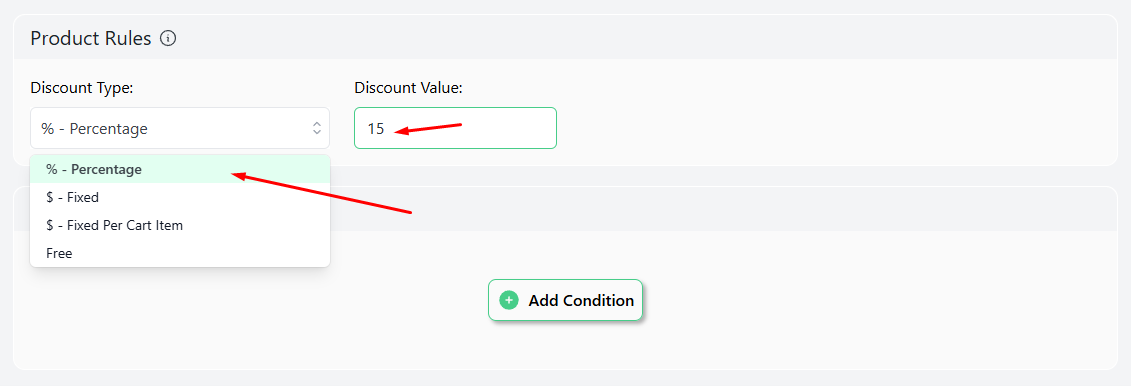
Select the Percentage option from the Discount Type dropdown and input your value, which in this case is 15.
Step 5: Display Sale Prices on Your WooCommerce Storefront
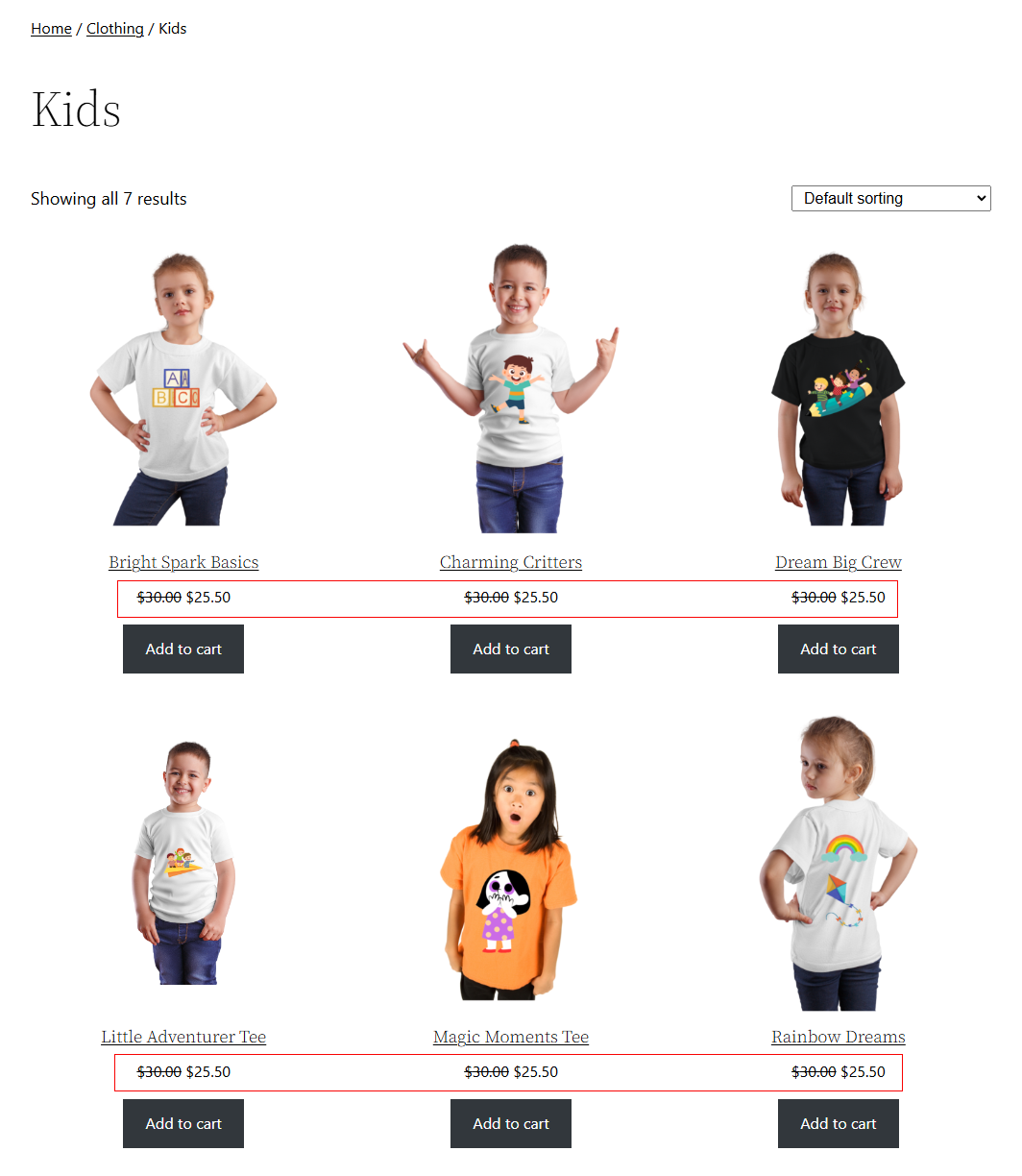
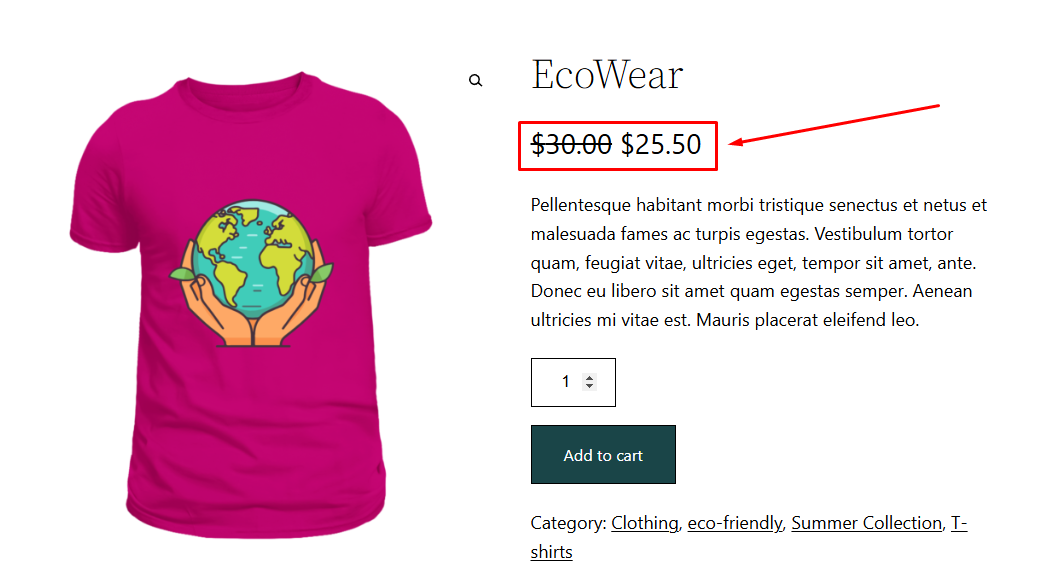
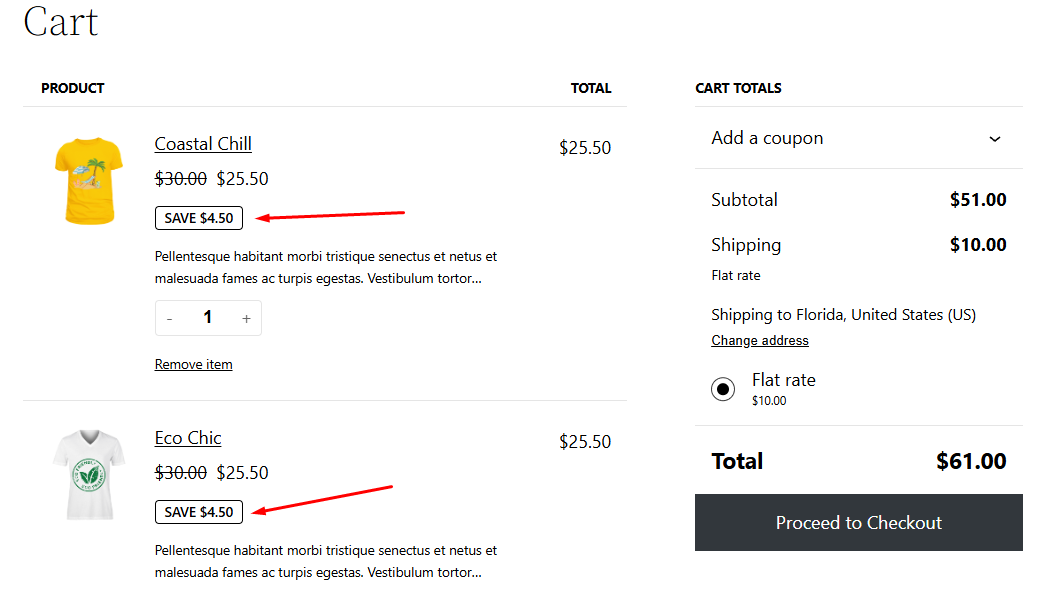
Save the discount rule. Disco will automatically start displaying the discounted rate along with the original rates (strikethrough) across your storefront.
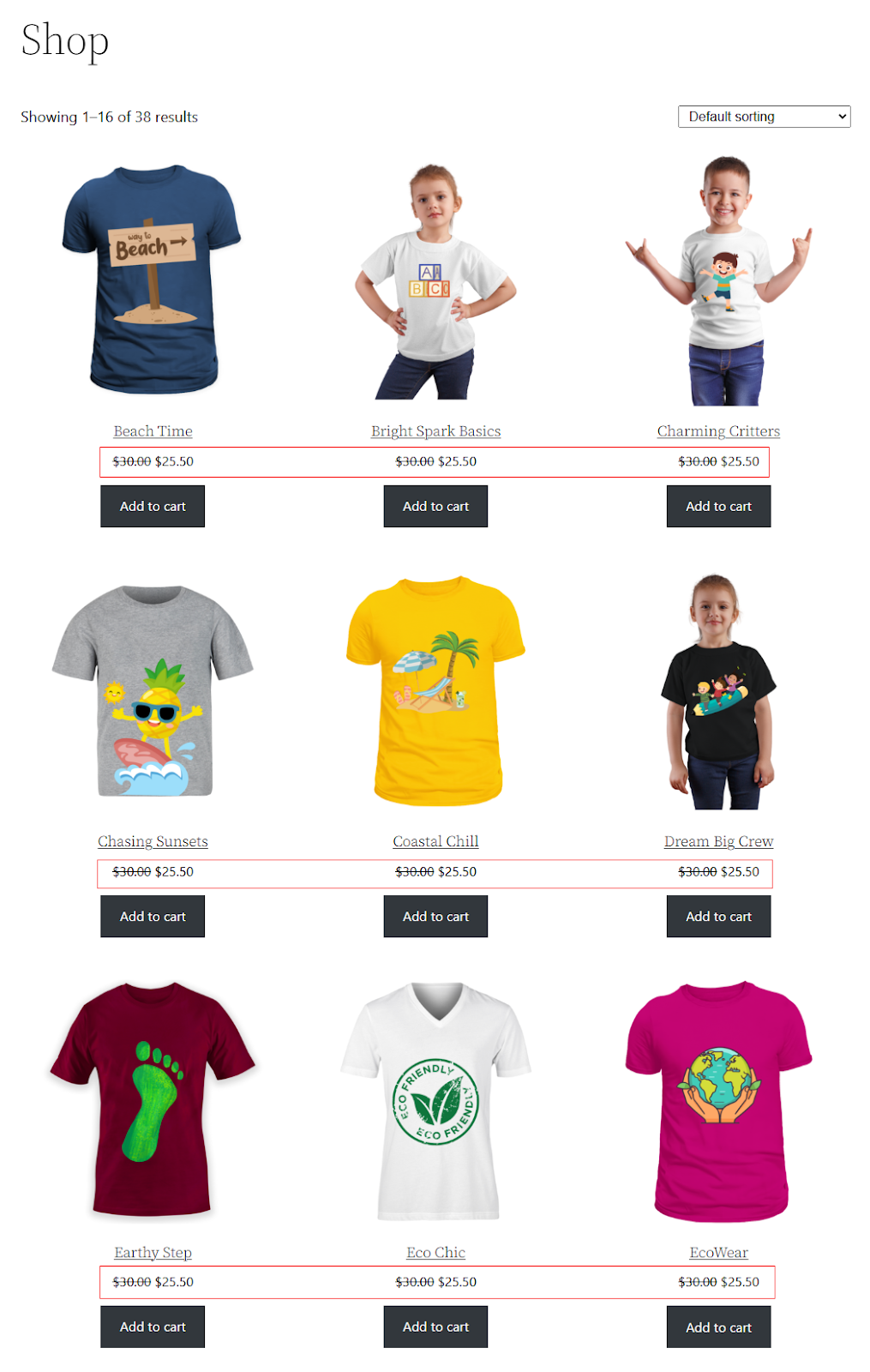
Here’s how Disco displays discounts on category pages.
On a single product page –
Finally, the discount and regular price cart and checkout page display WooCommerce view –
This is how to display discount percentage in WooCommerce using a discount plugin automatically. Additionally, there are other ways you can display discount prices in your Woo store.
How to Show Discount Percentage in WooCommerce
If your store only shows the sale price, customers may not immediately understand how much they are saving.
That’s why showing the discount percentage in WooCommerce can make the offer more visible. A clear “15% Off” badge or “You Save 15%” label helps shoppers quickly compare the original price with the discounted price.
You can show discount percentage in WooCommerce in different ways:
- Using a WooCommerce discount percentage plugin
- Using custom PHP code
- Using a sale badge percentage label
- Using a product discount plugin
- Using a dynamic pricing and discounts plugin
For most store owners, using a plugin is the easiest method because it can automatically calculate the percentage discount and display it across product pages, category pages, cart, and checkout.
Show Discount in WooCommerce Cart and Checkout
Displaying discounts only on product pages is not always enough. Customers also expect to see the discount in the cart and checkout page before placing the order.
If the cart page does not clearly show the discount amount, coupon discount, or final discounted price, customers may feel confused and abandon checkout.
A good WooCommerce cart discount display should show:
- Product regular price
- Product discount price
- Coupon or automatic discount amount
- Order total discount
- Final payable amount
- Savings message
For example:
- Subtotal: $390
- Discount: -$60
- Total: $330
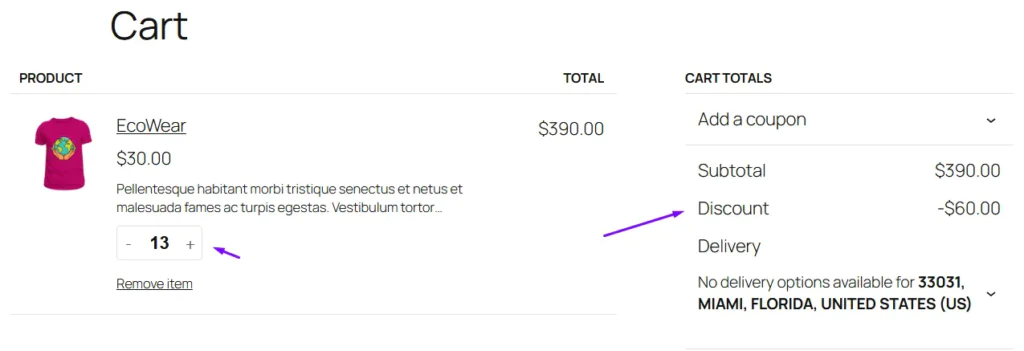
This helps customers confirm that the offer has been applied correctly. It also improves trust and reduces confusion during checkout.
With Disco, the discount and regular price cart and checkout page display WooCommerce view can be handled automatically based on your discount rules.
Customize WooCommerce Discount Displays with Code
Creating discount rules but not showcasing them effectively in your storefront is like throwing a party and forgetting to send out invites!
Sure, the discounts exist, but if customers can’t see those savings displayed clearly, the impact isn’t nearly as strong. With a bit of custom code, you can make sure each discount shines on the product pages, creating a more enticing shopping experience.
In the following sections, we will guide you on how to set up custom discount displays in WooCommerce using codes to maximize those savings for your customers.
Important Note: You need to be very cautious when using custom codes. The code’s effectiveness depends heavily on the WordPress theme you are using. You should always back up your site or use a child theme when implementing custom codes.
Add a Discount Banner in WooCommerce with PHP
We will first display a banner for the same 15% storewide discount we created above.
This is the banner we want to display on the Shop and Category pages in WooCommerce.

Here are the steps you need to follow.
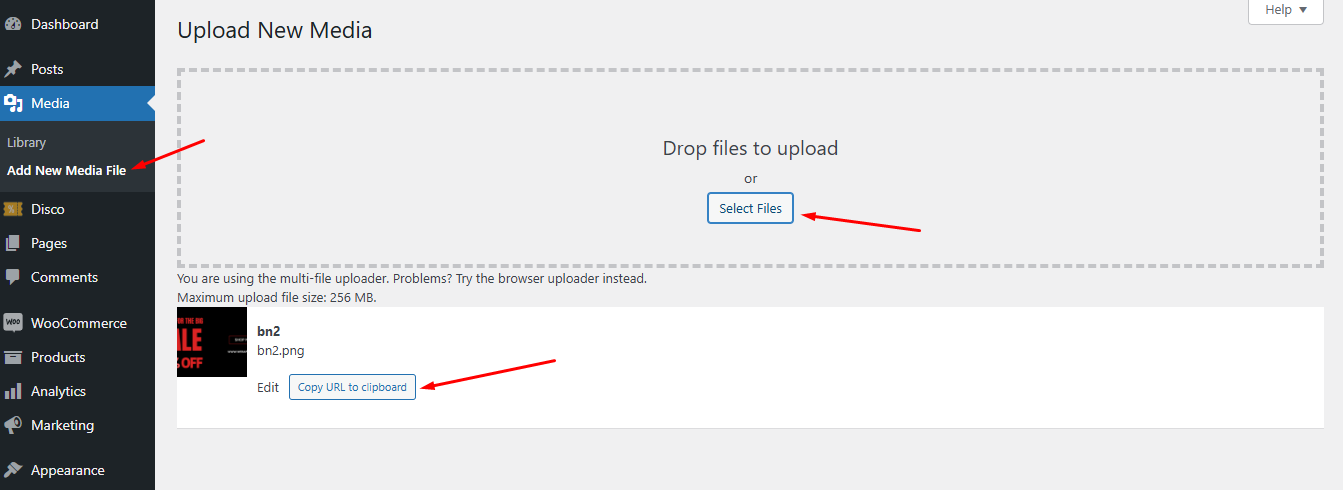
Step 1: Upload the Discount Banner Image
First, upload your banner image to the WordPress Media Library and copy its URL.
Step 2: Add Custom Code
Add the following snippet to your child theme’s functions.php file or a code snippets plugin.
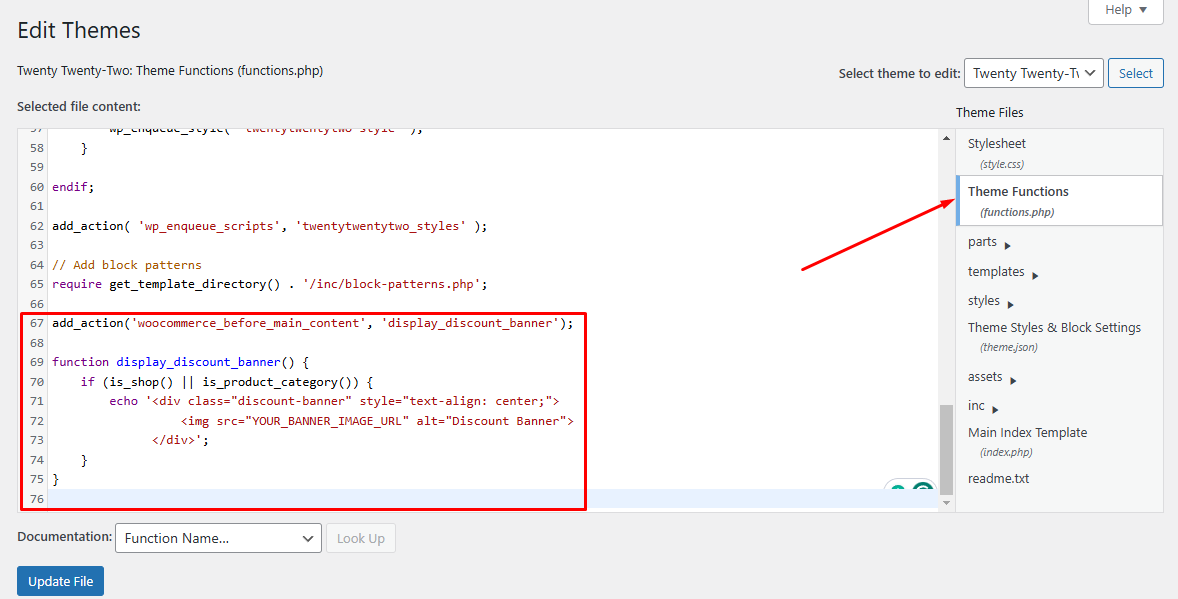
add_action('woocommerce_before_main_content', 'display_discount_banner');

function display_discount_banner() {

if (is_shop() || is_product_category()) {

     echo '<div class="discount-banner" style="text-align: center;">

               <img src="YOUR_BANNER_IMAGE_URL" alt="Discount Banner">

           </div>';

}

}
Step 3: Replace the Banner Image URL
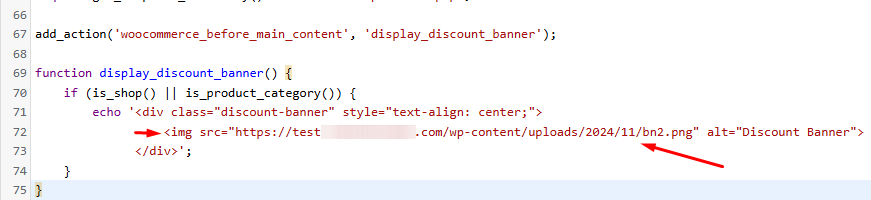
Replace “YOUR_BANNER_IMAGE_URL” with the banner URL you copied.
Step 4: Add Custom CSS for the Banner
To style your banner, you can add CSS codes. Again, the impact of these codes varies from theme to theme.
Make sure your current theme supports the codes. You can add CSS in two ways –
- From Appearance >> Customize >> Additional CSS.
- Editing the Style.css from Theme File Editor.
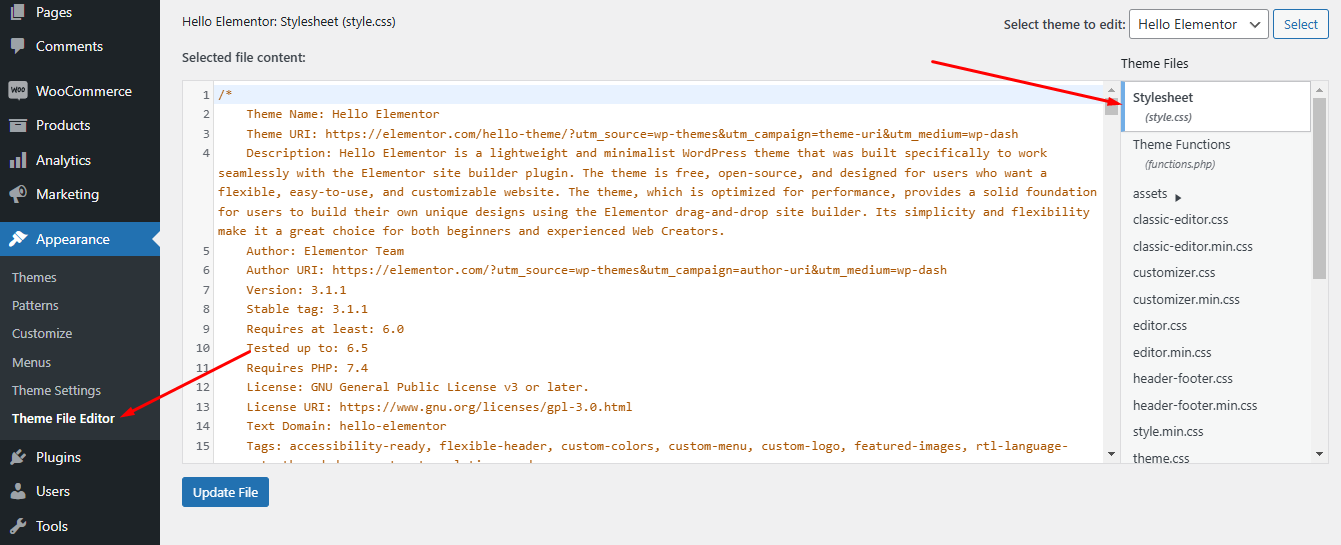
Here’s an example code:
.discount-banner img {

width: 100%;

max-width: 1200px;

margin: 10px auto;

}
Step 5: Save and Test the Banner Display
Save changes, then check your Shop and Category pages to ensure the banner appears correctly.
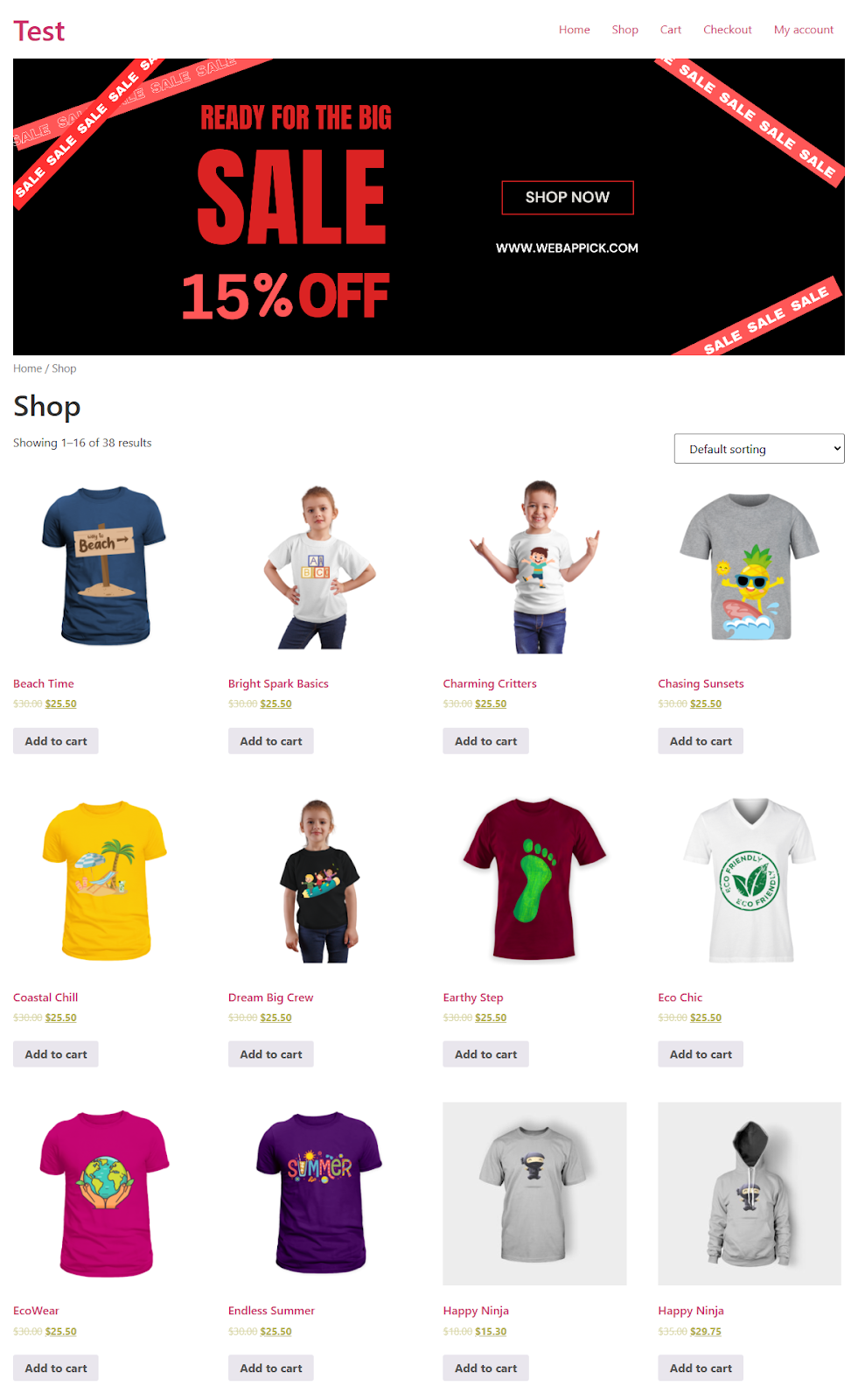
Here’s the Category page view.
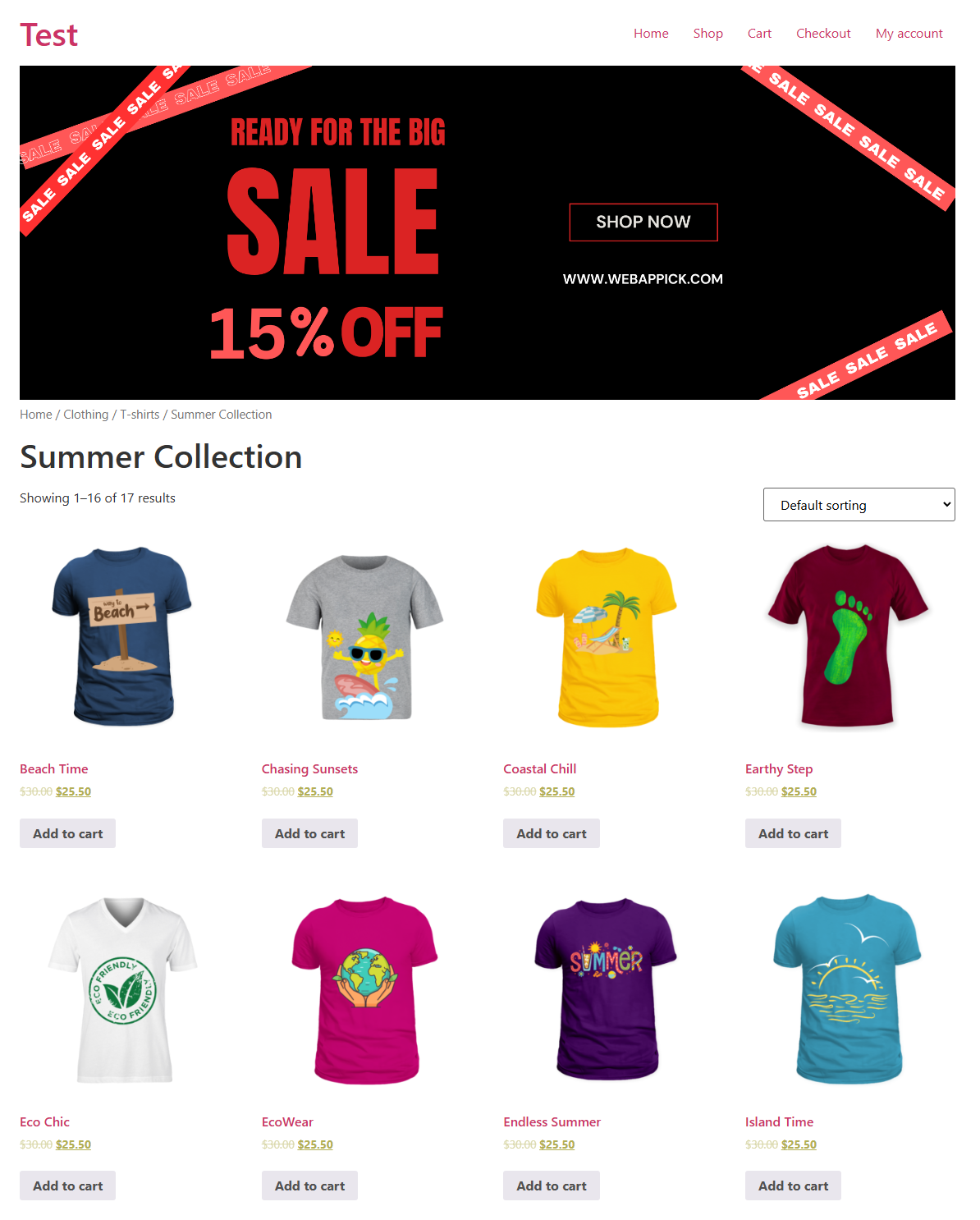
Single page view-
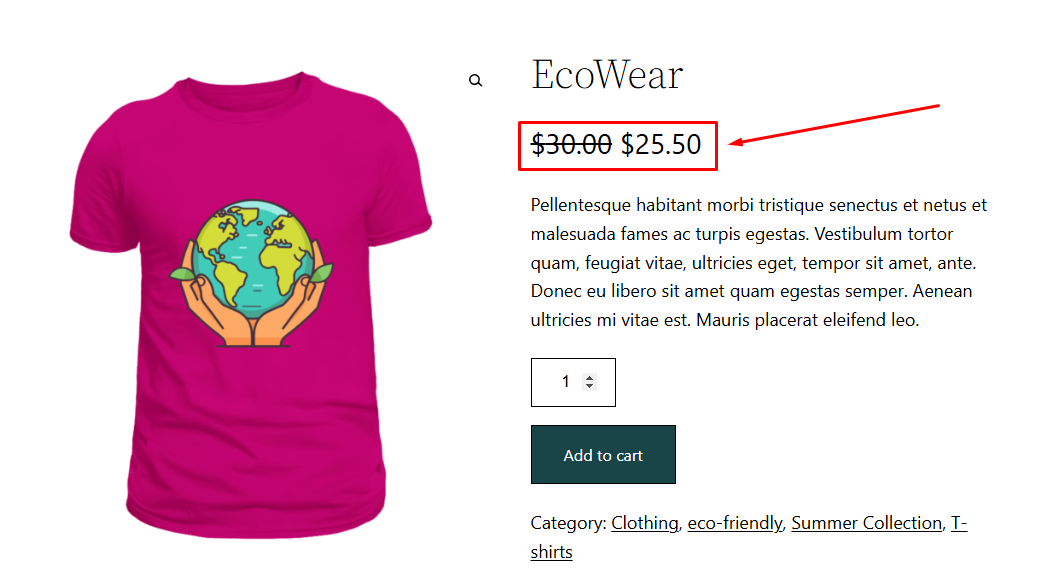
This setup will display your banner across your Shop and Category pages. Through this WooCommerce display discount price method, you can let your customers easily spot your discount promotion.
Show Discount Badges on Product Pages
Discount badges help highlight promotional pricing directly on WooCommerce product and category pages. You can create custom percentage-off labels using PHP and CSS.
Step 1: Access Theme File Editor or Code Snippets Plugin
We use the theme file editor to add this code.
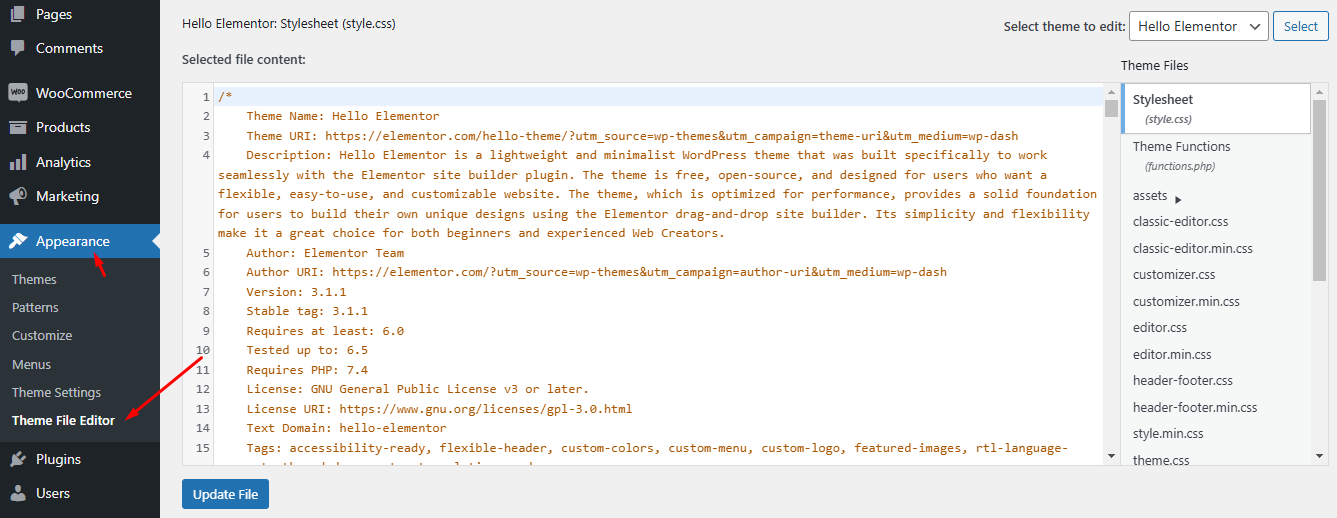
Step 2: Add CSS for Discount Badge Styling
Click and scroll down to the bottom of the Style.css file. Add this CSS there to style the badge with a bright background color:
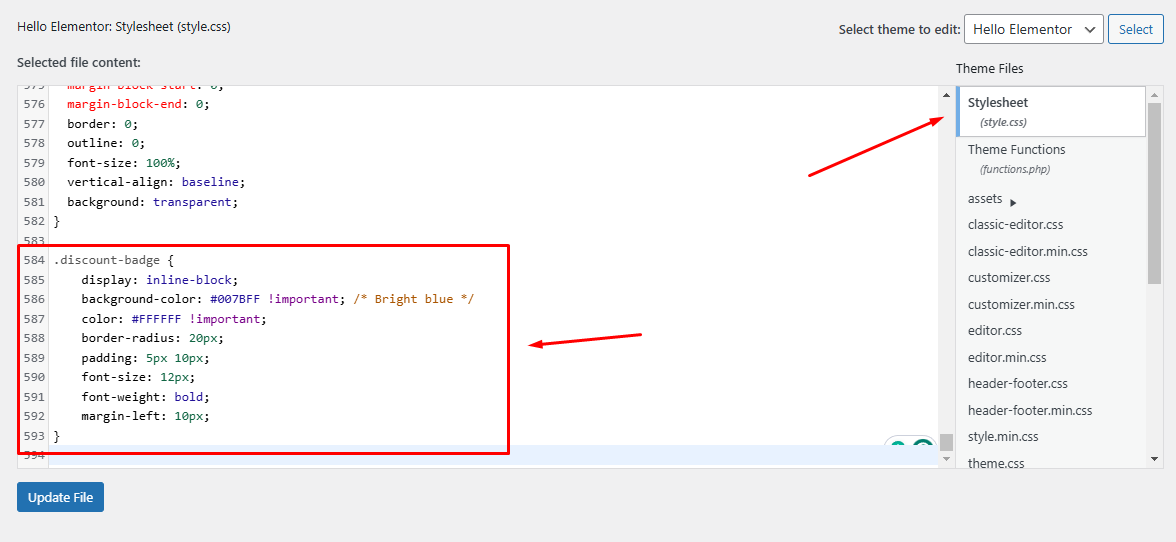
.discount-badge {

display: inline-block;

background-color: #007BFF !important; /* Bright blue */

color: #FFFFFF !important;

border-radius: 20px;

padding: 5px 10px;

font-size: 12px;

font-weight: bold;

margin-left: 10px;

}
Update the file when done.
Step 3: Add PHP Code to Display Badge Next to Product Title
Go to functions.php and scroll down to the bottom. Add the following PHP code to your theme’s functions.php file to display the badge beside the title:
add_filter('the_title', 'add_discount_badge_to_title', 10, 2);

function add_discount_badge_to_title($title, $id) {

if (is_product() || is_shop() || is_product_category()) {

     $product = wc_get_product($id);

     if ($product && $product->is_type('simple') && $product->get_price() < $product->get_regular_price()) {

         $title .= ' <span class="discount-badge">15% Off</span>';

     }

}

return $title;

}
Step 4: Save and Test the Discount Badge
Save the functions.php file and visit your storefront. The code we added should add the “15% Off” badge next to the product title on the product, shop, and category pages whenever a discount is detected.

You can adjust the colors and size in the CSS for more customization.
Here’s how WooCommerce display discount price badge on individual pages.
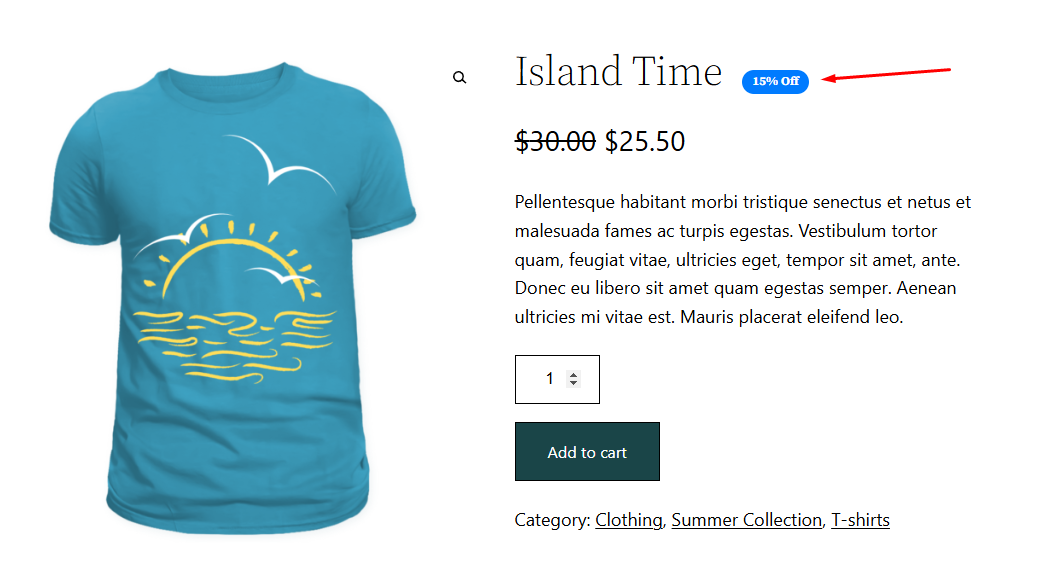
Note: The effectiveness of custom codes heavily depends on the theme you are using. Not all themes will display the elements in the same way we demonstrated. Be sure to check your theme’s documentation to understand how it handles custom code and styling adjustments.
Display Different Discount Badges for Multiple Discounts
It is pretty common to have multiple discount rules active simultaneously in a WooCommerce store. You obviously want to display discount for all the offers.
Let’s say you have two discount rules.
- 15% discount on the “Summer Collection” category.
- 10% discount on the category “Eco-Friendly.”
You want to display different badge colors for these discounts. Here’s how you do it.
Step 1: Create the Discount Rules
First things first, you need to create the discount rules. For a 15% discount, the top settings will be the same as before.
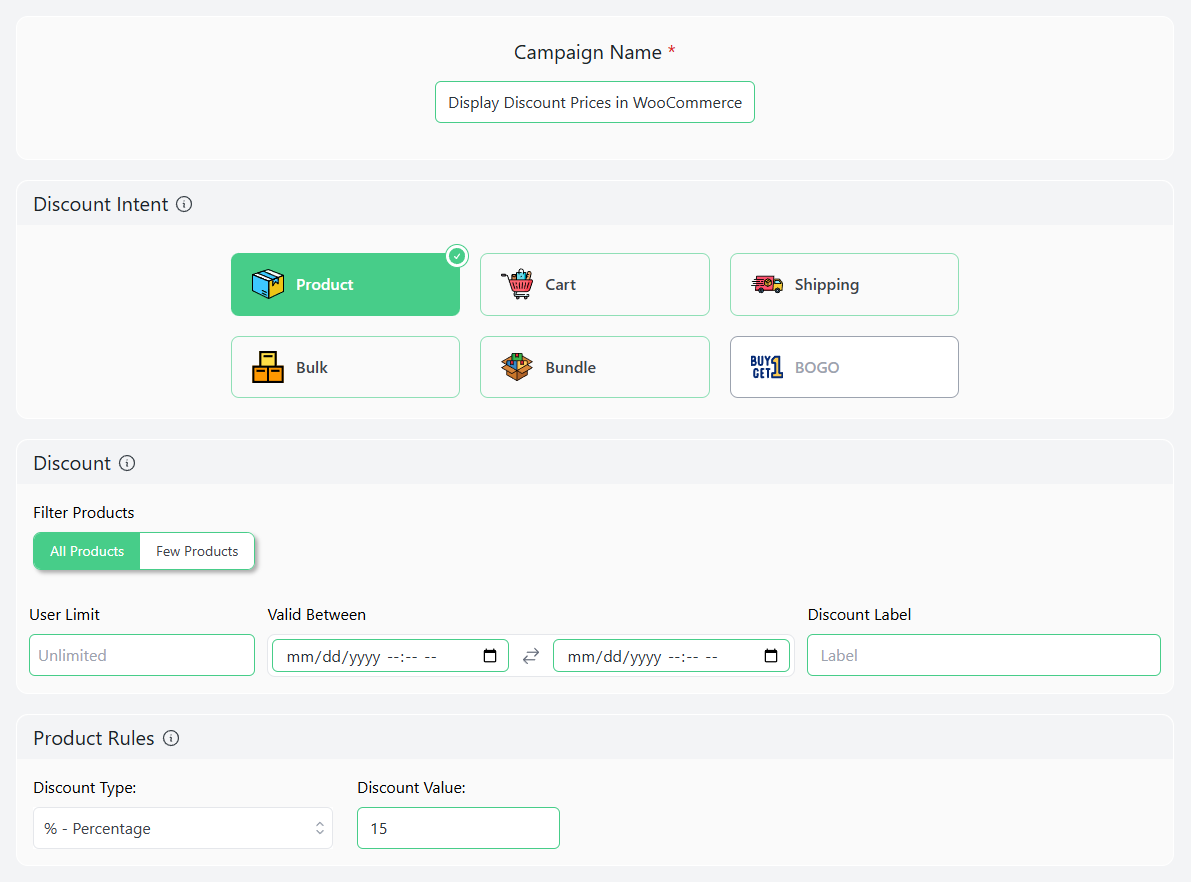
Next, we need to add a condition.

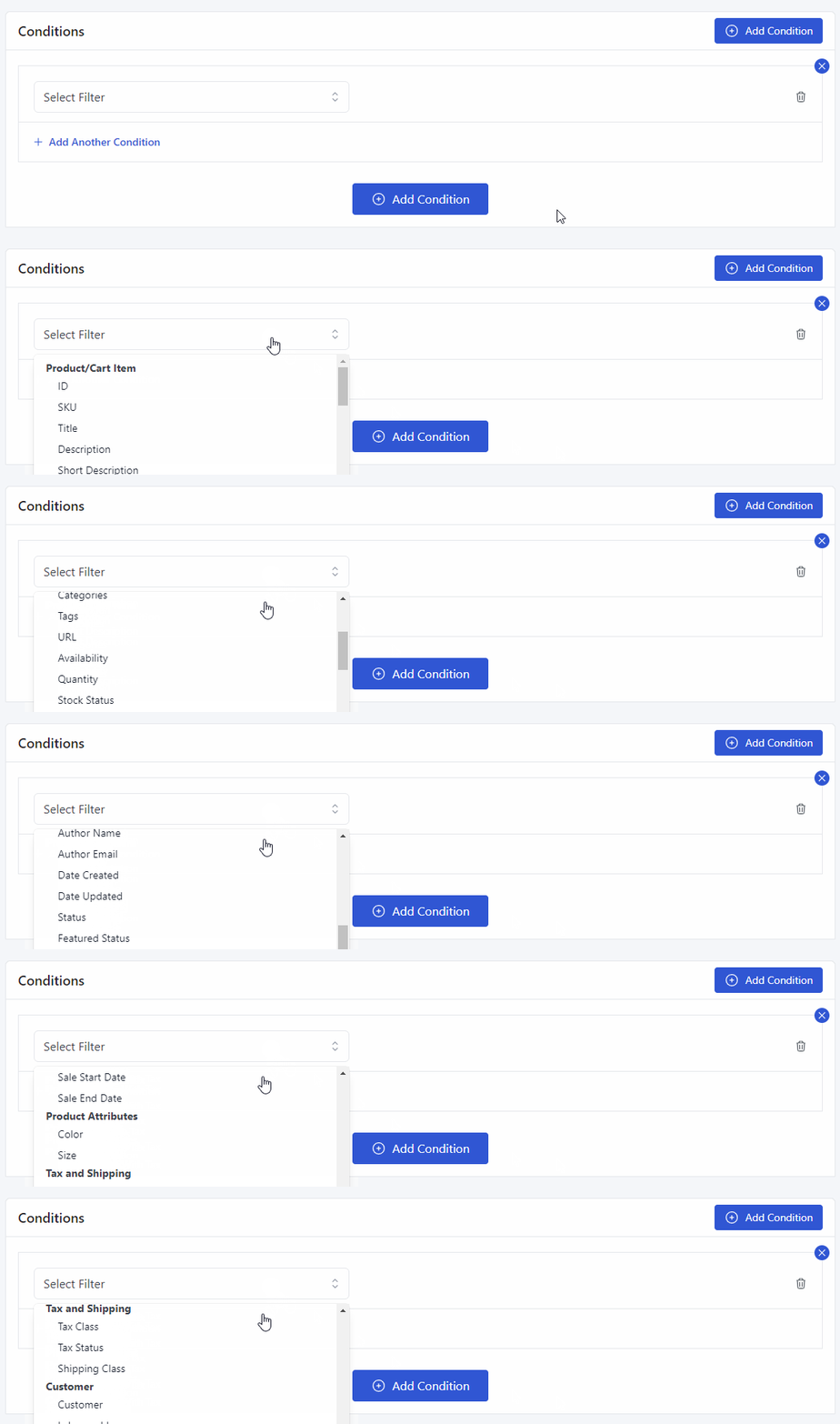
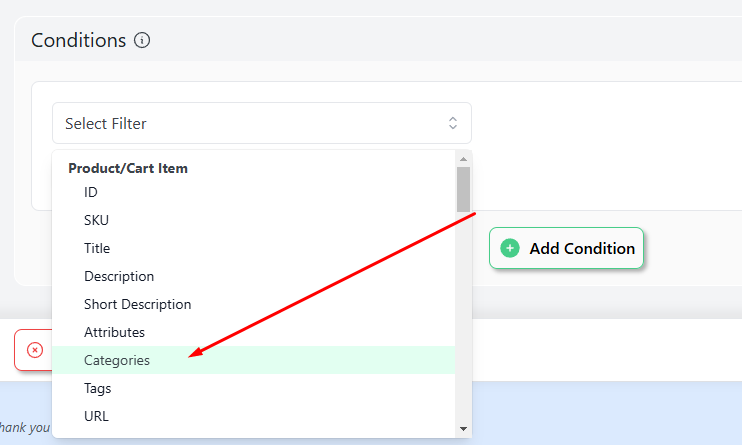
For this example, add the Categories condition.
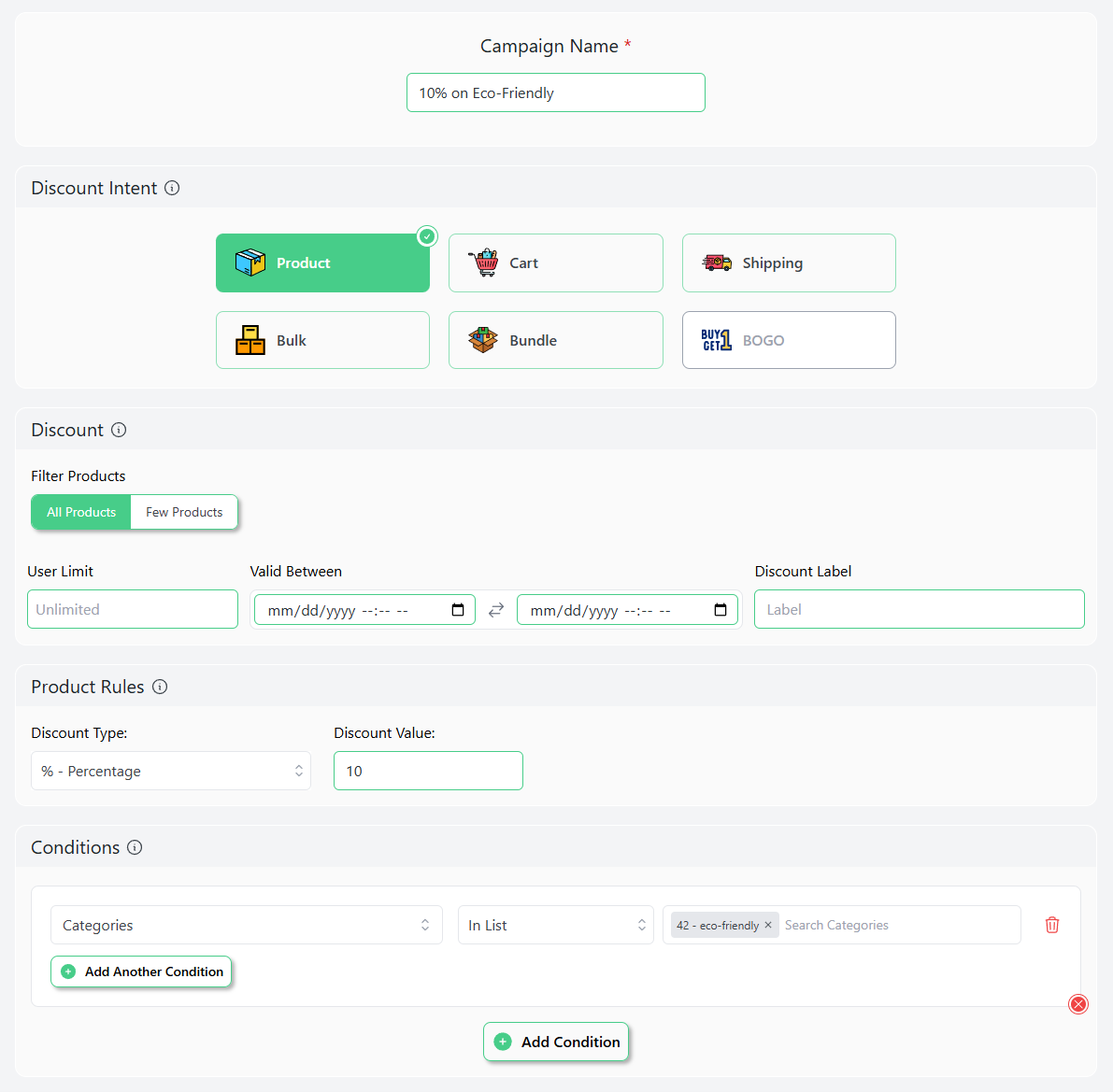
Select your category and save the discount rule. Similarly, create another discount rule and set a 10% discount for the “Eco-Friendly” category.
Step 2: Add PHP Code for Category-Based Discount Badges
To display a badge for products with a 15% discount in the “Summer Collection” category and a 10% discount in the “Eco-Friendly” category use the following code in your theme’s functions.php file.
add_filter('the_title', 'add_discount_badge_to_title', 10, 2);

function add_discount_badge_to_title($title, $id) {

if (is_product() || is_shop() || is_product_category()) {

     $product = wc_get_product($id);

     if ($product) {

         $categories = $product->get_category_ids();

         $is_summer_collection = in_array(get_term_by('slug', 'summer-collection', 'product_cat')->term_id, $categories);

         $is_eco_friendly = in_array(get_term_by('slug', 'eco-friendly', 'product_cat')->term_id, $categories);

         if ($is_summer_collection) {

             $title .= ' <span class="discount-badge summer-badge">15% Off</span>';

         } elseif ($is_eco_friendly) {

             $title .= ' <span class="discount-badge eco-badge">10% Off</span>';

         }

     }

}

return $title;

}
Code Explanation
- The PHP code checks for product categories without relying on the product’s “On Sale” status, so the badge appears on any product within the “Summer Collection” or “Eco-Friendly” categories with discounts.
- Update the category slugs (‘summer-collection’ and ‘eco-friendly’) as needed.
Step 3: Add CSS for Different Badge Styles
Add the following CSS code in style.css file.
.discount-badge {

display: inline-block;

color: #FFFFFF !important;

border-radius: 20px;

padding: 5px 10px;

font-size: 12px;

font-weight: bold;

margin-left: 10px;

}

.summer-badge {

background-color: #007BFF !important; /* Bright blue for 15% */

}

.eco-badge {

background-color: #FF4500 !important; /* Bright red for 10% */

}
Step 4: Save and Test Multiple Discount Badges
Save your theme files you edited and jump to the storefront. Your “Summer Collection” products should display a blue badge, and “Eco-Friendly” should display a red badge as per our set CSS.

Common WooCommerce Discount Display Issues
Sometimes discounts are active, but they do not show properly on the storefront. This can happen because of theme conflicts, plugin conflicts, caching, or custom template overrides.
Common issues include:
- Discount price not showing on product page
- Sale badge not visible
- Discount percentage not updating
- Cart discount not displaying correctly
- Regular price and sale price not showing together
- Category discount not applying
- Coupon discount missing from checkout
- Custom code not working with the theme
To fix these issues, you can:
- Clear your site cache
- Check plugin compatibility
- Test with a default WooCommerce theme
- Review your discount rule conditions
- Make sure the sale price is lower than the regular price
- Check cart and checkout display settings
- Use a child theme for custom code
- Disable conflicting discount plugins
If you are using a plugin, also check whether the rule is active, the selected products are correct, and the discount expiry date has not passed.
Best Practices for Displaying Discount Prices in WooCommerce
Clear discount display helps customers quickly understand the offer. Show the regular price, sale price, discount percentage, and final savings in a simple way.
Use these best practices to display WooCommerce discounts effectively:
- Use strike-through pricing
- Display percentage saved labels
- Show regular price and sale price clearly
- Highlight discounts on mobile
- Show discounts in cart and checkout
- Use discount badges on product pages
- Add sale banners for storewide promotions
- Display coupon discount details clearly
- Use urgency labels carefully
- Test badge colors and placement
- Make sure the discount is visible before checkout
- Avoid showing too many discount messages at once
A simple and consistent discount display makes offers easier to notice and helps shoppers feel more confident before buying.
Frequently Asked Questions
How do I display discount prices in WooCommerce?
You can display discount prices in WooCommerce by adding a sale price manually or using a WooCommerce discount plugin. A plugin is easier when you want to show discounts across product pages, shop pages, cart, and checkout automatically.
How do I show the discount percentage in WooCommerce?
You can show the discount percentage in WooCommerce using a plugin or custom PHP code. This lets you display labels like “15% Off” or “You Save 15%” beside the product price.
How do I show regular price and sale price in WooCommerce?
WooCommerce shows the regular price and sale price when you add a sale price to a product. The regular price usually appears with a strikethrough, while the sale price appears as the discounted price.
How do I show discounts in the WooCommerce cart?
Use a WooCommerce discount plugin that displays the discount amount, subtotal, and final total clearly in the cart. This helps customers confirm that the discount has been applied before checkout.
How do I get the discount price in WooCommerce using PHP?
You can get the discount price in WooCommerce using PHP functions like get_regular_price() and get_sale_price(). Then, calculate the discount amount or percentage and display it on the product page.
Why is my WooCommerce discount price not showing?
WooCommerce discount prices may not show because of theme conflicts, caching issues, plugin conflicts, expired discount rules, or incorrect sale price settings. Clear your cache and check whether the discount rule is active.
Can I display different discount badges for different products?
Yes, you can display different discount badges for different products or categories. For example, you can show “15% Off” for one category and “10% Off” for another using plugin rules or custom PHP code.
Wrap up
Clear discount display in WooCommerce helps customers understand savings quickly and improves conversion rates. Whether you use sale pricing, plugins, custom code, sale banners, or discount badges, consistent pricing visibility makes promotions more effective.
If your main goal is to show discount price in WooCommerce across product pages, shop pages, cart, and checkout without manually editing every product, a WooCommerce discount plugin like Disco is the easiest option.
Testing different badge styles, discount percentage labels, sale price UI, and cart discount placements can help you find what works best for your store.

Free version on WordPress.org. Every Pro licence includes a 30-day money-back guarantee.

