
TL;DR
- Price editor location: Go to WordPress Dashboard > Products > All Products > Edit Product > Product Data > General.
- Single product price edit: Use the Regular Price and Sale Price fields inside the General tab.
- Scheduled sale price: Use the Schedule option beside the Sale Price field to set a start and end date.
- Bulk price edit: Select products from Products > All Products, then choose Bulk Actions > Edit.
- Variable product price: Edit prices from Product Data > Variations, not the General tab.
- Plugin use case: Use a WooCommerce bulk price editor plugin for large catalogs, variation bulk edits, advanced filters, or percentage-based price changes.
WooCommerce price editor is not a separate page in your dashboard. It is part of the product editing screen, where you can update regular prices, sale prices, scheduled sale prices, and basic bulk price changes.
You Can Edit WooCommerce Prices in 2 Ways
WooCommerce gives you two ways to edit prices: the built-in product editor and third-party price editor plugins. Use the built-in editor for normal price changes. Use a plugin when you need faster bulk updates, variation-level editing, or advanced filtering.
WooCommerce Built-in Price Editor Option
WooCommerce includes built-in price editing options for single products, sale prices, scheduled sale prices, external products, affiliate products, and basic bulk price edits.
You do not need a plugin for normal product price updates.
How to Find the Price Editor for a Single Product in WooCommerce
To edit the price of one WooCommerce product:
- Log into your WordPress dashboard with your credentials.
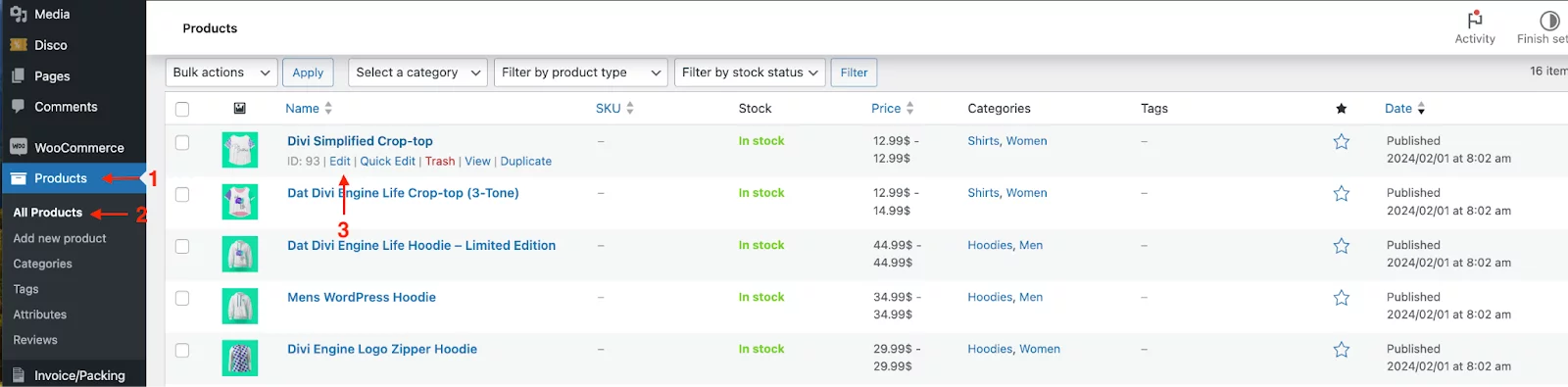
- From the left-hand menu, click on Products >> All Products to go to the WooCommerce Products Page.
- Locate the specific product from the product list, or you can use the search bar to find the product you want to.
- Hover over the product name and click on Edit to edit the product price.
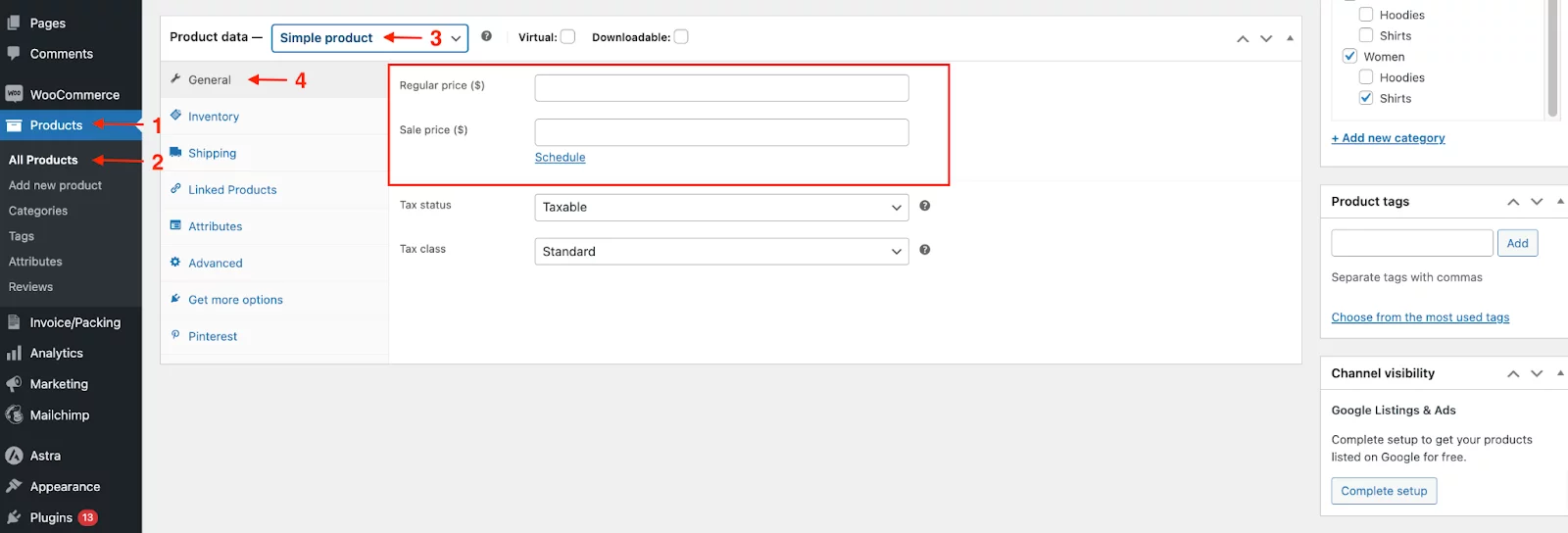
- Scroll down to the Product Data section and select Simple Product from the drop-down.
- Under the General tab, you’ll see fields for:
- Regular Price: The standard price for the product.
- Sale Price: A discounted price, if applicable.
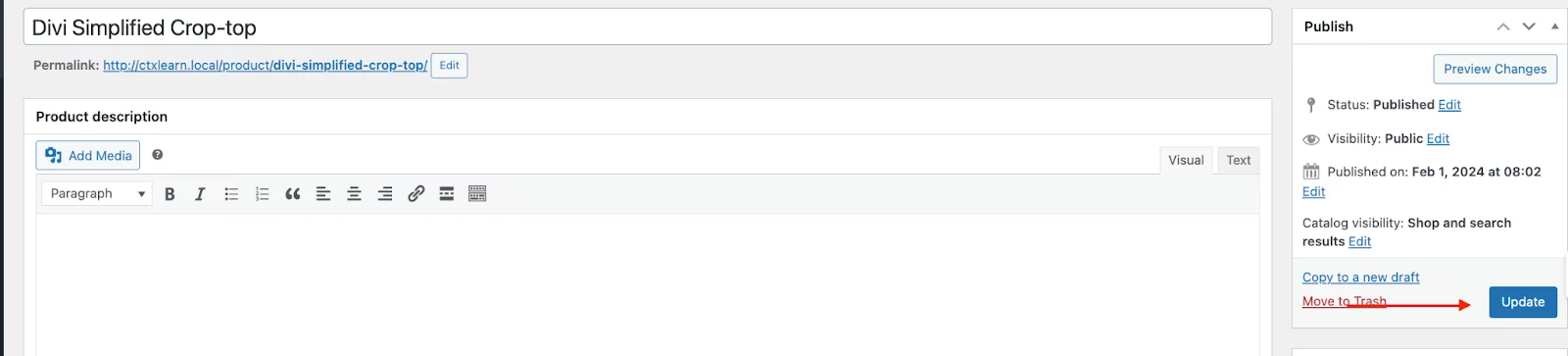
- After editing the price, scroll up and click on the Update button to save your changes.
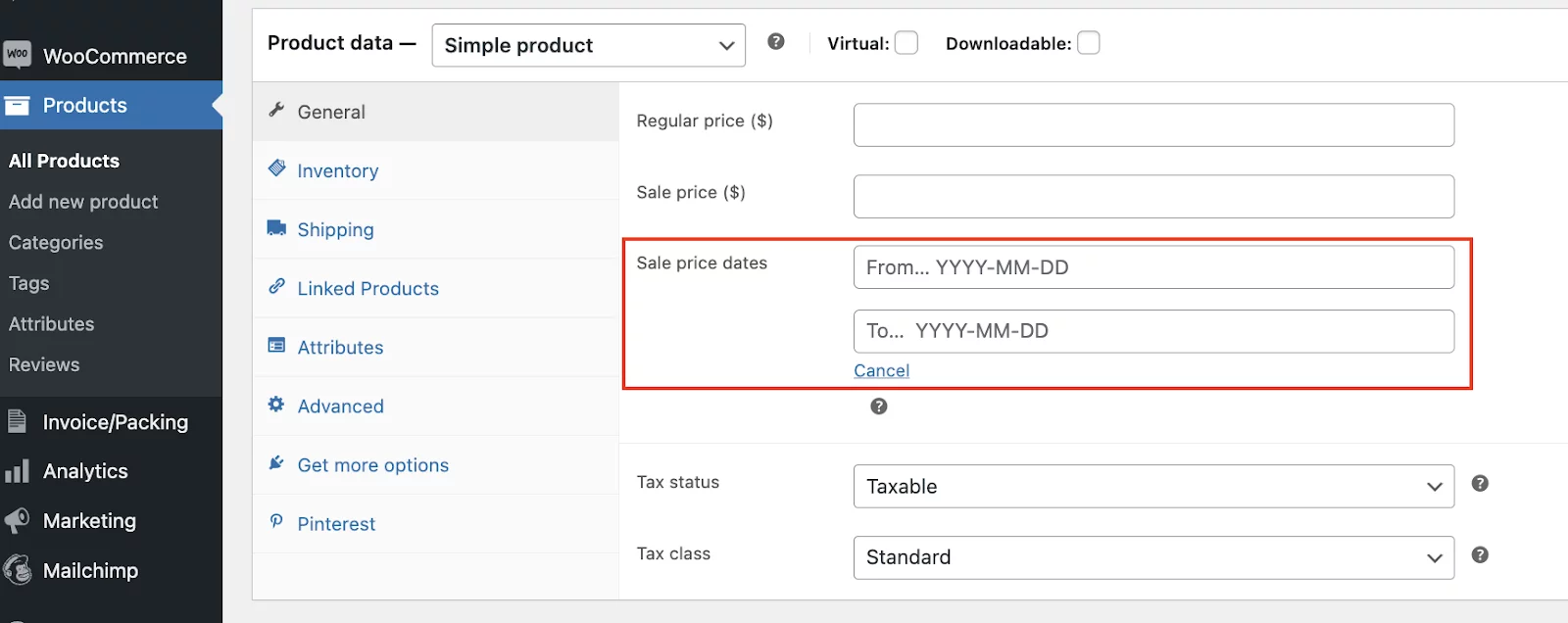
Tip: If you want the sale price to start and end automatically, use the Schedule option beside the Sale Price field. We’ll cover this in the next section.
Note:
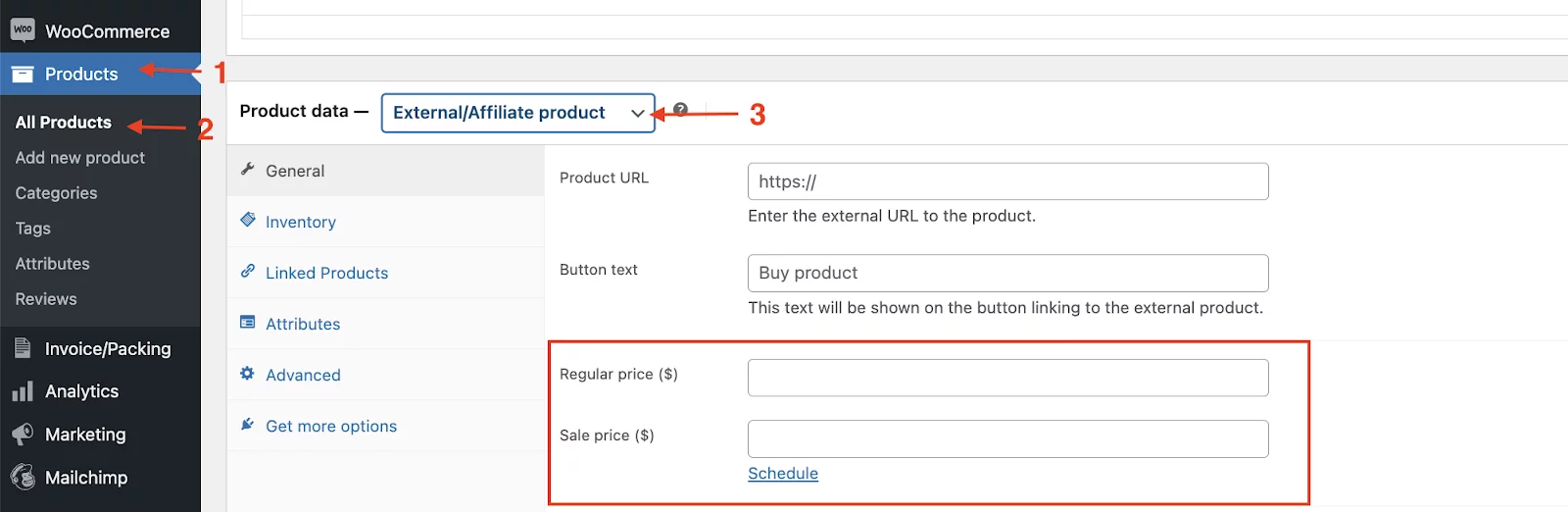
To find the price editor for external products and even affiliate products, go to Products >> All Products. Scroll down to Product Data and select an external or affiliate product from the list. Then, in the general tab, you will find the price section. Just enter the price of your Woocommerce products and hit “Update” to save the changes.
How to Schedule a Sale Price in WooCommerce
WooCommerce lets you schedule sale prices by default. This means you can set a discount to start and end automatically.
To schedule a WooCommerce sale price:
- Open the product editor.
- Go to Product Data > General.
- Enter the Regular Price.
- Enter the Sale Price.
- Click the Schedule option beside the Sale Price field.
- Choose the sale start date and end date.
- Click Update.
WooCommerce will automatically show the sale price during the selected date range.
Important: WooCommerce’s default schedule option is for sale prices, not regular price changes. If you want to schedule regular price updates, you may need a plugin or custom workflow.
How to Edit Prices for External or Affiliate Products
WooCommerce also allows you to add prices for external or affiliate products.
To find the price editor for an external or affiliate product:
- Go to Products > All Products.
- Open the product you want to edit.
- Scroll down to the Product Data section.
- Select External/Affiliate Product from the product type dropdown.
- Open the General tab.
- Enter the product price.
- Click Update.
Use this option when your WooCommerce product links to another website but still needs a visible price in your store.
If you are selling in regions that require a Maximum Retail Price, the Regular Price field is typically where you will input your product’s MRP.
How to Find the Bulk Price Editor in WooCommerce
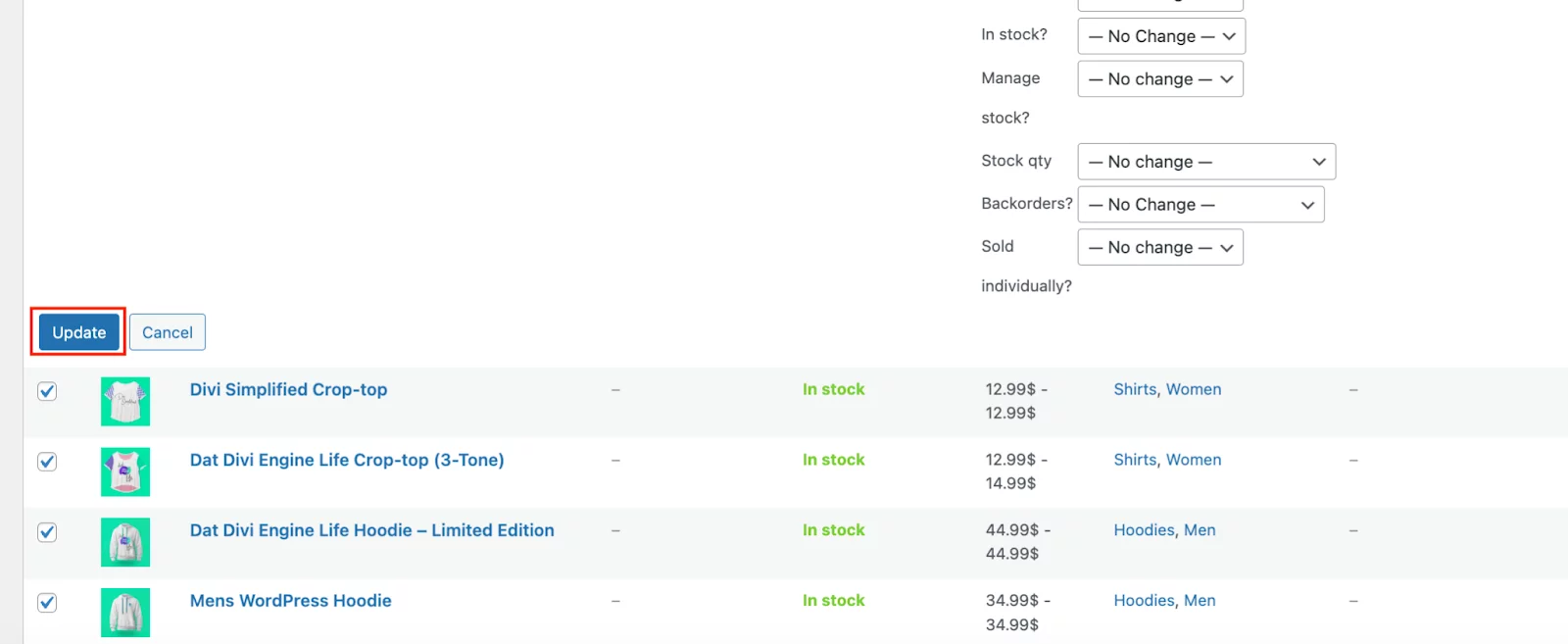
If you want to update multiple product prices, use WooCommerce’s built-in bulk edit option.
To bulk edit prices in WooCommerce:
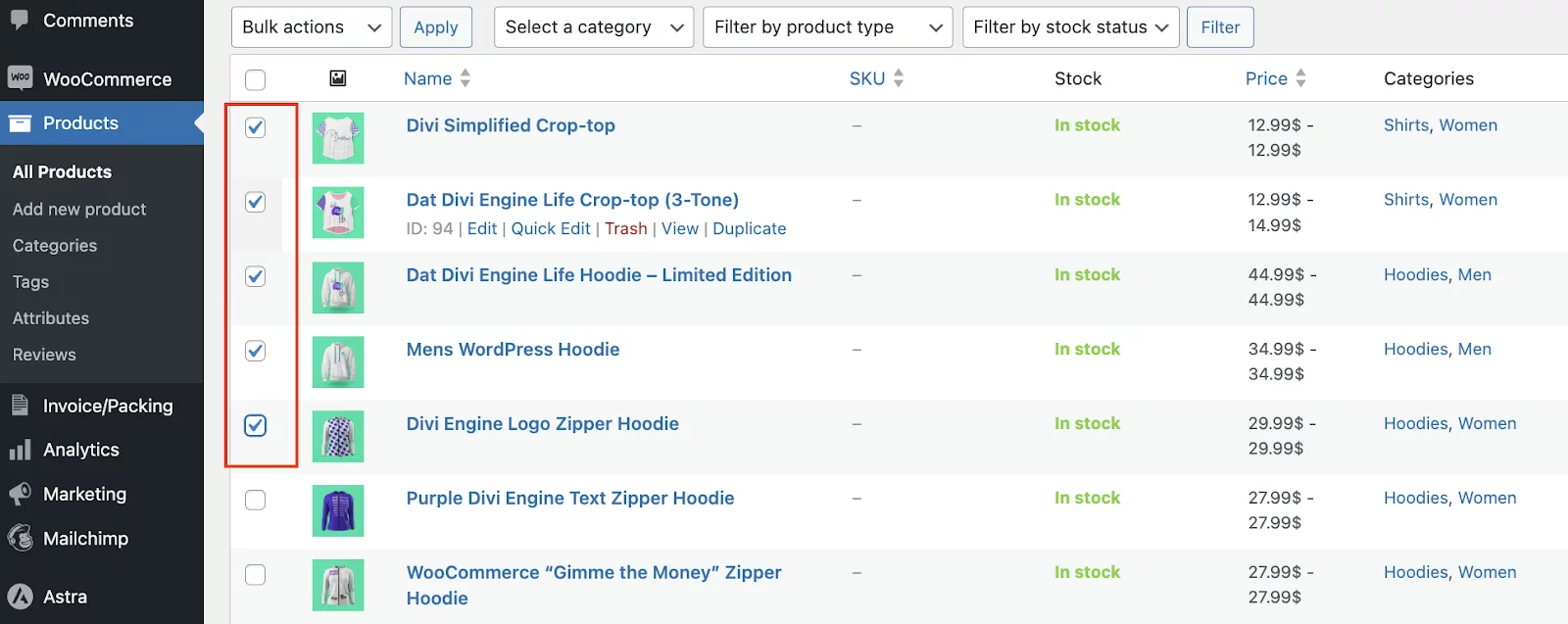
- First, go to the Woocommerce Products Page from Products >> All Products.
- Select the products to edit. Use the checkboxes next to each product name to select multiple items.
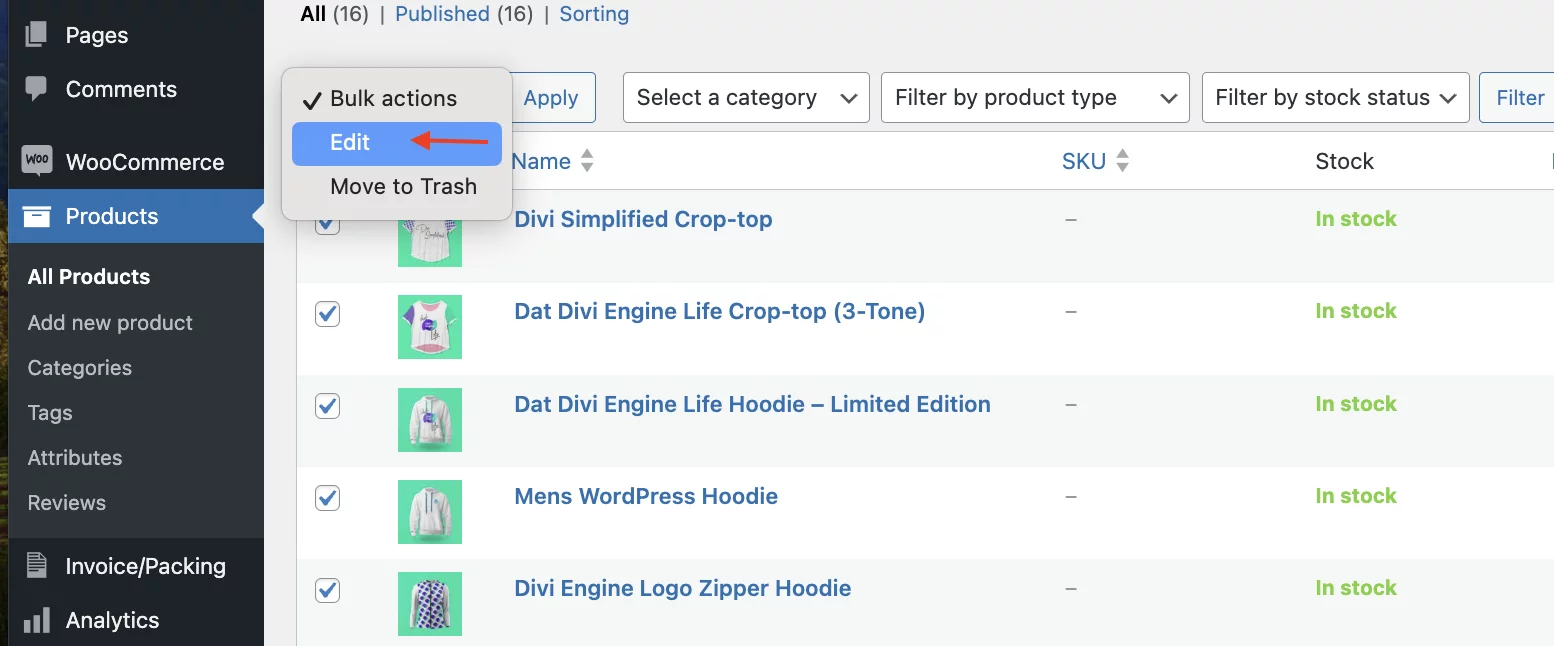
- Now, at the top of the product list, click on the Bulk Actions dropdown menu and select Edit.
- Then, click on the Apply button to edit the prices altogether.
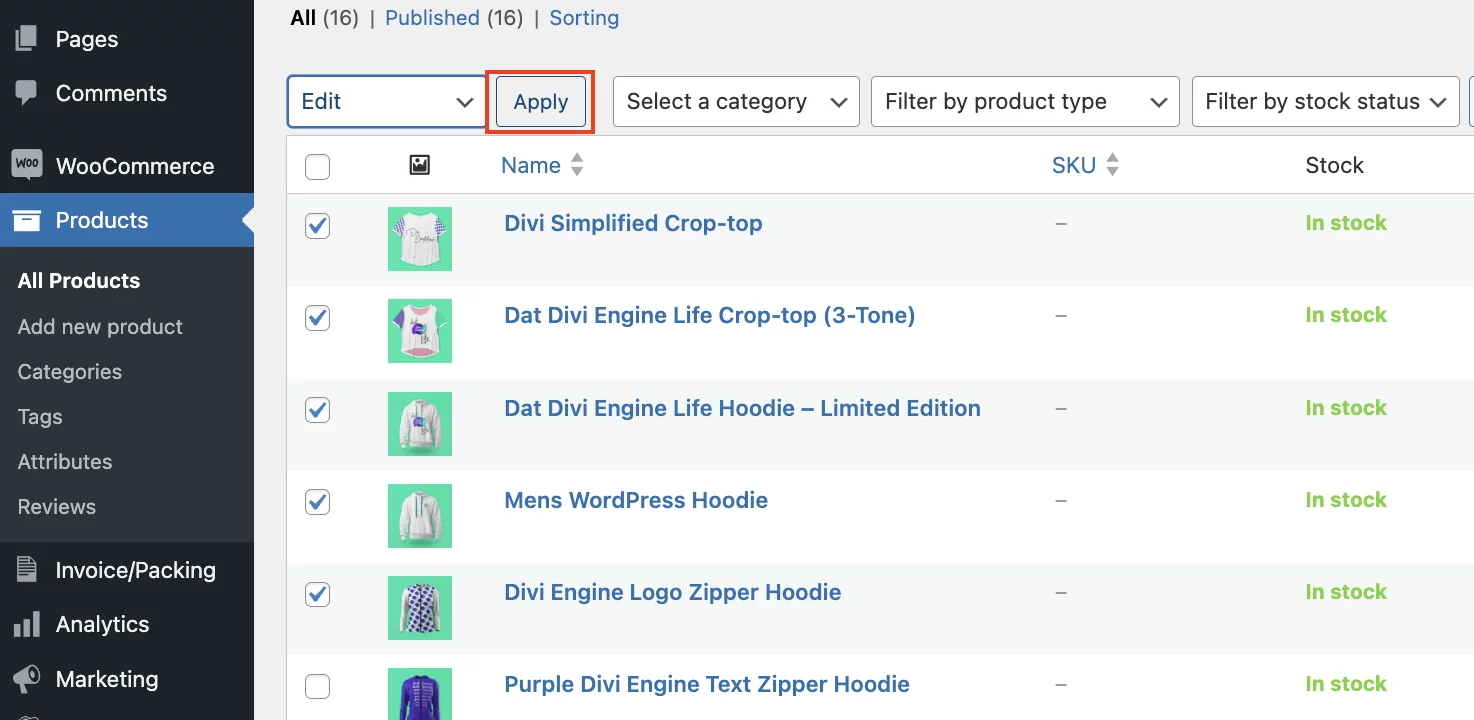
- Once you hit Apply, a price editing section will open to adjust the regular or sale prices for all selected products at once. Options include:
- Increasing or decreasing prices by a percentage.
- Setting a specific price for all selected products.
- Finally, click Update to apply the changes.
How to Edit Variable Product Prices in WooCommerce
Variable product prices are edited from the Variations tab, not the General tab.
To edit a variation price:
- Go to Products > All Products.
- Open the variable product.
- Scroll to Product Data.
- Select Variable Product from the product type dropdown.
- Open the Variations tab.
- Expand the variation you want to edit.
- Add or update the Regular Price or Sale Price.
- Click Save changes.
- Click Update.
Each variation can have its own price, so check every variation before publishing the product.
WooCommerce Price Editor Plugins for Bulk Price Editing
WooCommerce’s default bulk editor works for small updates, but it becomes slow when you manage hundreds of products or many variations. In that case, choose a price editor plugin that lets you filter products, preview changes, and update regular or sale prices in bulk.
Best WooCommerce Price Editor Plugins for Bulk Price Editing
The table below compares popular WooCommerce price editor plugins based on their best use cases and main pricing features.
| Plugin | Best For | Key Uses |
|---|---|---|
| WooCommerce Bulk Price Editor | Stores that regularly update prices across many products | Select multiple products, filter by category or tag, increase or decrease prices, set fixed prices, update sale prices, and apply changes faster than manual editing. |
| PW WooCommerce Bulk Edit | Store owners who prefer a spreadsheet-like editing experience | View products in a table format, edit product fields quickly, update prices without opening each product, filter products before applying changes, and save time on repetitive updates. |
| WP Sheet Editor | Faster spreadsheet-style product management | Edit product titles, regular prices, sale prices, stock status, categories, product attributes, and other WooCommerce product fields. |
| Smart Manager | Store owners who want to manage more than product prices | Update product prices, manage inventory, edit product data, handle orders, and perform bulk actions from one interface. |
| Bulk Price Update for WooCommerce | Simple bulk price adjustments | Increase all prices by a percentage, decrease prices in one category, set a fixed sale price, update selected products, and change prices before a campaign. |
For basic price changes, WooCommerce’s built-in editor is usually enough. But if you need spreadsheet-style editing, variation price updates, category-based filters, or faster bulk changes, one of these WooCommerce price editor plugins can make the process easier.
WooCommerce Built-in Price Editor vs Bulk Price Editor Plugin
Use this comparison if you are not sure whether the default WooCommerce editor is enough for your store.
| Need | Built-in Editor | Plugin |
|---|---|---|
| Edit one product price | Best choice | Not needed |
| Schedule a single sale price | Best choice | Not needed |
| Update a few simple products | Works well | Optional |
| Update hundreds of products | Slow | Better |
| Edit variation prices in bulk | Limited | Better |
| Filter products before editing | Limited | Better |
| Preview changes before saving | Limited | Better |
If you only need to edit a few products, use the built-in WooCommerce editor. If you manage a large product catalog, many variations, or frequent price updates, a bulk price editor plugin may be more efficient.
Common WooCommerce Price Editing Mistakes to Avoid
A wrong WooCommerce price update can affect what shoppers see on the product page, cart page, and checkout page. Check these common issues before publishing major price changes.
Avoid these common issues:
1. Setting the Sale Price Higher Than the Regular Price
The sale price should always be lower than the regular price. Otherwise, the discount may not show correctly.
2. Forgetting to Update Variable Product Prices
For variable products, adding a price to the parent product is not enough. You need to update prices inside each variation.
3. Editing Prices Without Checking the Front End
After changing product prices, always check the product page from the customer’s view. This helps you confirm that the price, sale price, and discount display correctly.
4. Running Bulk Updates Without a Backup
Before making large price changes, take a site backup or export your product data. This gives you a recovery option if something goes wrong.
5. Not Clearing Cache After Price Updates
If your store uses caching, old prices may still appear for some visitors. Clear your site cache after major price updates.
6. Confusing Sale Price Scheduling with Regular Price Scheduling
WooCommerce lets you schedule sale prices by default. Regular price scheduling usually requires a plugin or custom workflow.
Frequently Asked Questions
How do I edit product prices in WooCommerce?
To edit prices in WooCommerce, go to Products > All Products, open a product, then update the Regular Price or Sale Price from Product Data > General.
How do you manipulate the price in WooCommerce?
To manipulate the price in WooCommerce, you can edit individual product prices from the product editor, use bulk editing options for multiple products, or apply price adjustments programmatically through custom code or plugins.
How do I change the price of a sale in WordPress?
To change the price of a sale in WordPress, go to the product page in the WooCommerce dashboard, find the “Sale Price” field in the product editor, and update it. Then, click “Update” to save the changes.
Is there a bulk price editor in WooCommerce?
Yes. WooCommerce has a built-in bulk editor under Products > All Products > Bulk Actions > Edit. For advanced filtering, variation prices, or large catalogs, use a bulk price editor plugin.
Can I schedule price changes in WooCommerce?
WooCommerce lets you schedule sale prices by adding a start and end date beside the Sale Price field. Regular price scheduling usually requires a plugin or custom workflow.
What plugins can I use to bulk edit prices in WooCommerce?
Popular options include PW WooCommerce Bulk Edit, WP Sheet Editor, Smart Manager, WooCommerce Bulk Price Editor, and Bulk Price Update for WooCommerce.
Key Takeaways
- The price editor in WooCommerce is found under Products > All Products > Edit Product > Product Data > General.
- For simple products, you can edit the Regular Price and Sale Price from the General tab.
- WooCommerce lets you schedule sale prices by adding a start date and end date from the Schedule option.
- For multiple products, use Products > All Products > Bulk Actions > Edit to update prices in bulk.
- For variable products, update prices from the Product Data > Variations tab.
- The built-in WooCommerce price editor is enough for basic price changes and small stores.
- A dedicated WooCommerce bulk price editor plugin is better for large catalogs, variation bulk edits, advanced filters, and frequent price updates.

Free version on WordPress.org. Every Pro licence includes a 30-day money-back guarantee.