%22%2F%3E%0A%3Cpath%20d%3D%22M59.8894%2016.6974C60.1689%2016.9331%2060.5416%2017.1216%2060.9142%2017.0745C61.5664%2017.0273%2061.8925%2016.6031%2061.6596%2015.7547C61.5198%2014.4349%2061.4267%2013.1623%2061.2869%2011.8425C61.1006%209.72149%2060.8211%207.55331%2060.5881%205.38512L60.1689%201.70863C60.0757%200.81307%2059.6099%200.294591%2058.7713%200.106053C58.4918%20-0.0353509%2058.2123%20-0.0353509%2057.9328%200.106053C57.7931%200.106053%2057.6999%200.106053%2057.6067%200.153187C56.5353%200.483129%2055.4172%200.81307%2054.3458%201.19015C53.5073%201.47295%2052.6222%201.75576%2051.7371%202.03857C50.2929%202.50991%2048.8488%203.02839%2047.4047%203.49974C46.4264%203.82967%2045.4016%204.1596%2044.3768%204.48952L44.3767%204.48956C43.6313%204.72523%2043.3518%205.24371%2043.6313%205.85646C43.7711%206.13927%2044.004%206.32781%2044.2369%206.46921C44.7028%206.79915%2045.2152%207.08196%2045.6811%207.4119C45.8674%207.55331%2046.0537%207.69471%2045.8208%208.02465C45.7276%208.21319%2045.5879%208.35459%2045.4481%208.54313L45.355%208.73167L44.5164%2010.0986L43.9108%2010.9941L43.3052%2011.8897L43.2121%2011.9839L42.1406%2013.5865L44.5867%2019.8706C45.5713%2022.1447%2048.6357%2026.5713%2052.552%2023.6277L53.9265%2022.2593L54.3458%2021.5523C54.3924%2021.458%2054.4856%2021.3637%2054.5321%2021.2694L54.5787%2021.2223C55.2309%2020.1854%2055.883%2019.1956%2056.5352%2018.2059L56.5353%2018.2057C57.0477%2017.4044%2057.5601%2016.6503%2058.0726%2015.849C58.2123%2015.6604%2058.3055%2015.6133%2058.4918%2015.7076C58.9577%2016.0375%2059.4235%2016.4146%2059.8894%2016.6974Z%22%20fill%3D%22%233D89D0%22%2F%3E%0A%3Cpath%20d%3D%22M28.0259%2022.0232C27.9793%2022.0703%2027.9793%2022.1175%2027.9327%2022.1646C27.9793%2022.1175%2028.0259%2022.0703%2028.0259%2022.0232Z%22%20fill%3D%22url(%23paint1_linear)%22%2F%3E%0A%3Cpath%20d%3D%22M53.9265%2022.3064C53.7402%2022.5892%2053.5538%2022.872%2053.3675%2023.202C53.0414%2023.7204%2052.7153%2024.1918%2052.3892%2024.7103C51.3178%2026.4071%2050.1531%2027.9625%2048.4295%2029.0938C46.9388%2030.0365%2045.4015%2030.6021%2043.6779%2030.8849C42.1872%2031.1206%2040.7896%2030.9791%2039.3921%2030.5549C37.6219%2030.0365%2036.038%2029.1409%2034.687%2027.8211C33.7088%2026.8784%2032.9634%2025.7944%2032.3578%2024.616C32.0317%2023.9561%2031.7988%2023.2491%2031.4727%2022.5421C31.0534%2021.5522%2030.1683%2019.2427%2030.1218%2019.1012C30.0752%2019.0541%2030.0752%2018.9598%2030.0286%2018.9127C29.9354%2018.7242%2029.8422%2018.5828%2029.7957%2018.3942C29.6559%2018.0172%2029.4696%2017.6401%2029.3298%2017.2159C29.2366%2017.0273%2029.1901%2016.8388%2029.0969%2016.6503C28.9571%2016.3674%2028.864%2016.0846%2028.7242%2015.7547C28.5845%2015.3776%2028.4447%2015.0005%2028.2584%2014.6235C28.1652%2014.3407%2028.0254%2014.0579%2027.9323%2013.775C27.9323%2013.7279%2027.9323%2013.7279%2027.8857%2013.6808C27.7925%2013.4922%2027.7459%2013.3037%2027.6528%2013.1152C27.4664%2012.5967%2027.2335%2012.1253%2027.0006%2011.6069C27.0006%2011.5597%2026.954%2011.5126%2026.9074%2011.4655C26.8142%2011.2769%2026.7211%2011.1355%2026.5813%2010.947C26.5347%2010.8998%2026.4882%2010.8527%2026.4882%2010.8056C26.4416%2010.7584%2026.395%2010.7113%2026.395%2010.6642C26.3484%2010.617%2026.3018%2010.5699%2026.2552%2010.5228C26.2086%2010.4756%2026.2086%2010.4285%2026.1621%2010.4285L26.1155%2010.3814C26.0689%2010.3342%2026.0223%2010.2871%2026.0223%2010.2871C25.9291%2010.1928%2025.8826%2010.1457%2025.7894%2010.0514C25.7428%2010.0043%2025.6962%209.95715%2025.6496%209.95715C25.603%209.91002%2025.5565%209.91002%2025.5099%209.86288C25.4167%209.81575%2025.3701%209.76861%2025.277%209.67435C25.2304%209.62721%2025.1838%209.62721%2025.1372%209.58008C25.0906%209.53294%2025.044%209.53294%2024.9974%209.48581C24.9509%209.48581%2024.9043%209.43867%2024.9043%209.43867C24.8577%209.39154%2024.8111%209.39154%2024.7645%209.3444C24.7179%209.3444%2024.7179%209.29727%2024.6714%209.29727C24.5782%209.25014%2024.485%209.203%2024.3918%209.15587C22.9943%208.59025%2021.1775%208.77879%2020.1992%209.10873C19.2675%209.43867%2018.2893%2010.3342%2018.2427%2010.4285C18.6619%209.72148%2019.0812%208.96733%2019.547%208.26031C20.1526%207.36475%2020.7117%206.4692%2021.3638%205.62078C22.3887%204.63095%2023.4602%203.78253%2024.6714%203.07551C27.0006%201.75575%2029.4696%201.52007%2032.0317%201.89715C33.3361%202.08569%2034.5939%202.60417%2035.7585%203.35832C36.9231%204.06534%2037.9014%204.96089%2038.7399%206.04499C39.2989%206.79914%2039.8114%207.60043%2040.1374%208.49598C40.6033%209.67435%2041.1623%2010.8056%2041.5816%2011.9839C41.7679%2012.5496%2042.0008%2013.068%2042.2338%2013.6336C42.2338%2013.6336%2042.2338%2013.6336%2042.2338%2013.6808V13.7279L45.0288%2019.8554C45.4015%2020.8452%2045.9139%2021.6465%2046.7059%2022.3535C47.2183%2022.872%2047.8705%2023.1548%2048.5227%2023.3905C48.5693%2023.3905%2048.6158%2023.4376%2048.6624%2023.4376C49.7805%2023.7676%2051.2246%2023.3905%2052.3426%2023.0134C53.088%2022.6835%2053.6936%2022.4007%2053.9265%2022.3064Z%22%20fill%3D%22url(%23paint2_linear)%22%2F%3E%0A%3Cpath%20d%3D%22M28.0255%2022.0238C27.9789%2022.0709%2027.9789%2022.118%2027.9324%2022.1652C27.9324%2022.1652%2027.9324%2022.1652%2027.9324%2022.2123C27.7926%2022.448%2027.6063%2022.6836%2027.4665%2022.9664C25.8826%2025.8416%2024.4385%2028.1512%2021.6434%2029.6595C19.3142%2030.9793%2016.8452%2031.215%2014.2831%2030.8379C14.1433%2030.8379%2014.0501%2030.7908%2013.9104%2030.7908C12.7458%2030.6022%2011.5812%2030.0838%2010.4165%2029.2825C8.78607%2028.1512%207.52829%2026.5958%206.64318%2024.8047L6.17733%2023.9091L5.01272%2021.5524L0.726927%2012.6911C0.447419%2012.0784%200.214496%2011.4656%200.121327%2010.8529C-0.437689%207.8834%200.95985%204.77252%203.80151%203.35849C5.43198%202.51007%207.24878%202.4158%208.87924%202.93428C10.6029%203.45276%2012.1402%204.67825%2013.0253%206.46937L13.1184%206.6579L14.7489%209.95732C14.7955%2010.0516%2014.7955%2010.1459%2014.8421%2010.2401C15.075%2010.8529%2015.8204%2012.4083%2016.426%2013.5867C16.4725%2013.6809%2016.5191%2013.7752%2016.5657%2013.8223C16.6123%2013.9638%2016.7055%2014.1052%2016.752%2014.1994C16.7986%2014.2937%2016.8452%2014.3408%2016.8452%2014.4351C16.8452%2014.4822%2016.8918%2014.4822%2016.8918%2014.5294C16.9384%2014.5765%2016.9384%2014.6708%2016.985%2014.7179C16.985%2014.765%2017.0316%2014.765%2017.0316%2014.8122C17.0316%2014.8593%2017.0781%2014.8593%2017.0781%2014.9064C17.0781%2014.9536%2017.1247%2015.0007%2017.1247%2015.0478C17.1247%2015.095%2017.1713%2015.095%2017.1713%2015.1421C17.3111%2015.4249%2017.4042%2015.7549%2017.544%2016.0377C17.6372%2016.2262%2017.6837%2016.4147%2017.7769%2016.6504C17.9632%2017.1689%2018.1962%2017.6402%2018.3825%2018.1587C18.5223%2018.4415%2018.6154%2018.7715%2018.7552%2019.0543C18.8018%2019.1485%2018.8484%2019.29%2018.8949%2019.3842C18.9881%2019.5728%2019.0347%2019.7613%2019.1279%2019.9498C19.3608%2020.5154%2019.5937%2021.0811%2019.9664%2021.5995C20.1993%2021.8823%2020.3857%2022.1652%2020.6652%2022.4008C22.3888%2023.9563%2024.9975%2023.862%2028.0255%2022.0238Z%22%20fill%3D%22url(%23paint3_linear)%22%2F%3E%0A%3Cpath%20d%3D%22M68.0888%2024.8694L68%207.88696H71.9963L71.8187%2018.4448L76.8806%207.88696H80.6548L81.3209%2018.3999L85.5392%207.88696H89.713L82.4754%2024.8694H78.1683L77.5466%2013.9072L72.3959%2024.8694H68.0888Z%22%20fill%3D%22%230D5293%22%2F%3E%0A%3Cpath%20d%3D%22M92.7771%2025.1385C89.2693%2025.1385%2086.7383%2022.6675%2086.7383%2019.2081C86.7383%2015.3893%2089.8021%2012.1545%2093.4431%2012.1545C96.6402%2012.1545%2098.8603%2014.4458%2098.8603%2017.7704C98.8603%2018.5342%2098.8159%2019.1182%2098.7271%2019.6124H90.4237C90.6457%2021.0501%2091.7114%2022.0385%2093.2211%2022.0385C94.1536%2022.0385%2094.9528%2021.724%2095.5301%2021.095L97.617%2023.4762C96.0185%2024.6443%2094.5976%2025.1385%2092.7771%2025.1385ZM90.6457%2017.411H95.4857C95.3081%2016.0632%2094.4644%2015.2545%2093.2211%2015.2545C92.0666%2015.2096%2091.0898%2016.0632%2090.6457%2017.411Z%22%20fill%3D%22%230D5293%22%2F%3E%0A%3Cpath%20d%3D%22M105.965%2024.9589C104.411%2024.9589%20103.167%2024.24%20102.368%2022.8473L101.924%2024.869H98.1499L101.791%207.52717L105.698%206.89819L104.322%2013.5923C105.166%2012.7836%20106.32%2012.2894%20107.519%2012.2894C110.139%2012.2894%20112.181%2014.8054%20112.181%2018.0401C112.226%2021.814%20109.428%2024.9589%20105.965%2024.9589ZM103.789%2016.3778L102.945%2020.4212C103.478%2021.185%20104.366%2021.6792%20105.388%2021.6792C107.208%2021.6792%20108.54%2020.2415%20108.54%2018.3097C108.54%2016.6474%20107.43%2015.4793%20105.92%2015.4793C105.077%2015.4793%20104.411%2015.7937%20103.789%2016.3778Z%22%20fill%3D%22%230D5293%22%2F%3E%0A%3Cpath%20d%3D%22M120.44%207.88696H125.058L127.899%2024.8694H123.725L123.193%2020.8259H117.154L114.978%2024.8694H110.582L120.44%207.88696ZM122.704%2017.5912L121.949%2011.9304L118.886%2017.5463H122.704V17.5912Z%22%20fill%3D%22%230D5293%22%2F%3E%0A%3Cpath%20d%3D%22M131.23%2012.3347H135.004L134.782%2013.5927C135.626%2012.7391%20136.736%2012.2449%20137.935%2012.2449C140.555%2012.2449%20142.597%2014.7608%20142.597%2017.9955C142.597%2021.8143%20139.8%2024.9592%20136.336%2024.9592C134.782%2024.9592%20133.539%2024.2853%20132.828%2022.9824L131.274%2030.0809H127.456L131.23%2012.3347ZM134.205%2016.3332L133.317%2020.5114C133.85%2021.2303%20134.738%2021.6796%20135.715%2021.6796C137.535%2021.6796%20138.867%2020.2419%20138.867%2018.31C138.867%2016.6477%20137.757%2015.4796%20136.247%2015.4796C135.493%2015.4796%20134.827%2015.7492%20134.205%2016.3332Z%22%20fill%3D%22%230D5293%22%2F%3E%0A%3Cpath%20d%3D%22M144.595%2012.3347H148.369L148.147%2013.5927C148.99%2012.7391%20150.101%2012.2449%20151.299%2012.2449C153.919%2012.2449%20155.962%2014.7608%20155.962%2017.9955C155.962%2021.8143%20153.164%2024.9592%20149.701%2024.9592C148.147%2024.9592%20146.904%2024.2853%20146.193%2022.9824L144.683%2030.0809H140.865L144.595%2012.3347ZM147.57%2016.3332L146.682%2020.5114C147.214%2021.2303%20148.102%2021.6796%20149.079%2021.6796C150.9%2021.6796%20152.232%2020.2419%20152.232%2018.31C152.232%2016.6477%20151.122%2015.4796%20149.612%2015.4796C148.857%2015.4796%20148.191%2015.7492%20147.57%2016.3332Z%22%20fill%3D%22%230D5293%22%2F%3E%0A%3Cpath%20d%3D%22M159.115%2024.8694H155.296L158.005%2012.3347H161.824L159.115%2024.8694ZM158.449%208.47099C158.449%207.1681%20159.559%206%20160.847%206C161.912%206%20162.8%206.85361%20162.8%207.93186C162.8%209.27967%20161.69%2010.4029%20160.358%2010.4029C159.248%2010.4029%20158.449%209.54924%20158.449%208.47099Z%22%20fill%3D%22%230D5293%22%2F%3E%0A%3Cpath%20d%3D%22M169.727%2020.6909L171.592%2023.1619C170.304%2024.4648%20168.572%2025.1387%20166.752%2025.1387C163.466%2025.1387%20161.068%2022.7126%20161.068%2019.388C161.068%2015.3446%20164.088%2012.1099%20167.862%2012.1099C170.082%2012.1099%20171.947%2013.0983%20173.013%2014.7606L170.304%2017.0069C169.727%2015.9736%20168.927%2015.4794%20167.773%2015.4794C166.13%2015.4794%20164.842%2017.0518%20164.842%2019.0286C164.842%2020.6909%20165.819%2021.6793%20167.329%2021.6793C168.261%2021.7243%20169.016%2021.4098%20169.727%2020.6909Z%22%20fill%3D%22%230D5293%22%2F%3E%0A%3Cpath%20d%3D%22M175.722%207.52717L179.629%206.89819L177.365%2017.6807L182.426%2012.3344H187L180.517%2018.6691L184.691%2024.869H180.162L177.009%2019.5676L175.899%2024.869H172.081L175.722%207.52717Z%22%20fill%3D%22%230D5293%22%2F%3E%0A%3Cdefs%3E%0A%3ClinearGradient%20id%3D%22paint0_linear%22%20x1%3D%2223.1831%22%20y1%3D%2224.7007%22%20x2%3D%2223.3049%22%20y2%3D%228.44851%22%20gradientUnits%3D%22userSpaceOnUse%22%3E%0A%3Cstop%20stop-color%3D%22%23327ACD%22%2F%3E%0A%3Cstop%20offset%3D%221%22%20stop-color%3D%22%234696D2%22%2F%3E%0A%3C%2FlinearGradient%3E%0A%3ClinearGradient%20id%3D%22paint1_linear%22%20x1%3D%2227.9436%22%20y1%3D%2222.0876%22%20x2%3D%2228.0428%22%20y2%3D%2222.0876%22%20gradientUnits%3D%22userSpaceOnUse%22%3E%0A%3Cstop%20offset%3D%220.2029%22%20stop-color%3D%22%234C51BF%22%20stop-opacity%3D%220.9%22%2F%3E%0A%3Cstop%20offset%3D%221%22%20stop-color%3D%22%235A67D8%22%20stop-opacity%3D%220.9%22%2F%3E%0A%3C%2FlinearGradient%3E%0A%3ClinearGradient%20id%3D%22paint2_linear%22%20x1%3D%2232.4583%22%20y1%3D%222.22148%22%20x2%3D%2239.8371%22%20y2%3D%2230.0298%22%20gradientUnits%3D%22userSpaceOnUse%22%3E%0A%3Cstop%20offset%3D%220.3367%22%20stop-color%3D%22%2342B9FF%22%2F%3E%0A%3Cstop%20offset%3D%220.7818%22%20stop-color%3D%22%233B97E1%22%2F%3E%0A%3Cstop%20offset%3D%221%22%20stop-color%3D%22%233784D1%22%2F%3E%0A%3C%2FlinearGradient%3E%0A%3ClinearGradient%20id%3D%22paint3_linear%22%20x1%3D%2211.252%22%20y1%3D%220.972585%22%20x2%3D%2215.8771%22%20y2%3D%2225.7529%22%20gradientUnits%3D%22userSpaceOnUse%22%3E%0A%3Cstop%20offset%3D%220.3367%22%20stop-color%3D%22%2342B9FF%22%2F%3E%0A%3Cstop%20offset%3D%220.7818%22%20stop-color%3D%22%233B97E1%22%2F%3E%0A%3Cstop%20offset%3D%221%22%20stop-color%3D%22%233784D1%22%2F%3E%0A%3C%2FlinearGradient%3E%0A%3C%2Fdefs%3E%0A%3C%2Fsvg%3E%0A)

How To Create A Coupon In WooCommerce (Easy Guide)
 Shayak Hossain
 To create a coupon in WooCommerce, you must enable the coupon system in the WooCommerce General Settings dashboard and generate a new code via the Marketing Coupons menu. This setup allows WooCommerce to check coupon rules based on discount types, expiry dates, usage limits, and usage restrictions before applying the discount at checkout.
Core Attributes of the WooCommerce Coupon System:
- Discount Types: The mathematical rule used to calculate savings, such as Percentage Discount, Fixed Cart Discount, or Fixed Product Discount.
- Usage Restrictions: Rules that restrict the code based on minimum spend thresholds, specific product categories, or individual customer email addresses.
- Fulfillment Incentives: Options to automate perks like Free Shipping when valid codes are entered at checkout.
- Usage Limits: Hard ceilings that control how many times a code can be used globally or per individual user account.
By configuring these coupon settings properly, store owners can create targeted promotional strategies that reduce cart abandonment without hurting profit margins. This guide walks through the 2026 workflow for building a secure, scalable coupon strategy.
Types of WooCommerce Coupons
WooCommerce divides its coupon ecosystem into core coupon types built directly into the system, and advanced coupon types unlocked via plugins such as Disco – Dynamic Discounts and Coupons for WooCommerce.
Core WooCommerce Coupons
The default installation of WooCommerce includes three built-in discount types available without adding extra plugins:
- Percentage Discount: Cuts the price of the entire cart or selected items by a specified percentage.
- Fixed Cart Discount: Applies a flat, fixed-value cash discount to the customer’s total cart amount.
- Fixed Product Discount: Subtracts a set cash amount from specific selected products, calculated per eligible item.
Note: Any of these core coupons can also grant Free Shipping if enabled in your shipping settings.
Advanced WooCommerce Coupons
Store owners can extend WooCommerce coupon functionality using plugins such as Disco – Dynamic Discounts and Coupons for WooCommerce, Advanced Coupons, or Smart Coupons for WooCommerce to unlock more advanced promotional strategies.
| Coupon Type | Marketing Purpose | Functional Example |
|---|---|---|
| BOGO (Buy One Get One) | Clears inventory and increases order volumes. | Buy one specific item, get a second item free. |
| Store Credit & Gift Cards | Retention tool used for customer refunds or gifts. | A digital $50 voucher usable across multiple sessions. |
| URL / One-Click Coupons | Simplifies checkout for social media or email campaigns. | Clicking a link automatically applies a 10% discount. |
| Auto-Apply Coupons | Lowers cart abandonment by removing manual entry. | A 15% discount triggers instantly when a threshold is met. |
| Next-Order / Abandoned Cart Coupons | Encourages repeat visits or recovers incomplete checkouts. | An automated email offers $10 to complete a left-behind cart. |
| Subscription Discounts | Incentivizes recurring memberships or sign-ups. | Waives or discounts the sign-up fee of a monthly subscription. |
| Dynamic Rules-Based Discounts (Disco Plugin) | Creates automated discounts using flexible conditions and customer behaviors. | Apply bulk discounts, category-based offers, or cart-condition discounts automatically. |
If you are setting these up for a store, decide whether you only need core coupon restrictions (such as minimum spend, usage limits, or product exclusions) or advanced automation features available through plugins like Disco – Dynamic Discounts and Coupons for WooCommerce.
How to Create a Coupon in WooCommerce (Step-by-Step)
Before you learn how to add a coupon code in WooCommerce, make sure you enable WooCommerce coupons from the settings.
How do I enable coupons in WooCommerce, you ask?
Go to your WordPress admin panel and then jump to WooCommerce>>Settings>>General settings. Scroll down to find the Coupon section.
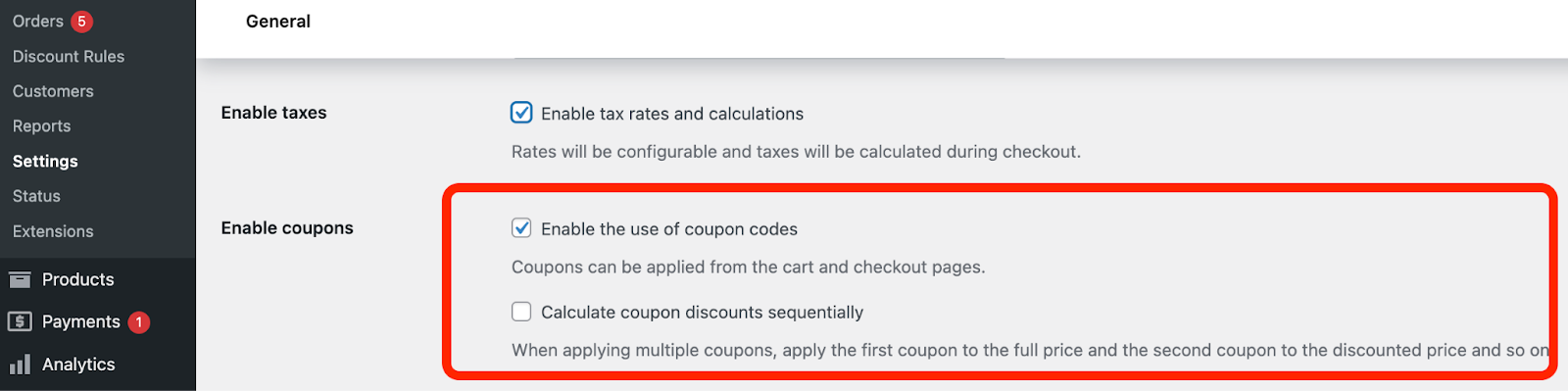
Click on the “Enable the use of coupon codes” option and save the changes.
Now, adding a coupon code on WooCommerce mainly consists of these 4 steps:
- Creating a Coupon Code in WooCommerce
- Enabling Free Shipping
- Set Up Usage Restrictions and Usage Limits
- Apply discount code in WooCommerce
Let’s go into depth.
Creating a Coupon in WooCommerce
Now let’s get into the main stuff. How to create a coupon in WooCommerce?
The first thing you should do is go to WooCommerce>>Marketing>>Coupons.
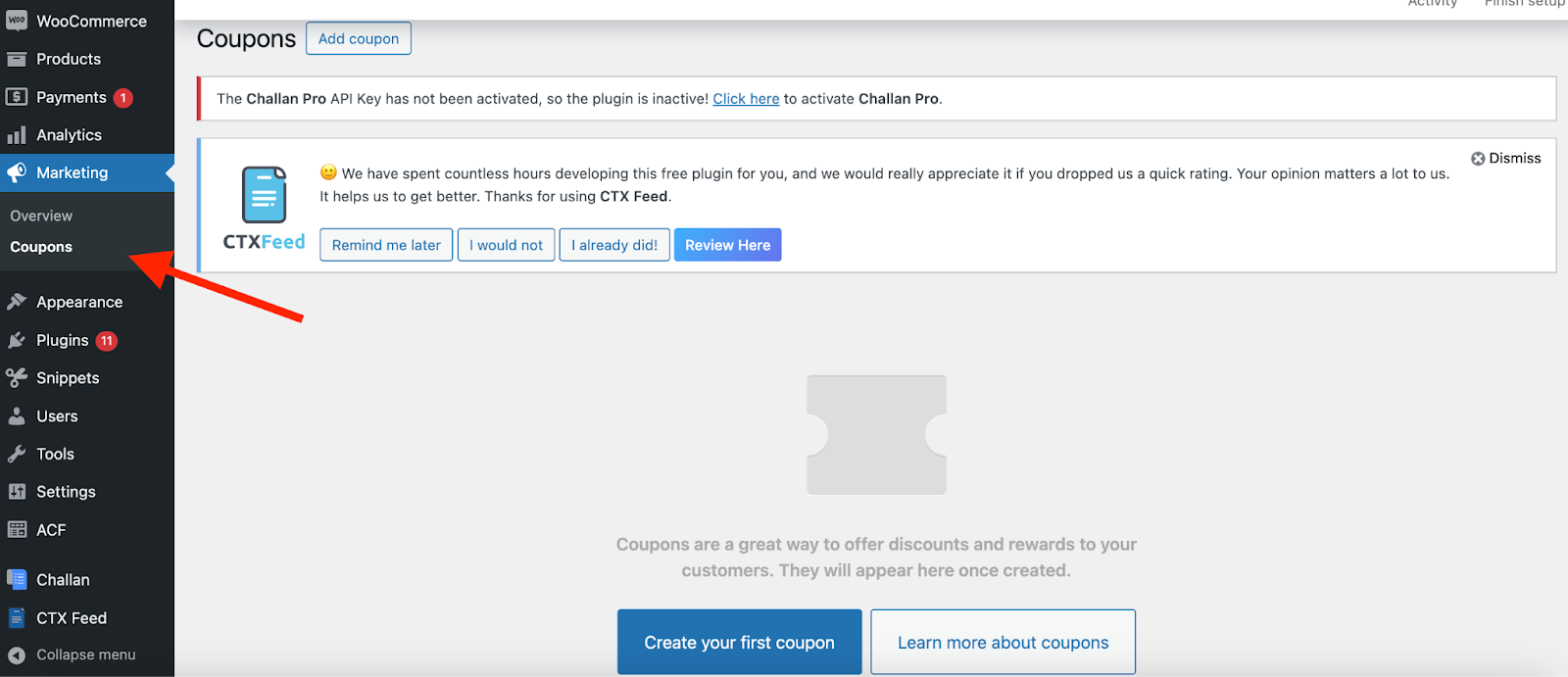
Here you can see there’s a button for creating your first WooCommerce coupon code. Click on it to add coupon code WooCommerce. It will take you to your add new coupon page.
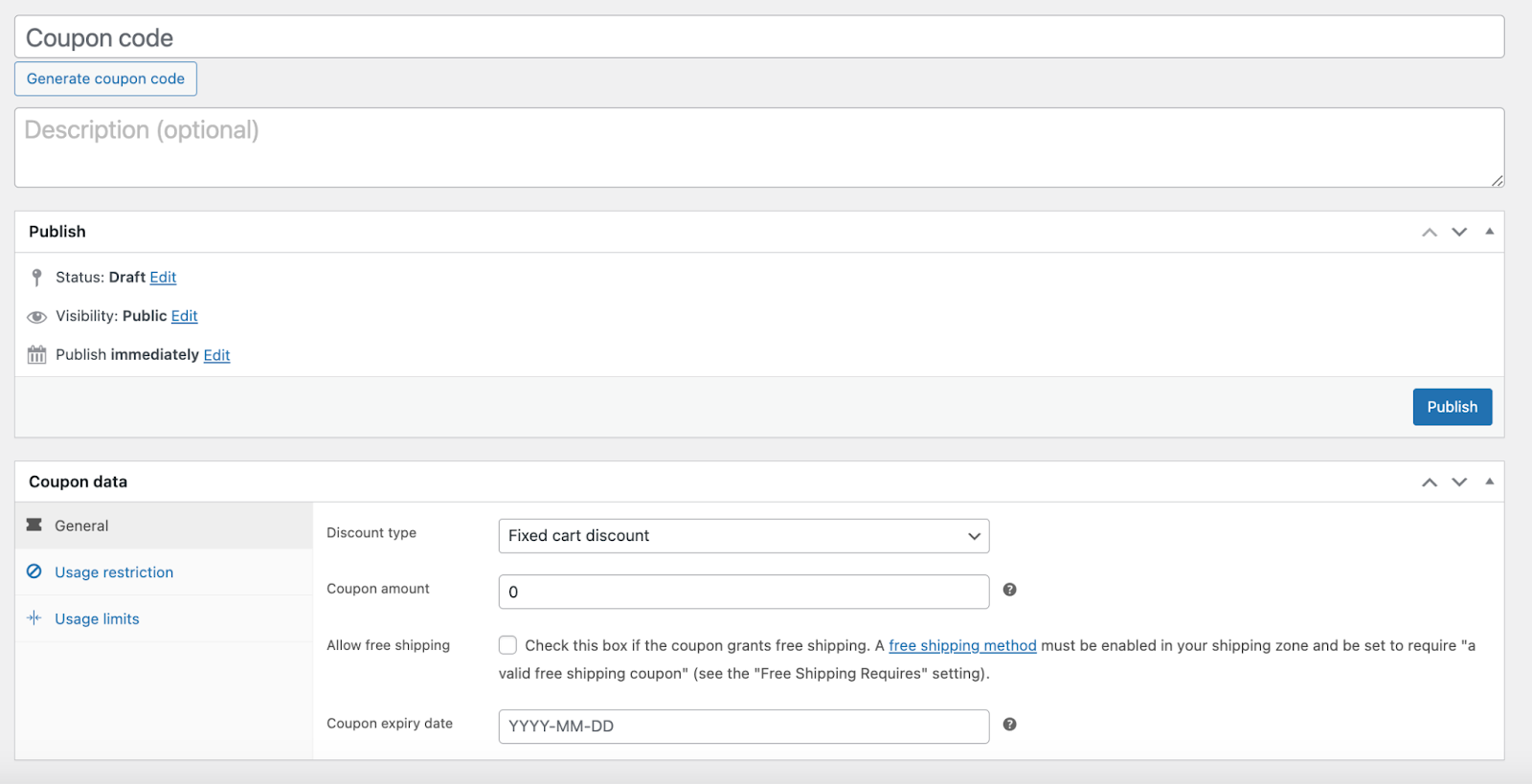
In the first box, you need to input your unique WooCommerce discount code. Customers will need to use this code to be eligible for the discount that goes along with it.
This code is used by WooCommerce as an identifier, so it must be unique.
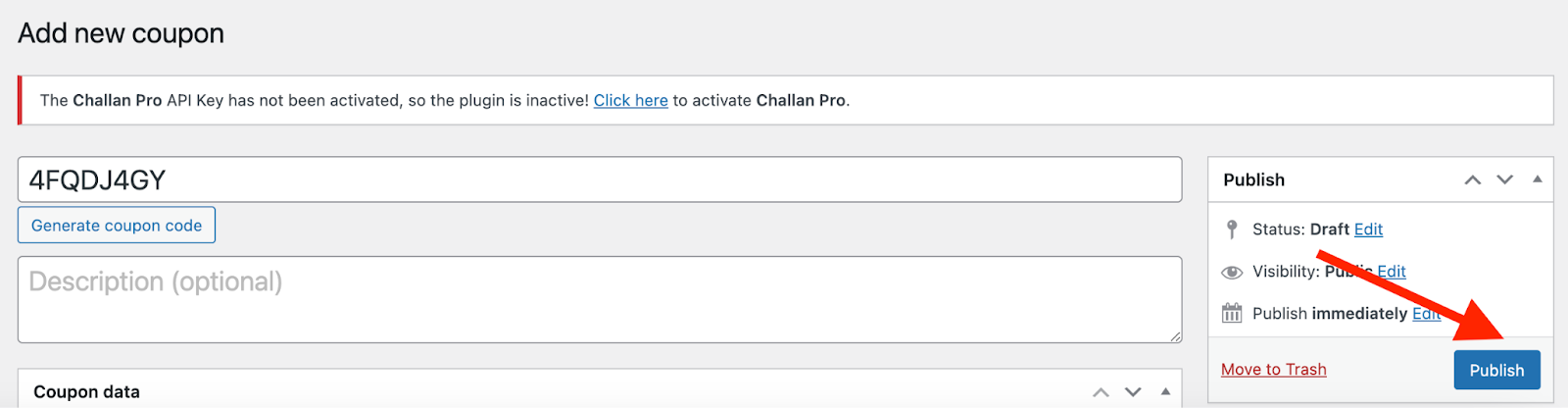
You can also use the WooCommerce discount code generator button to automatically create a code for you.
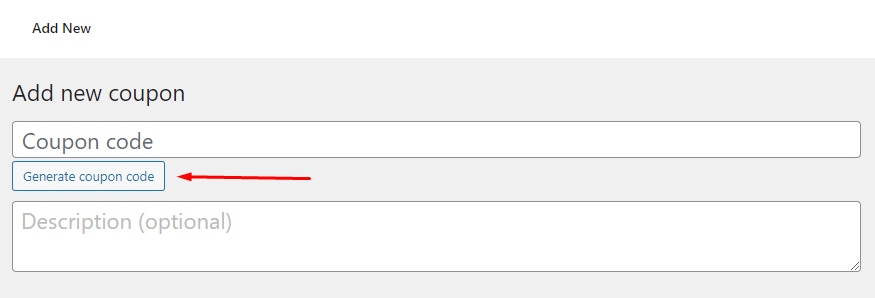
When you click the button, WooCommerce will generate a lengthy, cryptic code made up of seemingly random characters. These WooCommerce-generated coupon codes may sometimes make it harder for consumers to guess your coupons.
You can also create the WooCommerce discount code manually yourself. When you change coupon code text WooCommerce manually it will let you make coupons that are shorter, simpler, and easier to share. You could also develop codes that indicate what the coupon is about.
For example, you can name your WooCommerce discount code: ElevenEleven, BLACKFRIDAY, etc.
It’s a good idea to add a description for the WooCommerce discount code, especially when you use auto-generated coupon codes. That way, you or your store admins can recognize what the coupon is for.
You can put an end date on a coupon when you create it. This makes sure that people can’t keep using this coupon forever. With the Coupon expiry date field, you can set a time limit.
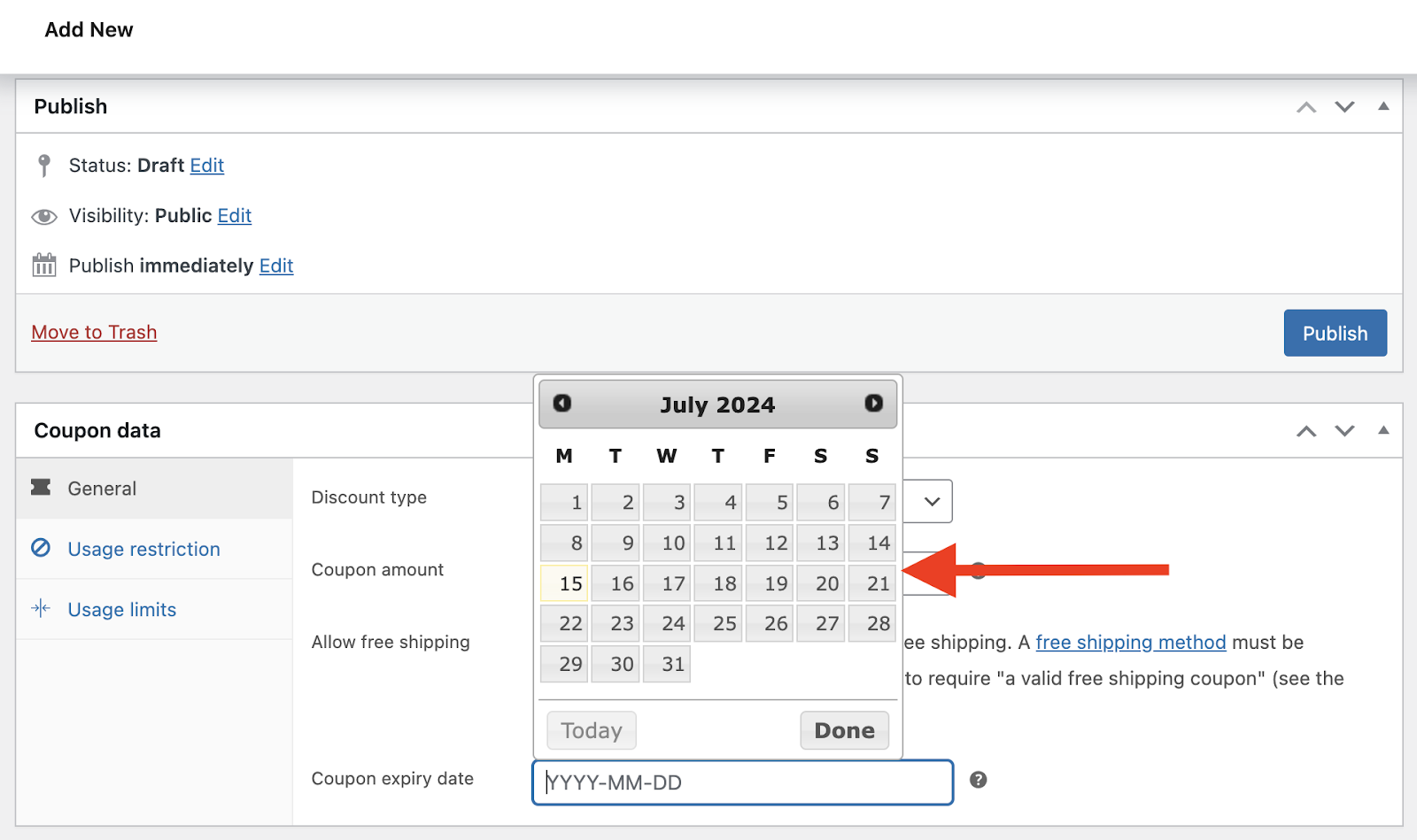
To make a coupon, you must first go through these fundamental procedures.
What are the different types of discounts I can offer with a WooCommerce coupon code?
Well, it can be in percentage, fixed cart, or fixed product discounts. So, next up, we will check out different types of coupons we can create on WooCommerce.
Percentage discount
You can offer a discount on any WooCommerce products sold in your store by making use of percentage coupons. This type of discount is calculated as a percentage of the total cost of the item being purchased.
Your store’s higher-priced items will be more appealing to customers if you offer a percentage-off discount. The more your customer spends in your store, the greater the discount will be, thanks to that WooCommerce discount code.
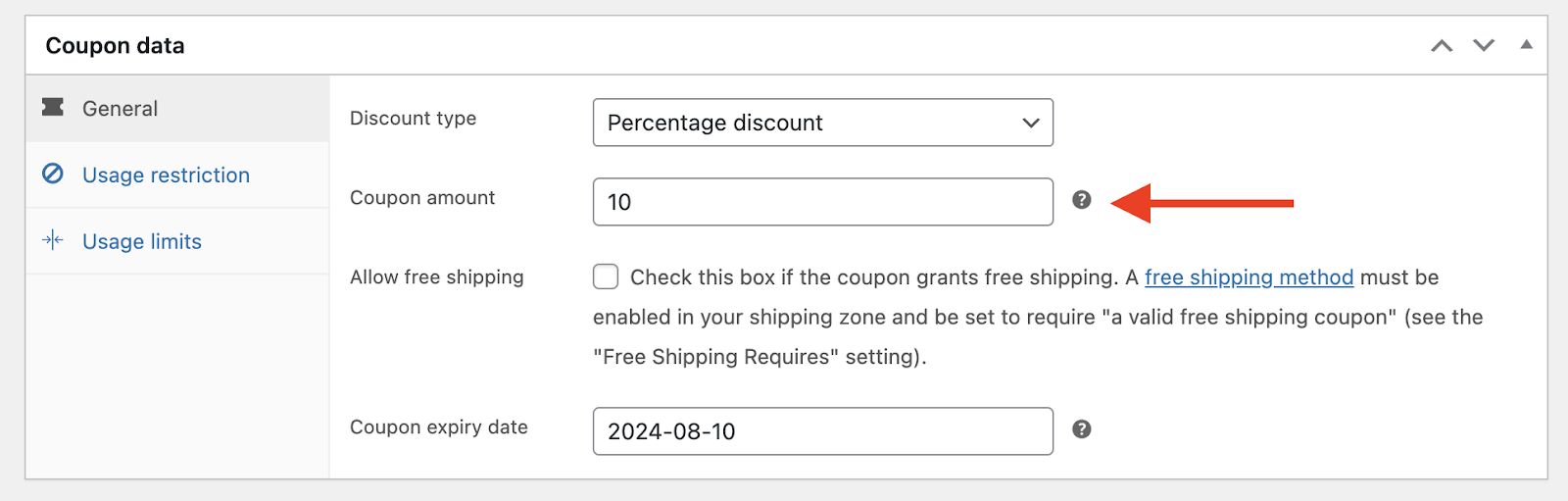
For example, if your WooCommerce discount code offers a 10% discount, your customer will get a discount of $3 on $30 purchases. However, if they buy $300 worth of items, they will save $30 using the code.
To create a woocommerce percentage discount, click on the Discount type dropdown field and select the Percentage discount option.
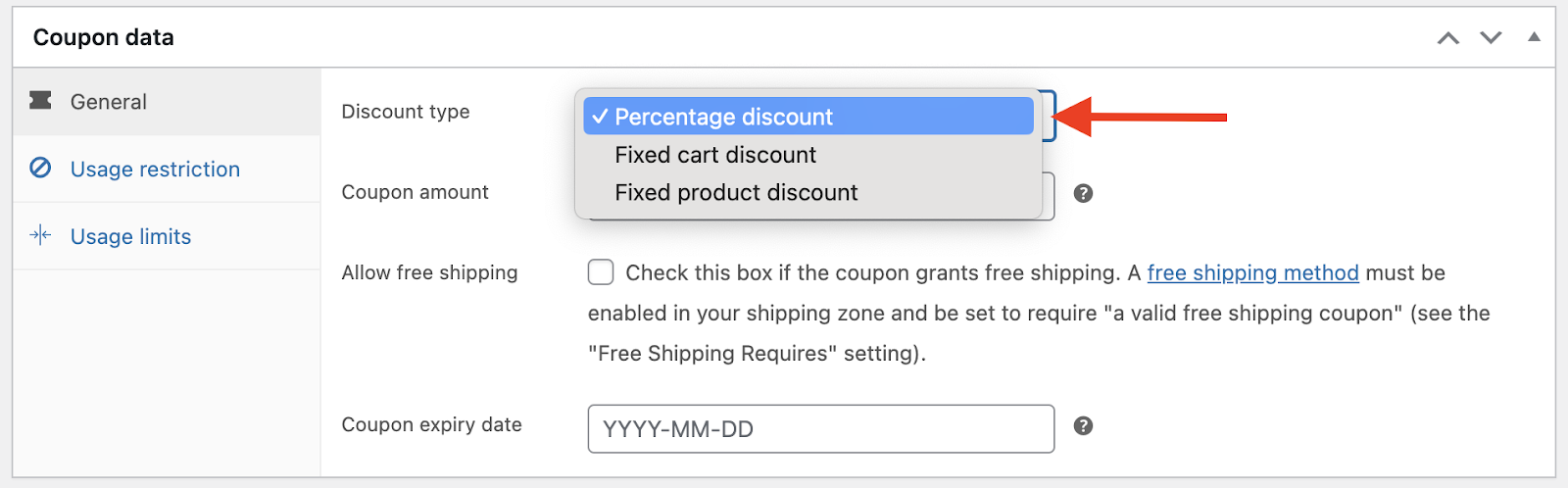
In the Coupon amount field, input the percentage amount you want to offer. But you don’t need to enter the percentage symbol. WooCommerce will detect that automatically according to your discount type selection. That is how you generate coupon code WooCommerce and offer percentage discounts.
Fixed Cart Discount
Offering a discount proportional to the customer’s cart total is known as a fixed cart discount. This makes sure that the discount is always in line with the amount the customer spends.
You can entice your customers to spend more money in general by offering them fixed cart discounts. The more items they add, the bigger the discount amount gets.
You can stack cart discounts with other promotions if you like. You could, for instance, offer free shipping once a customer’s cart total reaches a certain threshold amount, in addition to a fixed discount coupon.
This is a tightrope act, but it can pay off if executed properly. You can get customers to spend more money so that they can take advantage of both discounts.
To create a WooCommerce fixed cart discount, go back to your coupon page and from the Discount type dropdown field, select the Fixed cart discount option.
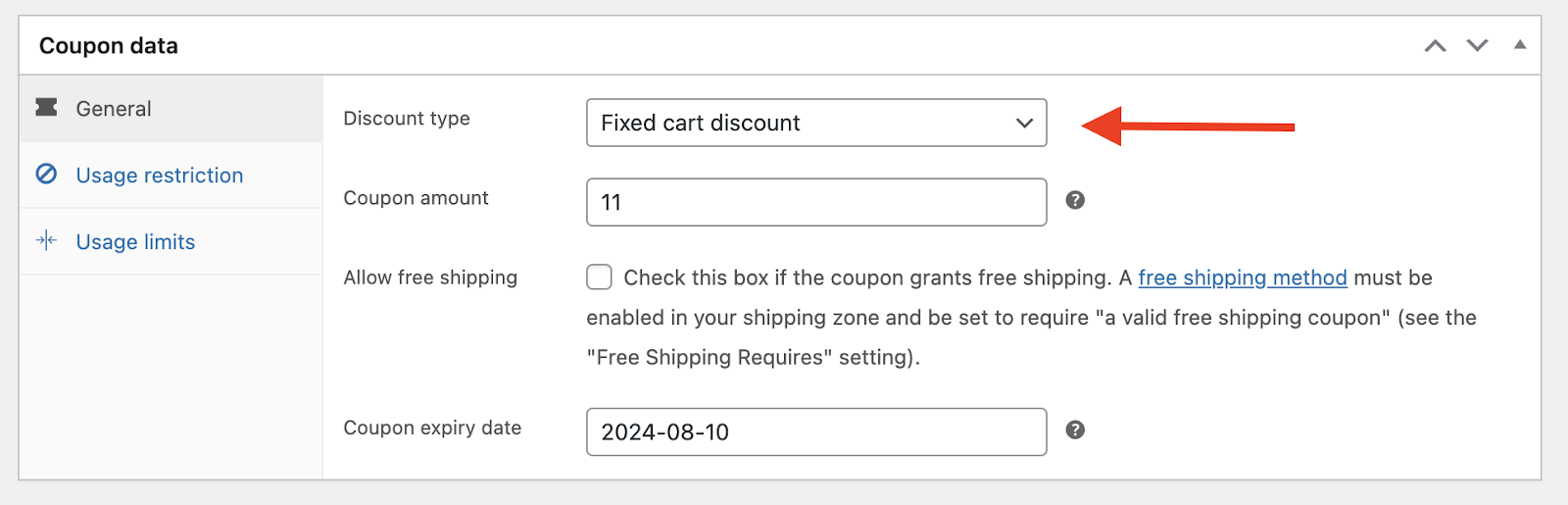
In the coupon amount field, enter your discount percentage amount.
Fixed Product Discount
A lot of people ask, can WooCommerce coupon codes be applied to specific products or categories?
Yes, it can! WooCommerce allows you to create discount codes for specific products or product categories. This can help make seasonal holiday-themed or stock-clearance sales.
For instance, if you want to run a sale promotion to clear your inventory before you stock new products, you can offer special discounts on the existing products or product categories.
Any store will do this as a matter of course, particularly at the beginning and end of each season when they are trying to sell off their old stock.
You can also use this method to promote your new products as well.
Taking advantage of current market trends is yet another common tactic. You can use Google Trends to track the popularity of particular products in online searches.
When you see an uptick in interest in a particular product, you can boost sales by providing a special discount just for that item.
To create this type of WooCommerce discount code, you first need to select the option from the dropdown and input your discount amount.

After that, you need to go to the Usage restriction tab ( We will get into more details in the following section) and select your product or product category.
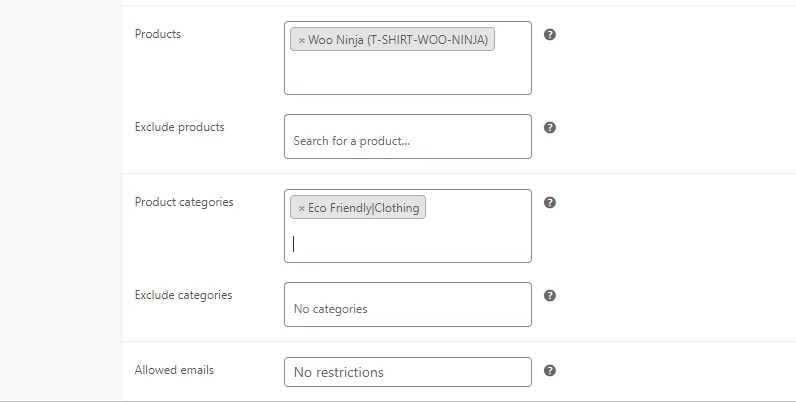
To assign a product, enter at least three characters, and WooCommerce will show you available matching products in a dropdown. Alternatively, you can select a category instead of specific products.
You can also exclude specific products or categories/sub-categories from the discount offer.
Free shipping
- 90% of people would shop online more often if they could get free shipping.
- 24% of shoppers would spend more just to get free shipping.
- If an item comes with free shipping, 73% more people will choose to buy it.
Source: SaveMyCent
Stats like these speak volumes about why you would want to offer multiple shipping options in WooCommerce, including free shipping.
To start the process, click on the Allow free shipping radio button to enable the option and publish the coupon.
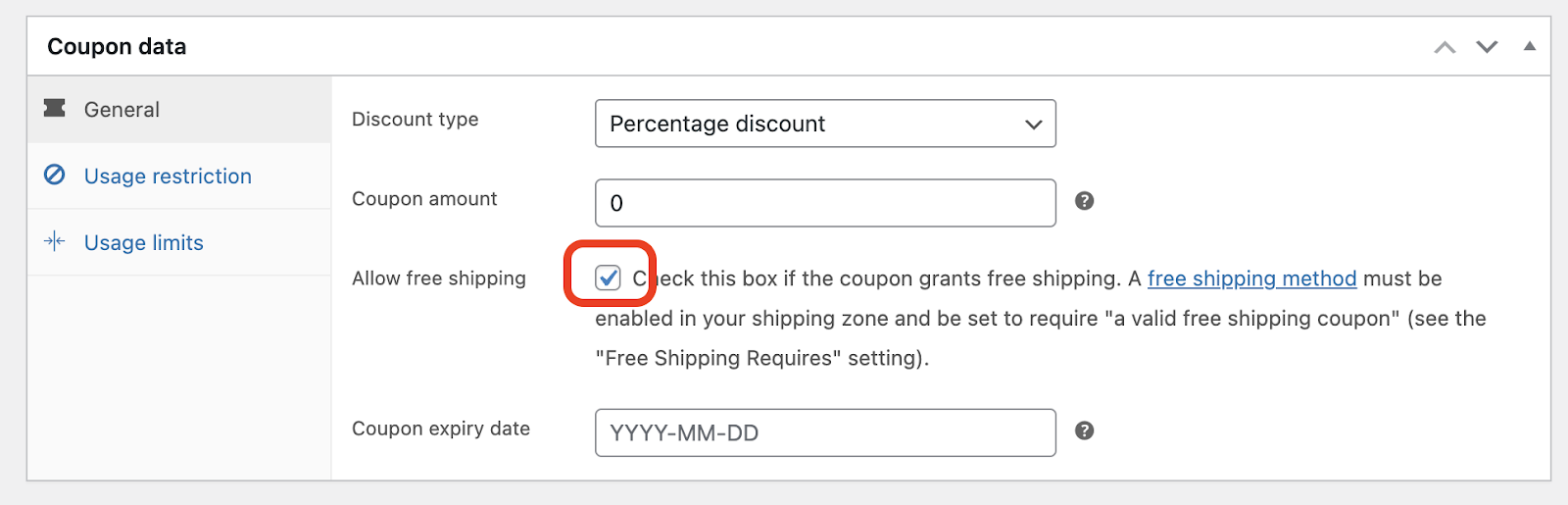
Now you need to specify the region/regions where you want to offer the free shipping. But how, you ask?
Go to WooCommerce>> Settings >> Shipping >> Shipping zones and select the zone to which you want to offer the discount.

You can choose to create a whole new zone and assign a free shipping method to it or edit an existing one. After you create your zone, click on the Edit button in the shipping methods section.
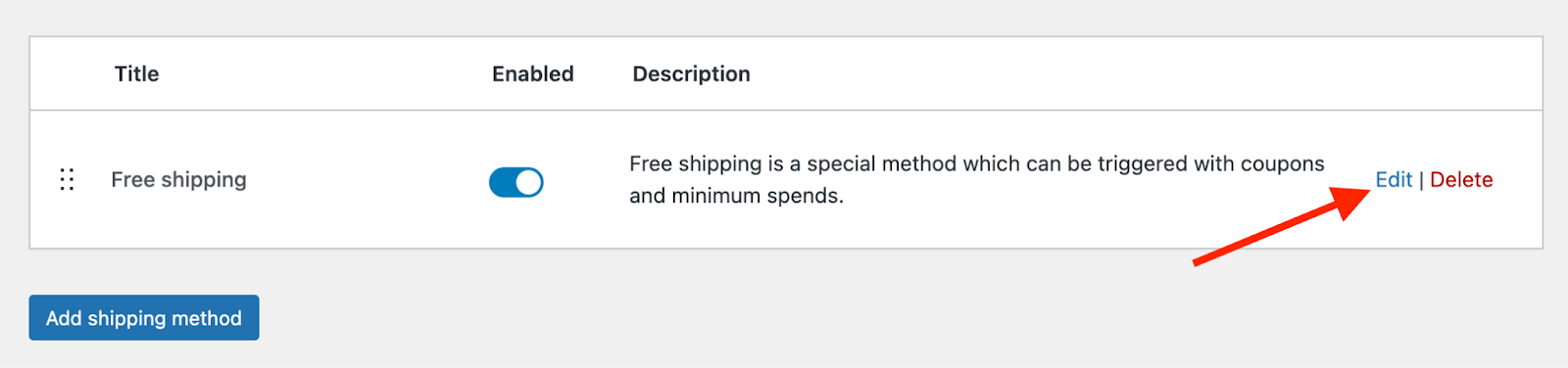
From the Free Shipping Requires dropdown select the A minimum order amount OR a coupon option.
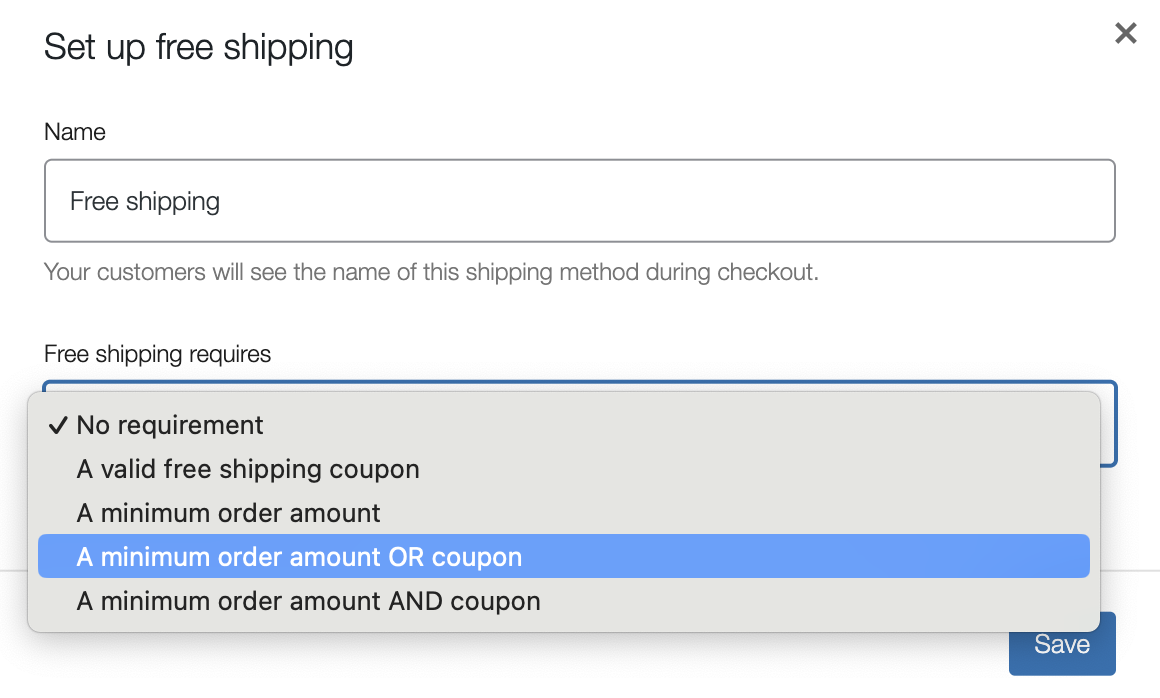
Now you can pick the coupon you made in the last step. Depending on what you choose, you might have to enter some more information.
For instance, you can specify how much customers need to spend to get free shipping. By setting a free shipping threshold, you can often get customers to spend more money.
Set Up Usage Restrictions and Usage Limits
We have already had a quick look at the Usage restriction tab when creating product-specific discounts. Now let’s get into more details.
The usage restriction tab lets you set some restrictions on the usage of your coupons.
Greedy customers won’t be able to take advantage of your coupons in this way. This allows you to make use of WooCommerce discounts without jeopardizing your income.
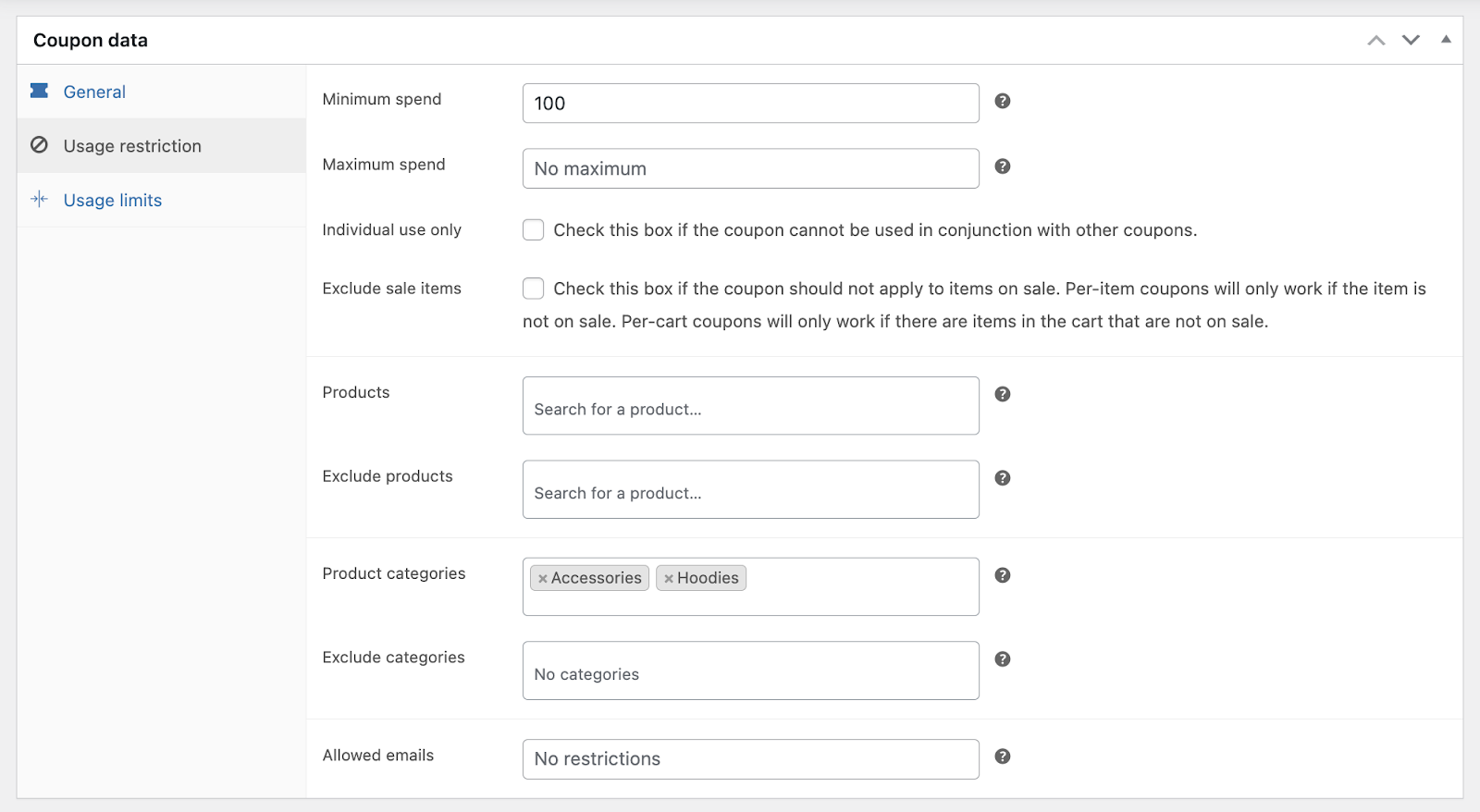
In this ‘Usage Restriction’ section, you get to-
- Set up minimum and maximum spending requirements to use coupons
- Set up coupons only for specific products or categories
- Set up different WooCommerce coupons for specific users
So, you can also put limits on customers’ purchases to get them to spend more.
For example, if you set a minimum spend, customers may add more items to their carts so they can get the coupon.
You can set a minimum and maximum spend amount from the dedicated fields.
If you enable the Individual use-only option, customers won’t be able to use this promotion in conjunction with any other discounts. If you’re offering multiple discounts and don’t want customers to be able to use multiple coupons for the same purchase, this option may come in handy.
You can also stop people from using a coupon on something that is already on sale. This can help you make sure you always get a fair price for your goods. To set this limit, check the box next to Exclude sale items.
What about the Usage Limits?
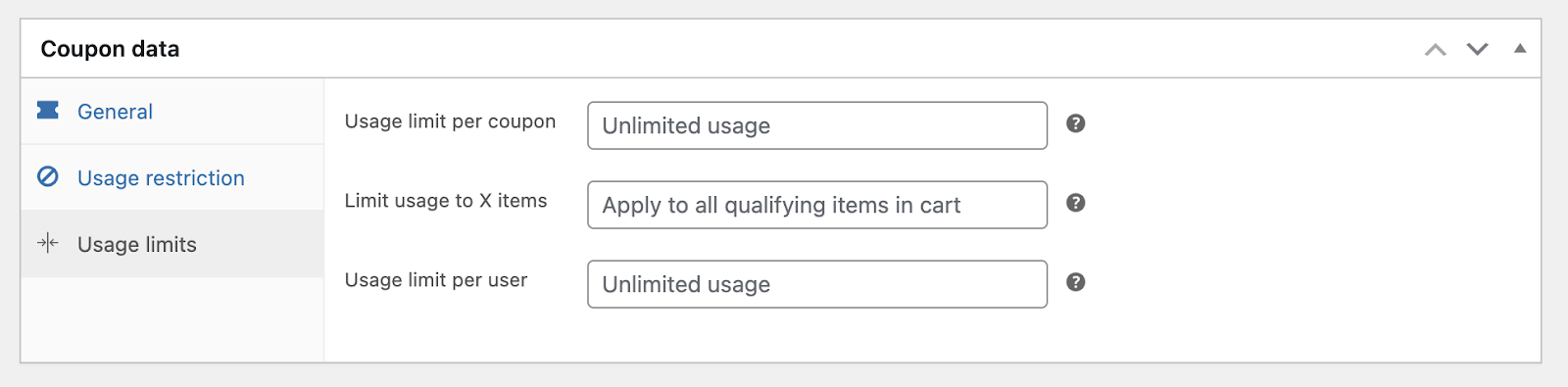
Well, In the “Usage Limits” section, you can set:
- The maximum number of times the coupon can be used.
- The maximum number the coupons that can be used for products
- The maximum number of times each customer can use the coupon
Once you are done modifying the “Usage Restrictions” and “Usage Limits” click on the publish button.
Apply discount code in WooCommerce
We are almost done here! The last step of creating coupon code WooCommerce is to apply the code itself and check if it is working perfectly.
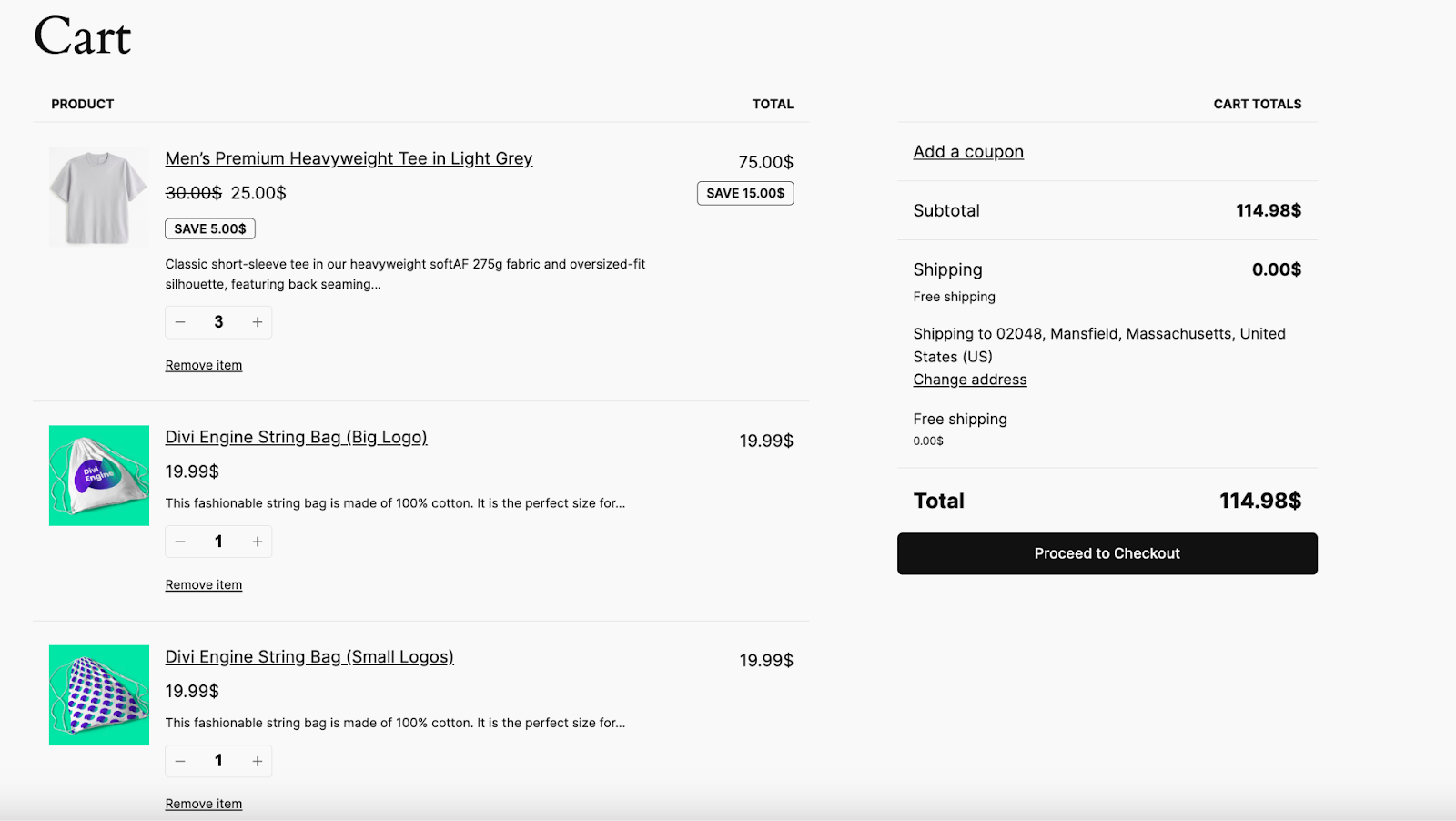
To do that, you should order some products from your WooCommerce shop. As you can see, we have ordered some products and the total amount is $114.98.
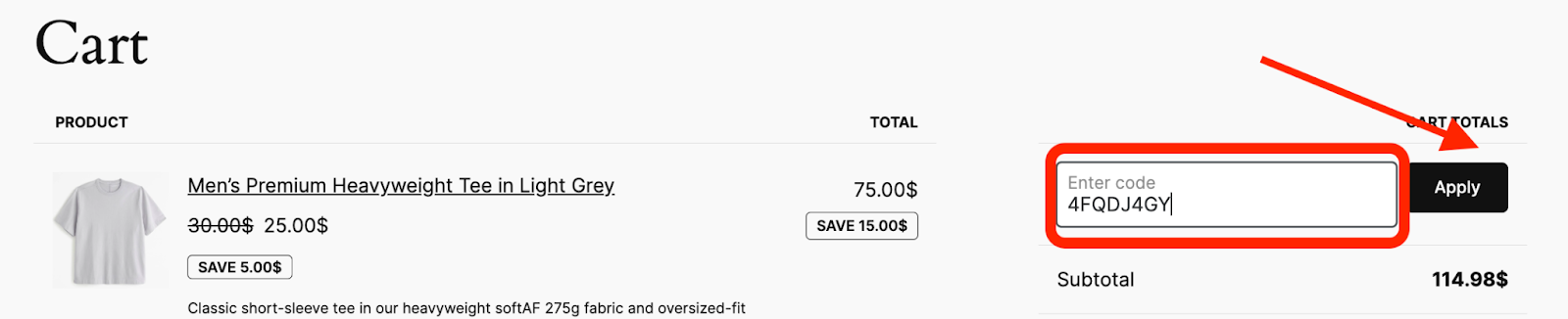
Now, let’s apply a 5% (Percentage discount) WooCommerce coupon code that we had created earlier. So, we have to put the code and click on “Apply” to see if anything changes or not.
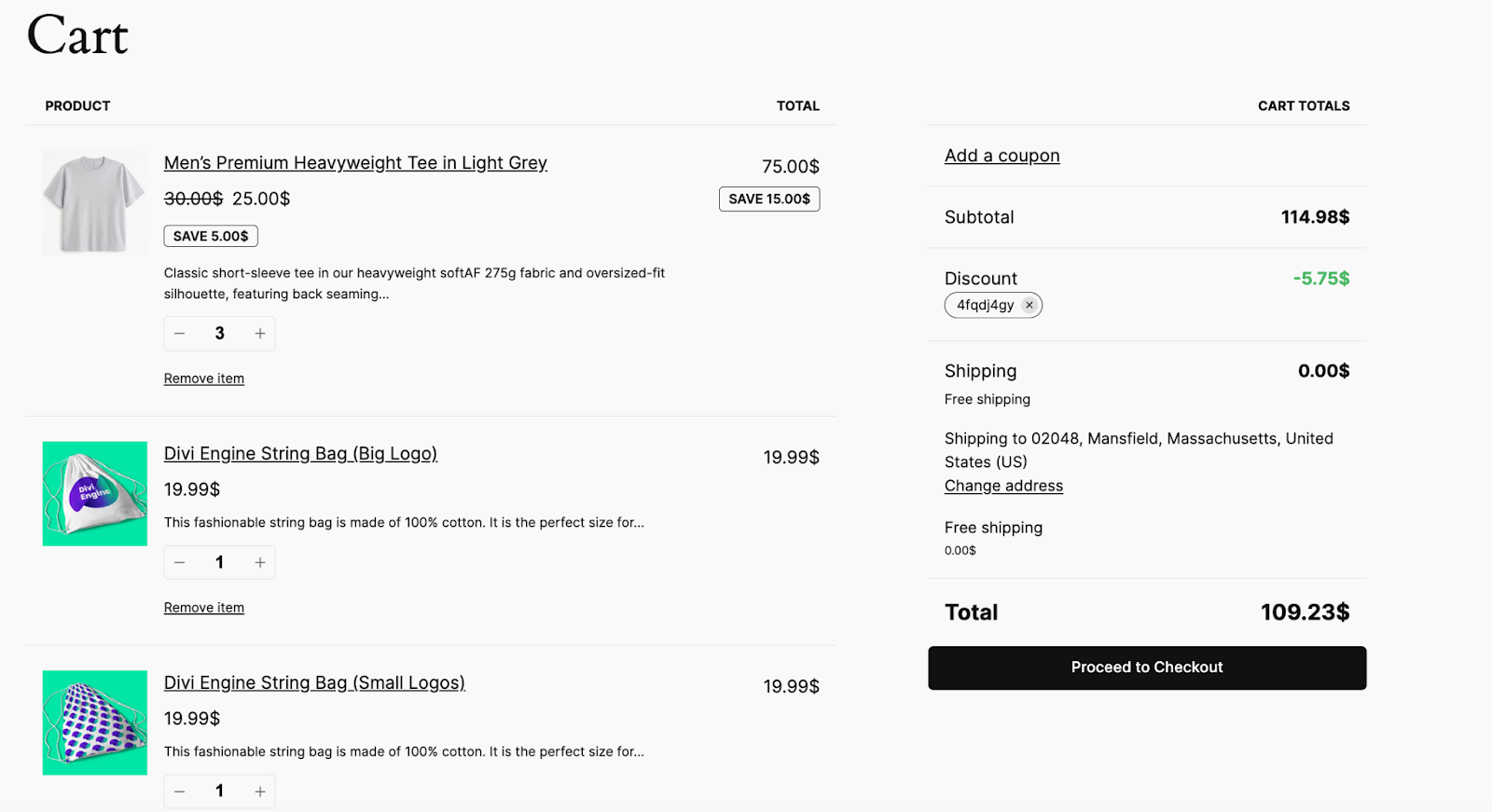
There you go. You have successfully added a WooCommerce Coupon Code. The coupon was successfully applied and now there is a $5.75 discount (5%) on the entire order. Hopefully, now you know how to set up a Coupon code on WooCommerce and will be able to use it properly.
Why Create WooCommerce Coupons: 6 Strategic Benefits for Your E-commerce Store
It has been known for a very long time that offering discounts affects the psychology of customers, and even though we are moving into an era of unprecedented convenience and digitization, this fact has not changed.
We have tons of statistics to back up this claim. Let’s check some of them out.
- 92% of consumers who shop online look for promotional codes or coupons before making a purchase.
- By 2027, the global market for mobile coupons is expected to reach $14.8 trillion.
- An estimated 86% of millennials said a coupon discount could get them to switch brands.
- Shoppers who use online coupons spend 24% more than those who don’t.
- 68% of consumers are under the impression that using digital coupons encourages brand loyalty.
- 74% of customers followed the brands’ social media accounts in the hope of finding discount coupons.
What is the benefit of coupon codes in WooCommerce?
The psychology that lies behind the appeal of discounts goes beyond simply saving a few dollars. The following are some of the most important ways in which discounts offered by coupons influence the behaviors of customers.
1. Boost Conversion Rates & Prevent Competitor Switching
93% of today’s consumers who shop online do price comparisons before purchasing a product or service.
That’s why it’s so important to offer promotional deals like a WooCommerce discount code to encourage consumers to make a purchase rather than continue looking for a better offer elsewhere.
If a coupon deal is sufficiently appealing and easily accessible, there is a greater likelihood that the consumer will complete the purchase. Thus, adding coupon codes to WooCommerce can be the best CRO strategy for your store to grow faster.
2. Strengthen Brand Trust & Customer Credibility
Discounts can help build trust with customers as long as businesses don’t artificially inflate their prices and then offer ridiculously low sales prices (such as selling an item for $15 instead of $350).
Customers almost always take discounts at face value, assuming they are being offered a fair deal and not being scammed. Providing reasonable discounts fosters confidence and trust, which in turn increases customer loyalty.
3. Increase Customer Satisfaction & Emotional Loyalty
According to Claremont University research, getting something for less than it would normally cost triggers the release of the feel-good hormone oxytocin, which in turn makes your customers feel happy.
As a result, this can improve consumers’ perceptions of the company and boost the likelihood that they will buy from you again. So, you can hope to increase customer satisfaction with your WooCommerce Store
4. Drive Sales via Urgency & FOMO
According to an article published in Psychology Today, one of the main factors in how promotional discounts motivate consumers to make purchases is the nagging feeling of ‘anticipatory regret,’ or the Fear Of Missing Out (FOMO).
Customers may experience anticipatory regret even if the sale is not promoted as a limited-time offer because, if the price cut is appealing enough, they may worry that they will regret passing it up later.
5. Lower Cart Abandonment with Targeted Incentives
High total costs are the leading cause of abandoned carts. Implementing automated coupon emails for abandoned sessions provides the final nudge needed to recover lost sales and improve your bottom line.
6. Gain a Competitive Edge in Saturated Markets
In a crowded market, discount codes can give your store a competitive edge. Attractive discounts set your store apart from competitors and draw more customers, especially during high-competition periods.
For example, if your competitor is selling a product for $50 and you can sell it for $40 the customers will come to your WooCommerce store and buy your product.
This increased traffic and conversions can increase your WooCommerce sales and foster brand loyalty
Coupon Code Not Working WooCommerce: Here’s Why and How to Fix It
Even after setting up the coupon codes sometimes the codes do not work. But, what might be the reason? Why are coupons not working in WooCommerce?
Well, there are several reasons why your WooCommerce coupon code might not be working. Here are a few common reasons and their solutions:
1. Coupon Not Published or Enabled
You might have created the coupon but forgotten to publish it. Additionally, the global setting for “Enable coupons” might be disabled.
What is the Solution?
Navigate to WooCommerce >> Settings >> General. Verify the checkbox for “Enable the use of coupon codes” is checked. Also, go to WooCommerce >> Marketing >> Coupons. Ensure your coupon’s status is “Published.”
If you’re unsure about the status, double-check both areas to avoid missing anything.
2. Expired or Usage Limit Reached
The coupon might have passed its expiry date or reached its maximum allowed use. You won’t see any error message, but the discount won’t be applied.
How to Solve this?
Check the coupon’s validity in WooCommerce >> Marketing >> Coupons. If the coupon has expired, adjust the expiry date for future use. If it’s reached its usage limit, consider increasing the limit or creating a new coupon with a fresh limit.
This is one of the most common reasons behind “coupon usage limit has been reached” issues.
3. Coupon Restrictions Not Met
The coupon might have restrictions on minimum spending, specific products, product categories, user roles, or customer emails. For example, it might only apply to orders over $50 or to a particular product category.
What’s the right approach to it?
Review the coupon settings in WooCommerce >> Marketing >> Coupons. Ensure your order meets the minimum spend requirement, includes products that are part of the coupon’s offer, and is placed by a user who qualifies based on the coupon’s settings.
For example, if the coupon is for a new customer only, an existing customer may not be able to use it.
4. Free Shipping Coupon Not Working
Sometimes, WooCommerce free shipping coupons do not work because the coupon is created, but the free shipping method is not configured properly.
Here’s what you should check:
- The coupon has “Allow free shipping” enabled
- The correct shipping zone has Free Shipping added
- The Free Shipping Requires option is set properly
- The customer’s shipping address matches the shipping zone
- The minimum order amount is met if required
If one of these settings is missing, the coupon may apply, but free shipping may not appear.
5. Coupon Field Not Showing on Checkout Page
Sometimes, the problem is not with the coupon itself. The coupon field may be hidden on the checkout page.
This can happen because of:
- Theme customization
- Checkout builder plugin
- Disabled coupon settings
- WooCommerce block checkout settings
- Custom CSS hiding the coupon box
- A plugin conflict
If customers cannot see where to enter the promo code, they may abandon the checkout even if your discount is active.
6. Plugin Conflict
What are some common reasons why a WooCommerce coupon code might not work?
One big reason might be that another plugin, it can be a WooCommerce coupon code plugin too, on your site might be interfering with WooCommerce’s coupon functionality, causing it to malfunction.
Here’s how you can solve it:
Try temporarily disabling all plugins except WooCommerce. If the coupon works after disabling plugins, re-enable them one by one to identify the plugin causing the conflict.
This systematic approach will help you pinpoint the culprit.
Best WooCommerce Coupon Plugins (2026)
To maximize your store’s performance, choosing a coupon plugin that matches your promotional strategy is essential. Some plugins specialize in dynamic pricing and bulk discounts, while others focus on gift cards, cart optimization, or advanced coupon automation.
Comparison at a Glance (2026)
| Plugin | Primary Strength | Starting Price | Best Use Case |
|---|---|---|---|
| Disco Plugin | Dynamic pricing automation | $69/year | Automated discounts & flash sales |
| Advanced Coupons | Strategic coupon logic | $59/year | BOGO & URL coupons |
| FunnelKit Cart | Conversion optimization | $99/year | Cart upsells & AOV growth |
| Flycart | Bulk & wholesale pricing | $69/year | Tiered & volume discounts |
| Smart Coupons | Gift cards & store credit | $129/year | Customer credits & gifting |
Below are some of the best WooCommerce coupon plugins to consider in 2026.
1. Disco Plugin (Best for Dynamic Pricing & Free Version Depth)
Disco – Dynamic Discounts and Coupons for WooCommerce has emerged as a top contender in 2026 due to its intuitive visual builder and an incredibly feature-rich free version that outperforms many competitors.
Use Case:
Ideal for stores that need advanced dynamic pricing including discounts based on customer location, currency, cart conditions, or user roles, without a steep learning curve. It works especially well for running high-impact “Summer Sales,” “Flash Deals,” and automated promotional campaigns with custom discount badges.
Pricing:
- Free: Includes 5+ discount types and 50+ condition filters.
- Pro: Starts around $69/year (1 site) to $129/year (10 sites).
2. Advanced Coupons (Best for All-In-One Strategic Rules)
Advanced Coupons for WooCommerce remains a gold standard for extending the native WooCommerce coupon system with advanced marketing logic.
Use Case:
Best for complex BOGO offers, cart conditions, loyalty rewards, and URL-based coupons that auto-apply when customers click links from email campaigns or social media promotions.
Pricing:
- Free: Basic BOGO and URL coupon features.
- Pro: Starts around $59/year.
3. FunnelKit Cart (Best for Increasing AOV)
FunnelKit Cart focuses heavily on optimizing the shopping cart experience to increase conversions and Average Order Value (AOV).
Use Case:
Perfect for stores using side-cart upsells, progress bars, and reward incentives such as: “Spend $15 more to unlock Free Shipping.”
Pricing:
- Included in FunnelKit bundles starting around $99/year.
4. Discount Rules by Flycart (Best for Wholesale & Bulk Discounts)
Discount Rules for WooCommerce by Flycart is one of the strongest solutions for wholesale stores and large product catalogs.
Use Case:
Excellent for tiered pricing structures such as:
- 5% off for 5 items
- 10% off for 10 items
- Category-wide automatic discounts
- Bulk purchase promotions
Pricing:
- Free: Limited rule options.
- Pro: Starts around $69/year.
5. Smart Coupons by StoreApps (Best for Store Credit & Gifting)
Smart Coupons by StoreApps is widely considered the most robust WooCommerce solution for digital credits and gift-based promotions.
Use Case:
Essential for:
- Selling digital gift cards
- Issuing store credit for returns
- Bulk-generating coupon codes
- Running large-scale email coupon campaigns
Pricing:
- Premium only, starting around $129/year.
The best WooCommerce coupon plugin depends on the type of promotions you plan to run. If you mainly need advanced coupon rules, Advanced Coupons is a solid choice. For dynamic pricing and automated discount campaigns, Disco plugin and Flycart offer more flexibility. Meanwhile, stores focused on customer retention may benefit more from Smart Coupons or FunnelKit Cart.
How to promote WooCommerce Coupons: 4 Effective Ways
The next step, after the WooCommerce discount coupon code is created, is to spread the word. You must promote your coupons to make sure people are aware of them and actively utilize them.
Here are some common channels where you can promote your WooCommerce discount code coupons.
1. Social Media Promotion

Social media is by far the best place to promote your promotional events, and that also includes your coupons.
Make use of Facebook and Twitter posts and Instagram stories. Create a sense of urgency by advertising an offer that is only available for a limited time.
You can also offer special gifts/discounts to your social media followers if they share the WooCommerce discount code you are promoting.
An effective strategy for spreading the word about your coupons is to reach out to popular people (influencers) on social media. You can pay these people to share information about your product and discount codes with their followers.
2. Email Marketing
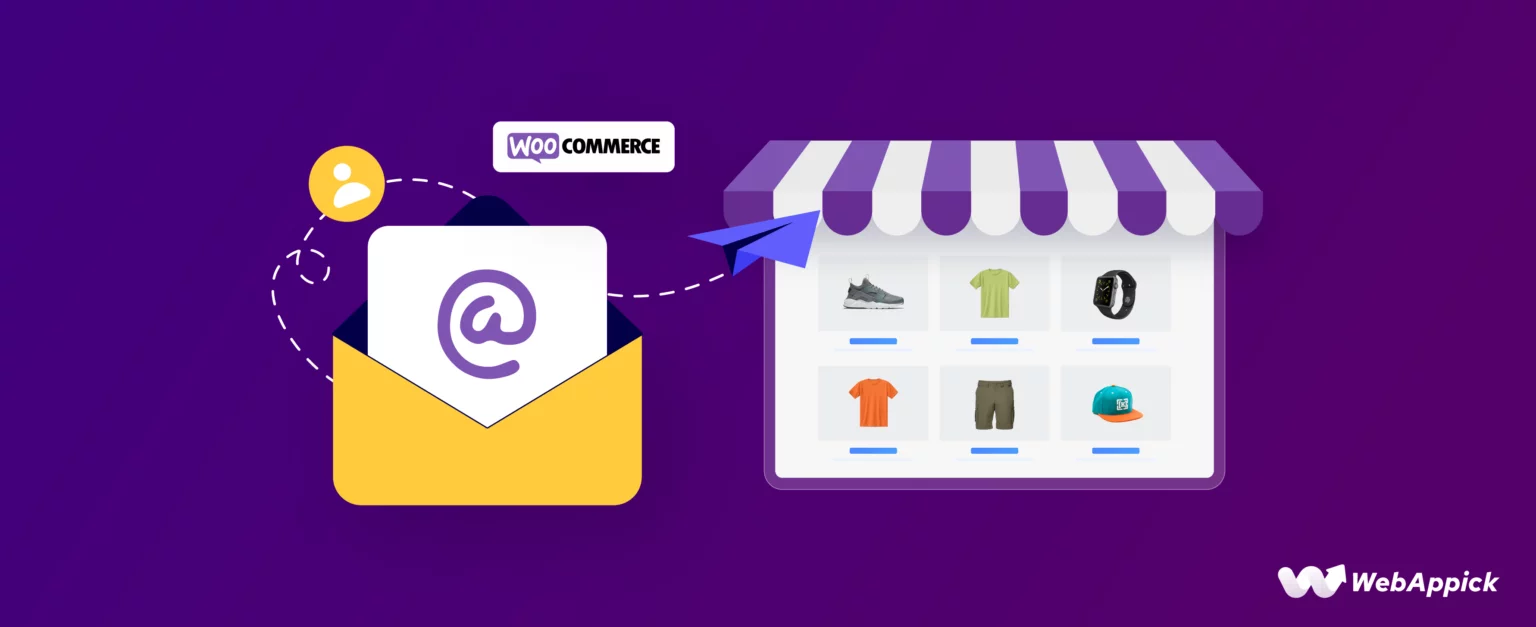
You can promote the coupon code to your audience through email if you have an existing email list. If you own a WooCommerce subscription-based membership website, you already have a loyal follower base whom you can email.
You can also attach the WooCommerce coupon code to your auto-generated emails, such as welcome emails, thank you emails, transactional emails, etc.
3. Lead magnets
Make use of your website to gather email addresses by implementing a lead magnet. Display the lead magnet either immediately upon a customer’s arrival after they’ve spent a specific amount of time on your site, or just before they click away.
For instance, you could give a 25% discount to anyone who comes to your store. They would have to give you their email address to get the coupon code.
You can also offer them an additional discount of 5% if the customer is about to leave your shop without making a purchase.
This serves two purposes:
- First, it helps you build your email list, which you can then use to promote future offers and coupons.
- And second, it helps you offer a coupon to entice the customer to purchase from your store.
4. Partnerships and Collaborations
One more thing you can do is collaborate with other businesses or influencers to promote your coupons.
Partnering with complementary brands allows you to reach a new audience. For example, a fashion retailer could collaborate with a beauty brand to offer mutual discounts. Influencers can promote your coupons to their followers.
This will eventually drive Traffic to Your eCommerce Store and boost sales. So, ensure that you collaborate with the right businesses and hopefully your coupon codes will be promoted.
Frequently Asked Questions (FAQs)
How do I create a WooCommerce free shipping coupon?
Go to Marketing >> Coupons and create a new coupon. Then enable the “Allow free shipping” option from the coupon settings.
After that, go to WooCommerce >> Settings >> Shipping >> Shipping zones and make sure Free Shipping is properly configured for the selected zone.
Why is my WooCommerce coupon not showing on checkout?
Your WooCommerce coupon field may not appear because coupons are disabled, your theme hides the coupon field, your checkout page is customized, or a plugin conflicts with WooCommerce checkout.
Check WooCommerce >> Settings >> General first and make sure coupons are enabled.
Can I create a WooCommerce coupon for a specific user?
Yes. You can create a coupon for specific users by using the Allowed emails field under the Usage Restriction tab.
Only customers with those email addresses will be able to use that coupon.
Can I auto-apply coupons in WooCommerce?
WooCommerce does not offer advanced auto-apply coupon features by default. You may need a WooCommerce coupon plugin or dynamic discount plugin to automatically apply coupons based on cart value, product category, customer role, location, or other conditions.
Wrap up
Promo codes are a great way to attract more customers and increase your revenue. They are so ingrained in human psychology that not everyone realizes they are influencing them.
Coupons are a great tool to add to your marketing arsenal if you run a WooCommerce store.
Whether you want to create a WooCommerce coupon code, add a discount code in WooCommerce, offer free shipping coupons, run a first order discount, or fix WooCommerce coupon not working issues, the built-in coupon settings give you a strong starting point.
And if you need more advanced promotional rules, such as auto-apply coupons, dynamic discounts, next order coupons, bulk coupon generation, or customer-specific discounts, you can always extend WooCommerce with a coupon plugin.
We hope this post on how to add a WooCommerce coupon code was of help to you. Let us know if you are using any plugin or any other method to offer custom coupons or deals to your customers.


Great tips on creating WooCommerce coupons! This will definitely help boost sales. Thanks for sharing!
Thanks for sharing your opinion.