Product descriptions in Google Merchant Center are not optional—they’re a required attribute that directly affects whether your products show in Shopping ads and free listings.
If your products have a missing description, Google may limit visibility or disapprove them entirely. That means lost impressions, fewer clicks, and weaker campaign performance.
At the same time, many merchants are confused about:
- The description character limit
- How to use attribute rules (Transformations tab)
- And why errors still appear even after fixing the feed
This guide covers all of it.
When setting up your product data properly, it’s important to understand how your items are structured and submitted to Google.
📌 For a complete setup process, see how to easily upload products to Google Merchant Center.
You’ll learn exactly how to fix missing description issues in Google Merchant Center, whether you’re editing a few products or managing a large feed. We’ll also cover character limits, best practices, and how to prevent the problem from coming back.
Why Missing Descriptions Matter
Missing descriptions don’t just trigger warnings—they directly affect:
- Product visibility in Google Shopping
- Eligibility for ads
- Click-through rate and conversions
Google Merchant Center Description Character Limit
Google allows product descriptions of up to 5,000 characters, but that doesn’t mean you should use the full limit.
Best practice:
- 150–500 characters for core information (what shows first)
- Add extra details only if they help the buyer decide
- Keep it clear, factual, and easy to scan
Avoid:
- Promotional text like “Free shipping” or “Buy now”
- Keyword stuffing
- Irrelevant or misleading content
Important:
Your product description must match the landing page content. Mismatches can trigger product issues in Merchant Center. This becomes even more important when you are writing optimized listings for e-commerce stores.
A deeper breakdown of writing optimized product copy is explained in How to Write WooCommerce Product Descriptions for Better Conversions
How to Find Missing Description Errors in Google Merchant Center
Before you fix anything, find the exact products Google flagged.
This step tells you which SKUs are affected, which feed they came from, and whether the problem is a feed issue or something on the landing page. That makes every later fix faster and safer.
Using the Needs Attention tab (formerly Diagnostics)
Google Merchant Center Next no longer shows a “Diagnostics” page. In the current interface, you’ll use Products > Needs attention and read the What needs attention column to see issues for each product. Click any issue to expand details and guidance.
Step-by-Step:
- Sign in to Google Merchant Center.
- Open Products in the left menu, then choose Needs attention.
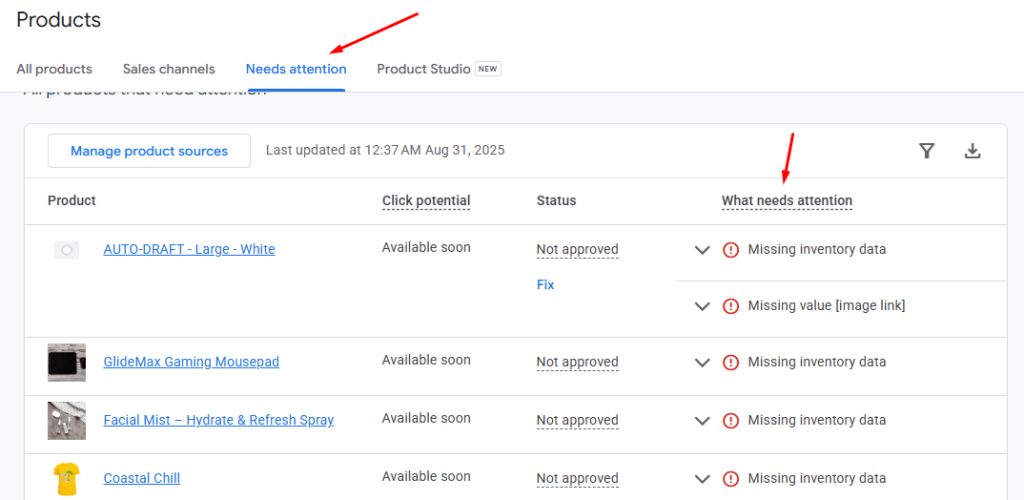
- Under the “What Needs Attention” column, look for rows with problems. Use the filters at the top or the search box to narrow results.
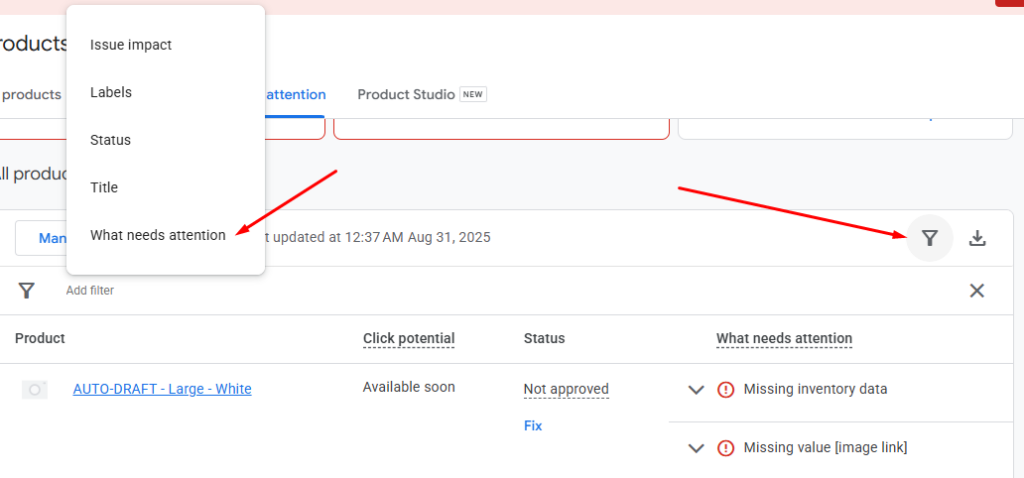
- Filter or search the list for the issue text “Missing description” (or similar wording). Click any product to see product details, the exact reason, and suggested fixes.
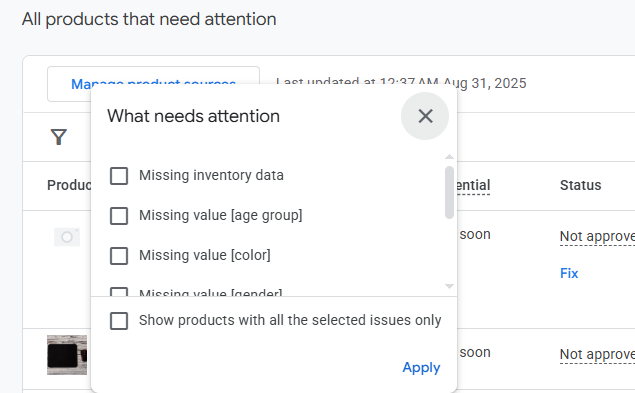
Why this matters: The Needs attention view indicates whether the error originates from your feed, account-level policy checks, or landing-page/structured-data mismatches. That helps you choose the right fix, such as editing the feed, supplying a supplemental file, or updating the product page.
Download the Affected Products Report
When many products are flagged, you need a spreadsheet to work from. Merchant Center lets you download any view of the Needs Attention list so you can fix items in bulk.
How to download the report:
- While on Products > Needs attention, set your filters so the list shows only items with the Missing description issue.
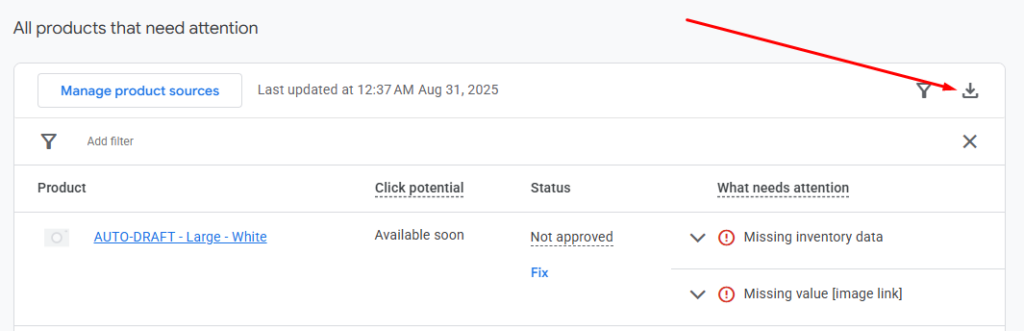
- Click the Download button. The exported CSV contains product IDs, feed/line numbers, and the issue details you saw in the UI.
- Open the CSV in a spreadsheet app. Use the product IDs to match items back to your CMS, feed file, or supplemental feed for bulk correction.
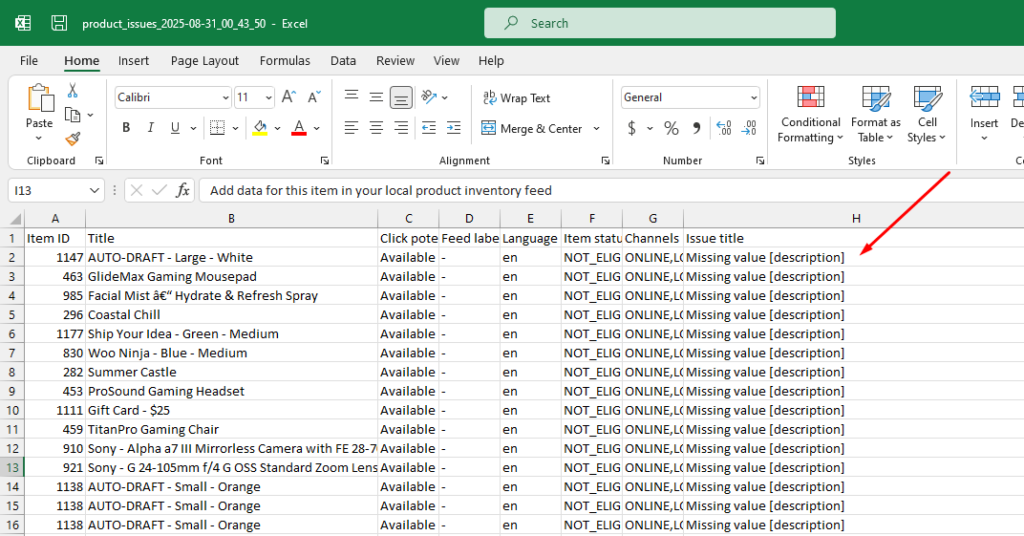
Why you should download the report first: a CSV gives you a complete, auditable list. It speeds bulk updates, avoids accidental edits to the wrong SKUs, and creates a record for re-checking after you re-upload fixes.
How to Fix Missing Description in Google Merchant Center
Now that you know which products are affected, the next step is fixing the root cause. Depending on your catalog size, you can use manual edits, feed updates, or automation with attribute rules.
Use a manual edit for a handful of items or a bulk method when many SKUs are affected. Where possible, fix the source (your CMS or product database) first, then update the feed so fixes stick long term.
Manual Fix (For a Few Products)
When only a few products show “Missing description,” editing them directly in Merchant Center is the fastest route.
How to add a product description in Merchant Center — quick steps:
- Sign in to Google Merchant Center Next.
- Go to Products > Needs attention (this replaces the old Diagnostics view). Find the product row with the “Missing description” issue.
- Click the product title to open its details. Click the Needs Attention tab under that product page.
- Find and expand the Missing Value [Description] warning.
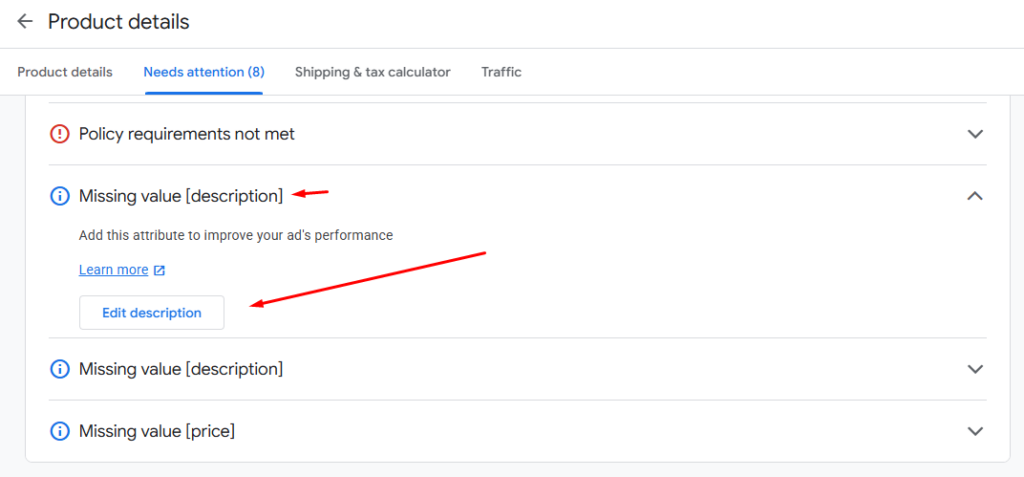
- Click the Edit Description button.
- A description window will pop up.
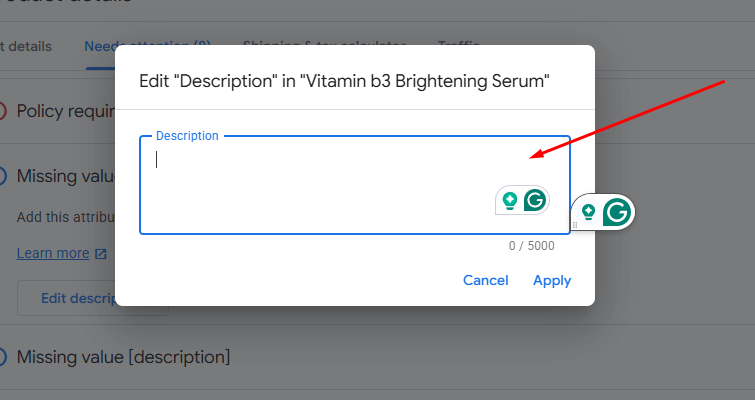
- Paste or type the product description into the Description field. Keep the text factual (materials, size, model, key features). Avoid promotional phrases like “Buy now” or “Free shipping.”
- Save your change. Merchant Center will reprocess the product. Keep a note of the product ID so you can cross-check in your source feed later.
Why do this?
Manual edits are best for quick fixes or one-off corrections. But remember, manual changes in Merchant Center may be overwritten when the feed is refreshed from your source. If you expect recurring updates from your CMS, also update the source data.
Fix via Product Feed (Best for Scale)
For larger catalogs or many affected products, use a feed-based approach. There are three common bulk methods: update your feed file, use feed/attribute rules, or supply a supplemental feed.
Via a Product Feed File (CSV / TSV / Google Sheets)
- Export the affected items list from Products > Needs attention so you have the product IDs that need descriptions.
- Open your canonical feed file (CSV/TSV or the sheet you use to generate the feed). Find the column for description (or add it). Fill in the missing descriptions for the matching product IDs. Tips: keep IDs exact, save file as UTF-8, and avoid unsupported HTML or scripts.
- Re-upload the feed in Merchant Center (or push the updated feed to the place Google fetches it from). If you use scheduled fetches, you can also trigger a manual Update from the feed settings.
- Monitor Products > Needs attention to confirm the issue clears after processing.
Practical note: Always keep a backup of the original feed before making bulk edits. Test changes on a small subset first if you can.
Use Attribute Rules (Transformations)
If descriptions are often missing, attribute rules let Merchant Center populate the description attribute automatically from another field (for example, [short_description] or [title]) or apply a default value when the main field is empty.
Set up an attribute rule that overwrites the description only when it’s blank. This reduces manual work and prevents repeat errors.
How to Add Attribute Rules
In Google Merchant Center Next, this option is not integrated by default. You need to enable an addon.
- Go to Settings > Add-ons.
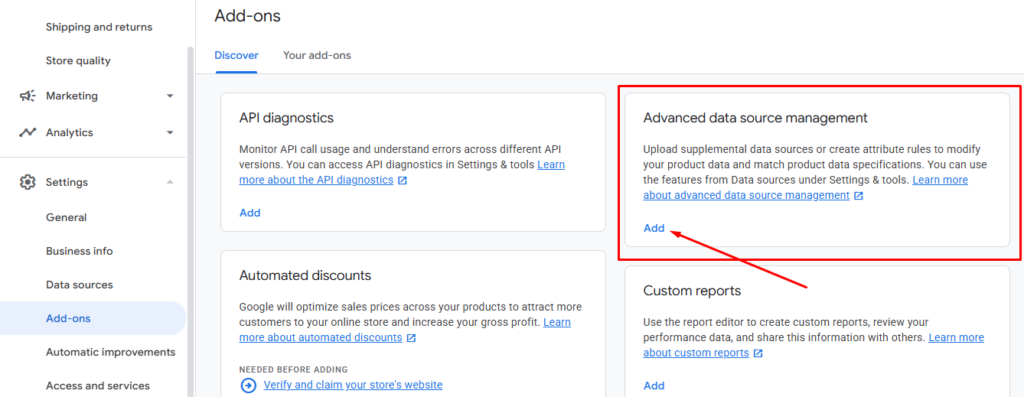
- Click Add to enable the Advanced data source management addon.
- Jump to Data Sources under Settings and click your feed.
- Now you will see a new tab called Attribute Rules.
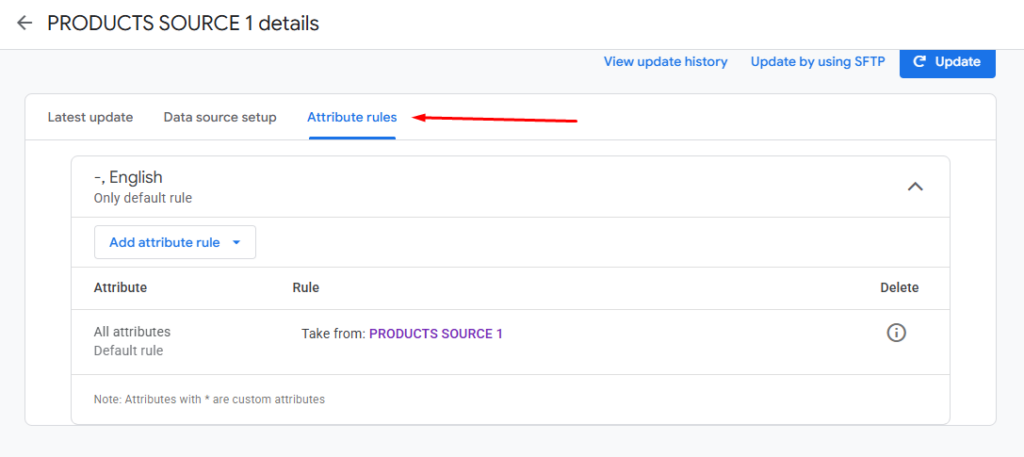
- Click Add Attribute Rule and type & select Description.
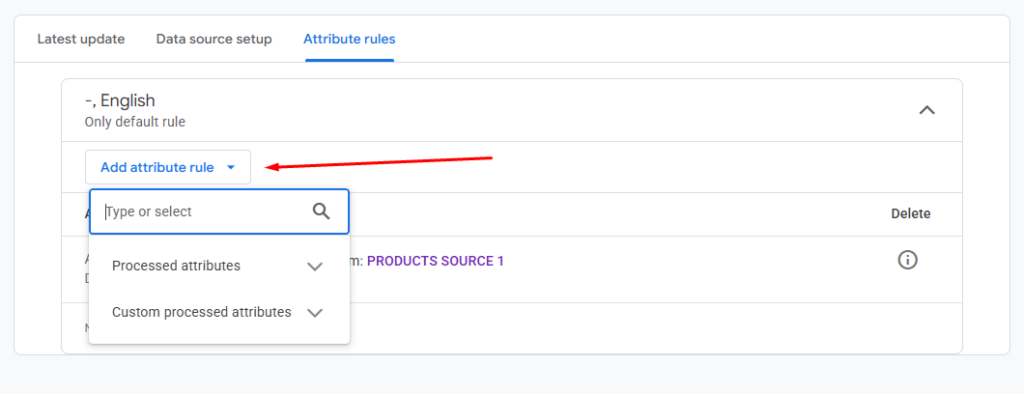
- We will replace the description only when there are no values assigned. For this, we need to apply a condition. Click the Pen icon beside Conditions to edit it.
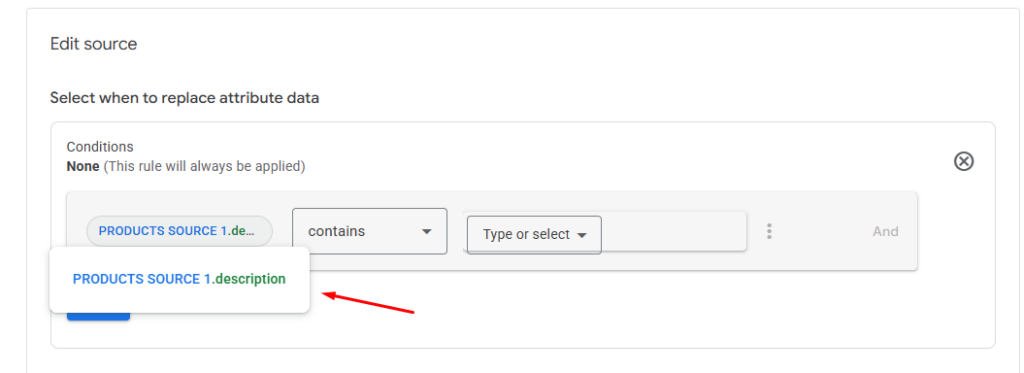
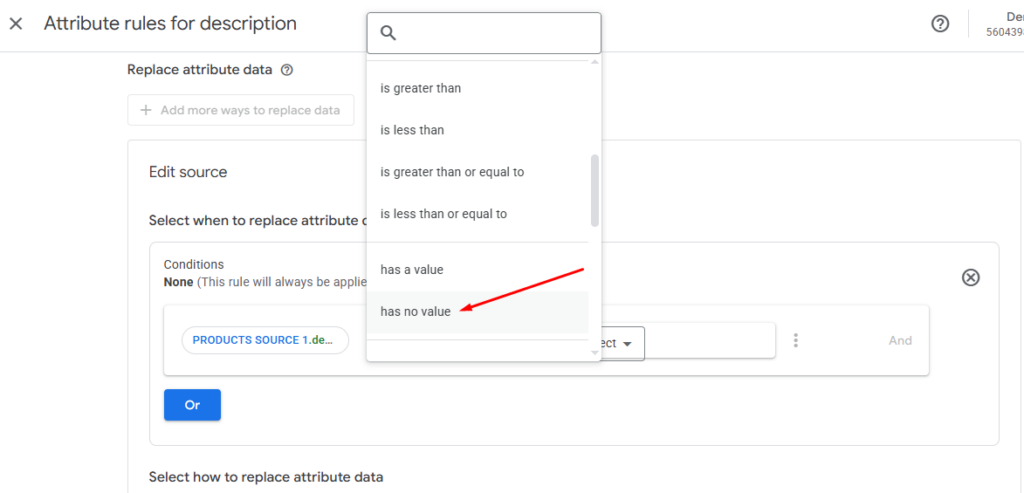
- Type and select the Description attribute. From the Condition dropdown, select “Has No Value.”
- Select the “Set To” option and select the attribute you want the empty description to replace with.
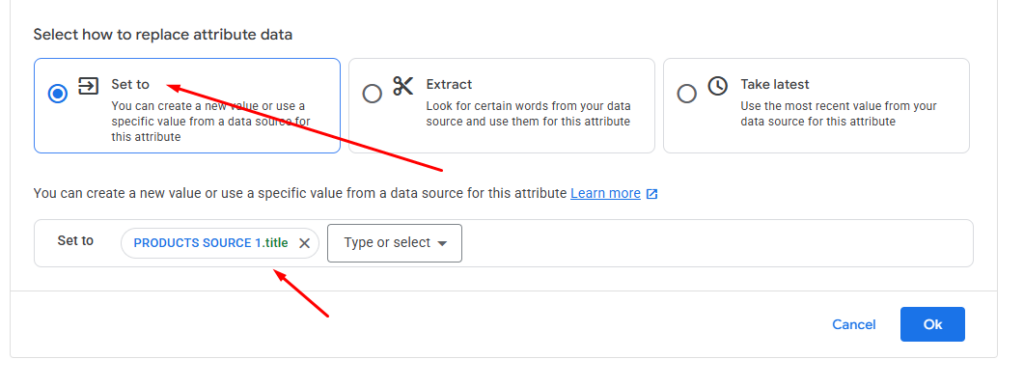
- Click OK to save your changes and reprocess the feed.
Caveat: Use rules carefully. They’re powerful but can mask underlying data issues. Prefer fixing the source data when possible.
Use Supplemental Feeds (Quick Fix)
When you need a quick overlay of missing descriptions without touching the main feed, use a supplemental feed.
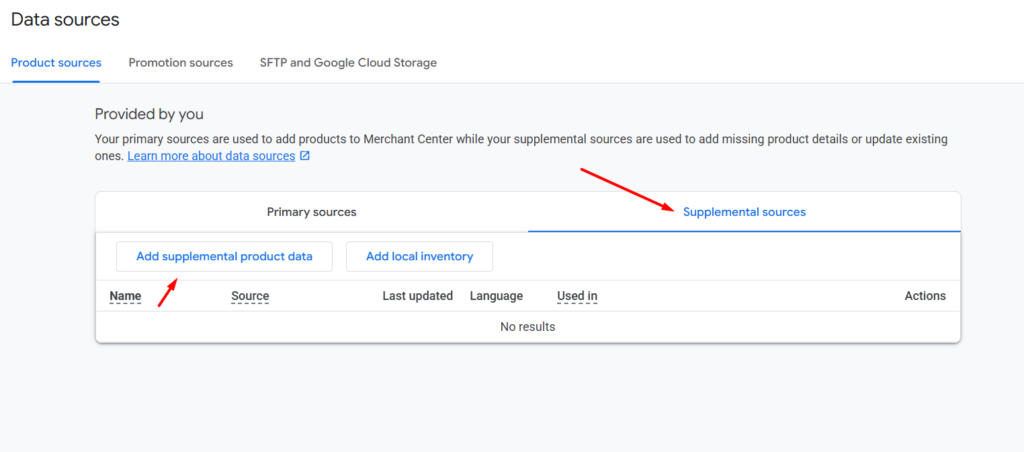
A supplemental feed is a small file that contains product IDs plus the attributes you want to add or replace (like description). Merchant Center merges it with your main feed, so only the provided fields are changed.
This is useful for partial updates or when your main feed is managed by a third party.
Quick supplemental feed tips:
- Include the exact item IDs that match the main feed.
- Upload as CSV/TSV or link a Google Sheet for easy updates.
- Use supplemental feeds for temporary or emergency patches while you fix the master data.
Final practical checklist
- For a few SKUs: edit in Products > Needs attention and then fix the source data.
- For many SKUs: update your feed file and re-upload or trigger force Update.
- For repeated gaps: create attribute (feed) rules to populate description from another field.
- For quick, non-destructive updates: use a supplemental feed to patch descriptions.
Why Your Description Is Still Missing After Fixing It
Common reasons:
- Feed hasn’t reprocessed yet
- Manual edits overwritten by feed
- Product ID mismatch
- Attribute rules not applied correctly
How to Fix ‘Missing Product Description in Google Merchant Center’ in WooCommerce?
If you own a WooCommerce store, you already won half the battle. Woo is the best platform for creating the perfect feed and connecting/uploading to Google Merchant Center.
As you know, WooCommerce and the WordPress marketplace have thousands of plugins for just about anything. And no surprise, there are a number of plugins available for creating a Google Shopping product feed.
The most popular one is CTX Feed. This plugin has built-in templates for all channels, including Google Shopping/Google Merchant Center.
You simply select the template, and the plugin will Automatically –
- Populate the necessary Google Merchant Center attributes
- Collect all your product information
- Organize them properly in a feed file in the file type of your choice
Basically, it does everything for you. Moreover, you can connect to GMC through the feed link that this plugin generates. The best part – CTX Feed provides an automatic update option at your set interval.
This means the plugin will fetch all the changes you make to your products, update the feed accordingly, and send them to GMC. As a result, your products are always up to date across Google platforms without errors.
Now, let’s get back to how to fix missing product description in Google Merchant Center. CTX Feed packs multiple options to solve your problem. Let’s check them out.
Excluding Products with Missing Descriptions from the Feed File
CTX Feed Pro offers a number of filtering options. Here’s how to exclude products with missing descriptions.
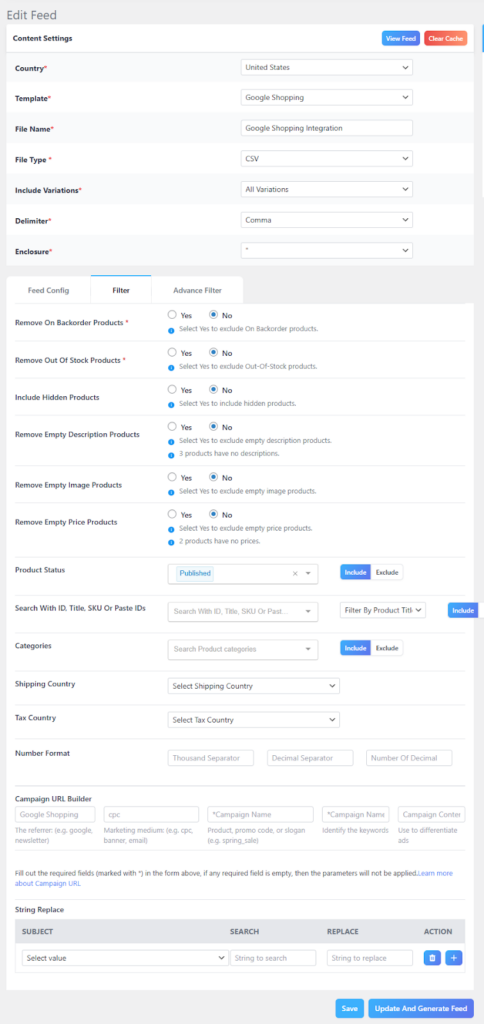
- Create or edit a feed file.
- Click the Filter tab.
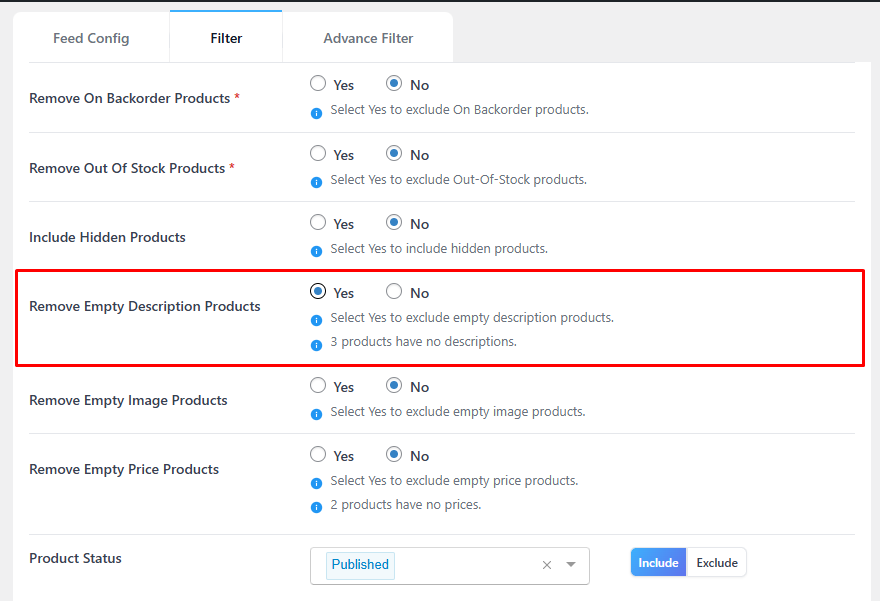
- Select Yes to enable the ‘Remove Empty Description Products’ option.
- The section also displays the number of products in your store that have no description.
- Click the Update And Generate Feed button to regenerate your feed.
- On Google Merchant Center, go to Settings > Data Sources > Product Sources.
- Hit the Update button to immediately update the listings through the feed URL.
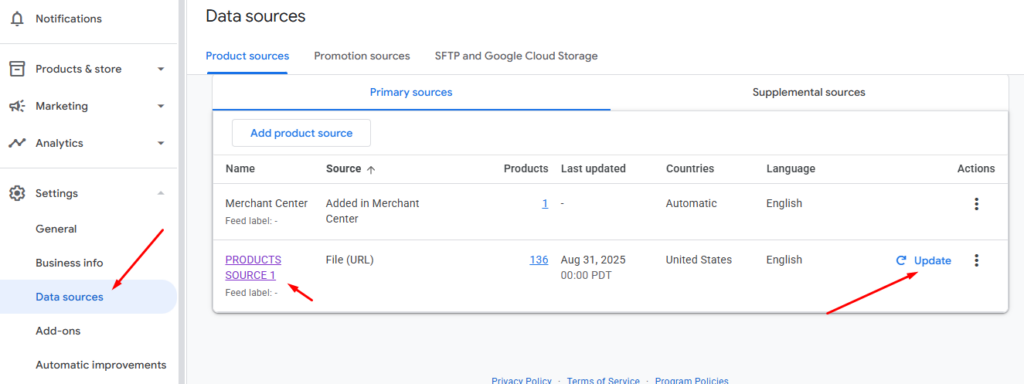
If you have set an update interval both in CTX Feed and GMC, the listings will be automatically updated according to your schedule.
To learn how to create an error-free product feed and connect to GMC, read the following article.
Assigning a Dynamic Attribute to Fix Missing Product Description in Google Merchant Center
This is similar to assigning an attribute value in GMC, which we covered earlier. Let’s say that if a product has no description, you want to automatically place the short description as the main description for that product.
Here’s how to do it.
- Go to CTX Feeds > Dynamic Attributes.
- Click Add New Attribute.
- Give your dynamic attribute a name.
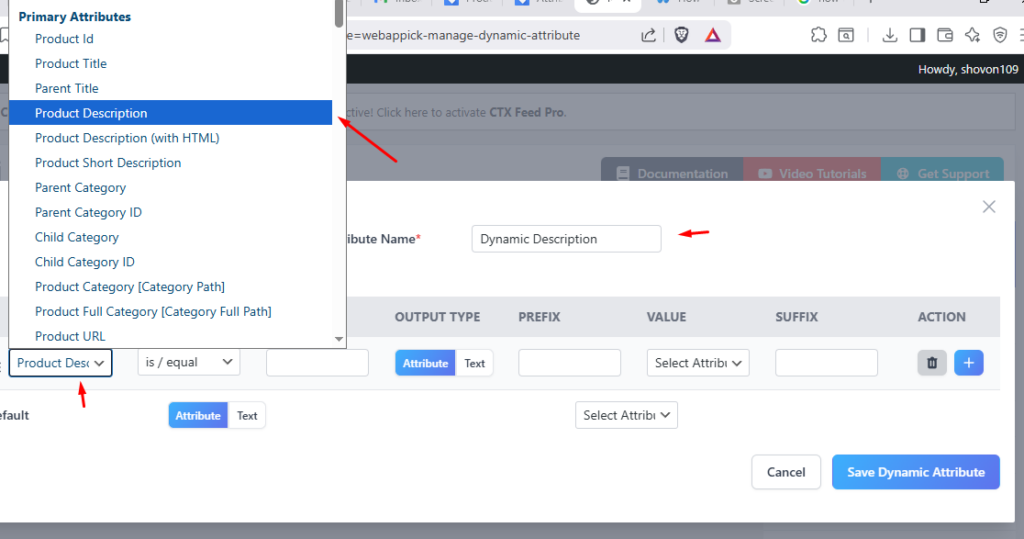
- From the Attribute and Value fields, select the Description attribute.
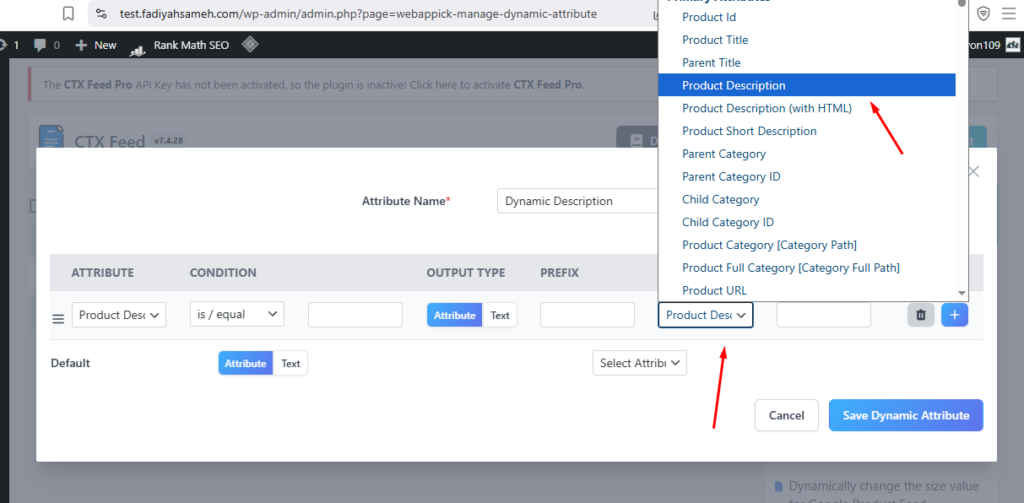
- Under the Default attribute, select the short description attribute. This means that when there’s no main description, the short description will act as the primary description.
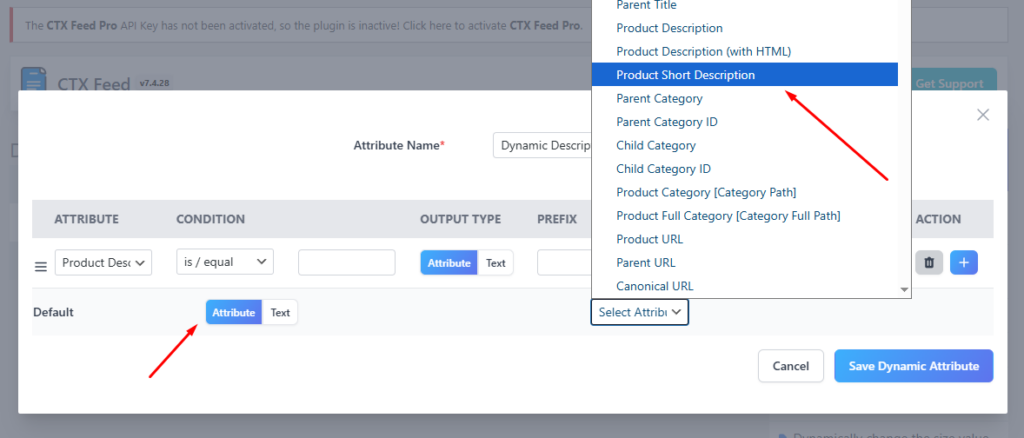
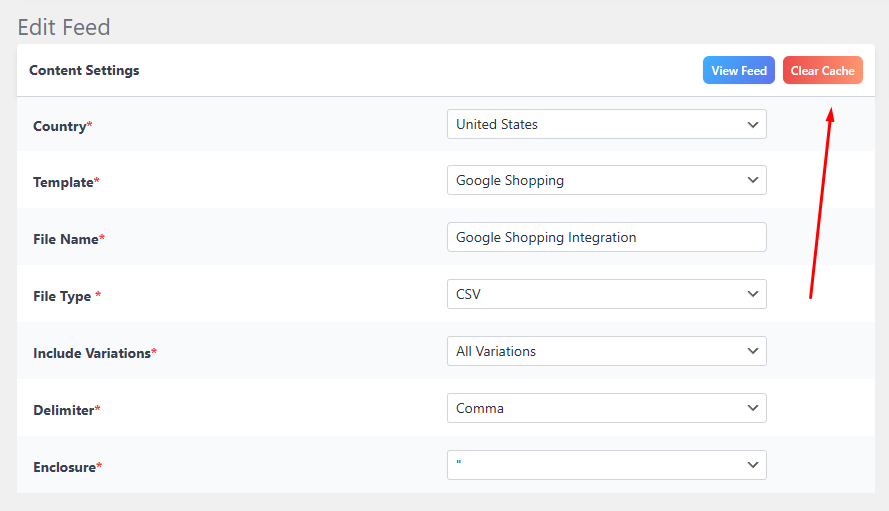
- Save the dynamic attribute and then clear the cache in your feed file.
- Scroll down and find the Description attribute.
- Under Value, select the newly created dynamic attribute.
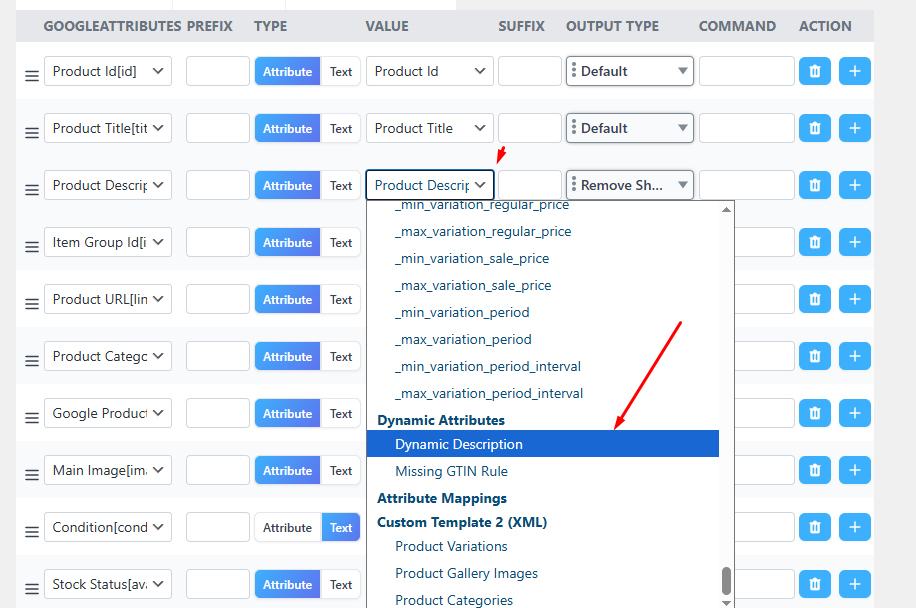
- Update and regenerate the feed.
Now, if any product is missing a description attribute value, the short description will take its place. Therefore, GMC will have no missing description issues.
Best Practices to Prevent Missing Description Errors
Write Better Descriptions
- Start with key details
- Include specs (size, material, model)
- Keep it clear and factual
Follow Google Rules
- No promotional text
- No misleading info
- No keyword stuffing
Keep Data Consistent
- Match feed and landing page
- Keep variants unique
Keep small problems from becoming big headaches. Below are simple, practical habits you can adopt so your product feed stays healthy and you no longer need to fix missing product description in Google Merchant Center in the first place.
Run Regular Feed Audits
Use attribute (feed) rules carefully
Attribute rules can auto-populate description from another field or apply defaults when empty. They save time, but should not replace fixing the master data. Test rules on a small feed subset before wide roll-out.
Supplemental sources for quick patches
If you need a fast non-destructive fix, upload a supplemental source with item IDs and descriptions. Merchant Center will merge these with your main feed. Use this for temporary or emergency fixes while you update the source system.
Automate alerts where possible
If you have developers, use the Content API or scripts to pull account status and notify you when new “missing description” issues appear. That reduces manual monitoring time.
A small habit will stop most problems before they start. What to check and how often.
Daily (or after big changes)
if you push large catalog updates, run a quick feed validation or trigger a manual fetch to surface errors immediately.
Weekly
Scan the Needs attention tab. In Merchant Center Next, open Products > Needs attention and scan the “What needs attention” column for fresh errors or warnings. Fix high-severity items first.
Monthly
Full feed audit. Export reports of item issues and compare against your source feed to catch gaps that rules or supplemental feeds may have hidden. Keep a changelog so you know what was changed and when.
Practical audit checklist
- Export Needs Attention report and save as a dated CSV.
- Confirm descriptions exist in your CMS for every flagged ID.
- If missing, fix at the source, then re-upload the feed or update the supplemental source.
- Reprocess and recheck the Needs attention tab after 24–72 hours.
- Keep a short log of fixes and results (helps if you need to request a review).
Wrap Up
Fixing missing descriptions in Google Merchant Center comes down to three steps:
- Identify the issue in Products → Needs attention
- Fix the source data (feed, rules, or manual edits)
- Prevent future errors with better processes
When done correctly, this improves:
- Product visibility
- Ad performance
- Conversion rates
Frequently Ask Questions
What is the description character limit in Google Merchant Center?
Google Merchant Center allows up to 5,000 characters in the description attribute. However, it’s best to keep descriptions between 150 and 500 characters for better readability and performance.
Is product description required in Google Merchant Center?
Yes, the description attribute is required for most products. Missing descriptions can lead to disapproved items or limited visibility in Shopping ads and free listings.
How do I fix missing field “description” in Google Merchant Center?
You can fix this issue by:
Adding descriptions directly in Merchant Center (manual edit)
Updating your product feed file
Using attribute rules (Transformations) to fill missing values automatically
Why are my products disapproved for missing a description?
Products are disapproved because Google requires accurate product data. Missing or empty descriptions prevent Google from understanding your product, which can lead to disapproval or restricted visibility.
What Is the Transformations Tab in Merchant Center Next?
The Transformations tab (now called Attribute Rules) allows you to modify product data without editing your original feed. It’s commonly used to fix missing attributes like descriptions automatically.
Can I use attribute rules to fix missing descriptions?
Yes. You can use attribute rules (Transformations in Merchant Center Next) to automatically fill missing descriptions using another field like short description or title.
Why is the description still missing after I fixed it?
Common reasons include:
Feed hasn’t reprocessed yet
Changes were overwritten by your feed
Product IDs don’t match
Attribute rules are not applied correctly
What should I include in a product description for Google Merchant Center?
A good product description should include:
Product name and type
Key features and benefits
Material, size, or specifications
Brand and model information
Avoid promotional text like discounts or shipping offers.
Can I leave the description blank in my product feed?
No. Leaving the description blank can cause errors, warnings, or disapprovals, depending on the product category.
What is the difference between description and short description?
Description: Main detailed product information used in feeds
Short description: A shorter summary (can be used as fallback via attribute rules)
How long does it take for fixes to apply in Google Merchant Center?
After updating your feed or product data, it typically takes 24–72 hours for Google to reprocess and update the status.

Free version on WordPress.org. Every Pro licence includes a 30-day money-back guarantee.