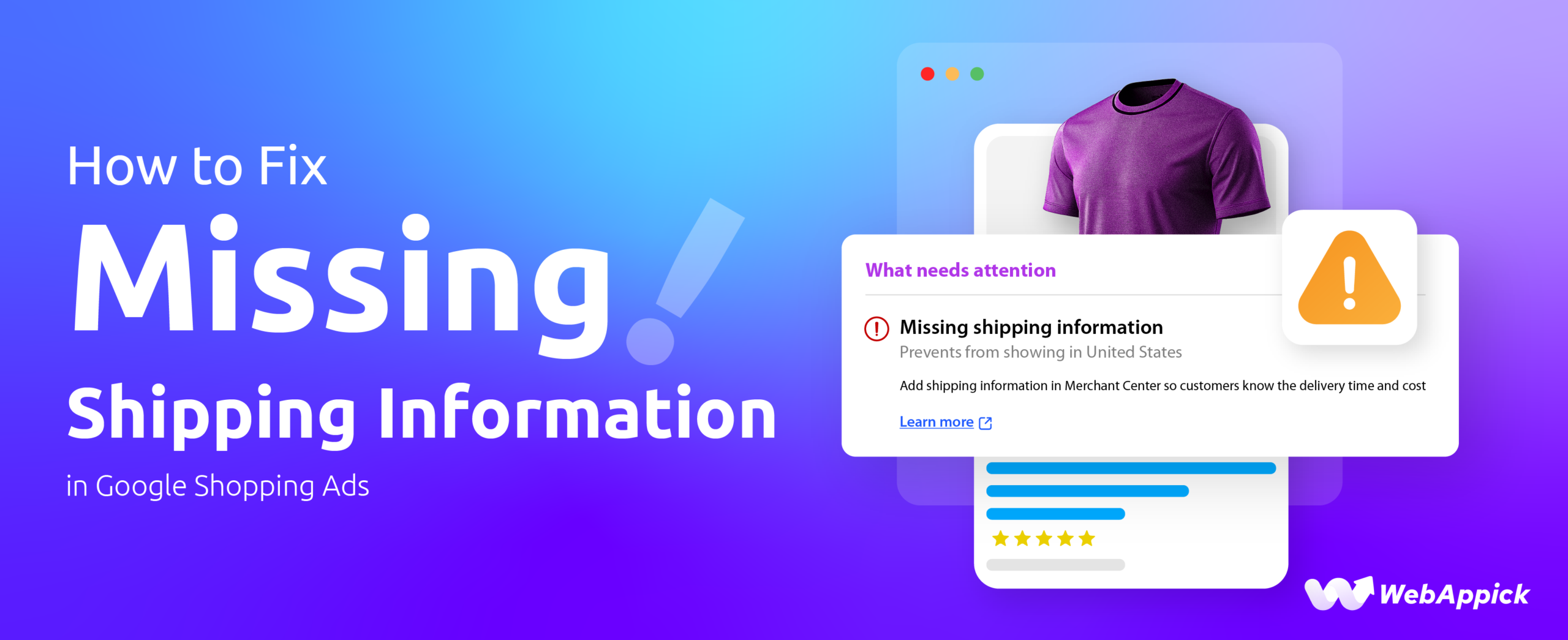
Fixing missing shipping information in Google Shopping Ads starts with two areas: your product data feed and your Google Merchant Center (GMC) shipping settings.
In most cases, the error appears because required shipping attributes such as country, service, cost, or dimensions are missing from your feed, mismatched with your Merchant Center configuration, or in conflict between feed-level and account-level shipping rules.
This guide covers how to resolve the “missing shipping information” error step by step, including how to fix mismatched currency errors, how Google’s free shipping policy works, and how to validate your setup using Product Diagnostics.
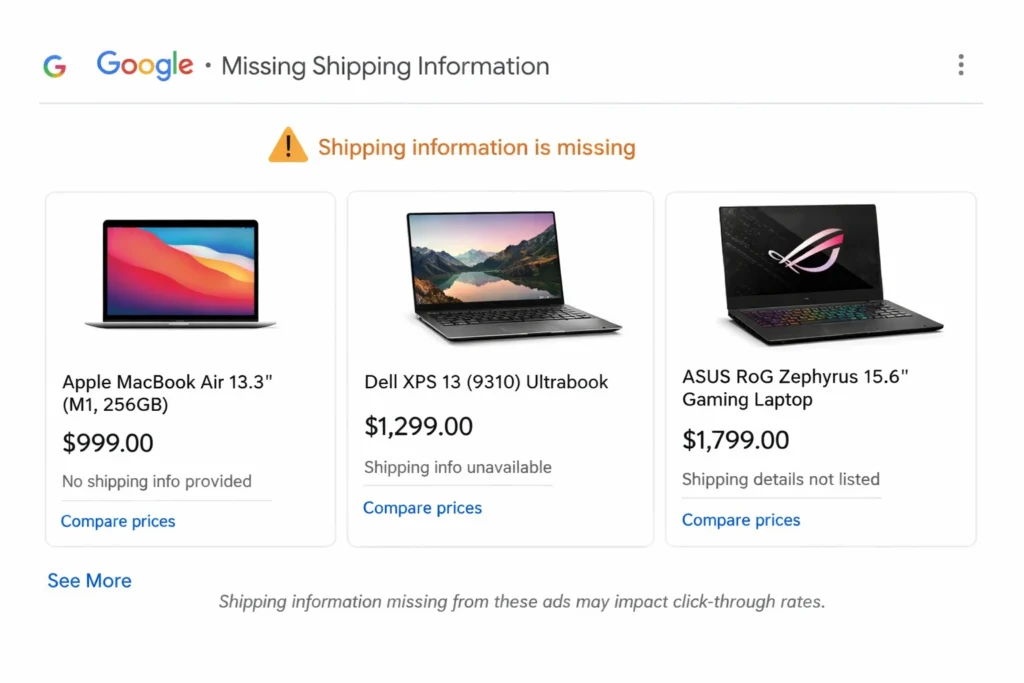
What Causes “Missing Shipping Information” in Google Shopping?
Google requires shipping information so shoppers can see accurate delivery costs, estimated delivery times, available shipping methods, and geographic availability before clicking an ad. Without this data, products cannot participate in Shopping Ads or Free Listings.
Common causes include:
- No shipping service configured in GMC
- Feed missing
[shipping]or[shipping_weight]attributes - Country or region not included in shipping rules
- Currency or delivery-time mismatches between feed and GMC
- Feed-level and account-level shipping conflicts
- Auto-sync tools overriding your GMC setup
- Incorrect sub-attributes, such as a missing country inside
[shipping]
How to Fix Missing Shipping Information in Google Shopping Ads
Step 1: Configure Shipping Settings in Google Merchant Center
This is the most reliable starting point. Account-level shipping settings apply to all products in your catalog, even those without detailed shipping attributes in the feed.
How to set it up:
Go to Tools and Settings → Shipping and Returns
Click Add Shipping Service
Configure the following:
- Service Name: An internal label for your reference
- Target Countries: All countries where your products ship
- Currency: Must match your feed currency exactly
- Delivery Times: Include both handling time and transit time
- Shipping Cost Rules: Choose the model that fits your store
Available shipping cost models:
- Flat rate
- Weight-based
- Price-based
- Free shipping
- Carrier-calculated shipping (US: USPS, FedEx, UPS; EU: DHL and others)
Account-level shipping covers your entire catalog as a baseline. If your feed includes incomplete shipping attributes, this baseline does not override them. See Step 3 for how to handle that conflict.
Step 2: Add Missing Shipping Attributes to Your Product Feed
If you use feed-level shipping, Google requires all sub-attributes to be fully completed. Partial entries cause the same error as missing entries.
Required shipping attributes for most stores:
[shipping]: The parent attribute containing country, service, and price[shipping_weight]: Required for weight-based and carrier-calculated shipping[shipping_length],[shipping_width],[shipping_height]: Required for carrier-calculated shipping only
Example XML format:
<g:shipping>
  <g:country>US</g:country>
  <g:service>Standard</g:service>
  <g:price>5.00 USD</g:price>
</g:shipping>
Common feed-level mistakes:
- Missing
countryinside the[shipping]attribute - Shipping values formatted incorrectly (e.g., “5 USD” instead of “5.00 USD”)
- Feed currency differs from the currency set in your shipping service
- Auto-sync systems overwriting corrected feed values on each refresh
If you use WooCommerce, Shopify, BigCommerce, or a feed plugin, verify that your feed generator supports all required shipping attributes and outputs them in the correct format.
Step 3: Resolve Feed-Level vs. Account-Level Shipping Conflicts
Google applies a strict override rule:
Feed-level shipping always overrides account-level shipping settings.
This means: if your feed includes a [shipping] attribute with missing or incomplete sub-attributes, Google ignores your account-level shipping rules entirely and throws the error.
To fix this:
- Either remove
[shipping]attributes from your feed entirely and rely on account-level settings - Or correct every sub-attribute inside
[shipping]so no value is missing
After making changes, resubmit your feed and allow time for reprocessing. This resolves the majority of “missing shipping information” errors for stores using automated feed tools.
Step 4: Use Shipping Labels for Products With Different Shipping Rules
For stores selling products that require different shipping treatment — oversized items, fragile goods, or heavy products Google recommends using shipping labels to apply custom rules at the product level.
Common shipping label values:
oversized: For items needing a different rate or carrierfree_shipping: For items that ship at no costexpress_required: For items that must ship via expedited service
To use shipping labels:
- Add the
[shipping_label]attribute to your product feed - Go to GMC → Shipping Settings → Advanced Rules
- Create a custom rule that applies to each label value
This approach keeps your main shipping service clean while letting you handle exceptions without breaking your baseline configuration.
Step 5: Test and Validate Shipping Using Product Diagnostics
After updating your settings or feed, use GMC’s Product Diagnostics to confirm that shipping is correctly applied at the SKU level.
How to check:
- Go to Products → Diagnostics → Shipping
- Look for errors such as:
- “Missing value: shipping.”
- “Invalid or incomplete shipping attributes”
- “Delivery country not supported.”
- Click any affected product to preview how Google calculates shipping cost, delivery estimate, and the service applied
Run this check after every feed resubmission or shipping rule update. It is the most accurate way to confirm whether your fix has been applied correctly.
How Google’s Free Shipping Policy Works
Google’s free shipping policy refers to how Google displays and promotes free shipping offers across Shopping Ads and Free Listings.
When a product qualifies for free shipping, Google may show a Free Shipping badge directly on the Shopping Ad or listing. This badge is a visible trust signal that can increase click-through rates, particularly in competitive product categories.
How to qualify for the free shipping badge:
Google displays the free shipping badge when one of the following is true:
- Your account-level shipping service in GMC is set to a flat rate of $0.00 (or equivalent in your currency)
- Your product feed includes a
[shipping]attribute with a price of0.00 [currency] - You have a price-based shipping rule that sets the cost to zero above a certain order threshold
Free shipping via shipping label:
If only certain products qualify for free shipping, use the [shipping_label] attribute with the value free_shipping in your feed, and create a matching rule in GMC that applies a zero-cost rate to that label.
Free shipping through Merchant Promotions:
Google also supports promotional free shipping through the Merchant Promotions program. This shows as a separate “Special Offer” link beneath the product listing rather than a badge on the main ad. To use this, you need to be enrolled in Merchant Promotions and submit a valid promotion feed.
Delivery time requirements:
As of Google’s 2024–2025 policy updates, free shipping offers must include accurate delivery time estimates alongside the zero-cost shipping claim. Ads that show free shipping without a valid delivery window may be disapproved or restricted.
Make sure your free shipping service in GMC includes both handling time and transit time ranges to stay compliant.
How to Fix Mismatched Currency in Shipping Information
A mismatched currency error in Google Merchant Center occurs when the currency in your [shipping] attribute or feed does not match the currency configured in your GMC shipping service.
For example: your feed submits shipping prices in EUR, but your GMC shipping service is set to USD. Google cannot reconcile the two values and flags the product.
How to fix it:
- Open your GMC shipping service and note the currency it is configured to use
- Check your product feed and confirm the currency in your
[shipping]attribute matches exactly - If you use a feed management tool or plugin, check whether auto-sync is overwriting your corrected currency values on each refresh
- After correcting the mismatch, resubmit your feed and verify the fix in Products → Diagnostics
Currency must match across three places: your feed [shipping] attribute, your GMC shipping service, and your target country’s supported currency. A mismatch in any one of these three will trigger the error.
If you sell to multiple countries and currencies, create a separate shipping service for each currency in GMC and ensure the corresponding feed values align with each service.
Common Pitfalls and How to Avoid Them
Shipping works for some products but not others
- Cause: Missing or inconsistent
[shipping]attributes across the feed. - Fix: Audit the full feed and apply uniform shipping attributes to every product.
Currency mismatch errors
- Cause: Feed uses one currency (e.g., EUR) while the GMC shipping service is set to another (e.g., USD).
- Fix: Align the currency across your feed, your GMC shipping service, and your target country.
Plugin or sync tool overwrites shipping
- Cause: Auto-sync tools re-inject incorrect or incomplete shipping values on each feed refresh.
- Fix: Disable feed-level shipping in your sync settings and rely on account-level GMC shipping rules instead.
Shipping not applied for certain countries
- Cause: Your GMC shipping service does not include all intended target countries.
- Fix: Add every target country to your shipping service configuration in GMC.
Free shipping badge not showing
- Cause: Shipping cost is set to zero in the feed but delivery time is missing, or the GMC service does not have a matching zero-cost rule.
- Fix: Add delivery time to your free shipping service and ensure the rule is applied at the account or label level.
Checklist to Fix Missing Shipping Information Quickly
- Enable at least one account-level shipping service in GMC
- Confirm all feed-level shipping attributes are complete, including country, service, and price
- Avoid partially filled attributes a missing country inside
[shipping]triggers the same error as no shipping data at all - Set delivery times (handling and transit) required under Google’s 2024–2025 policy
- Match feed currency, GMC service currency, and target country currency
- Use
[shipping_label]for products with exceptions such as free shipping or oversized items - Test every update using Product Diagnostics before considering the fix complete
Best WooCommerce Product Feed Plugin for Google Shopping: CTX Feed
CTX Feed is a WooCommerce product feed plugin built for generating and managing feeds across Google Shopping, Facebook, TikTok, and over 130 other channels.
For fixing missing shipping information, CTX Feed lets you map and include all required Google shipping attributes directly in your feed output, including [shipping], [shipping_weight], [shipping_label], and dimensional attributes without manual XML editing.
Key Features
- Pre-built feed templates for Google Shopping, Facebook Catalog, Bing, and 220+ channels
- Full support for Google shipping attributes including country, service, price, and dimensions
- Shipping label mapping for free shipping, oversized, and custom rule categories
- Auto-update scheduling to keep feed data current without manual refreshes
- Compatible with WooCommerce variable products, bundles, and grouped products
Free version available; paid plans are listed on the official CTX Feed website. Check the pricing page before publishing for current rates.
Frequently Asked Questions
What causes missing shipping information in Google Shopping Ads?
The most common causes are a missing [shipping] attribute in your product feed, no shipping service configured in Google Merchant Center, or a conflict between feed-level and account-level shipping settings. Partially completed attributes, such as a [shipping] entry without a country value, trigger the same error as no shipping data.
How do I fix mismatched currency in shipping information?
Check three places: your product feed’s [shipping] attribute currency, your GMC shipping service currency, and the supported currency for your target country. All three must match. If you sell to multiple countries, create a separate shipping service per currency in GMC and align your feed values accordingly.
What is Google’s free shipping policy for Shopping Ads?
Google displays a free shipping badge on Shopping Ads and Free Listings when a product’s shipping cost is set to zero. You can configure this at the account level in GMC by setting a flat rate of $0.00, at the feed level using a [shipping] price of 0.00 [currency], or at the product level using the [shipping_label] attribute with a matching zero-cost rule. As of Google’s 2024–2025 updates, free shipping offers must also include a valid delivery time estimate.
Does feed-level shipping override account-level shipping in GMC?
Yes. Feed-level shipping attributes always take priority over account-level GMC shipping settings. If your feed includes incomplete shipping attributes, Google ignores your account-level rules and flags the product. Either remove shipping attributes from your feed entirely or make sure every sub-attribute is fully completed.
How do I use shipping labels in Google Merchant Center?
Add the [shipping_label] attribute to your product feed with a value that identifies the shipping group, such as free_shipping or oversized. Then create a matching custom shipping rule in GMC under Shipping Settings → Advanced Rules that applies the correct cost and delivery configuration to that label.
How long does it take for shipping fixes to apply in Google Merchant Center?
After resubmitting your feed, Google typically reprocesses products within 24 to 72 hours. You can track the status in the Processing Log and Needs Attention tabs in GMC. Use Products → Diagnostics → Shipping to confirm the fix has been applied at the product level.
Key Takeaways
- Missing shipping information is almost always caused by incomplete feed attributes, a currency mismatch, or a conflict between feed-level and account-level shipping settings in GMC
- Feed-level shipping always overrides account-level settings, so a partially completed
[shipping]attribute blocks account rules from applying - To qualify for Google’s free shipping badge, set shipping cost to zero at the account level, feed level, or via a
[shipping_label]rule, and include a valid delivery time estimate - Mismatched currency errors require matching the feed currency, GMC service currency, and target country currency across all three points
- Google’s 2024–2025 policy requires delivery time estimates alongside all shipping cost data, including free shipping offers
- Always validate fixes using Products → Diagnostics → Shipping in GMC before considering the issue resolved

Free version on WordPress.org. Every Pro licence includes a 30-day money-back guarantee.