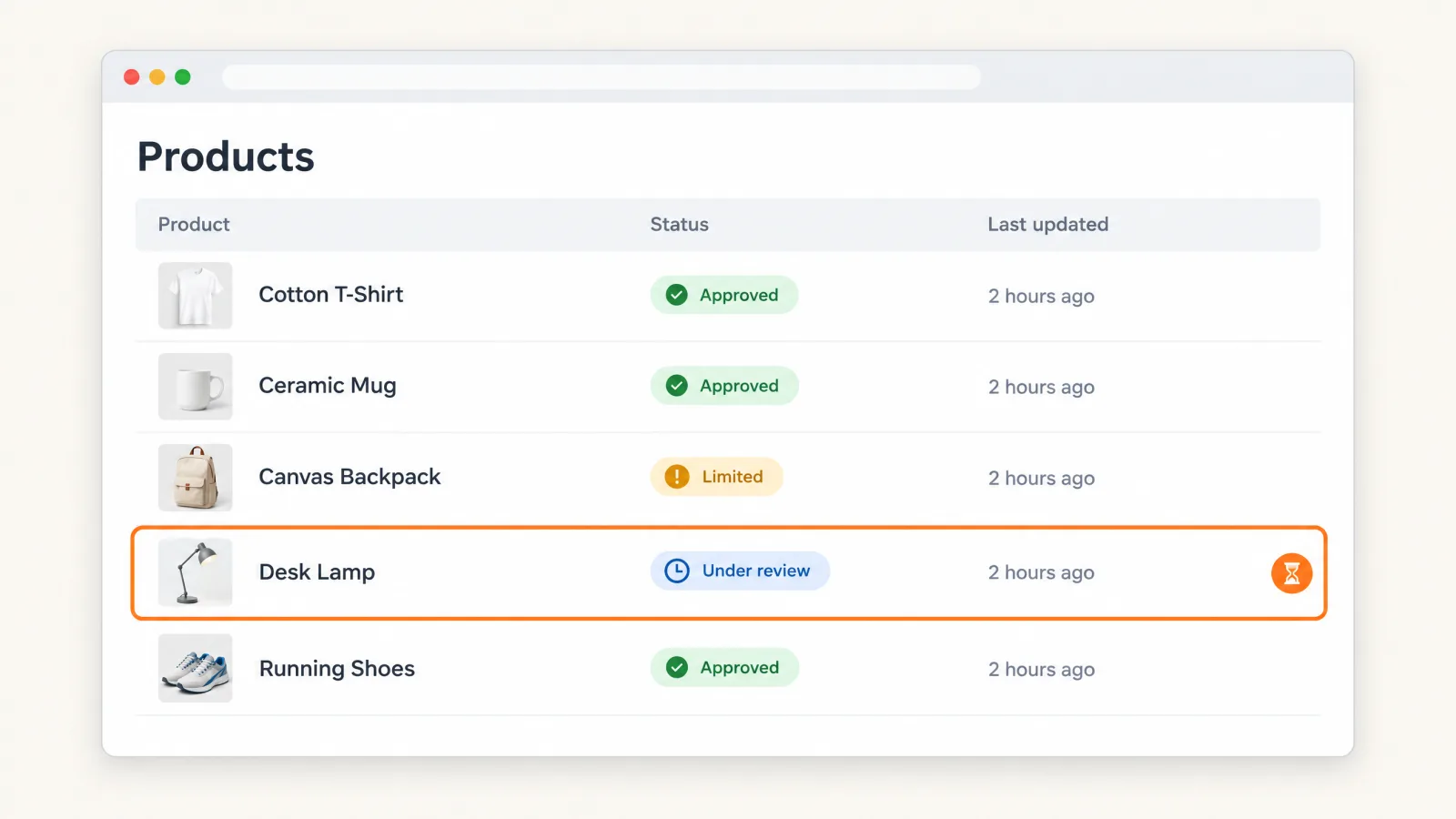
New products in Google Merchant Center go through a review that Google says can take up to 3–5 business days for Shopping ads and a few weeks for other features, such as free listings. Edits to products Google already has are processed in up to 15 minutes. A first feed can take up to 72 hours just to be crawled after you submit it for initial review.
For a WooCommerce store there’s a second clock: how often your feed file is rebuilt, and how often Google fetches it. That’s the part you control, and it’s covered below.
What “showing on Google Shopping” means: the 5 Merchant Center product statuses
In Merchant Center, open Products. The Visibility column tells you whether a product is being shown on Google; the Status column tells you whether Google has approved it. There are five statuses:
| Status | What Google says it means | Google’s time | What to do |
|---|---|---|---|
| Under review | Google is checking the product for issues. The usual reasons are an initial review (new account, or your first product upload) or a pending image crawl | Up to 3–5 business days for Shopping ads; a few weeks for other features such as free listings | Wait out that window. If it runs longer, check that your website, contact information and product data follow Google’s policies, then request a review |
| Processing | Google is applying an edit you made to the product | Up to 15 minutes | Nothing |
| Approved | Google has finished reviewing the product and it’s showing on Google | — | If it gets no impressions, that’s a visibility problem, not a review delay: see why Google Shopping isn’t showing your products |
| Limited | Showing, but only in some instances, or without all of its data | — | See Limited status below |
| Not approved | Can’t be shown on Google because of one or more errors, usually a policy or data-quality problem | — | Fix it from the Needs attention tab. See how to fix disapproved products |
“Pending” is not a current status. If an older guide, forum post or screen says “Pending” or “Pending initial review”, look for Under review in today’s Merchant Center: “initial review” and “pending image crawl” are the reasons Google gives for it.
You may also see Needs Update on a product. It’s an indicator, not a status: Google adds it 30 days after the product’s last update and warns that stale data can lower visibility and get the product removed. It’s one more reason to give Google a feed it fetches on a schedule rather than a file you upload once.
Typical timeframes: how long does it take?
Every figure in this table is Google’s own, from the Merchant Center Help Center.
| Situation | Google’s figure |
|---|---|
| First feed, submitted for initial review: crawl | Up to 72 hours |
| New products: initial review | Up to 3–5 business days for Shopping ads; a few weeks for other features, such as free listings |
| Edits to existing products (Processing) | Up to 15 minutes |
Product switched to in_stock | Up to 24 hours to show in campaigns or free listings |
| Feed added as a link (URL) | Fetched every 24 hours by default; you can change the schedule |
| Products removed or deleted | Up to an hour to leave ads and free listings |
| Review request after you fix an issue | Up to 7 business days; approved products become eligible to show across Google within 24 hours |
| Launch or sale | Submit new products 3–5 business days before, but no earlier than 30 days in advance |
None of these figures tells you when an approved product gets its first impression. Google publishes no figure for that, and it’s a separate problem: see why Google Shopping isn’t showing your products.
Add your store’s clock to Google’s
Google’s clock starts only when Google reads your data. Before that, two schedules decide when a change in your WooCommerce store reaches Merchant Center through your feed:
- Your feed rebuild. The feed file is a snapshot of your store. A new price or stock level isn’t in it until the feed is rebuilt.
- Google’s fetch. Merchant Center reads the file from your URL on its own schedule: every 24 hours unless you change it.
Say both run every 24 hours, the default for a new CTX Feed feed and for Google’s fetch. A price you change just after a rebuild waits up to a day for the next rebuild. If Google’s fetch runs just before that rebuild, the new price then waits up to another day for the fetch after it: close to two days in the worst case. Then Google processes it in up to 15 minutes. In that case Google’s review isn’t what makes you wait. The two schedules are.
On a quiet store it can take even longer. WordPress only checks its schedule when someone visits the site, so a scheduled rebuild can run late or be skipped. The fix is in how to reduce the time to show below.
Limited status in Google Merchant Center: what it means and what to do
What it means. Google says a Limited product “is showing on Google, but only in some instances”, or without all of its product data on the ad. That may mean the product is eligible in some countries but not others, or may not show for some marketing methods.
Where to find the reason. Open Products → Needs attention. Google lists the issue for each product there.
What to do:
- Read the issue on the Needs attention tab.
- Fix it where the data comes from: the product in WooCommerce, or the attribute mapping in your feed.
- Rebuild the feed, then let Google’s next scheduled fetch pick it up, or click Update on the data source to refresh it now.
- If Google offers a review for the issue, request one. The option appears on the product detail page, or in the list of account issues, when it’s available.
If the product is Limited in a country, check that the feed was built for that country. In CTX Feed, a feed’s Country sets its currency and tax handling, and Merchant Center’s country of sale should match the feed.
If the status is Not approved rather than Limited, the product isn’t showing at all. That’s covered in how to fix disapproved products, and the most common messages are in common Google Merchant Center errors.
What affects how long it takes?
These are the factors that Google’s help pages and the CTX Feed docs actually document.
What adds a review:
- A new account or a first upload. Both trigger an initial review.
- Images Google hasn’t fetched yet. Google says you don’t need to do anything; the image appears once it’s fetched.
- Policy or data-quality problems. The product stays Not approved until you fix them.
- Account-level issues. After you request a review of an account issue, Google tells you to wait 7 business days. If the issues aren’t resolved by the second review attempt, a one-week cool-down may start.
- An unverified website. Google calls verifying and claiming your store’s website “important” when you set up Merchant Center. Do it under Settings → Business info.
What decides how fast your changes reach Google:
- Feed URL or manual upload. If you upload a file instead of linking to it, Merchant Center doesn’t sync your data automatically, and you have to re-submit the file every time it changes.
- Your rebuild interval and Google’s fetch schedule. See Add your store’s clock to Google’s above.
- The size of your first fetch. The first fetch of a large catalog can take a while.
- Price and stock mismatches with your product pages. Merchant Center can correct occasional price, sale price, availability and condition mismatches from your product pages, and these automatic updates are on by default. Google is clear that they “aren’t a replacement for regular updates of your product data”, and that they may not work for products whose price or availability changes more than once a day, in which case the product may be disapproved instead.
How to reduce “time to show” on Google Shopping
Google decides how long its review takes. What you control is a clean first submission, and how quickly each change in your store reaches Google’s next fetch.
Your product data already lives in WooCommerce, so generate the Google feed from your store rather than keeping a spreadsheet by hand. With CTX Feed you pick the Google Shopping template, which loads Google’s attribute specification and pre-fills the mapping.
Before you submit
- Verify and claim your website in Merchant Center under Settings → Business info.
- Set up shipping before your first submission. See what the shipping attribute does in a Google Shopping feed.
- Planning a launch or sale? Submit the new products 3–5 business days before, and no earlier than 30 days in advance.
Send Google a feed URL, not a one-time upload
- CTX Feed publishes your feed at a Feed URL on your own site. The URL stays the same each time CTX Feed regenerates the feed, so you never re-submit it after a rebuild.
- In Merchant Center, add it under Settings → Data sources → Add product source → Add products from a file → Enter a link to your file. Google then fetches it every 24 hours by default, and you can change the schedule.
- Need Google to read it now? The Update button on the data source triggers a refresh.
Full steps, with screenshots: How to upload a WooCommerce product feed to Google Merchant Center.
Rebuild the feed as often as your prices and stock change
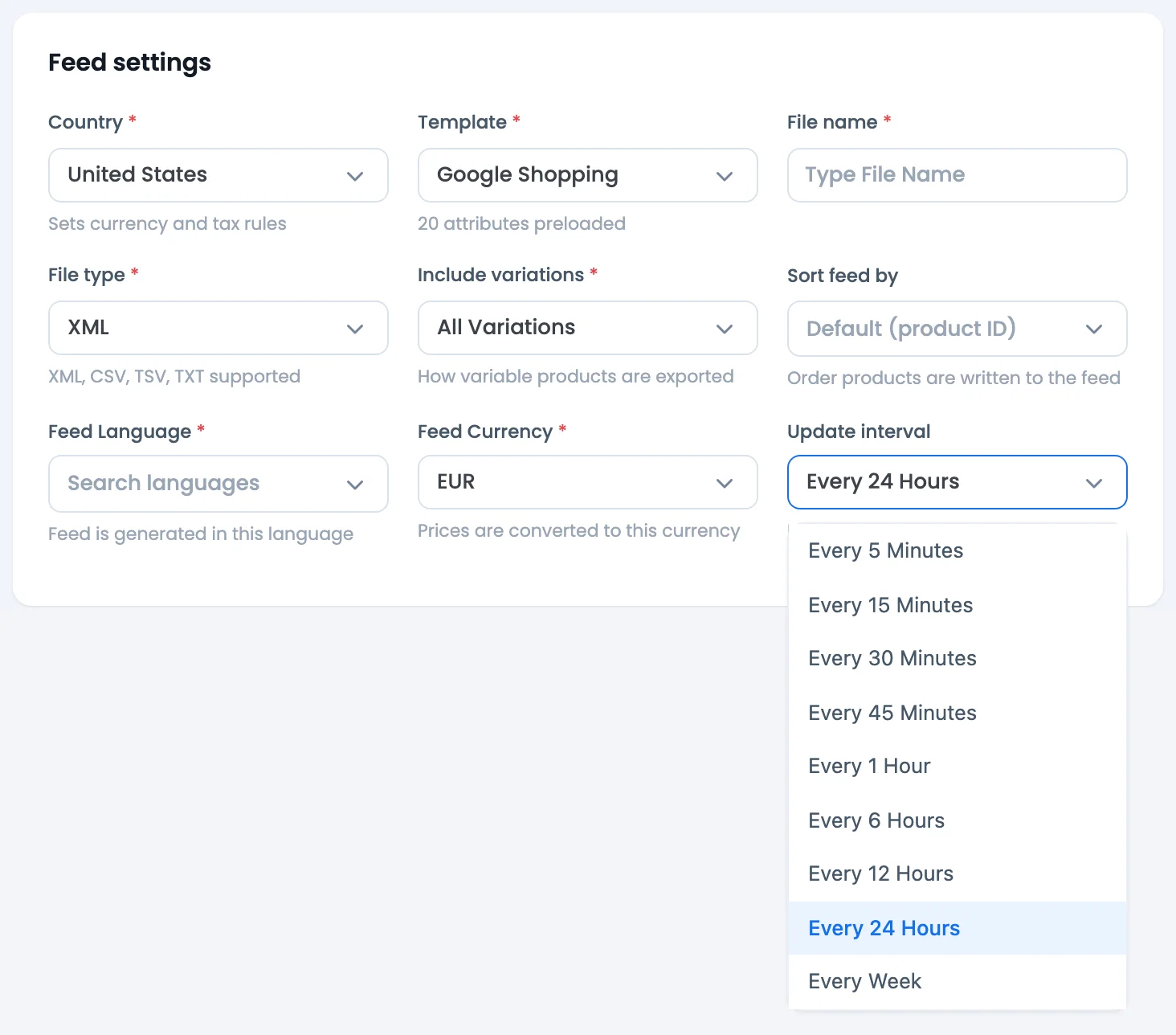
- In CTX Feed, the Update interval is on the Make Feed screen under Feed settings. The options are Every 1 Hour, Every 6 Hours, Every 12 Hours, Every 24 Hours and Every Week, and new feeds start at Every 24 Hours. CTX Feed Pro adds every 5, 15, 30 and 45 minutes.
- Set Google’s fetch to match. Align Merchant Center’s fetch schedule with your update interval so Google always reads a freshly built file. The fetch is the limit: if Google fetches once a week, it won’t pick up your changes any sooner, however often the feed rebuilds.
- Be clear about what this does. A faster rebuild doesn’t shorten Google’s review. It only shortens the time between a change in your store and the next time Google reads it.
- On a low-traffic store, use a real server cron. Scheduled rebuilds rely on WordPress cron, which only runs when someone visits. A server cron that runs every 5 minutes covers every interval, including Pro’s 5-minute option. Steps: How to set up cron for automatic feed updates and Fix auto feed update not working.
Catch problems before Google does
- Keep products Google will reject out of the feed. Filtering by product status is free in CTX Feed; removing out-of-stock, no-image or no-price products needs CTX Feed Pro.
- Find out when a rebuild stops. If a run fails, CTX Feed keeps your previous file and channels still receive it, so Google quietly keeps reading old data. Watch the Last Generated column on Manage Feeds: if it falls behind your interval, runs are being missed. CTX Feed Pro can email you when a scheduled update fails, finds 0 products, or is overdue (not updated for more than twice its interval). Turn it on in CTX Feed under Settings → Notifications.
- Keep your product pages and feed in step. Google asks that pricing and availability in your feed exactly match your landing pages. CTX Feed rebuilds the file from your current catalog, so it carries the same prices and stock as your store. To tune titles, images and other data once you’re live, see Google Shopping feed optimization.
- Fix what Google flags on the Needs attention tab, then rebuild the feed.
What to do if your products are delayed or not showing
Start from the product’s status in Products:
| What you see | Do this |
|---|---|
| Under review for longer than Google’s window (3–5 business days for Shopping ads; a few weeks for other features such as free listings) | Check that your website, contact details and product data follow Google’s policies, then submit a review request. Reviews can take up to 7 business days |
| Not approved | Fix the errors from Needs attention. See how to fix disapproved products |
| Limited | See Limited status above |
| Approved, but no impressions | See why Google Shopping isn’t showing your products |
| Google can’t fetch the feed, or it’s empty | Open the Feed URL in a private browser window. If it doesn’t load, regenerate the feed, or check whether a security or firewall plugin is blocking Google’s crawler. To see Google’s per-line errors, download the error report |
| Old prices or stock in Google | Check which schedule is stuck, your rebuild or Google’s fetch: Google Merchant Center feed not updating. For broader feed problems, see WooCommerce Google Shopping feed not working |
| Products missing in one country or language | Make sure Merchant Center’s country of sale and language match the feed. Multi-language store? See how to make a feed for each WPML language |
Generate your Google Shopping feed from WooCommerce with CTX Feed (free on WordPress.org) and give Merchant Center a feed URL that stays current. Need 5-minute updates, filters that drop out-of-stock, no-image or no-price products, or failure alerts? CTX Feed Pro adds them.
FAQs
How long does Google Merchant Center take to review products?
Up to 3–5 business days for Shopping ads, and a few weeks for other features such as free listings, according to Google. A first feed can also take up to 72 hours to be crawled after you submit it.
What does “Under review” mean? Is it the same as “Pending initial review”?
It means Google is checking the product for issues. “Pending initial review” isn’t one of Google’s current statuses. A product waiting for its first review shows as Under review today, and “initial review” is one of the reasons Google lists for it.
What does Limited mean in Google Merchant Center?
The product is showing on Google, but only in some instances, or without all of its data on the ad. For example, it may be eligible in some countries and not others. The reason is on the Needs attention tab.
How long do changes to existing products take?
Google processes edits in up to 15 minutes. But a change in your store reaches your feed only when the feed is rebuilt, and Google reads the feed only when it fetches it again.
How often does Google fetch my product feed?
Every 24 hours by default when you add the feed as a link, and you can change the schedule. The Update button on the data source refreshes it on demand.
How long does a review request take?
Up to 7 business days. Products that are approved become eligible to show across Google within 24 hours.
How early should I submit products before a sale or launch?
3–5 business days before, but no earlier than 30 days in advance.
How often can CTX Feed update my Google feed?
Every 1, 6, 12 or 24 hours, or every week; new feeds start at every 24 hours. CTX Feed Pro adds every 5, 15, 30 and 45 minutes. Google still reads the feed on its own fetch schedule, so set the two to match.

Free version on WordPress.org. Every Pro licence includes a 30-day money-back guarantee.