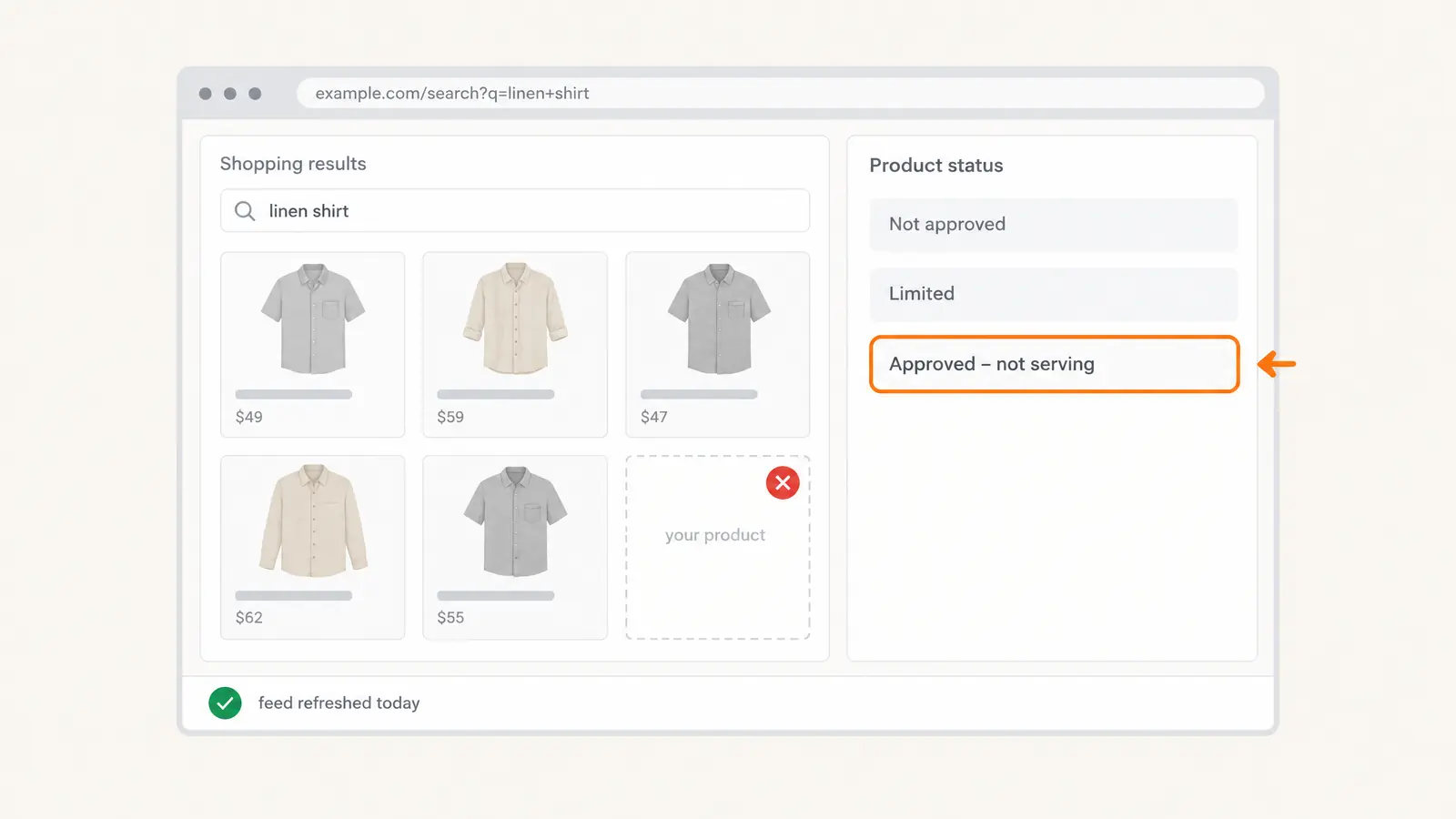
Products not showing on Google Shopping come down to one of three things: a feed or data error, a policy disapproval or account problem, or, for ads, a campaign setting. Start in Merchant Center: open Products, then the Needs attention tab, which lists each product issue and its reason. Products approved but ads getting no impressions? The cause can sit on the Google Ads side. On WooCommerce, generate the feed from your store and keep it refreshing: feed products expire from Merchant Center 30 days after the last refresh.
Shopping as a buyer, and the Shopping tab is missing? This guide is for store owners. Google shows product listings in several places, including Search, Images, Lens, YouTube, Gemini, Maps and the Shopping tab, so a missing tab doesn’t mean a store’s products are gone.
| What you see | Most likely where | First check |
|---|---|---|
| Products disapproved or limited in Merchant Center | Product data or policy | Products → Needs attention |
| Products approved, ads get no impressions | Google Ads campaign | Campaign status, budget, bids, product groups |
| Merchant Center shows zero products, or fewer than your store | Feed fetch or feed contents | The data source’s fetch schedule; does the feed file contain the products? |
| Products vanished weeks after setup | Expired product data | Is the feed still refreshing? |
Reasons Behind Google Shopping Not Showing Products
Google says a Shopping campaign or its products can stop serving because of issues on either the Google Ads side or the Merchant Center side. Its troubleshooting page lists 20 common reasons. Sorted by where you fix them:
| Where the problem is | Google’s reasons |
|---|---|
| Your products and Merchant Center | Products not eligible (disapproved or out of stock); Merchant Center suspended or not linked to Google Ads; account unclaimed; no shipping for the target country, or a minimum order value; adult setting; country and language not aligned with the campaign; expired product data; changed product attributes |
| Your Google Ads campaign | Ads account suspension or billing; start and end dates; paused campaign, ad group or ad; overlapping campaigns; targeting too narrow; ad schedule; bids and ROAS targets; auction dynamics; conversion tracking; Local Inventory Ads setting; data exclusions; seasonality |
The first row is where your feed matters, so start there. The sections below take each bucket in turn.
Common Feed and Data Errors (Google Shopping Feed Errors)
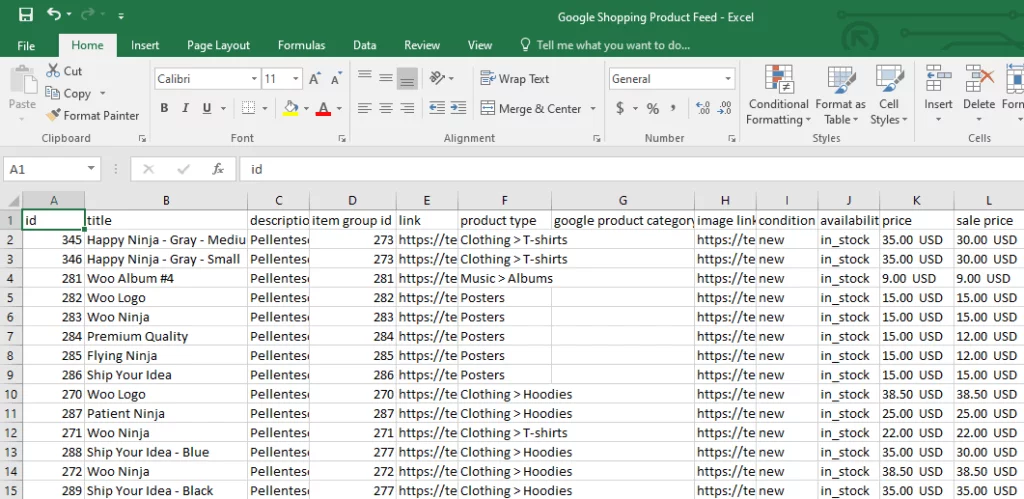
A product feed is a file that lists your products and their details (title, description, price, availability, identifiers, category, image link and more) in the format Google expects. For a WooCommerce store, that file should be generated from the store itself, so it always matches what shoppers see on your product pages. You give Merchant Center the file’s URL and it fetches the file on a schedule.
If a required field is missing or formatted wrong, Google can disapprove the product or limit how it shows. These are the data problems to check first.
Missing Required Attributes
For free listings, Google requires id, title, description, link, image_link, price and availability for all products. The rest depends on the product:
- Brand is required for each product with a clearly associated brand or manufacturer. It’s optional for products without one, such as movies, books, music and posters.
- GTIN is recommended for every product with a GTIN assigned by the manufacturer. Google’s free-listings table marks it required for those products, and MPN required for products without a GTIN. If you’re the only seller of a product or it’s a store brand, it generally won’t have a GTIN, so don’t make one up.
- Condition is optional for new products and required only for used and refurbished ones.
WooCommerce 9.2 and later has its own GTIN, UPC, EAN, or ISBN field on the product’s Inventory tab, and CTX Feed adds separate identifier fields (GTIN, MPN, EAN, ISBN) that work in the free version. See how to add GTIN, EAN, MPN, UPC and ISBN to your feed.
Price or Availability Mismatch
If the price or availability in your feed doesn’t match your product page, Google can disapprove the product pre-emptively until a review clears it. Keep the feed and the page identical, and rebuild the feed after every price or stock change. For the specific errors and fixes, see the most common price errors in Google Merchant Center.
Incorrect Product Category or Attributes
Every store has its own category structure. Yours might file hoodies under Clothing / Tops / Hoodies, while a competitor uses Clothing / Men / Hoodies. Google has its own product taxonomy, a tree that runs from general categories such as Electronics down to specific ones like Electronics > Communications > Telephony > Mobile Phones.
Google assigns every product a category from that taxonomy automatically, and accurate titles, descriptions, prices, brands and GTINs help it get the category right. If the category doesn’t match your offer, Google says to update google_product_category in your feed, but it accepts that override only in specific cases: category-specific attribute requirements, Google Ads campaigns built on product categories, and alcohol. Mismatched categories between your website and your product data are also on Google’s list of website issues that lead to disapprovals. In CTX Feed, a new Google feed starts with google_product_category empty; if you send it, point it at a category mapping.
Bad Formatting or Parsing Errors
CSV, XML or Google Sheets feeds with wrong delimiters, currencies or date formats won’t import correctly. Prices need a number plus an ISO 4217 currency code, for example 15.00 USD.
Products That Never Reach Your Feed
Sometimes Google isn’t rejecting anything: the product was never in the feed file. Before Google sees your catalog, WooCommerce and your feed settings decide what goes into it. If a product is in your store but not in Merchant Center, open the feed file and look for it first. These are the usual reasons it’s missing:
- The product isn’t Published. Draft, pending, private and trashed products aren’t written to a normal feed.
- Its catalog visibility is Hidden. Hidden products are excluded by default.
- WooCommerce hides out-of-stock items. If Hide out of stock items from the catalog is on in WooCommerce’s inventory settings, out-of-stock products are dropped from feeds too. Including hidden products, or overriding that store setting, are CTX Feed Pro options.
- Variations aren’t exported. The Include variations setting decides whether a variable product goes out as one parent row or one row per variation. If your variants are missing on Google, check this first.
- A feed filter is excluding it. Filters such as removing out-of-stock, no-image or no-price products, or limiting the feed to some categories, drop products on purpose. On the free version only the Product status filter applies; the rest are Pro. The Product eligibility cards show how many products each rule affects, except on stores with more than 5,000 products, where the counts are switched off for performance.
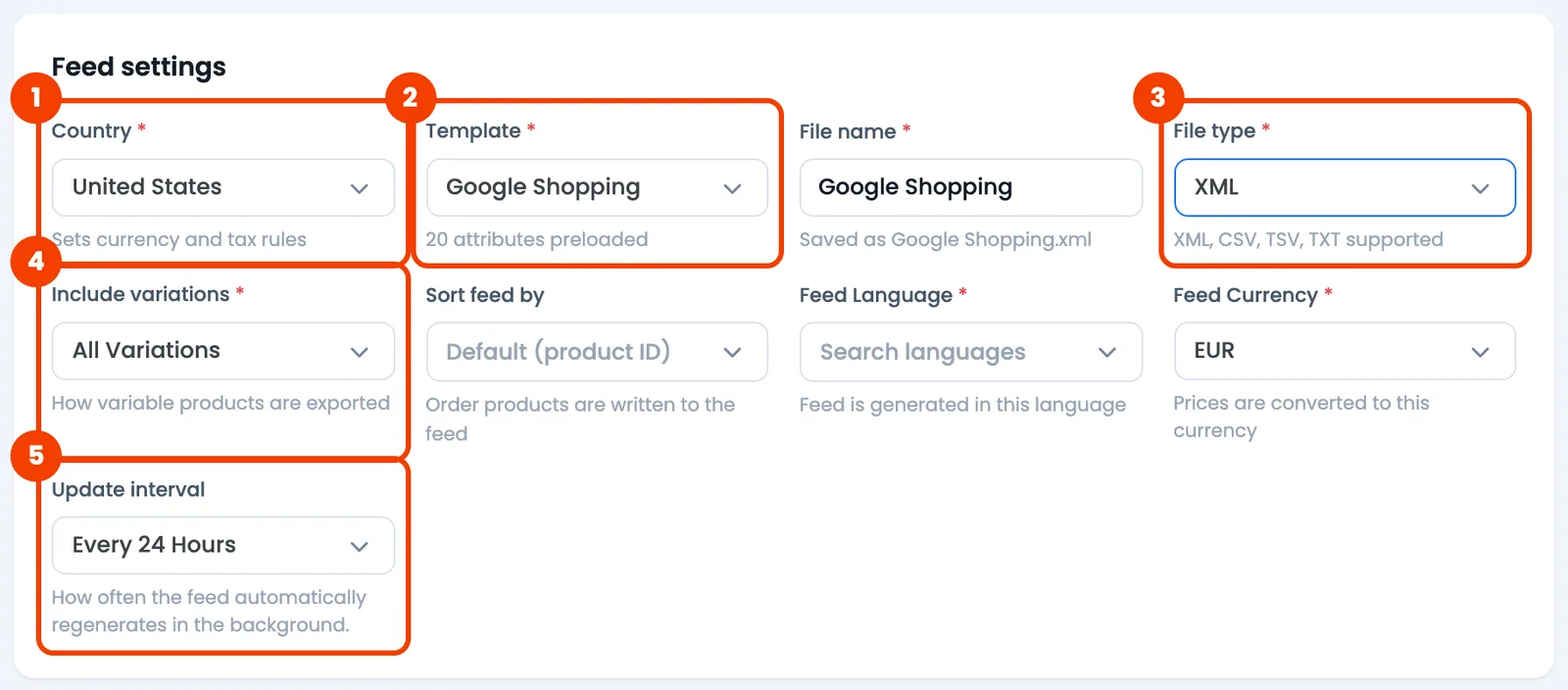

The full checklist, in the order worth checking, is in how to fix missing products in CTX Feed.
Disapproved Products and Account Suspension (Google Merchant Center Product Not Approved)
A single product disapproval and a full account suspension are different problems.
- Product-level issues affect only that product. A warning keeps the product showing with limited performance; a disapproval stops it showing until you fix it.
- Account-level issues affect every product in the account. If a warning isn’t resolved, the account is suspended and your products stop appearing across Google.
Google enforces its Shopping ads and listings policies by disapproving listings so they don’t serve and, for repeat or egregious violations, suspending accounts. Common policy reasons, by Google’s policy names:
- Counterfeit products. Google prohibits the sale or listing of counterfeit products: goods with a trademark or logo identical to, or substantially indistinguishable from, another brand’s.
- Prohibited content and restricted content. Some products can’t be listed at all, such as dangerous products. Others, such as alcohol, or healthcare and medicines, can be listed only on a limited basis.
- Misrepresentation. Google doesn’t allow listings that represent you or your products in a way that isn’t accurate, realistic and truthful, or that prompt a purchase before giving shoppers all the relevant information. See how to fix the misrepresentation error.
Google also lists website problems that cause disapprovals, including broken links, placeholder content, a robots.txt that blocks Googlebot, landing pages that are down or slow, and redirects to a generic page instead of the product. For the account-level fix, see how to fix a Google Merchant Center suspension.
Technical & Visibility Glitches (Google Shopping Troubleshooting)
Not every visibility problem is a feed or policy issue. Some are settings that keep products out of campaigns or out of free listings.
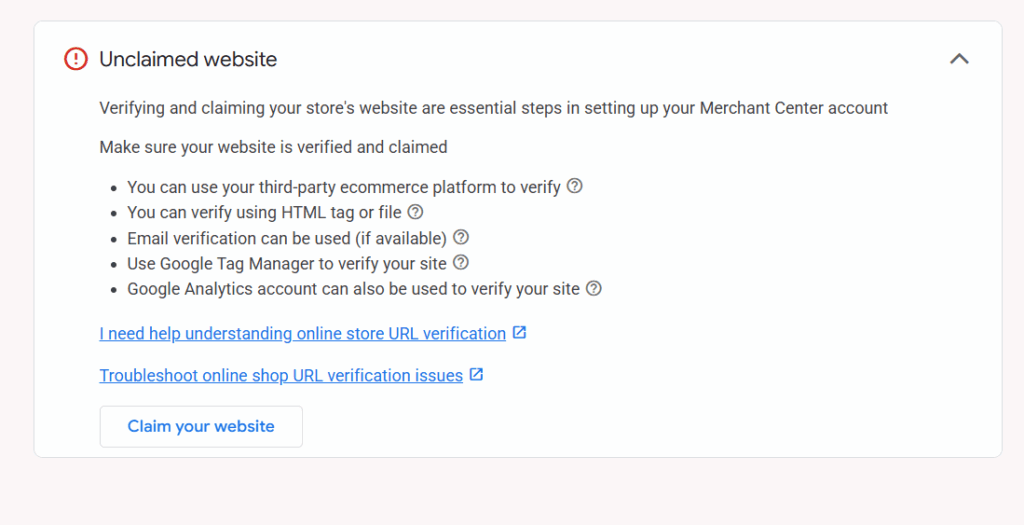
- Website not verified or claimed. Google lists an unclaimed Merchant Center account among the reasons Shopping ads don’t run, and a claimed, verified URL is required before products go to review. See the Merchant Center setup steps (Part 2).
- Shipping not set up. With no shipping set for the country you target, a Shopping campaign may not run, and a minimum order value hides products priced below it. In many countries, including the United States, the United Kingdom, Canada, Australia and many EU countries, shipping settings or shipping costs are required for free listings.
- Free listings off. Free listings show your products at no cost in Search, the Shopping tab, Images, Lens, YouTube, Gemini and Maps. New Merchant Center accounts are opted in by default. To check an existing account, go to Marketing → Marketing methods and look at the Free listings card. Being on doesn’t guarantee your products will show.
- Country and language don’t match. The countries and languages of your product data should match the countries in your campaign settings.
- Fetch errors or a stalled feed. If Google can’t reach the feed URL, nothing updates. And if the feed stops refreshing, products expire 30 days after the last refresh, unless Google can refresh them from your product pages itself. That’s why products can vanish weeks after a feed quietly breaks.
- Campaign-level issues. A paused campaign or product group, an exhausted account budget, very low bids or narrow targeting can stop a Shopping campaign from serving or cut its traffic. Step 5 covers these.
Quick recap
Visibility problems fall into three buckets:
- Data quality: feed errors, missing attributes, products that never reach the feed.
- Policy and account: disapprovals, suspensions, an unclaimed website.
- Configuration: feed fetch and freshness, free listings, shipping, and campaign settings.
Start with Needs attention in Merchant Center, fix the cause at the source, then request a review where Google asks for one.
How to Fix Google Shopping Not Showing Products Issues (Step-by-Step)
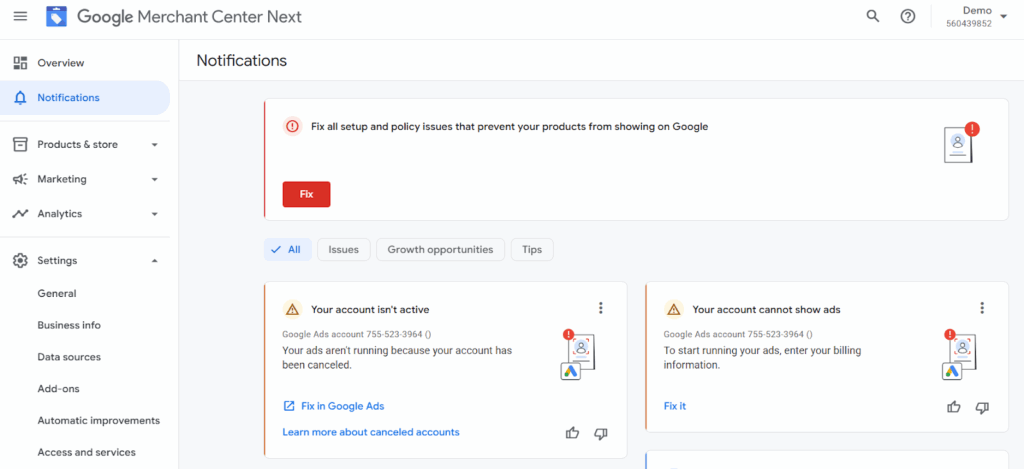
Merchant Center shows account-level issues in a banner at the top of your account, and product-level issues in the Needs attention tab. Work through the steps below in order.
Step 1: Check Your Google Merchant Center Diagnostics
Where to go: Merchant Center → Products (under Products & store) → Needs attention (formerly Diagnostics).
Account issues. Look at the banner at the top first. Select Review and fix or Fix in the banner to follow Google’s steps for an account-level issue.
Product issues. The Needs attention tab lists every product with an issue. Filter it by issue impact, status or what needs attention, and note the exact reason for each product (for example, a price mismatch or a missing GTIN).
Quick action. Download the complete list of affected products as a CSV with the download icon, then fix each value at the source: the product in WooCommerce, or the feed’s mapping. Rebuild the feed so Google’s next fetch picks up the fix. For disapprovals, request a review once the fix is live (Step 3). For the full walkthrough, see how to fix disapproved products in Google Merchant Center.
Step 2: Troubleshoot Your Product Feed
Run this checklist on your feed, whatever the source. For a full walkthrough of feed problems, read our guide on fixes for a Google Shopping feed that’s not working.
Feed Checklist:
- Required attributes:
id,title,description,link,image_link,price,availabilityfor every product, plusbrand,gtinormpnwhere they apply (see above). - Price and availability: the feed’s price and availability match the product page exactly. Give Merchant Center a feed URL with a scheduled fetch, not a one-time upload, so corrections reach Google automatically.
- Images and URLs:
image_linkloads and meets Google’s image rules;linkpoints to the product page, not a 404 or a blocked page. - Categories and attributes: any
google_product_categoryyou send fits the product; condition, size, color and other attributes are accurate. - Formatting: delimiters, ISO currency codes and date formats are right.
How to Apply Fixes
The reliable fix is to stop editing the feed by hand and generate it from your store. CTX Feed builds the Google feed from your WooCommerce store. Making feeds is free, with 90+ pre-configured channel templates including Google Shopping. Here is what matters for this problem:
- One feed URL, fetched on a schedule. Merchant Center fetches your feed URL on the schedule you set, and the URL stays the same every time CTX Feed rebuilds the file. See how to upload your WooCommerce feed to Google Merchant Center.
- Two timers, both running. CTX Feed rebuilds the file on its update interval, and Merchant Center fetches it on its own fetch schedule. If either stops, Google shows stale data. Auto-update every 1 hour, 6 hours, 12 hours, 24 hours or weekly is free; 5-, 15-, 30- and 45-minute intervals need CTX Feed Pro. Match Google’s fetch schedule to it. If prices in Google look old, see Merchant Center feed not updating automatically.
- Check the template rows that start empty. On a new Google feed,
google_product_categorystarts empty and there’s nogtinrow until you add one. If you sendgoogle_product_category, map your store categories to it, and add the GTIN row if your products have barcodes. - Missing from Google? Check the file first. If a product is in your store but not in Merchant Center, see whether it’s in the feed file (Hidden, the out-of-stock store setting, variations, filters).
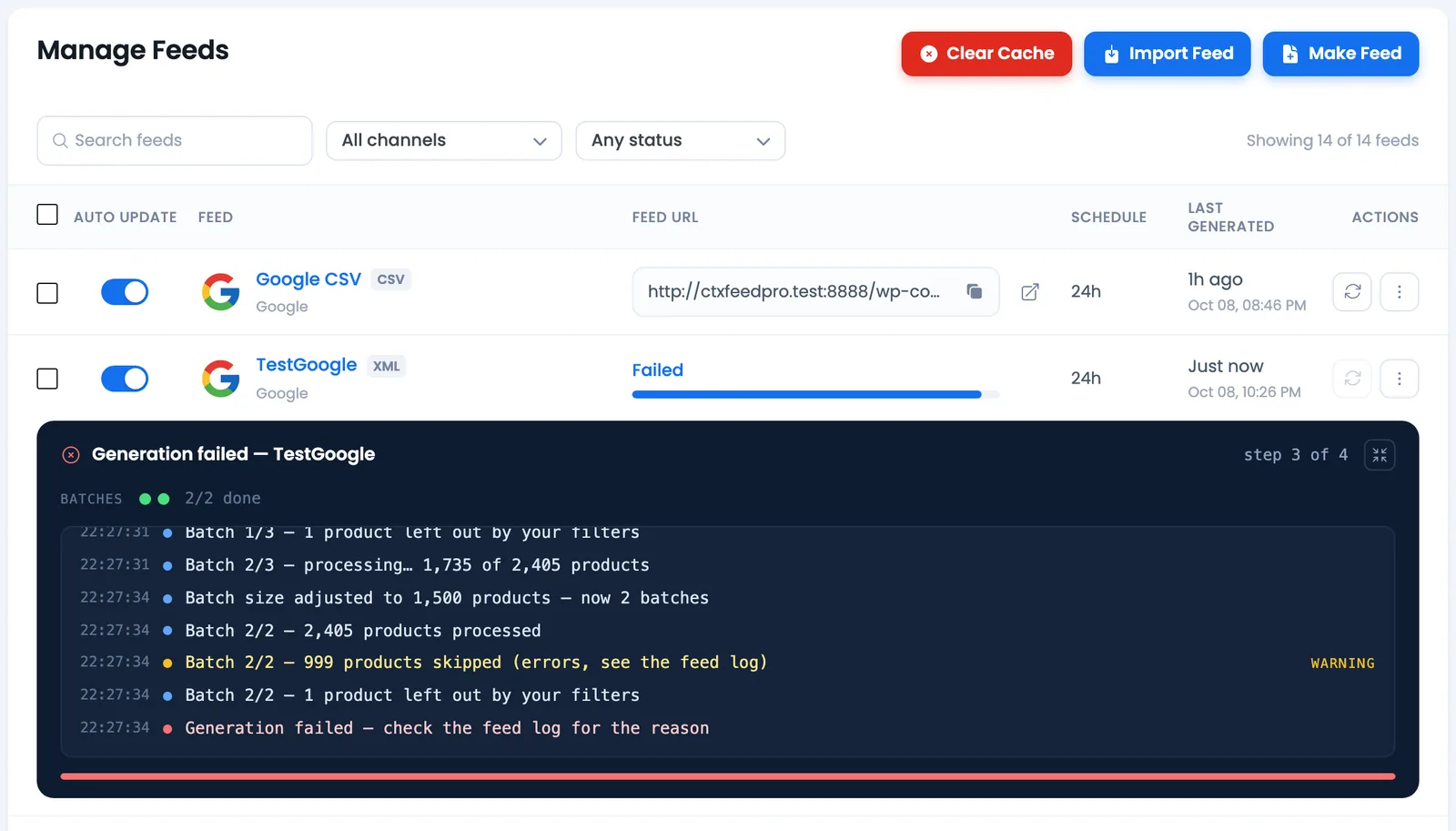
- A failed run never sends Google an empty feed. If a run fails, or finds 0 products, CTX Feed keeps the previous feed file. A failed run shows Failed with a log you can download. See how to solve the feed auto-update issue.
To build a Google Shopping feed from scratch, see how to create a Google Shopping ads feed.
In Merchant Center, your feed and its fetch schedule are under Settings → Data sources (Google renames these menus from time to time).
Step 3: Resolve Policy Violations and Request Reviews
Once your feed is clean, look at the policy and account problems.
Know which one you have:
- A product disapproval affects specific products. Fix the product data or the landing page, then re-upload or let the scheduled fetch pick it up.
- An account suspension affects every product in the account. Fix every issue, then request a review. See how to fix a Google Merchant Center suspension.
Each issue in Needs attention names the problem and links to Google’s instructions for fixing it, so use that text as your checklist.
How to request a review in Google Merchant Center
- Fix the issue completely, in the feed and on the landing page.
- Open Products → Needs attention and open the issue. The issue’s detail page shows the steps to resolve it, including requesting a review.
- Request the review only after the fix is live. Google says these review crawls usually finish within 24 to 48 hours, and depending on the violation there can be a limit on how many reviews you can request.
Step 4: Optimize for Visibility
Once products are approved, better data helps them show for more searches.
- Titles: clear, specific titles that match what shoppers type, with the most important words (brand, model, product type) first. See Google Shopping title optimization.
- Identifiers: submit GTIN, MPN and brand where they exist. Google says a GTIN “can increase the performance of the product”, and products with missing or incorrect GTINs “may have limited visibility”.
- Images: high-quality images that match the product sold, plus additional images where you have them.
- Fresh data: for catalogs that change often, shorten CTX Feed’s update interval and Merchant Center’s fetch schedule together.
A feed plugin takes the manual work out of keeping data fresh, but you still need to read Needs attention when an issue appears.
Step 5: Address Campaign-Specific Issues
Approved products still need a campaign that can serve them. If your products are approved in Merchant Center but your Shopping ads get no impressions, check Google’s ads-side reasons:
- Account: Is the Google Ads account suspended, or does it have a billing issue? Is Merchant Center linked to the right Google Ads account? If the accounts aren’t linked, your products aren’t eligible for your Shopping campaigns. In Google Ads, the link is under Tools → Data manager → Google Merchant Center.
- Campaign: Has the campaign started, or already ended? Is anything paused (campaign, ad group or ad)? Does the ad schedule allow it to run? Is the account budget exhausted, or is a limited budget holding back traffic?
- Reach: Is the targeting too narrow? Do several campaigns compete for the same products? If an item is in more than one campaign, review the product group bids. Are any products left out of your product groups?
- Competitiveness: Are your bids too low to win auctions? With value-based bidding, is your target ROAS set too high for a new campaign to scale? Have other advertisers changed the auction?
- Data: Is conversion tracking set up correctly if you use automated bidding?
Google’s page gives 20 reasons in all; the product-side ones are in the table at the top of this guide.
New or Recently Changed Campaigns
Some delays are normal, not broken:
- New or edited ads, products and data sources take 24–48 hours to be reviewed, and initial reviews for programs such as free listings can take several weeks.
- With automated bidding, significant changes to budgets or bids can trigger a 5–14 day learning phase. Google advises against further changes during that period.
So after a change, wait out the learning phase before you judge the result.
How to Check If Your Shopping Ads Are Really Serving
Impressions alone don’t tell you why. Use these:
- Auction insights: under Insights and reports in the campaign, it shows impression share, overlap rate and outranking share against other advertisers in the same auctions. It doesn’t show insights when your impression share is below 10%.
- Conversion tracking: if the campaign bids automatically for conversions and the tracking is missing or wrong, ads may have limited serving. Check the conversion setup in Google Ads and the tag on your site.
- Needs attention in Merchant Center: shows which products are disapproved, limited or pending, and why.
Selling in Europe: Comparison Shopping Services
In Austria, Belgium, the Czech Republic, Denmark, Finland, France, Germany, Greece, Hungary, Ireland, Italy, the Netherlands, Norway, Poland, Portugal, Romania, Slovakia, Spain, Sweden, Switzerland and the United Kingdom, Shopping ads and free product listings are placed through Comparison Shopping Services (CSSs). You can use Google Shopping or any other CSS, including several at once. If your ads run elsewhere but not in these countries, check your CSS setup as well as your feed.
Merchant Center Shows Zero Products
If Merchant Center shows no active products at all, rather than fewer impressions, check these:
- The feed hasn’t been fetched recently. Open the data source under Settings → Data sources and check its scheduled updates. Google fetches a file URL every 24 hours by default, and you can change the schedule.
- Google can’t reach the feed URL. Open it in a private browser window. A security plugin, firewall, password protection or “coming soon” mode can block Google’s crawler.
- The feed file itself is empty or short. Store settings or filters may be excluding products; see how to fix missing products in CTX Feed. CTX Feed keeps the last good file when a run finds 0 products, so check its Manage Feeds screen for a warning.
- Expired data. Products from a feed expire 30 days after the last refresh.
Quick Recap: How to Fix Google Shopping Not Showing Products
- Step 1: Check Needs attention and the account banner; download the affected products.
- Step 2: Fix feed errors at the source and keep the feed refreshing on a schedule.
- Step 3: Resolve policy issues, then request a review.
- Step 4: Improve titles, identifiers and images.
- Step 5: Check the Ads link, campaign status, targeting, bids and conversion tracking.
Frequently Asked Questions (FAQ Section)
Why Are My Products Not Showing Up On Google Shopping?
Most of the time, products don’t appear because of one of three reasons: feed errors, policy disapprovals, or campaign settings. Check the Needs attention tab in Merchant Center first, then make sure your ads or free listings are set up correctly. If your product variants are the ones missing, check that your feed exports each variation as its own row; in CTX Feed that’s the Include variations setting.
My Products Are “Under Review” — What Should I Expect?
Google takes 24–48 hours to review new or edited products and data sources. Initial reviews for programs such as free listings can take several weeks, and when you upload products for the first time, the review for Shopping ads can take up to 3–5 business days. Further changes during the review can delay it.
What Does “Product Not Showing On Surfaces Across Google” Mean?
It means your products aren’t showing in free listings: your products shown at no cost in Search, the Shopping tab, Images, Lens, YouTube, Gemini and Maps. If products don’t show there, check the Free listings card under Marketing → Marketing methods in Merchant Center and fix any issues in Needs attention. Being opted in doesn’t guarantee your products will show.
How Do I Know If My Account Is Suspended?
Account-level issues show in a banner at the top of Merchant Center, and Google emails you when an account is suspended. A suspension affects your whole account and can stop all your products from showing. See how to fix a Google Merchant Center suspension.
Do I Need GTIN for Every Product?
No. GTIN is recommended for products that have one assigned by the manufacturer. If you’re the only seller of a product or it’s a store brand, it generally won’t have a GTIN, so don’t submit one, and never guess a value. Brand is required for products with a clearly associated brand or manufacturer, and Google’s free-listings table asks for an MPN for products without a GTIN. In short: if your product has a GTIN, submit it. If it doesn’t, give Google the brand and MPN.
I’ve Fixed My Errors, What’s Next?
Rebuild the feed so the fix is in the file, and let Merchant Center fetch it on its schedule. Google takes 24–48 hours to review edited products and data sources. For disapproved items, request a review only after the fix is live; those review crawls usually finish within 24 to 48 hours.
Is Google Limiting When Shopping Ads Are Shown?
Google’s own troubleshooting page lists account, campaign, product and auction reasons for Shopping ads that don’t run or get low traffic, plus changing user interest and seasonality. Work through them, starting with product status in Merchant Center, before you assume a platform limit.
Why Are My Google Shopping Ads Not Showing as Often as Before?
Check what changed. With automated bidding, significant budget or bid changes can trigger a 5–14 day learning phase. Changes to product attributes in your feed can exclude products from a campaign. Products expire if the feed stops refreshing. Other advertisers can change the auction, and user interest and seasonality shift too.
What’s the Difference Between Ads Not Showing and Zero Products in Merchant Center?
If your products are approved but your ads don’t show, the cause is on the campaign side (Step 5). If Merchant Center shows zero products, look at the feed first: whether it was fetched, whether Google can reach it, whether the file is empty, and whether the products have expired (see Merchant Center Shows Zero Products).
Wrap Up
When Google Shopping isn’t showing your products, first find where the problem is: product data, policy or account, the feed fetch, or the campaign. Fix it at the source, in your store or your feed, not by patching values in Merchant Center. Then keep the feed refreshing from your store so products don’t expire. On a large catalog, or after repeated suspensions, work through Needs attention one issue at a time rather than changing everything at once.
Products missing from Google because the feed is stale or incomplete? CTX Feed builds your Google Shopping feed from your WooCommerce store and rebuilds it on a schedule, so Merchant Center fetches current prices and stock. Making feeds is free on WordPress.org; CTX Feed Pro adds product filters (out-of-stock, no-image, category rules) and 5- to 45-minute updates. See CTX Feed Pro →

Free version on WordPress.org. Every Pro licence includes a 30-day money-back guarantee.