A Google Merchant Center suspension means Google found a policy problem with your account, and until it’s fixed and a review succeeds, your products are disabled on Google’s Shopping surfaces, such as Shopping ads and free listings. Most violations come with a warning email and 7 or 28 days to fix them; egregious ones may not. Find the exact policy under Products → Needs attention → View setup and policy issues. Then fix your website and your product data before you request a review: you may only get one chance to disagree, and if the second review attempt fails, a one-week cool-down may begin.
Selling with WooCommerce? Google checks that the price and availability in your feed exactly match your product pages. The feed is the part you control, so generate it from your store and keep it rebuilding on a schedule (section 4 shows how).
Quick overview: find the exact policy → fix your website → fix your feed at the source → test → request one well-prepared review → prevent it from coming back.
| What you see | What it means | What to do |
|---|---|---|
| A warning email; Needs attention shows a policy issue with a deadline | Warning period of 7 or 28 days | Fix or remove the products before the deadline; you can request one courtesy review during the warning |
| Account suspended; your products stopped showing | Suspension | Fix everything, then I fixed the issue → Request review |
| Request review is greyed out | Cool-down, identity verification pending, or an empty data source | Check Needs attention for the cool-down end date; complete identity verification; make sure the data source has products |
| Suspended with no warning | An egregious policy, such as circumventing systems | Appeal only if Google made an error; Google reinstates these only in compelling circumstances |
| A linked account suspension | A Google Ads account linked to your Merchant Center is suspended | Fix the Google Ads suspension first |
1. First things first — don’t panic, but don’t delay
Start by finding out exactly what Google flagged. Account-level issues show in a banner at the top of your Merchant Center account. For the full list, go to Products, open the Needs attention tab and select View setup and policy issues. Older guides call this screen Diagnostics: in Merchant Center Next it moved to the Needs attention tab on the Products page.
Google also tells you by email. A suspended account gets a series of emails with the details of the policy violation, and those messages are kept for a time in the account’s message archive.
Immediate actions:
- Screenshot every warning and the Needs attention screen. You’ll use them while you fix things and if Google asks for documents.
- Note the exact policy name Google uses (for example, Misrepresentation). Each policy has its own rules and fixes.
- Do not open a new Merchant Center account to get around the suspension. Google treats creating new accounts after a suspension as circumventing systems. That’s an egregious violation: accounts are suspended without warning and aren’t allowed to list with Google again.
Warning or suspension?
These are different situations, and the right move depends on which one you’re in.
- Warning. For most violations, Google first emails a warning and gives you 7 or 28 calendar days to fix the issue. The issue also shows under Products → Needs attention, and your products may keep showing with limited visibility until the warning period ends. If you remove the violating products during the warning, you don’t need to request a review: Google reviews the account automatically at the end of the period. You can also request one courtesy review at any time during the warning.
- Suspension. If the warning period ends without a fix, the account may be suspended. Your products stay off Shopping surfaces until a review succeeds.
- Egregious violation. For egregious policies, Google may not send a warning at all. The account is suspended on detection, and reinstatement happens only in compelling circumstances.
Is a linked Google Ads account suspended?
If the issue says your linked account is suspended, Merchant Center can’t be reviewed until the Google Ads suspension is fixed. Unlinking or removing the suspended Ads account doesn’t fix it. Appeal in Google Ads first; Google says its support team will reach out in 5 business days. Once the Ads account is unsuspended, request the Merchant Center review.
2. Understand the most common suspension reasons
Google names the policy in the issue details. The usual account-level reasons are:
- Misrepresentation. Google doesn’t allow offers that represent you or your products in a way that “isn’t accurate, realistic, and truthful”. Our Google Merchant Center misrepresentation guide covers the policy and its fixes in depth.
- Missing return and refund policy. Your site needs a clear return and refund policy, or a clear statement that you don’t accept returns.
- Insufficient contact information. Your legal business name, physical address, phone number and email must be clearly listed and consistent with your Merchant Center settings.
- Product data that doesn’t match your site. Google expects the price and availability in your feed to exactly match your landing pages. Problems with individual products show as product-level issues on the Needs attention tab, separate from the account-level issues in the banner at the top of your account: see how to fix disapproved products.
- Restricted products. Some healthcare products can’t be listed at all; others only in certain countries by merchants approved for them. See section 9.
- Dishonest pricing. Google’s examples include not disclosing the total price, including all taxes, fees and surcharges, and not disclosing all shipping costs. Google treats this part of the policy as egregious.
Two more account-level policies show up as reasons: Circumventing systems and Linked account suspension.
3. Fix the website transparency & trust (the single biggest factor)
Google’s Misrepresentation policy is there to make sure listings are “clear, honest, and provide information that users need to make informed decisions”. Before you request a review, audit your site the way Google describes:
- Business identity: your legal business name, physical address, phone number and email are on your site and match your Merchant Center settings and payment profiles. Put them in the footer and on your Contact page.
- Policies: shipping, refund and privacy policies are explicitly linked, and your shipping and return details are clear and easy to find. Spell out shipping costs and times, the return window and the refund process.
- Pricing and checkout: the product price on the page matches the feed, and the total price, taxes, fees and shipping costs are disclosed before checkout.
- A working, secure site: no placeholder text, no broken links, and a checkout that works and is secured with HTTPS.
- Identity verification: complete it in Merchant Center if you’re asked, using documents that match your account data.
If anything is missing or hard to find, fix it now. After the changes, capture screenshots and keep changelog notes (what you changed and when).
4. Fix the product feed/attribute problems (do this with the CTX Feed plugin)
Your feed tells Google the facts about every product, and Google checks them against your product pages. Get these attributes right:
- price and availability: must match the landing page. If prices or stock change, the feed has to change with them (see Auto Update below).
- gtin, mpn, brand: Google recommends a GTIN for every product that has one assigned by the manufacturer, and says not to guess or make up a value. A brand is required for products with a clearly associated brand or manufacturer. Our WooCommerce GTIN guide shows where GTINs come from.
- image_link: a clear image of the actual product you sell.
- link: goes straight to the exact product page, with no broken redirects.
- shipping: if you send shipping cost or speed in the feed, it matches your site’s shipping policy.
- tax: your feed and your pages use the same tax treatment. See how to configure tax and VAT for Google Merchant Center.
- shipping_label: groups special-shipping products (heavy, oversized) so Merchant Center can apply their own shipping rates.
Why a WooCommerce feed and the product page disagree
These are the most common reasons a WooCommerce feed and its product pages disagree:
- Tax shown differently. The page shows a tax-inclusive price and the feed sends the pre-tax price, or the reverse. Nothing is “wrong”, but the numbers differ.
- A discount plugin. A dynamic-pricing or discount plugin changes the price on the page, but the feed still carries the regular price.
- A sale started or ended after the last feed run. The feed price is now stale.
- Currency. A multi-currency plugin shows one currency on the page while the feed sends another.
- Stock. The feed says in stock, but the item sold out since the feed was built.
- The page’s own structured data. Google also reads price and availability from the structured data on your product pages and can update your products from it. If your theme or SEO plugin outputs a wrong price there, Google sees a third value.
How CTX Feed keeps the feed matching your store
CTX Feed builds your Google Shopping feed from your WooCommerce store. Creating feeds is free. What to set, with the doc for each step:
- Give Merchant Center the feed URL, not a one-off upload. CTX Feed publishes the feed at a URL on your site; Merchant Center fetches it on a schedule, so each rebuild reaches Google on the next fetch. Steps: upload your WooCommerce feed to Google Merchant Center.
- Match your tax display. The plain price attributes send the price exactly as it’s entered in WooCommerce. If your pages show tax-inclusive prices, use the …With Tax attributes, which add tax at the rates for the feed’s Country. See configure product price.
- Discount prices come through on their own. CTX Feed passes each price through your discount plugin’s filters, so rule-based prices reach the feed with no extra setup, in the free plugin. Converting prices with a currency-switcher plugin needs CTX Feed Pro.
- Sale prices only while the sale runs. Google wants the sale price in
sale_price, lower than the regular price, with the original price still inprice. Map Sale Price tosale_priceand it’s sent only while the sale is live and left empty otherwise, so an expired sale never reaches the feed. - Clean price format. With the row’s Output set to Price, CTX Feed writes the number with two decimals and a dot, and on a Google feed it fills the row’s Suffix with your feed currency, for example
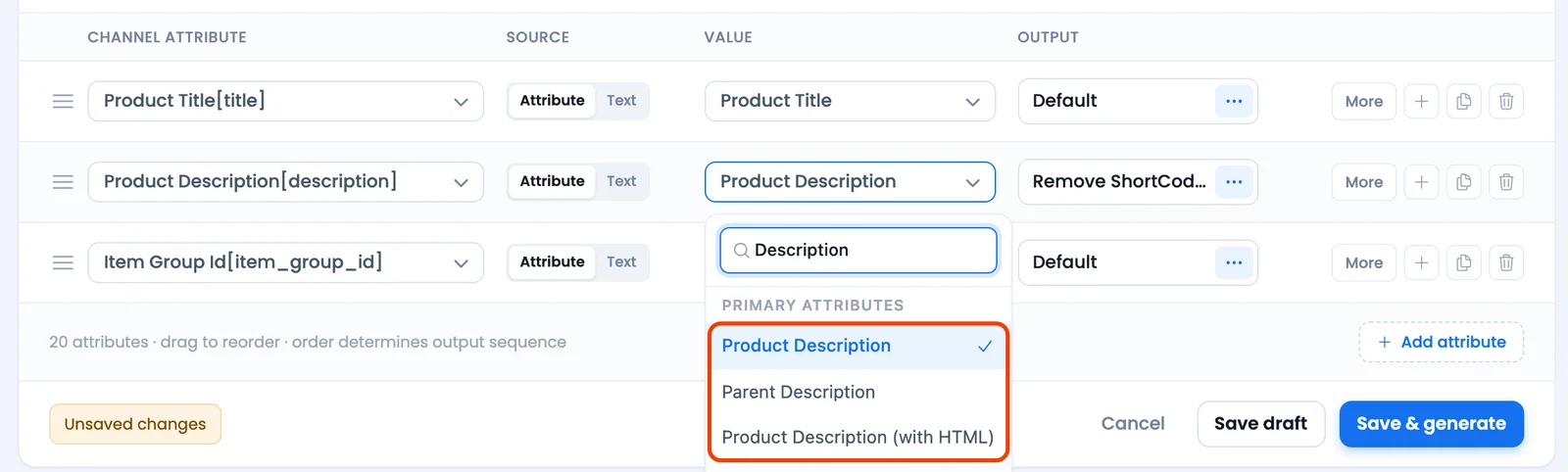
19.99 USD. - Plain-text descriptions. The Product Description attribute is your description with HTML tags and shortcodes removed, in the free plugin. See product description with or without HTML.
- Shipping from your WooCommerce zones. Map Shipping (Google Format) to build Google’s shipping block from your WooCommerce shipping zones, or send a
shipping_labeland keep the rates in Merchant Center. See configure the Google Merchant shipping attribute. - Turn on Auto Update. The feed rebuilds itself every 1, 6, 12 or 24 hours or once a week in the free plugin; CTX Feed Pro adds 5-, 15-, 30- and 45-minute intervals. It relies on WordPress cron running on your site. See manage feeds, and if it stops refreshing, feed not updating automatically.
- If Google’s page crawl still disagrees, fix the page markup. Product structured data comes from your theme or SEO plugin; CTX Feed doesn’t change your page markup. See how to solve the microdata error for Google Merchant, and for price-specific errors, the most common price errors in Google Merchant Center.

None of this can guarantee a review outcome: Google decides. It removes the feed-side mismatches Google checks for.
Check your work: in Merchant Center, open Needs attention for item issues; you can download the full list of affected items as a CSV. Our guide to downloading error reports shows how to turn each error into a feed change. Fix broken URLs, and rebuild the feed only after your site changes are live.
5. Follow the Google Misrepresentation Checklist (copy & use)
Run through this checklist before you request a review. Some lines are Google’s own requirements, covered in sections 3 and 4; the rest are checks we recommend. For the policy itself, see our misrepresentation guide.
Pre-review checklist
- [ ] Business identity visible: legal business name, physical address, phone and email on the site and in the footer.
- [ ] Business details match your Merchant Center settings and payment profiles.
- [ ] About page with company background and contact details.
- [ ] Secure checkout (HTTPS) that works.
- [ ] Product prices on the product page match the feed.
- [ ] Total price, taxes, fees and shipping costs disclosed before purchase.
- [ ] Product titles and descriptions are accurate (no false claims).
- [ ] Product images accurately represent the product (no stock images of different items).
- [ ] Shipping page details: costs, carriers, processing times; matches the shipping attribute.
- [ ] Returns and refunds policy page: clear steps, timelines, conditions.
- [ ] Shipping, refund and privacy policies are linked from your site; your terms of service are easy to find too.
- [ ] No placeholder text or broken links.
- [ ] No prohibited items listed; regulated items comply with local law and Google policy.
- [ ] Product links are live, not blocked by robots.txt, and show the product immediately.
- [ ] Contact method works: support email answered within business hours; phone number present.
- [ ] Feed check: the attributes your products need are present (price, availability, image_link; brand and GTIN where they apply).
- [ ] Identity verification completed, if Merchant Center asks for it.
Fix everything, and document each fix (a screenshot plus a short note). You’ll want this record if Google asks for more information.
6. Test everything before appealing
- After your feed is re-fetched, re-check Needs attention. Google says to wait for your automated upload schedule to run before requesting any reviews.
- Compare 3–5 products: the price and availability in the feed against the live product page.
- Check a product URL with Google’s Rich Results Test to see the price and availability your page’s structured data reports.
- Click every product link from your feed preview to confirm it lands on the right product.
- Use an incognito browser to see what a new visitor sees, without your admin login.
- Make sure your data source isn’t empty. If it is, the review button won’t be available: add at least one product first.
7. Submitting the appeal (Request re-review) — be precise and evidence-driven
In Merchant Center, go to Products → Needs attention → View setup and policy issues. For the issue:
- Select I fixed the issue if you’ve found and fixed the problem, or I disagree with the issue if you believe Google’s finding is an error.
- Select Request review.
- If Merchant Center asks for identity verification, complete it first: you upload clear, government-issued IDs or business registration documents, and this is often required before you can request a review of an account-level suspension.
On the Google & YouTube app for Shopify, the button is called Request re-review. WooCommerce stores use the Merchant Center steps above.
Before you click: the review rules
These are the rules that decide whether your appeal works, so read them before you use a review:
- You may only have one chance to disagree with the issue. Don’t spend it on a guess.
- If your issues aren’t resolved by the second review attempt, a one-week cool-down may begin. The cool-down may get longer with each unsuccessful review after that, and Google support can’t bypass or shorten it.
- Identity verification and a non-empty data source come first. The review button may not be available until both are done.
- Wait for Google to fetch your fixed feed before you request the review.
So: fix everything first, then request one well-prepared review.
What to prepare. If you disagree, Google may ask for an appeal reason and documents. Have these ready:
- The exact violation Google flagged.
- Each step you took to fix it, as a short bulleted list.
- Before and after screenshots (product page, policy pages, feed fields).
- Feed update times and the name of the feed tool you use.
- A short changelog if you changed several things (date + what).
- Up-to-date contact details.
How long it takes. Google says to wait 7 business days; a review may take up to 7 business days, and the review covers all issues for that country. Google’s misrepresentation page adds that complex reviews may take longer. You’ll get an email when you request the review and when it’s done. The status shows as Review requested, Under review or Review not approved. Approved products are eligible to show across Google within 24 hours.
Don’t send duplicate requests while a review is running: wait for Google’s answer.
If the review fails: the cool-down period
After a failed review you may enter a cool-down. The review button is greyed out, and the Needs attention tab shows the date it becomes available again. Use the time to audit your site and make sure your product data matches your website exactly. When the cool-down ends, Request review or I fixed the issue is available again.
8. After reinstatement — how to prevent future suspensions
- Keep the feed current: rebuild it on a schedule that matches how often your prices and stock change. For stores whose prices or stock change often, 1 hour or 6 hours; for a stable catalog, 24 hours is enough.
- Watch Merchant Center: check Needs attention regularly and fix new issues quickly.
- Re-check every month: run the section 5 checklist again, and make sure whoever adds products knows the attributes your products need (GTIN where one exists, brand).
- Use shipping_label for special shipping: group heavy or oversized products so Merchant Center applies their own rates.
- Keep inventory accurate: sync stock and availability so you never advertise what you can’t ship.
9. Extra tips for complex cases (health, regulated goods, cross-border)
- Health and medical products. Some healthcare products can’t be listed at all; others only in certain countries by merchants who have applied and been approved. Prescription drugs are allowed only in the United States and Canada, and online pharmacies need accreditation from an approved program plus Google’s own certification. For most healthcare policies Google warns at least 7 days before a suspension; unauthorized pharmacies and prescription opioid painkillers are egregious, so there’s no warning.
- Cross-border sales. Make sure your shipping settings cover each country you target; see how to fix missing shipping information. Disclose return costs too: Google’s examples of dishonest pricing include concealing that a customer will pay cross-border or international freight fees to return a product.
10) Summary — the shortest path to reinstatement
- Read the exact policy under Needs attention.
- Fix your website: business details, policies, checkout.
- Fix your feed at the source so it matches your product pages, and keep it rebuilding on a schedule.
- Test: wait for the re-fetch, compare feed and page, check Needs attention again.
- Request one well-prepared review, because you may only get one chance to disagree.
- Prevent it: audits, a current feed and quick fixes. A successful review is Google’s call, but a store with nothing left to flag has the best chance.
Products not showing for a different reason? Start with our Google Shopping not showing products guide.
Frequently Asked Questions
Why is my Google Merchant Center account suspended?
Google found a policy violation at account level. Common reasons are a missing return and refund policy, insufficient contact information, misrepresentation of your business or products, and product data that doesn’t match your site. The exact policy is under Products → Needs attention → View setup and policy issues.
How do I appeal a Google Merchant Center suspension?
Go to Products → Needs attention → View setup and policy issues, select I fixed the issue or I disagree with the issue, then Request review. Complete identity verification first if Merchant Center asks. Fix everything before you ask: you may only get one chance to disagree.
How long does a Merchant Center review take?
Up to 7 business days. Approved products are eligible to show across Google within 24 hours. You get an email when you request the review and when it’s done.
Why is the Request review button greyed out?
It’s greyed out while a cool-down period runs after a failed review; the Needs attention tab shows when it ends. The button can also stay unavailable until you complete identity verification or add at least one product to an empty data source.
Can I open a new Merchant Center account instead?
No. Creating new accounts after a suspension is circumventing systems, an egregious violation. Accounts are suspended without warning and aren’t allowed to list with Google again.
Aside from the Merchant Center interface, how will I be notified of a suspension?
By email. Google sends a series of emails with the details of the policy violation and the suspension, and the messages are also kept for a time in the account message archive.
Can a feed plugin cause a Merchant Center suspension?
A feed can carry a price, tax, availability or shipping value that doesn’t match your site, and Google checks for that. Generate the feed from your store so it matches, and keep it rebuilding on a schedule. Google decides suspensions; no tool can guarantee approval.
Suspended over prices, stock or shipping that don’t match your site? CTX Feed builds your Google Shopping feed from your WooCommerce store, with tax, discounts and shipping handled the way your pages show them, and rebuilds it on a schedule. Making feeds is free; CTX Feed Pro adds 5- to 45-minute updates.
See CTX Feed Pro → · Get CTX Feed free on WordPress.org

Free version on WordPress.org. Every Pro licence includes a 30-day money-back guarantee.