Different shopping channels have opposite expectations for the product description: some accept HTML formatting (bold, lists, line breaks), while others require clean plain text and will flag or truncate anything with tags. CTX Feed lets you choose either, per feed, so the description column comes out exactly as the channel wants. This guide is for anyone whose feed description looks wrong — raw <p> and <strong> tags showing through, or, conversely, formatting stripped when they wanted to keep it.
Two description attributes
CTX Feed offers separate attributes for the two cases. You pick one in the description row’s Value dropdown on the Config tab:
- Product Description — the standard description with HTML tags and shortcodes removed. Use this for a clean, plain-text description. It is the safe default for channels that reject HTML.
- Product Description (with HTML) — the description with its HTML markup preserved (the short description when the description is empty; a variation uses its parent’s description). Use this for channels that accept formatted descriptions and render the markup.
There is also Product Short Description, which pulls WooCommerce’s short description field, and Parent Description, which uses the parent product’s description for variations. Each is a normal choice in the same Value dropdown.
Choose a description without HTML
- Open CTX Feed → Manage Feeds and edit your feed (or start one with Make Feed).
- On the Config tab, find the description column (usually mapped to the channel’s description attribute).
- Open its Value dropdown and select Product Description.
- Click Save & generate.
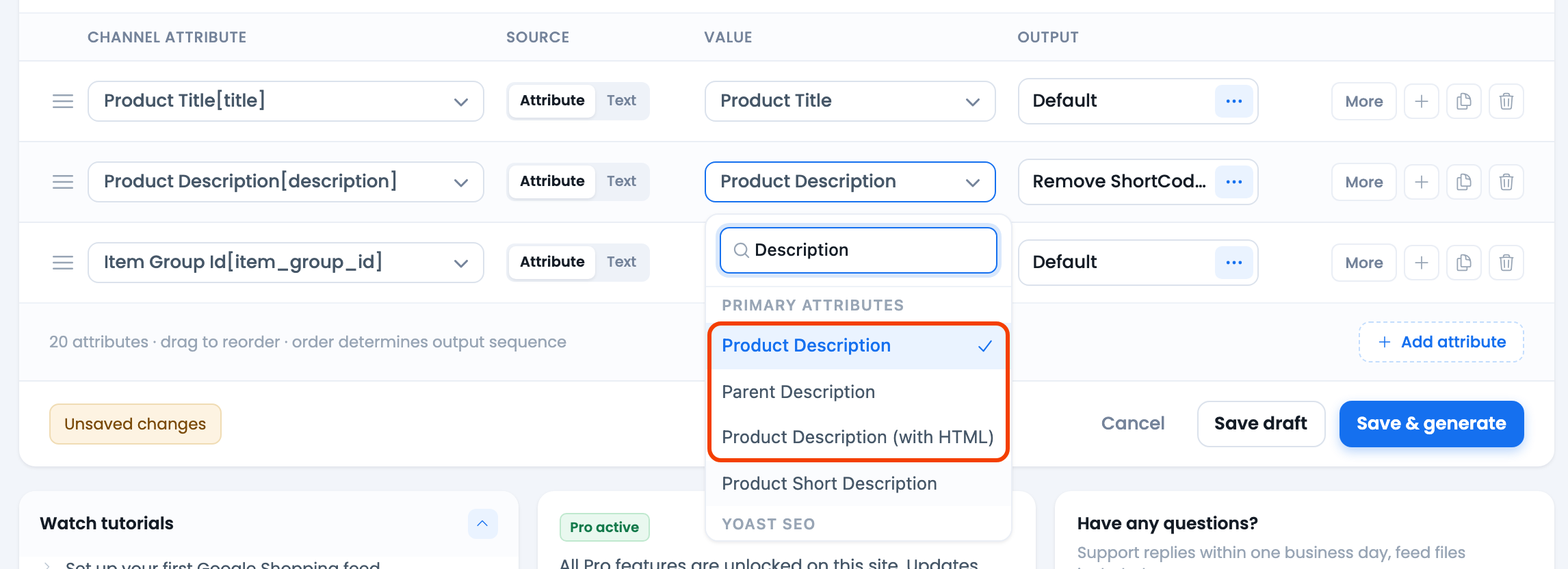
Most channels — Google Shopping and Meta among them — prefer plain text here, so this is the right choice unless you have a reason to keep markup.
Choose a description with HTML
- In the same description row, open the Value dropdown.
- Select Product Description (with HTML).
- Save and Regenerate.
Use this only when the destination explicitly supports HTML in the description; otherwise the tags may appear literally in your listings.
Stripping HTML from any text (Pro)
To strip markup from another text field (a title, a custom field), set that row’s Output to Strip Tags — free. For more control, use formatting commands on the row: Remove HTML strips all tags, Remove shortcodes and Remove page-builder markup clean builder content, and Trim and Collapse spaces tidy the result.
Commands require CTX Feed Pro; the plain Product Description attribute already gives you clean text on the free version without any command. See the related guide on formatting commands for the full list.
Why raw tags appear in a feed
If a feed shows <p>, <br>, or <strong> tags as literal text, the column is mapped to the with-HTML source (or to a page builder’s shortcode-laden content) and the channel is displaying the markup rather than rendering it. Switching the row to Product Description resolves it in one step. If the description also contains shortcodes like [su_box], see the shortcode guide below — those need to be removed separately.
Troubleshooting
- Description shows raw HTML tags. The row is using Product Description (with HTML). Switch it to Product Description and regenerate.
- I lost my formatting. You chose the plain Product Description; switch to Product Description (with HTML) if the channel supports markup.
- Variations have no description. Map Parent Description so each variation inherits the parent product’s description.
- Still not updating. Save the feed and click Regenerate — the description is re-read when the file is rebuilt.
Related guides
- Remove shortcodes from product description
- How to use commands to format attribute output
- Remove product if description, price, or image is empty
