With CTX Feed Pro you can connect your store’s product feeds to an AI assistant such as Claude. You then manage feeds by asking in plain language — “List my CTX Feed product feeds”, “Check my feed health”, “Preview how my products resolve for Google” — and the AI answers from your real feed settings.
The connection uses MCP (Model Context Protocol), the open standard AI apps use to talk to other software: CTX Feed Pro runs a WooCommerce MCP server on your own site, and your AI app connects to it. The AI only sees your feeds, channels, mappings and product data used in feeds — never orders, customers or other personal data.
Before you start
- CTX Feed Pro installed with an active license. The AI assistant page is a Pro feature.
- A current WordPress version (the AI connection is built on WordPress’s Abilities API).
- For one-click sign-in: your site runs on HTTPS with pretty permalinks (any setting other than “Plain” under Settings → Permalinks).
Connect in three steps
Open CTX Feed → AI assistant.
- Install the MCP Adapter. The free WordPress MCP Adapter is what exposes your feeds to AI apps. If it isn’t active yet, click Install MCP Adapter; the page then shows MCP Adapter is active.
- Copy your MCP server address from the page.
- Connect in your AI app. Add a custom MCP connector in your AI app (for example a custom connector in Claude), paste the server address, and click Connect. Your browser opens your site: log in as usual and approve once. No passwords or headers to copy.
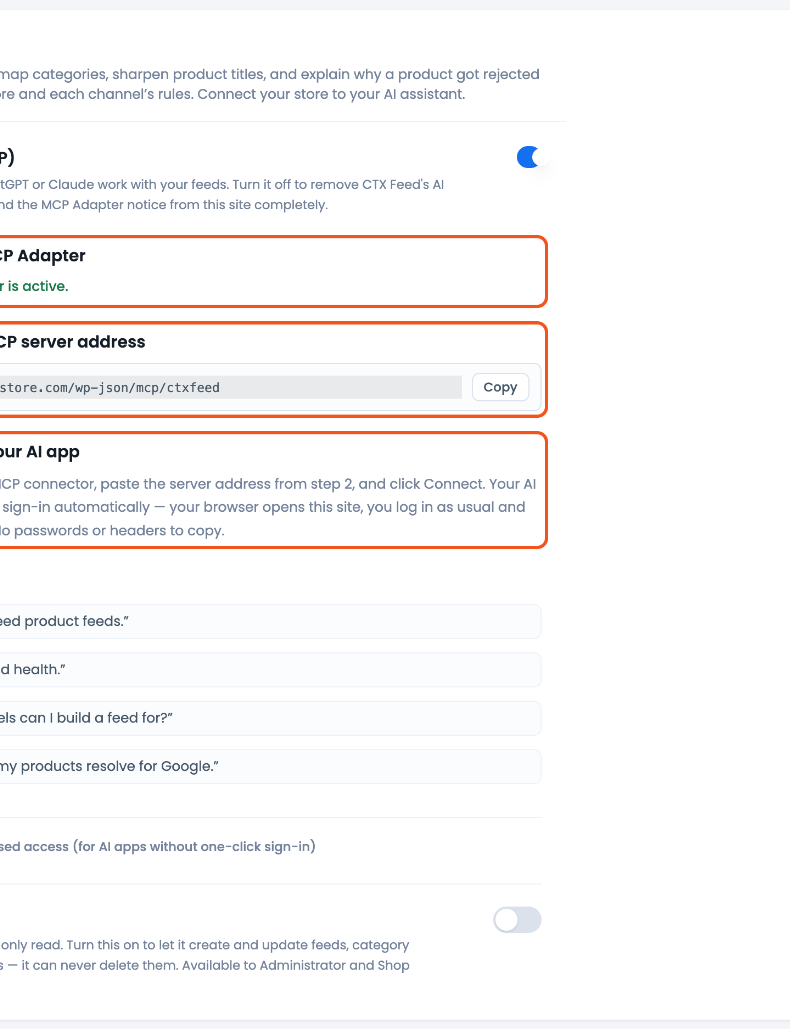
- Install the MCP Adapter — shows MCP Adapter is active. once it is installed.
- Copy your MCP server address — your site’s address ending in
/wp-json/mcp/ctxfeed, with a Copy button. - Connect in your AI app — paste the address into a custom MCP connector and approve the sign-in once.
Then just ask. Good first questions: “List my CTX Feed product feeds.”, “Check my feed health.”, “Which channels can I build a feed for?”
AI apps without one-click sign-in
Some AI apps can’t do the one-click sign-in. For those, open + Advanced: header-based access on the same page:
- Copy the header-flow server address (it differs from the one-click address).
- Click Generate access header. Copy the Header value right away — it is shown only once (you can generate a new one any time). This needs HTTPS, so it is disabled on a local or non-HTTPS site.
- In your AI app, add a custom MCP connector with that address, set Authentication to None, and add one request header named
authorizationwith the value you copied.
What the AI can do
Out of the box the AI can read: list and inspect feeds, check feed status and health, list channels and their attributes, preview how products resolve for a channel, try an output command on a real product before it is saved (for example “cut the title to 150 characters and remove the HTML”), list attribute mappings, dynamic attributes and category mappings, and look up CTX Feed documentation, including every output command.
Turn on write access
AI write access is off by default — the AI can only read. Turn it on to let the AI create and update feeds, category mappings, attribute mappings and dynamic attributes, and generate feeds. It can never delete anything. Only Administrators and Shop Managers can change this setting.
Turn the AI connection off
Don’t use AI apps with your store? Switch off AI connection (MCP) at the top of the AI assistant page (CTX Feed Pro 8.0.23 or newer). CTX Feed then registers no AI tools, runs no MCP server and stops showing the MCP Adapter notice. Your feeds are not affected, and you can switch it back on any time. Only an Administrator can change this setting.
Ask the AI to contact support
With write access on and CTX Feed Pro 8.0.19 or newer, you can ask the AI to open a support ticket for you, for example: “Contact CTX Feed support about my Google feed — prices are missing.” It sends the same ticket as the Contact Support form in CTX Feed, with your system report attached automatically — plus that feed’s configuration and generated file when the AI knows which feed the problem is about — from your WordPress account’s name and email.
Troubleshooting
- The connect button fails before the sign-in page. Your host may block the sign-in discovery address (
/.well-known/oauth-authorization-server). Ask your host to let.well-known/oauth-*requests through to WordPress, or use the header-based access above. - “The MCP Adapter could not be installed.” Install MCP Adapter from Plugins → Add New manually, activate it, and reload the AI assistant page.
- The AI says it can’t make changes. Write access is off — turn on AI write access on the AI assistant page.
- The AI can’t see CTX Feed tools after another plugin update. Some plugins (such as WooCommerce, Rank Math or AI Agent Hub) bundle their own copy of the MCP Adapter. Update CTX Feed Pro to the latest version, which works with all of them.
Related guides
