Shopping channels often want one field built from several pieces of product data: a title that ends with the category (“Merino Crew – Sweaters”), an ID that carries a store prefix, or a description that names the brand and the material. WooCommerce stores those pieces in separate fields. CTX Feed’s Attribute mapping joins them for you: you pick the parts in order — product attributes, fixed text, or both — choose a separator, and CTX Feed builds the combined value for every product when the feed is generated. Your products stay exactly as they are; only the feed changes.
This feature requires CTX Feed Pro. On the free plugin the Attribute mapping screen shows what the feature does, with an upgrade button instead of the editor.
When to use attribute mapping
- Richer titles. Append the category, colour, size or material to the product title, which helps shoppers and channels match searches.
- Prefixed or composite IDs. Combine fixed text with the SKU or product ID, for example
STORE-and the SKU. - Custom labels. Build a label such as “Category | Brand” for campaign grouping.
- One value from many fields. Join any attributes, custom fields, taxonomies or site settings into a single column.
Attribute mapping always joins its parts. If you instead want to pick one value depending on a condition — for example “use the short description, or the full description when it’s empty” — use a dynamic attribute.
The Attribute mapping screen
In your WordPress dashboard, open CTX Feed, then go to Data mapping → Attribute mapping.
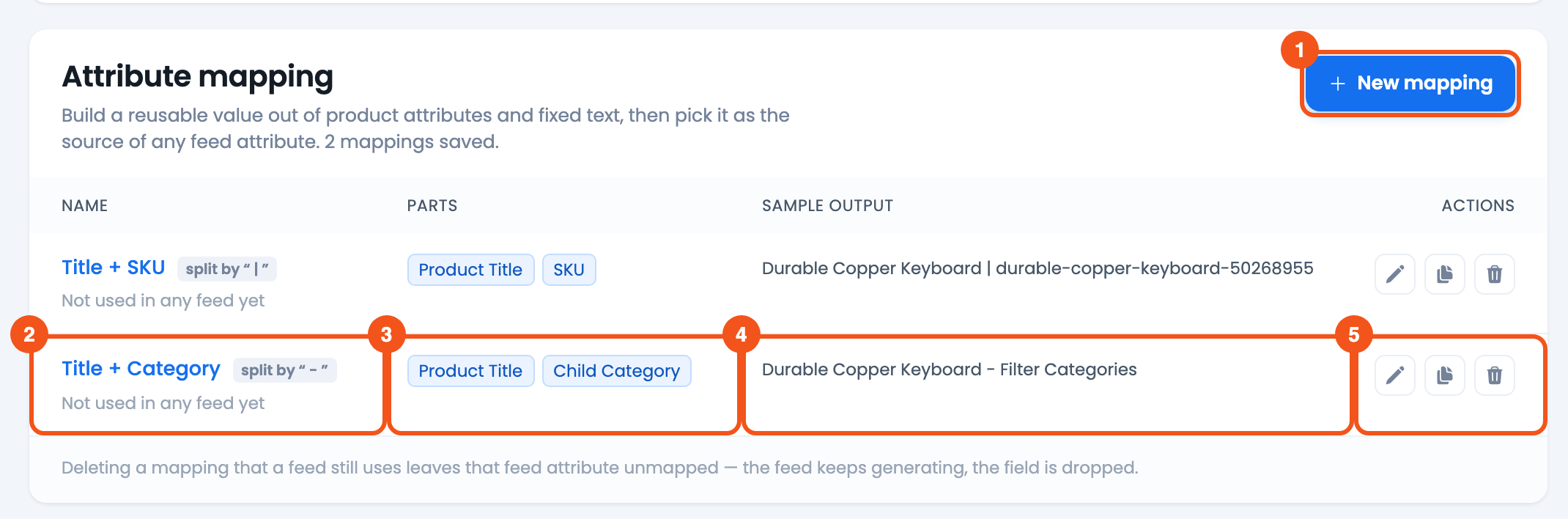
- New mapping — create a mapping. On an empty list the button reads Create your first mapping.
- Name — the mapping’s name, the separator it uses (“split by”), and which feeds use it (“Not used in any feed yet” until you map it into a feed).
- Parts — the parts in order. Product attributes appear as blue chips; fixed text appears in quotes.
- Sample Output — the result for a real product from your store, so you can compare mappings at a glance. Every mapping uses the same sample product.
- Actions — Edit, Duplicate (creates “Copy of …”) and Delete.
Create a mapping
- Click New mapping.
- In Mapping name, type a name you’ll recognise, for example
Title + Category. This is the name you pick later on a feed’s Config tab. - Under Separator, click a preset — dash
-, space-dash-space-, space, underscore_or pipe|— or type your own in Custom separator. The separator goes between every two parts. - Under Parts, build the value top to bottom. For each part, choose:
- Attribute — pick any product field from the dropdown: title, SKU, prices, categories, tags, product attributes, custom fields, a category mapping, a dynamic attribute, or site information.
- Text — type fixed text, such as
NeworSTORE-.
- Click Add part for each extra part. Drag a part by its handle to reorder it, or click × to remove it.
- Check the Live preview. It shows the result for one real product and updates as you edit.
- Click Create mapping (or Save changes when editing).
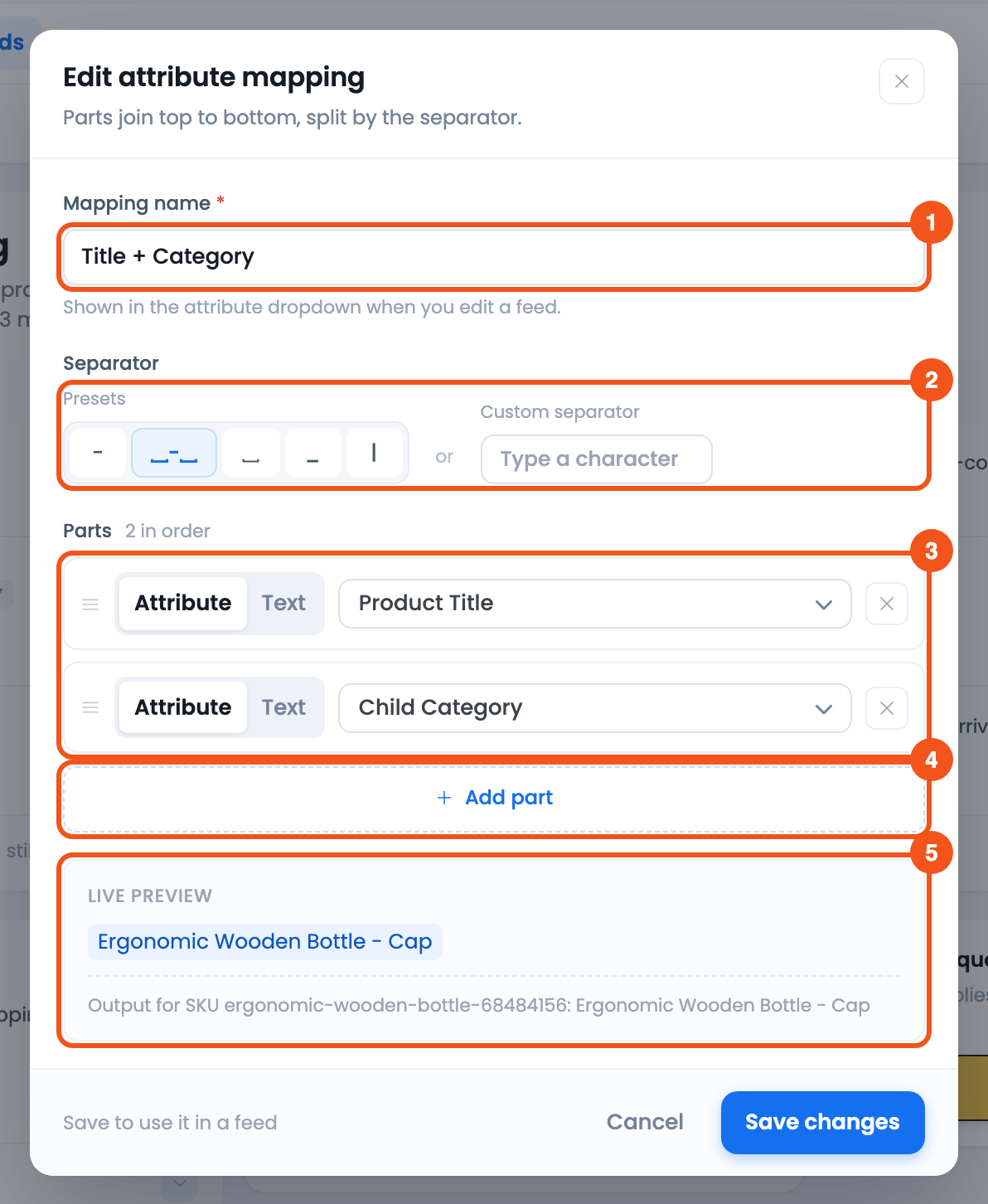
- Mapping name — shown in the attribute dropdown when you edit a feed.
- Separator — a preset or your own Custom separator, placed between every two parts.
- Parts — joined top to bottom; each part is an Attribute or fixed Text.
- Add part — add another part below the last one.
- Live preview — the result for a real product (here “Ergonomic Wooden Bottle – Cap”), with its SKU underneath.
The save button stays disabled until the mapping has a name and at least one part with a value.
How the parts are joined
- Empty parts are skipped. If a product has no value for a part (say it has no colour), that part and its separator are left out, so you never get
Title - - Blueor a trailing dash. - Spaces are tidied. Several spaces in a row become one, and a separator at the very start is removed.
- Text parts get separators too. The separator also goes between a text part and its neighbours. To glue text straight onto a value (
STORE-+ SKU →STORE-1234), leave the separator empty and add the spaces you need inside the text parts. A part that is just a single space is kept, so you can still add a space where you want one. - Spaces you type are kept. The separator and text parts keep leading and trailing spaces exactly as typed, so
-stays-. - Avoid text that matches an attribute code. A Text part that is exactly an attribute code — such as
title,sku,priceorid— is read as that attribute, not as the word. Write it differently (Title:,SKU) if you want the word itself.
Real-life examples
Each example is one mapping. Build the parts in the order shown, pick the separator, then map the result to the channel field in the last column.
| Goal | Parts, in order | Separator | Example output | Map it to |
|---|---|---|---|---|
| Google title with colour and size | Attribute Product Title, Attribute Color, Attribute Size | - | Merino Crew Sweater - Navy - L | title |
| Grocery title with pack size | Attribute Product Title, Attribute Weight, Attribute Weight Unit | space | Organic Basmati Rice 5 kg | title |
| Store-prefixed ID for a marketplace | Text STORE, Attribute SKU | - | STORE-WS1024 | id (only in a new feed — see below) |
| Seasonal campaign label | Attribute Child Category, Text Winter 2026 | - | Hoodies - Winter 2026 | custom_label_0 |
| Product highlight from a material attribute | Text Made from, Attribute Material, Text for everyday comfort | space | Made from merino wool for everyday comfort | product_highlight (listed as Product Highlight 1 on Google) |
A few things to keep in mind with these recipes:
- Missing values drop out cleanly. A sweater with no colour comes out as
Merino Crew Sweater - L— the empty part and its separator are skipped. - Pick attributes your products actually have. Color, Size and Material are your store’s own product attributes, so their names may differ in your dropdown. Weight is the weight from the product’s Shipping tab, and Weight Unit is your store’s unit (kg, g, lbs or oz).
- Don’t change the ID of a live feed. Channels track products by
id. Switching an existing feed to a prefixed ID makes the channel see every product as new. Use the prefixed ID only for a new feed, or for a channel that requires it from the start. - Keep titles within the channel’s limit. Google cuts titles at 150 characters, so put the most important words first.
- Check the output before you send it. The Live preview shows one product; after saving, open the generated feed and spot-check a few products, especially ones with missing attributes.
Use the mapping in a feed
A mapping changes nothing until a feed uses it.
- Go to CTX Feed → Make feed, or edit a feed from Manage feeds.
- On the Config tab, find the field you want to fill (for example
title) — or click Add attribute to add one. - Keep Source on Attribute, open the Value dropdown and pick your mapping from the Attribute Mappings group.
- Save and regenerate the feed, then open the file to check the values.

- The
titlerow, with Source set to Attribute and Title + Category picked from the Attribute Mappings group.
The row’s own Prefix, Suffix, Output and commands still apply on top of the mapping, and one mapping can be used in as many feeds and fields as you like. The mapping’s list entry then shows which feeds use it.
Combine with dynamic attributes and category mapping
Attribute mappings, dynamic attributes and category mappings can be used inside each other:
- Add a dynamic attribute as a part, for example a title made of the product title plus a dynamic attribute that outputs
maleorfemale. - Use an attribute mapping as the IF field or OUTPUT of a dynamic attribute rule.
- Add a category mapping as a part to put the channel’s category name into a text field.
Rename, duplicate or delete
- Rename: edit the mapping and change Mapping name. Feeds that already use it keep working, and they show the new name.
- Duplicate: creates “Copy of …” so you can build a variant without starting over.
- Delete: removes the mapping after you confirm with Delete mapping. A feed that still uses it keeps generating, but that field is dropped — remap it first if you still need the value.
Troubleshooting
- The preview shows a value I didn’t expect. The preview uses one real product. That product may be missing a part (empty parts are skipped). Save and check a few products in the generated feed.
- A part shows its code name instead of a value (for example
wc_brand). That attribute isn’t supported inside attribute mappings yet. Remove the part and contact WebAppick support; as a workaround, put that field in its own feed row. - The mapping isn’t in the Value dropdown. Make sure you saved it, then reload the Make feed screen. Mappings are listed in the Attribute Mappings group.
- Values look stale after editing products. Run Clear Cache on the Manage feeds screen and regenerate the feed.
Related guides
- How to Make a Dynamic Attribute
- Conditionally Merge Multiple Attributes
- Map Store Category with Merchant Category
- How to Make an XML Product Feed
