To show your WooCommerce products on Google Shopping, you submit a product feed to Google Merchant Center. CTX Feed builds that feed from your store and gives you a public URL; Merchant Center fetches the URL on a schedule and lists your products. This guide covers the whole path — building the Google feed in CTX Feed, then connecting it in Merchant Center — so your catalog goes live and stays in sync.
How the pieces fit together
- CTX Feed turns your WooCommerce products into a Google-formatted file and publishes it at a Feed URL on your own site.
- Google Merchant Center stores your product data and controls where it appears (free listings, Shopping ads, and more).
- You give Merchant Center the Feed URL once and set a fetch schedule. After that, whenever CTX Feed rebuilds the file, Google’s next scheduled fetch picks up the changes automatically.
You will need a WooCommerce store with products, a Google account, and a Merchant Center account (free to create).
Part 1 — Build the Google feed in CTX Feed
- In your WordPress dashboard, open CTX Feed → Manage Feeds and click Make Feed.
- Fill in Feed settings:
- Country — the country you sell to (required; it sets the feed’s currency and tax handling).
- Template — choose Google Shopping. This loads Google’s attribute specification and pre-fills the mapping.
- File name — for example
google-shopping. - File type — XML (the default) is the standard choice for Google; CSV, TSV and TXT are also offered.
- Update interval — how often CTX Feed rebuilds the file (for example, every 24 hours). Automatic updates rely on WordPress cron running on your site.
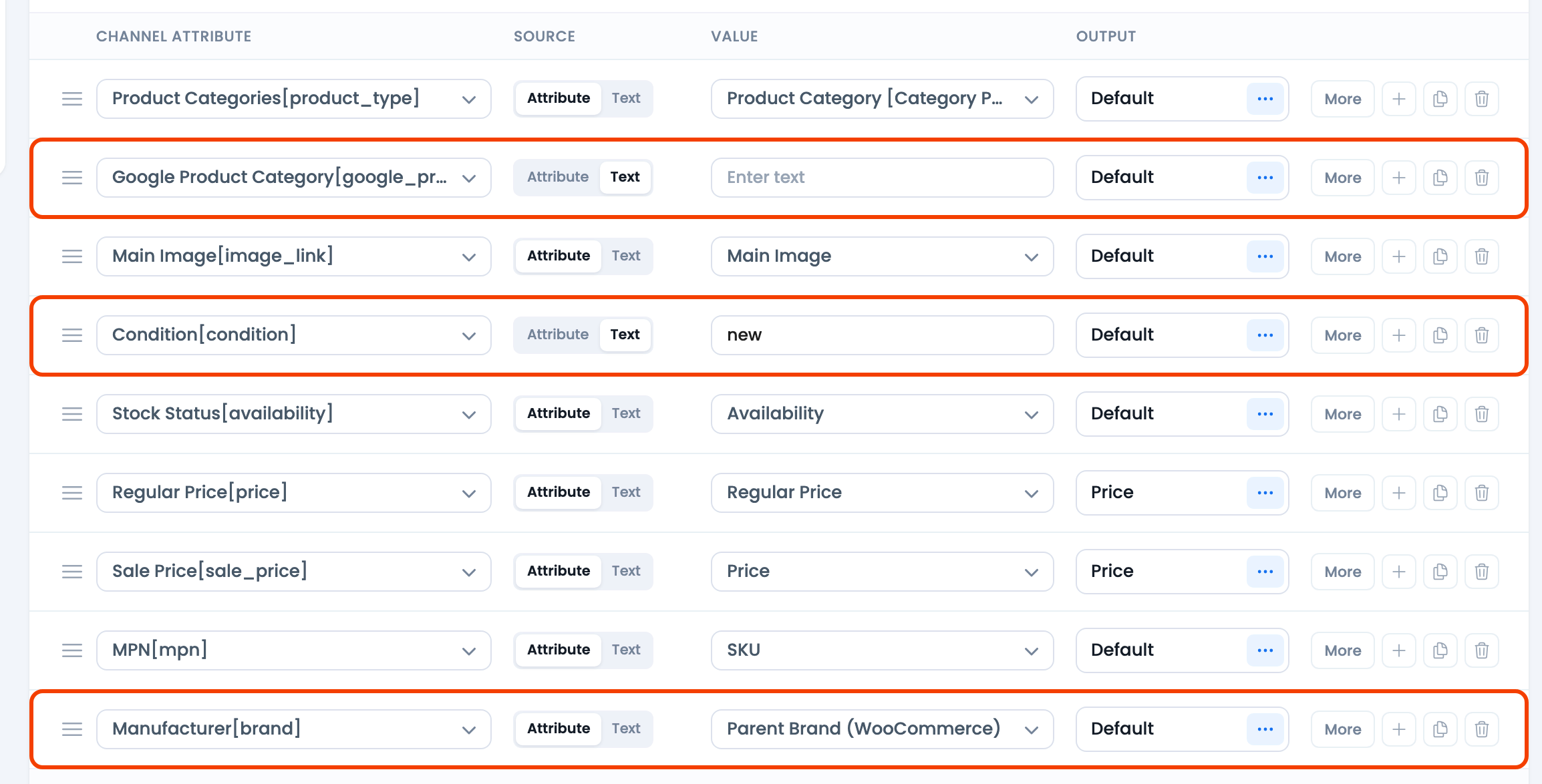
- Open the Config tab and review the mapping table. Because you chose the Google template, most required attributes are already mapped — id, title, description, link, image_link, availability, price and sale_price. Three need your attention:
- google_product_category starts empty. Point it at a category mapping set.
- condition is fixed text
new, and brand (Manufacturer [brand]) is your site name — or Parent Brand when your store uses WooCommerce Brands. Change them if they don’t fit. - There is no gtin row. Add one with Add attribute if your products have barcodes — see how to add GTIN, EAN, MPN, UPC and ISBN. The mpn row reads your SKU.
- (Optional) Use the Filters tab to choose which products reach the feed. Product status is free; removing out-of-stock, no-image or no-price products and limiting to certain categories require CTX Feed Pro.
- Click Save & generate. CTX Feed saves the feed, takes you to Manage Feeds and generates the file there with a progress bar; large catalogs build in the background.
- On Manage Feeds, find the feed’s row and click the Copy URL icon next to the Feed URL. The Open feed icon previews the file so you can confirm it contains your products. Leave the row’s Auto Update toggle on. Keep the URL for Part 3.
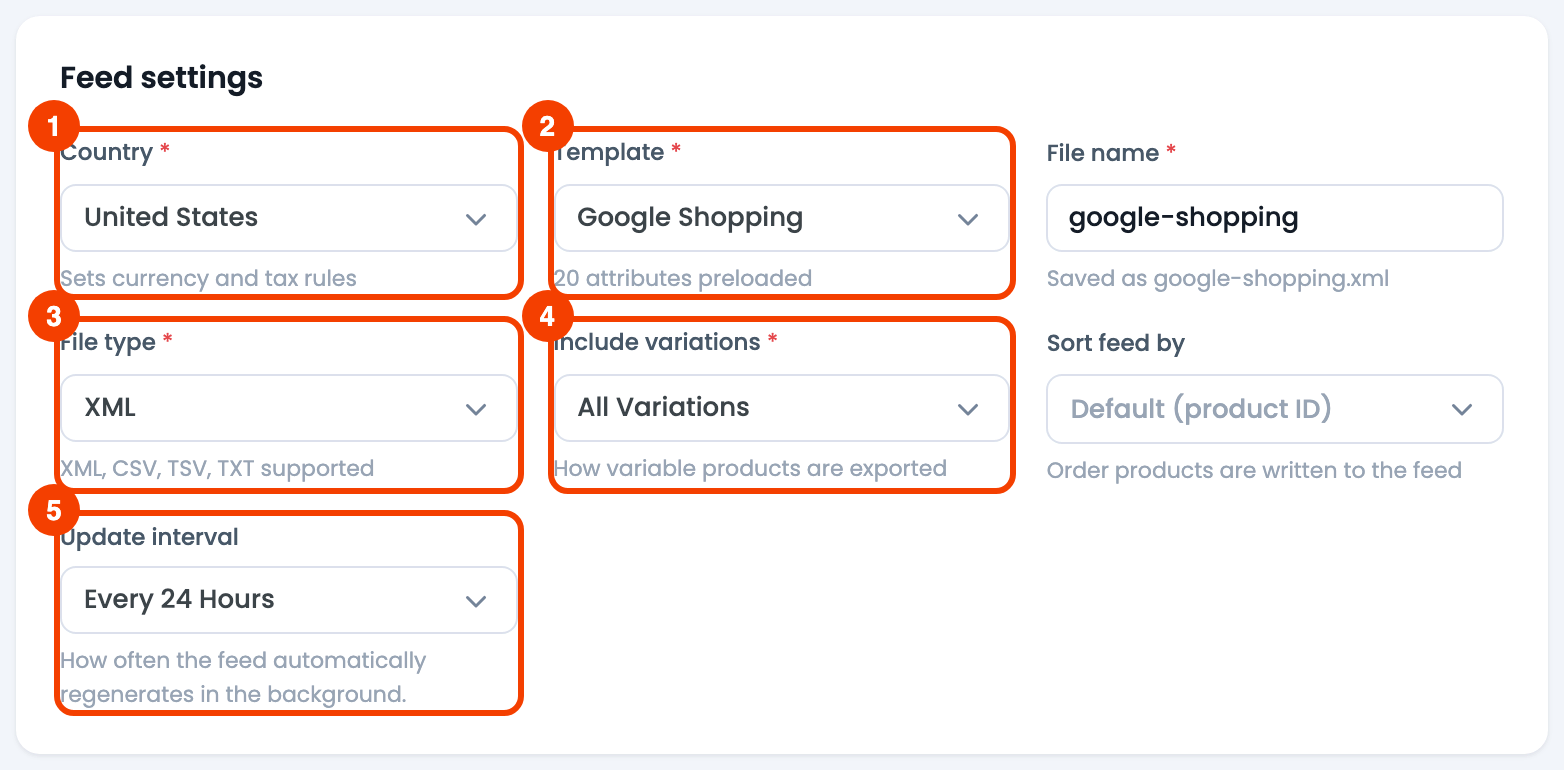
- Country — the country you sell to (sets the feed’s currency and tax handling).
- Template — Google Shopping loads Google’s attribute spec.
- File type — XML, the standard choice for Google.
- Include variations — whether variable products, their variations, or both are exported.
- Update interval — how often CTX Feed rebuilds the file.
Part 2 — Prepare Google Merchant Center
- Sign in to Google Merchant Center (create an account if you do not have one) and complete your business information.
- Add and verify your website. Merchant Center must confirm you own the domain your products link to. Verify it using one of Google’s methods (an HTML tag, an HTML file, Google Analytics, or Google Tag Manager), then claim the URL. Products will not be approved until the site is verified and claimed.
- Set up your shipping and tax under the account settings so items are not rejected for missing that information (see how to configure tax and VAT).
Part 3 — Add the feed to Merchant Center
Google renames Merchant Center menus from time to time, but the flow stays the same: add a product source that fetches your URL on a schedule.
- In Merchant Center, open Settings & tools (the gear icon) → Data sources.
- Choose Add product source → Add products from a file, then Enter a link to your file (not a one-time upload — a scheduled fetch keeps your catalog current).
- Set the country of sale and language to match your feed.
- Give the source a name and paste the Feed URL from CTX Feed.
- Set the fetch frequency (for example, daily) and a fetch time. Align it roughly with your CTX Feed update interval so Google always reads a freshly built file.
- If your Feed URL is protected, enter the credentials Google asks for. A standard CTX Feed URL is public and needs none.
- Save, then Fetch now to pull the feed immediately.
Google downloads the file and processes your items. The first fetch of a large catalog can take a while.
Part 4 — Review and fix issues
- After processing, open the source’s diagnostics (or the Products → Diagnostics area). Google lists items it disapproved and the reason.
- Fix issues at the source:
- Missing or incorrect data → correct the product in WooCommerce, or adjust the mapping on the Config tab in CTX Feed.
- Wrong category → refine your category mapping.
- Price/availability mismatch with the landing page → see how to solve the microdata error.
- Regenerate the feed in CTX Feed after any change, then let Google fetch on schedule or click Fetch now.
Once items are approved, they can appear in free product listings and — if you run Shopping campaigns — in ads.
Keeping the feed current
- CTX Feed rebuilds the file automatically on the Update interval you set, as long as WordPress cron is running. If scheduled feeds are not refreshing, check your cron setup.
- Google fetches on its own schedule. Set both to a cadence that matches how often your prices and stock change.
- After bulk product edits, regenerate the feed (use Clear Cache on Manage Feeds first if values still look old) so the next fetch reflects your changes.
Troubleshooting
- Google cannot fetch the URL. Open the Feed URL in a private browser window. If it does not load, regenerate the feed (it may not have built yet) or check whether a security/firewall plugin is blocking Google’s crawler.
- Website not claimed. Products stay pending until you verify and claim your domain in Merchant Center. The linked product URLs must be on the claimed domain.
- Many items disapproved for missing identifiers. Add a gtin row on the Config tab and fill the barcodes on your products; check brand and mpn. For products that genuinely have no identifier, Google expects the
identifier_existssignal, which CTX Feed adds to Google feeds automatically. - Prices or stock look stale in Google. Regenerate the feed and confirm Google’s fetch schedule; Google only reads the URL on its own timetable.
Related guides
- How to make a Google Product Review feed
- Manage Feeds
- How to map store category with merchant category
- How to configure tax and VAT for Google Merchant Center
- How to solve the microdata error for Google Merchant
