Google shows star ratings on Shopping ads and free listings when you send it your product reviews. CTX Feed’s Google Product Review template turns your WooCommerce product reviews into the review feed Google expects (Google’s product review feed schema, version 2.4), so the ratings your customers leave on your store can appear next to your products on Google.
The review feed is part of the free CTX Feed plugin.
What goes into the feed
Each approved WooCommerce product review that has a star rating and review text becomes one review in the feed. CTX Feed fills in the details automatically:
- Reviewer — the reviewer’s name (a review with no name is sent as anonymous).
- Date — when the review was posted.
- Rating — the star rating on a 1–5 scale.
- Review text — the review itself, with any HTML removed.
- Title — WooCommerce reviews have no title, so CTX Feed uses the start of the review text: the first sentence, or about 70 characters cut at a word with “…”. For example, “Great fit and very light. I wore them on a long hike…” gets the title “Great fit and very light.”
- Country — the feed’s Country setting. Language is sent only when you set Feed Language, which appears on multilingual stores and requires CTX Feed Pro.
- Verified purchase — marked when WooCommerce shows the reviewer as a verified owner.
- Review link — the product page the review belongs to.
- Which product it is — the product identifiers you map (GTIN, MPN, SKU, brand), so Google can match the review to the right product.
Reviews that are pending, marked as spam, have no star rating, or have no text are left out.
Create the review feed
- In your WordPress dashboard, open CTX Feed → Make feed.
- Under Template, choose Google Product Review.
- Set File type to XML (the only format Google accepts for review feeds).
- Set Country (required). On a multilingual store with CTX Feed Pro, also set Feed Language to send the reviews’ language.
- In the attribute mapping, check the Reviewed Product Identifiers rows: Product GTIN, Product MPN, Product SKU and Product Brand. They start with Product SKU mapped to SKU, Product Brand set to your site name (or Parent Brand when your store uses WooCommerce Brands), and Product GTIN / Product MPN empty — an empty row writes nothing. Map each one to where your store keeps that value (for example the GTIN field or a custom field). Use the same identifiers as in your Google product feed, so the reviews match your products.
- Your products have barcodes: map Product GTIN to the field holding the barcode number (8, 12, 13 or 14 digits).
- No barcodes (for example your own brand): leave Product GTIN empty, map Product MPN to SKU, and set Product Brand to your brand name as Text. Google matches reviews on a GTIN or on brand + MPN together.
- The first two rows, Product Title [product_name] and Product URL [product_url], tell Google the name and page of the reviewed product. Keep their values on Product Title and Product URL. If a row’s value is empty, CTX Feed uses the product’s own name and page.
- Click Save & generate.
Reviews belong to the parent product, so the feed always uses parent products, whatever Include variations says.
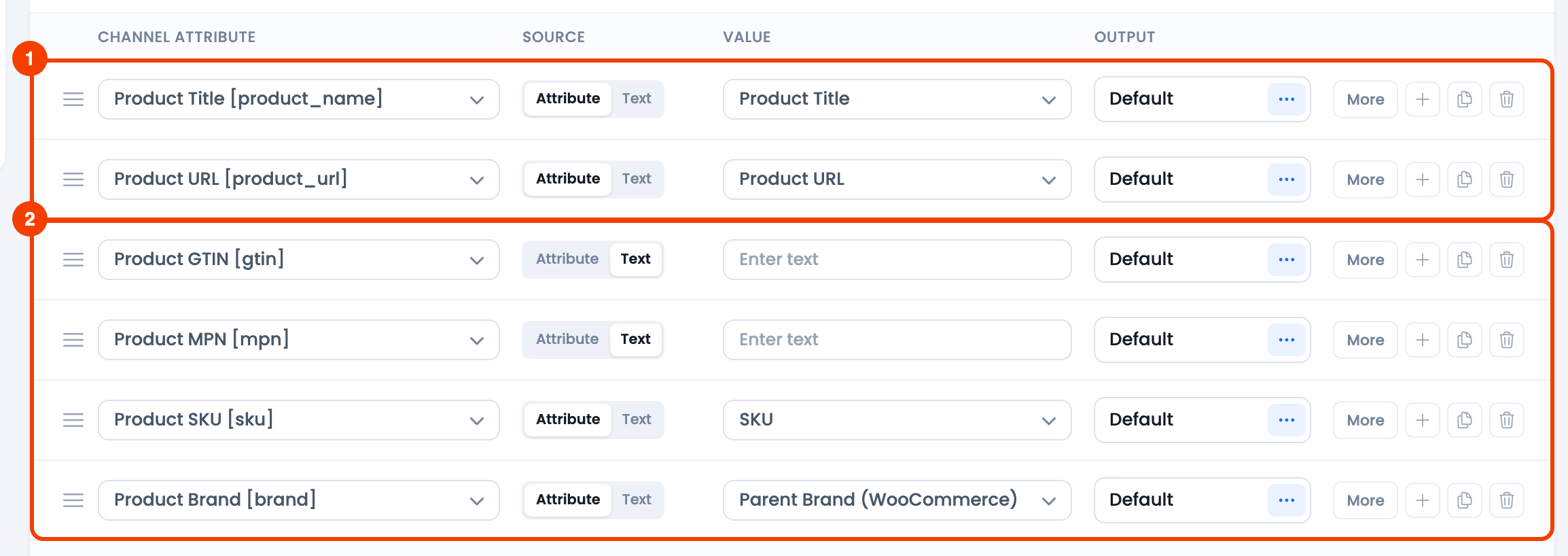
- Product Title and Product URL — the reviewed product’s name and page.
- The Reviewed Product Identifiers rows — Product GTIN, Product MPN, Product SKU and Product Brand.
When generation finishes, the feed appears on Manage feeds with its feed URL. Keep the feed on an automatic update schedule so new reviews reach Google regularly.
Submit the feed to Google Merchant Center
- Copy the feed URL from CTX Feed → Manage feeds.
- In Google Merchant Center, open the product reviews section (Google moves it between menus from time to time — search Merchant Center for “product reviews” if you can’t find it).
- Add a new review feed as a scheduled fetch and paste the feed URL.
Google has its own eligibility rules for showing product ratings, such as a minimum number of reviews; check Google’s current product ratings requirements in Merchant Center.
Troubleshooting
- Google says reviews have no title. Update CTX Feed to the latest version, regenerate the review feed, and let Merchant Center fetch it again. Every review then gets a title from its review text.
- Some reviews are missing. Only approved reviews with a star rating and text are exported. Check the review in Products → Reviews.
- Google can’t match reviews to products. Map the same GTIN, SKU and brand you send in your product feed. A review matched only by brand is not enough for Google.
- Merchant Center says “Missing or invalid product_id”. Google needs a valid GTIN or a brand + MPN pair for every review. Never put text such as “MyBrand 10001” in the GTIN row: a GTIN is only the barcode number. Without barcodes, use Product MPN + Product Brand as described in step 5, regenerate the feed and let Merchant Center fetch it again.
- A change doesn’t show in the feed. Regenerate the feed from Manage feeds. If it still looks old, click Clear Cache on the Manage feeds screen, then regenerate.
Related guides
