Google Merchant Center requires a gender value for apparel and many accessory products, and it only accepts three exact words: male, female, or unisex. WooCommerce rarely stores gender in that tidy form — it usually lives in your category names, a product attribute, or nowhere at all. CTX Feed’s Dynamic Attributes bridge the gap: you write IF–THEN rules that read something you already have (a category, an attribute) and output the exact gender value Google expects. This page walks through building that rule and wiring it into your Google feed.
This feature requires CTX Feed Pro. On the free plugin the Dynamic attributes screen shows what the feature does, with an upgrade button instead of the editor.
The values Google accepts
Set your rules to output one of these exact, lowercase values — anything else is rejected or ignored:
malefemaleunisex
Gender pairs with age group (newborn, infant, toddler, kids, adult), which you can build the same way with a second dynamic attribute if your feed needs it.
Decide what signal identifies gender
A dynamic attribute rule needs a source to read. Pick whichever you already maintain:
- Product category — for example a “Men”, “Women”, or “Kids” category. In the attribute list this is Product Category [Category Path] (the product’s categories joined with
>), and the rule checks whether it contains the word. - A product attribute — for example a global Gender attribute whose values are “Mens”/”Womens”. The rule matches on that.
- Product tags or the title — a keyword in the tag list or the product name.
Category-based matching is the most common, so the steps below use it. The method is identical for an attribute or tag source — you just pick a different attribute on the IF side.
Where to find Dynamic Attributes
In your WordPress dashboard, open CTX Feed, then go to Data mapping → Dynamic attributes. Click New dynamic attribute (or Create your first attribute on the empty state).
Build the gender rule
- In Attribute name, type a short, lowercase name such as
google_gender. This is the name you will select when editing the feed. - In Rule 1, set the IF side: choose your source (for example Product Category [Category Path]), pick contains as the condition, and type
Womenin the compare value. - On the OUTPUT side, switch the toggle to Text and type
female. - Click Add rule to create Rule 2. Set its IF side to Product Category [Category Path] contains
Men, and its OUTPUT to Textmale. The Women rule must come first: contains ignores upper and lower case, so “Women” also contains “men”. - Add more rules as needed — for instance Product Category [Category Path] contains
Kids→ Textunisex. - In the Otherwise output bar, choose Text and type
unisex(a safe default for products that match no rule), or choose Leave empty if you would rather send no gender than a guess. - Click Save attribute.
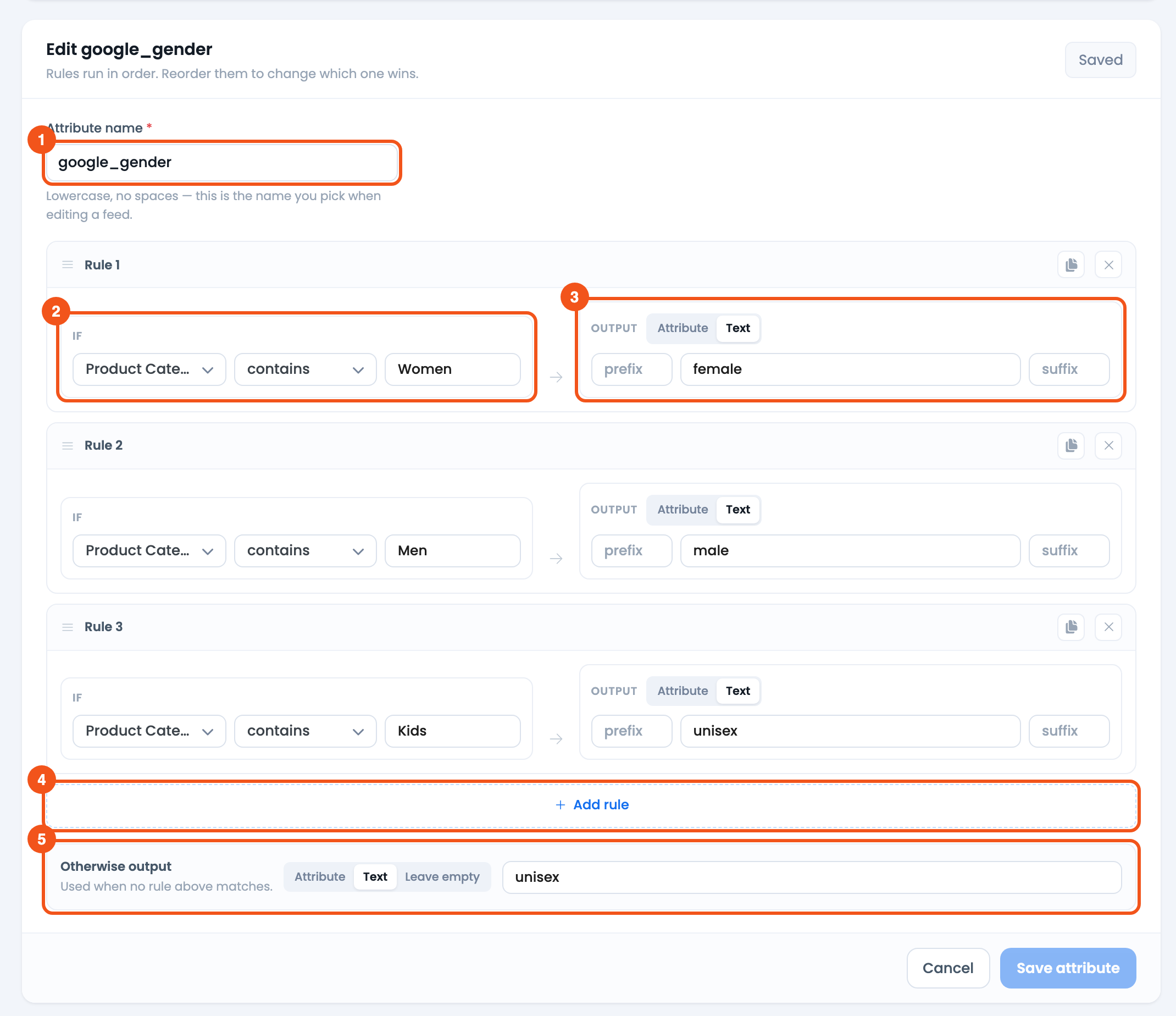
- Attribute name —
google_gender, the name you pick on the feed’s Config tab. - IF — Product Category [Category Path] contains
Women— the Women rule comes first. - OUTPUT — Text
female, an exact Google value. - Add rule — add another IF → OUTPUT rule below.
- Otherwise output — Text
unisexfor products that match no rule.
Rules run top to bottom and the first match wins, so order matters. That’s why the Women rule sits above Men: contains matches anywhere in the text and ignores case. Drag a rule by its handle to reorder it.
Add the gender field to your Google feed
The dynamic attribute has no effect until your Google feed points its gender field at it.
- Go to Feeds → Make feed, or edit your Google feed from Manage feeds.
- Confirm the feed’s channel is Google Shopping and open the Config tab.
- Find the
genderrow. If it is not already there, add it, then set its source to Attribute. - In the value dropdown, open the Dynamic Attributes group and pick
google_gender. - Save and regenerate the feed.

- The
genderrow, with Source set to Attribute andgoogle_genderpicked from the Dynamic Attributes group.
Open the generated feed (from Manage feeds, use the feed URL’s open/preview control) and confirm each item now carries a g:gender value of male, female, or unisex.
Tips and troubleshooting
- Use exact lowercase values. Google only accepts
male,female, andunisex. Typos or capitalized values are treated as invalid. - Order rules to avoid overlap. Because contains matches substrings, “Women” contains “men”. Place the more specific/female rules above broader ones.
- Watch the fallback. A Text fallback of
unisexguarantees every product gets a value; Leave empty sends none. Choose based on whether Google requires gender for your products. - Gender still missing in Merchant Center. Confirm the
genderfield in the feed’s Config tab is mapped to the dynamic attribute, regenerate the feed, then refetch it in Google Merchant Center. - Need age group too? Build a second dynamic attribute the same way, output
adult/kids/etc., and map it to the feed’sage_groupfield.
Related guides
- Dynamically Change Size Value for Google Product Feed
- Conditionally Merge Multiple Attributes
- Dynamically Change Product Price
- Dynamic Discount Prices Based on Product Title
