Products with no description, no price, or no image get disapproved by shopping channels and waste your feed’s quality score. CTX Feed can drop those incomplete items from the feed automatically, so only listing-ready products go out. This guide is for store owners who want to keep placeholder, draft-quality, or half-finished products out of Google, Meta, and other channels. The outcome: three simple toggles that exclude products missing a description, a price, or an image.
This feature requires CTX Feed Pro. On the free plugin the Product eligibility toggles are shown but locked, and a saved setting has no effect.
Where the toggles live
- Open CTX Feed → Manage Feeds and edit your feed (or start one with Make Feed).
- Go to the Filters tab.
- In the Product eligibility section you will find these toggle cards:
- Remove no-description products
- Remove no-image products
- Remove no-price products
- Turn on the ones you want, then click Save & generate.
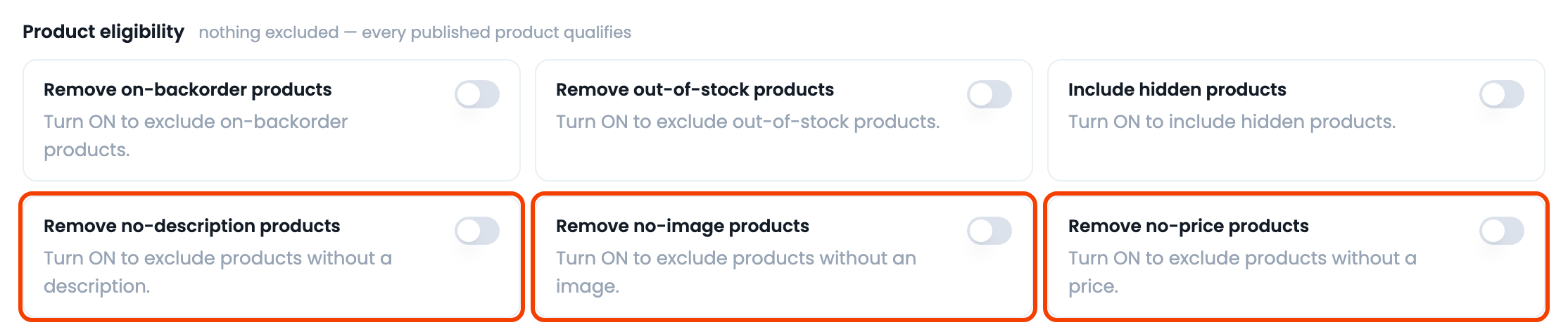
Each card shows a live count of how many products it affects, so you can see the impact before you commit. Leaving a toggle off keeps every product regardless of that field.
What each rule does
- Remove no-description products — excludes any product whose description is empty. For a variation, CTX Feed only drops it when both the variation’s own description and its parent product’s description are empty, so a variation still inherits the parent’s text.
- Remove no-image products — excludes products with no product image. The WooCommerce placeholder doesn’t count, so a product that only shows the “no image” placeholder is removed. A variation without its own image uses the parent’s image and is removed only when both are empty.
- Remove no-price products — excludes products with an empty price. Note that WooCommerce treats a price of
0as empty, so free products (price = 0) are also removed when this rule is on. This matches most channel rules — Google Shopping, for example, rejects $0 items.
When to use each rule
- Turn on Remove no-price products for any paid shopping channel, since items without a price are always rejected.
- Turn on Remove no-image products for image-driven channels (Google, Meta, Pinterest) where a missing image means the product cannot be listed.
- Turn on Remove no-description products when a channel requires a description or when empty descriptions are hurting your listing quality.
You can enable any combination; a product is removed if it fails any rule you have turned on.
A cleaner alternative to deleting products
These filters let you keep incomplete products live in your store — as drafts, coming-soon items, or free samples — while keeping them out of a specific feed. Because the rule lives on the feed, you can have one feed that excludes free items and another that includes them, from the same catalog.
Troubleshooting
- A product I expected to drop is still in the feed. Confirm the right toggle is on and that CTX Feed Pro is active, then regenerate the feed. Remember that a variation is only dropped for an empty description when the parent is also empty.
- A free product disappeared. The Remove no-price products rule treats price
0as empty. Turn it off if you intend to feed free items, or give them a nominal price. - The counts look wrong. On very large stores CTX Feed hides the per-filter counts (they are heavy to compute); the rule still works — the number is just not shown.
- I want to remove products by category, stock, or a custom rule instead. Use the other Filters options (out-of-stock toggle and Product categories, both Pro) or Advanced filters (Pro) rather than the empty-field toggles.
Related guides
- Solve the missing product issue
- Product description with or without HTML
- How to solve WooCommerce structured data issues
