Selling on Facebook and Instagram starts with a product catalog, and the easiest way to fill that catalog from WooCommerce is a scheduled product feed. This guide walks through both halves of the job: building a Facebook-ready feed in CTX Feed, and uploading it to your Meta catalog through Commerce Manager (the tool that replaced the old Business Manager catalog view) so your products sync automatically.
What you are building
You will create one feed file that lists your products in the format Meta expects, publish it at a public URL on your site, and hand that URL to your Meta catalog. Meta then fetches the URL on a schedule you choose, so when your WooCommerce prices, stock, or products change, the next scheduled pull updates the catalog — no manual re-uploads.
The same catalog powers Facebook Shops, Instagram Shopping, dynamic ads, and product tags, so getting the feed right once feeds all of them.
Part 1 — Build the Facebook feed in CTX Feed
- In your WordPress dashboard, open CTX Feed → Manage Feeds and click Make Feed.
- In Feed settings:
- Country — pick the country you sell to (required; it sets currency and tax handling).
- Template — choose Facebook Catalog / Instagram. Selecting it loads Meta’s attribute specification and pre-fills the mapping with the fields Facebook needs.
- File name — give the feed a clear name, for example
facebook-catalog. - File type — XML (the default), CSV or TXT; Meta accepts all three.
- Update interval — how often CTX Feed rebuilds the file (for example, every 24 hours).
- Open the Config tab and review the mapping. Because you picked the Facebook template, the required columns are already mapped to WooCommerce sources. Meta’s core required fields are id, title, description, availability, condition, price, link, image_link, and brand — confirm each has a value. Two rows are fixed text you should check: condition is set to
new, and brand (Manufacturer [brand]) is set to your site name — or to Parent Brand when your store uses WooCommerce Brands. Adjust any row’s Source and Value if you want a different field to feed a column. - (Optional) Use the Filters tab to choose which products reach the feed. Product status is free; removing out-of-stock or no-image products and limiting to specific categories require CTX Feed Pro.
- Click Save & generate. CTX Feed saves the feed, takes you to Manage Feeds and generates the file there with a progress bar. Large catalogs build in the background.
- On Manage Feeds, find your feed’s row and click the Copy URL icon next to the Feed URL. This is the link you give to Meta. The Open feed icon previews the file in a new tab. Leave the row’s Auto Update toggle on so the file is rebuilt on your Update interval.
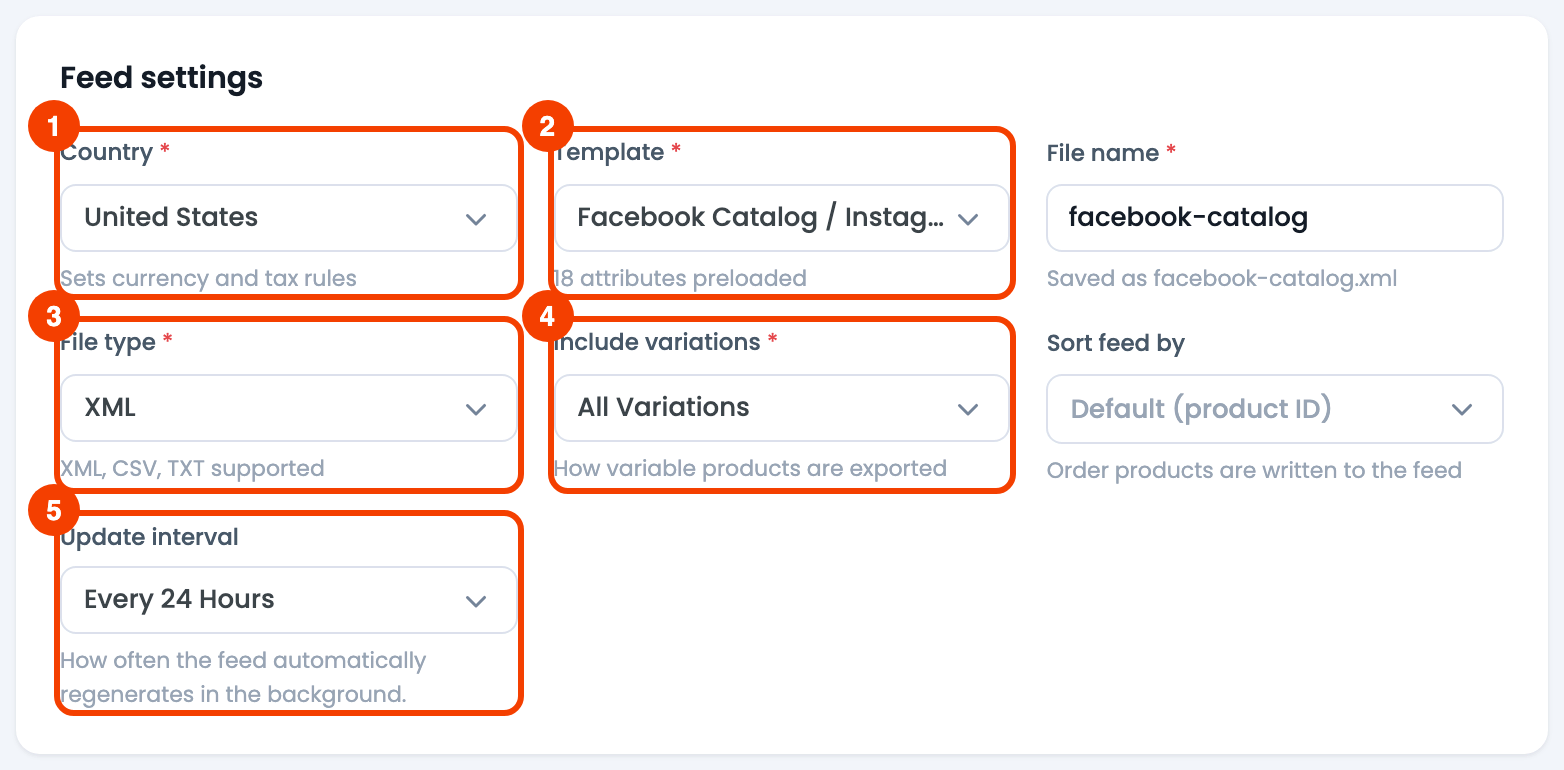
- Country — the country you sell to (sets currency and tax handling).
- Template — Facebook Catalog / Instagram loads Meta’s attribute spec.
- File type — XML, CSV or TXT.
- Include variations — whether variable products and/or their variations are exported.
- Update interval — how often CTX Feed rebuilds the file.

Keep that Feed URL handy for Part 2.
Part 2 — Create a catalog in Commerce Manager
- Go to Commerce Manager at business.facebook.com and sign in with the account that manages your business.
- If you do not already have a catalog, click Add catalog (or Create catalog).
- Choose the catalog type E-commerce (online products) and associate it with your business account.
- Give the catalog a name and create it.
If you already have a catalog for this store, open it instead of creating a new one — you can add the feed to an existing catalog.
Part 3 — Add your feed to the catalog
- Inside the catalog, open the Data sources (or Catalog → Items) area and choose to add items using a Data feed.
- Select the scheduled feed / use a URL option (rather than a one-time file upload), so Meta re-fetches automatically.
- Paste the Feed URL you copied from CTX Feed.
- Set the update schedule — how often Meta pulls the URL (for example, daily). Match this loosely to your CTX Feed update interval so Meta always reads a fresh file.
- If your feed URL is protected, enter any credentials Meta asks for. A standard CTX Feed URL is public and needs none.
- Name the data source and finish the setup. Meta fetches the file and begins processing.
Part 4 — Review and connect
- After the first fetch, open the catalog’s Diagnostics (or Issues) tab. Meta lists any items it rejected and why — missing fields, invalid values, or image problems.
- Fix issues at the source: correct the product in WooCommerce or adjust the mapping on the Config tab in CTX Feed, then regenerate the feed. Meta picks up the changes on its next scheduled pull (or trigger a manual refresh in Commerce Manager).
- Once items are approved, connect the catalog to what you need — your Facebook Page shop, Instagram Shopping, or dynamic ads in Ads Manager.
Troubleshooting
- Meta cannot fetch the URL. Open the Feed URL in a private browser window. If it does not load, the file may not have generated yet — regenerate the feed on Manage Feeds — or a security/caching plugin may be blocking the request. CTX Feed excludes its own feed folder from common caching plugins, but a firewall can still interfere.
- Items rejected for missing fields. Check that id, title, description, availability, condition, price, link, image_link, and brand all have values on the Config tab, and that the underlying products actually have that data (a product with no image cannot supply
image_link). - Prices look wrong. Confirm the feed Country. If you use a multi-currency plugin, the Feed Currency field converts prices — that requires CTX Feed Pro. For tax-inclusive regions, map the price rows to the free Price With Tax values.
- Catalog is stale after you changed products. Meta only reads the URL on its own schedule. Regenerate the feed in CTX Feed, then either wait for the next scheduled pull or refresh the data source manually in Commerce Manager. If the feed itself looks stale, use Clear Cache and regenerate.
- Variations missing or duplicated. Set Include variations in Feed settings to control whether variable products, their variations, or both are exported.
Facebook shows “Invalid image URL” errors
Your image URLs must use HTTPS. Go to WordPress → Settings → General and make sure both site addresses start with https://. Also check that the image URLs in the feed return a 200 status code and a valid image file (JPG, PNG, or GIF).
Price format is rejected
Facebook requires prices in the format 29.99 USD — the amount, a space, then the 3-letter ISO currency code. Ensure CTX Feed is configured to append the currency code. Do not include currency symbols like $ or €. Check whether the currency code is added, and do not apply any number format to the price.
Feed URL returns a 403 or 404 error when Facebook tries to fetch it
Some security plugins (Wordfence, iThemes Security) or server-level bot protection block Facebook’s crawler. Add Facebook’s IP ranges to your whitelist, or switch to a “Download & Upload” workflow as a temporary workaround.
Products are uploaded, but do not appear in my catalog
Open the data source in Commerce Manager and check the latest upload for rejected items and the reason Meta gives. Then investigate the issue and fix the error.
Variable product variations aren’t showing as separate items
In CTX Feed settings, make sure Include variations is set to All Variations or Variable + Variations. Each variation should appear as a separate row in the feed with a unique id and shared item_group_id matching the parent product ID.
Feed works but Dynamic Ads aren’t showing
Ensure the Facebook Pixel is installed on your WooCommerce store and is firing ViewContent and AddToCart events with matching content_ids that match your catalog’s product IDs. The Pixel and Catalog must be linked in Commerce Manager.
Related guides
- Manage Feeds
- How to upload a WooCommerce product feed to Google Merchant Center
- How to map store category with merchant category
