Connecting WooCommerce to Power BI transforms your raw e-commerce metrics into interactive, real-time dashboards. Instead of digging through messy spreadsheets, a dedicated WooCommerce business intelligence setup lets you track sales trends, customer behavior, and inventory levels in one centralized view.
If you want to build a reliable WooCommerce data pipeline, you have options. In this guide, we break down the three best methods to establish a WooCommerce Power BI integration based on your budget, technical skills, and data scale:
- Method 1: Manual CSV exports and imports (Best for small stores or one-time reports).
- Method 2: Direct database querying via plugins (Best for customizable, no-code syncs).
- Method 3: Automated cloud connectors (Best for real-time, hands-off scaling).
Method 1: Manually Exporting WooCommerce Data to Power BI
If you prefer a hands-on approach, manually moving data from WordPress to Power BI is a straightforward option. This method allows you to control exactly which datasets you analyze and how they are structured. It is ideal for smaller stores or monthly reports where real-time syncing isn’t required.
Here is how to export your WooCommerce data, prepare it, and load it into Power BI.
Step 1: Export WooCommerce Data
- Log into your WordPress dashboard.
- Navigate to WooCommerce → Reports → Export.
- Select the type of data to export (e.g., order data, product data, or customer data).
- Choose CSV as the format for the export file.
- Download the CSV file to your computer.
Step 2: Prepare the Data for Power BI
- Open the exported CSV file in Microsoft Excel or Google Sheets.
- Clean up the data by removing unnecessary columns, fixing formatting inconsistencies, or consolidating data from multiple files.
- Save the finalized file as a CSV or Excel worksheet.
Step 3: Import Data into Power BI
- Open Power BI Desktop or log in to the Power BI web app.
- Click on Get Data and select Text/CSV or Excel workbook as the source.
- Upload your cleaned WooCommerce data file.
- Use Power BI’s data transformation tools (Power Query) to adjust fields, create relationships, or add calculated columns if needed.
Step 4: Create Visuals
- Build custom charts, graphs, or e-commerce dashboards based on your imported data.
- Save and publish your reports to share them with your team.
Pro Tip: Large data files can slow down your reports. Reduce file size by removing unnecessary rows or columns, and export data for specific time frames (e.g., the last 6 months) instead of your entire historical database.
Method 2: Creating a Power BI WordPress Integration Using a Plugin
Want to save time and skip the hassle of manual exports? Using a plugin to connect WordPress to Power BI is a highly effective no-code solution. With this approach, you can automate data syncing, ensure regular updates, and unlock dashboards to visualize store performance effortlessly.
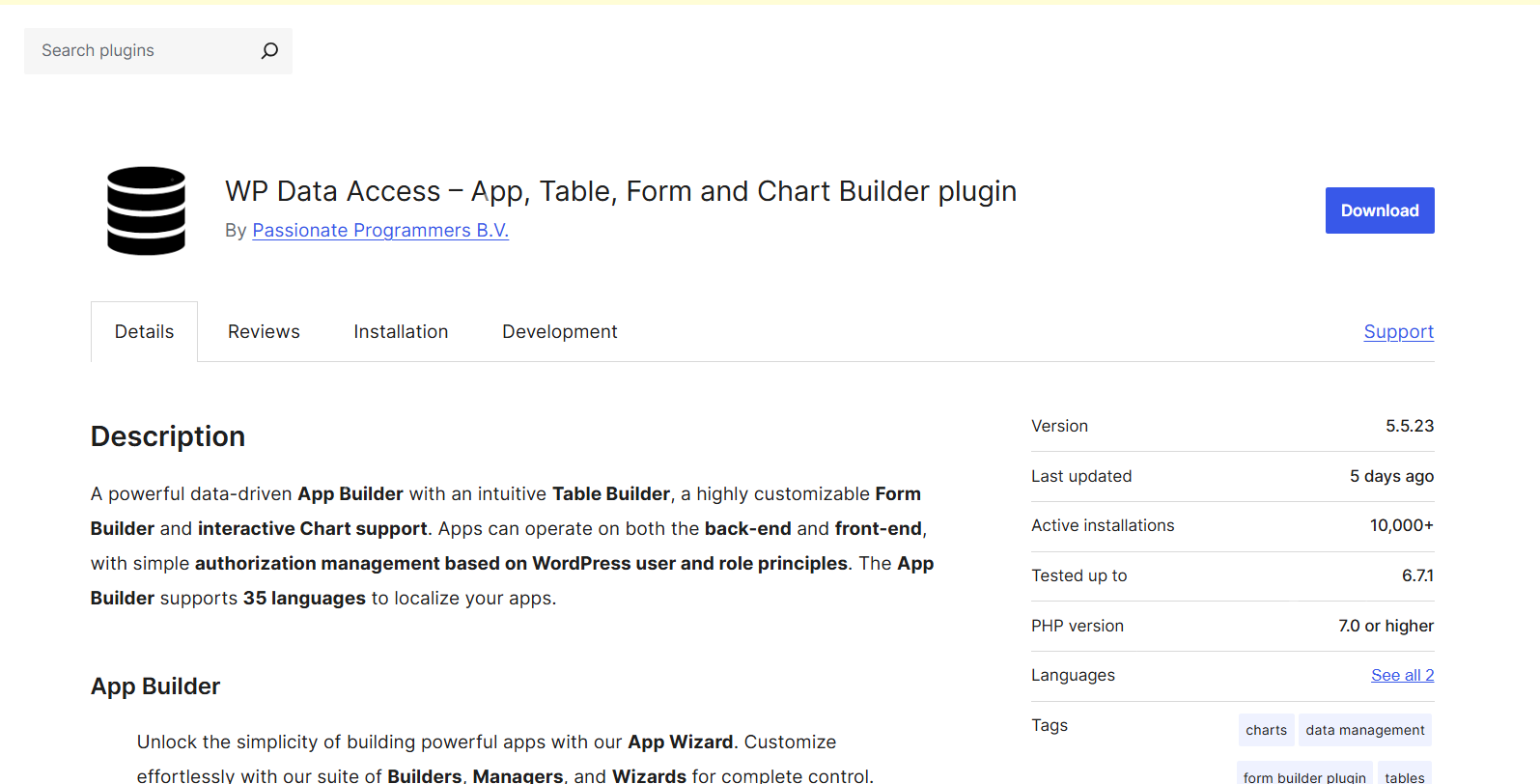
For this guide, we will use a widely known WordPress plugin called WP Data Access. This plugin allows easy query-based syncing with Power BI through an intuitive table builder, effectively turning your WordPress site into a direct data feed. The core plugin is free, with premium features costing around $4.99 – $14.99 per month.
Here is how to set it up:
Step 1: Install and Activate the Plugin
- Go to your WordPress dashboard.
- Navigate to Plugins → Add New and search for “WP Data Access”.
- Download, install, and activate the plugin.
Step 2: Set Up a Data Project
- In your WordPress dashboard, go to WP Data Access → Projects.
- Create a new project and select your WooCommerce tables as the data source.
- Use the built-in query builder to filter, organize, or customize the exact data fields you want to expose to Power BI.
Step 3: Enable Data Access for Power BI
- Enable the remote access option within WP Data Access. This allows external tools to query your WooCommerce data securely.
- Note down the API endpoint or connection credentials provided by the plugin.
Step 4: Connect Power BI to WP Data Access
- Open Power BI Desktop.
- Click on Get Data and select ODBC or Web/REST API as your data source, depending on the connection type you selected in the plugin.
- Enter the connection details and credentials provided by WP Data Access.
Step 5: Visualize Your WooCommerce Data
- Import the selected WooCommerce tables or custom queries into Power BI.
- Use Power BI’s native modeling tools to transform the data and create custom dashboards.
- Track essential metrics like sales trends, top-performing product categories, or customer demographics.
Pro Tip: If you aren’t comfortable writing SQL queries, take advantage of the WP Data Access visual query builder. It allows you to select tables and filter data visually without needing any coding expertise.
Understanding the WooCommerce database schema can help you build more accurate reporting queries.
Method 3: Automating Your WooCommerce Data Pipeline via SaaS Platforms
For a truly hands-off, scalable solution, cloud-based SaaS platforms are your best choice. These platforms completely automate the integration process, establishing a reliable WooCommerce data pipeline that syncs your e-commerce data with Power BI in real time.
With robust features like pre-built connectors, automated scheduling, and data transformation tools, SaaS platforms handle the heavy lifting of data management for you.
Top E-commerce Connectors Compared
| SaaS Name | Key BI Features | Pricing Structure | Best For |
|---|---|---|---|
| Coupler.io | Automated schedules, pre-built e-commerce dashboards | Free tier available / Starts at $24/mo | Small to Mid-sized stores |
| Windsor.ai | Multi-source blending (315+ data streams) | Free tier available / Starts at $19/mo | Multi-channel marketing tracking |
| Skyvia | Cloud data replication, zero coding | Free tier available / Starts at $99/mo | Advanced data management |
| CData Connect | Enterprise-grade live ODBC/REST connectivity | Custom annual pricing (from $399/yr) | Large-scale enterprise architectures |
Above all, Coupler.io is a powerful SaaS platform that simplifies the process of integrating WooCommerce data into Power BI. With Coupler.io, you can automate the flow of your WooCommerce data into Power BI, ensuring that your dashboards are always up to date.
Let’s explore how you can connect Power BI with your WooCommerce store using Coupler.io.
How to Sync WooCommerce with Power BI Using Coupler.io
Coupler.io is a popular data integration solution that simplifies the entire process. Here is how to configure it:
Step 1: Sign Up for Coupler.io
- Visit Coupler.io and create an account using your email or Google login.
Step 2: Create a New Source Link
- From your Coupler.io dashboard, click the Add Importer button.
- Select WooCommerce as your source application.
Step 3: Connect Your WooCommerce Store
- Enter your WooCommerce store URL.
- Provide your API credentials. You can generate a Consumer Key and Consumer Secret in WooCommerce by navigating to WooCommerce → Settings → Advanced → REST API.
- Click Add Key, set the access to Read/Write, and copy the keys over to Coupler.io.
Step 4: Configure and Preview the Data
- Select the specific data you want to sync (e.g., orders, product feeds, customer profiles, or inventory levels).
- Apply any necessary sorting filters, and preview the data tracking schema to ensure it looks accurate.
Step 5: Select Destination and Automate Sync
- Set Power BI as your destination application.
- Log into your Power BI account through the portal to authorize access to your workspace.
- Set up your automatic data refresh schedule (e.g., hourly, daily, or weekly updates). Save the settings to run the importer.
Step 6: Build Your Dashboards
- Open Power BI Desktop or the web app and connect to your newly created, automated dataset.
- Build custom visual reports to monitor key performance indicators (KPIs) like net revenue, order statuses, and fulfillment speed.
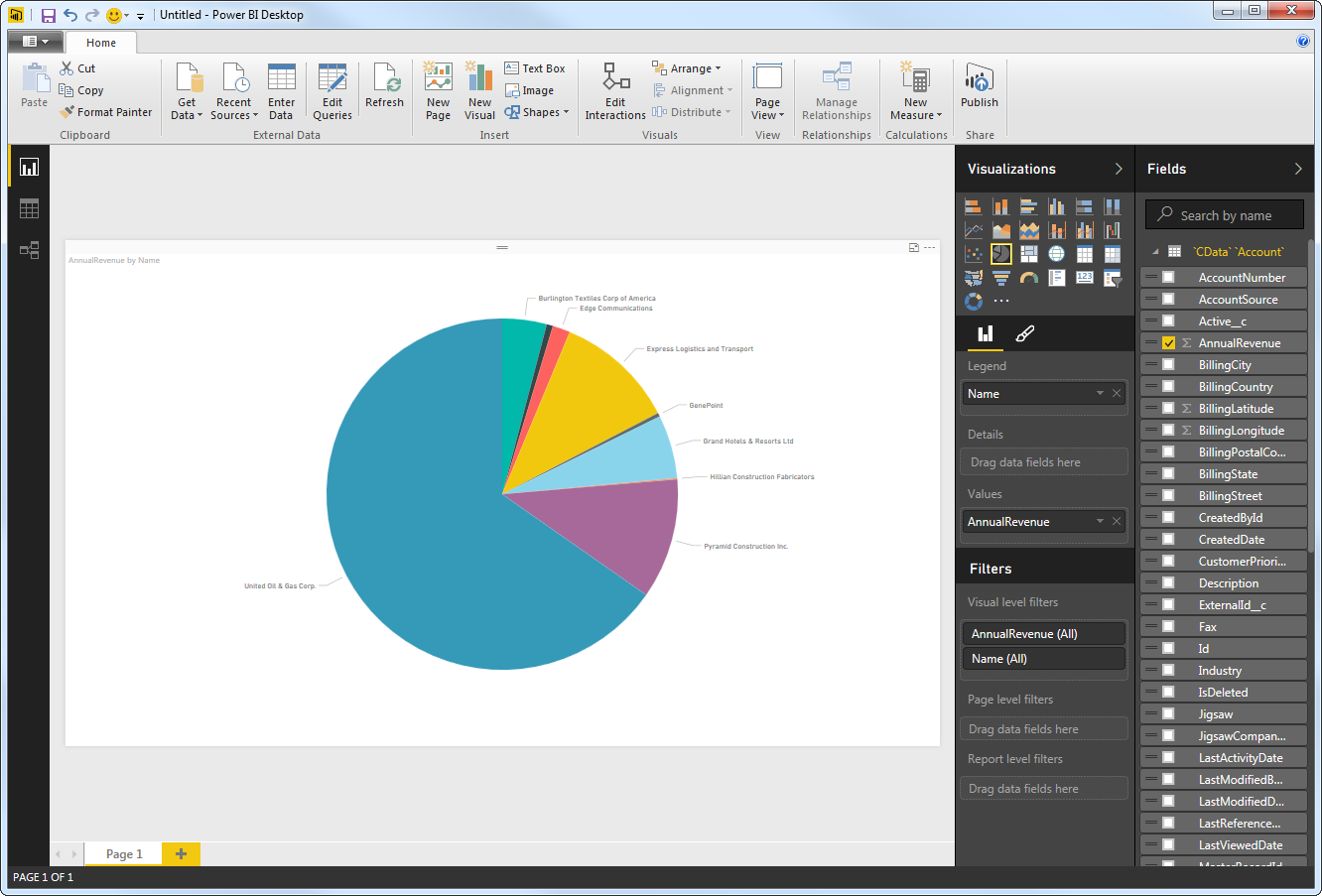
Pro tip: Begin by importing a single data set, like orders or product data, to simplify your initial setup. Once you’re comfortable, you can expand by adding more imports and creating relationships in Power BI.
You can also integrate additional data sources, such as Google Analytics for web traffic, Facebook Ads for campaign performance, or email marketing platforms.
Many stores combine analytics dashboards with automated WooCommerce order management workflows.
Why Build a WooCommerce Business Intelligence Dashboard?
1. Centralized E-commerce Insights
Your WooCommerce store holds vital purchase metrics, but you likely rely on other platforms too like Google Analytics for traffic, a CRM for customer success, or ad networks for marketing. Power BI lets you pull data from all these distinct sources into one environment, eliminating the need to toggle between platforms.
2. Automated Refreshing vs. Manual Processing
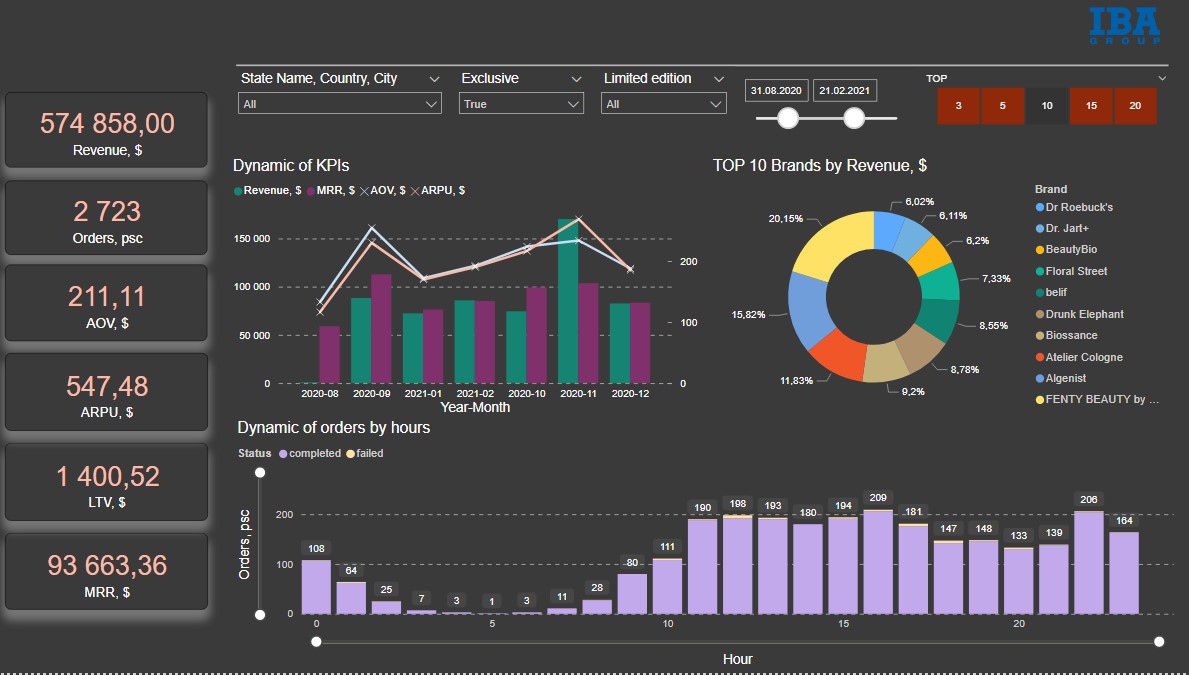
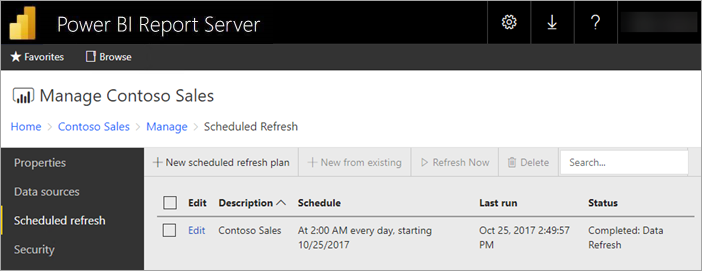
Manually exporting data is time-consuming and prone to human error. Utilizing dedicated plugins or SaaS pipelines ensures your metrics update automatically. This gives you instant access to accurate information whenever you need to make critical business decisions.
3. Cross-Platform Scaling
While Power BI is an industry-leading analytics tool, building a clean data pipeline opens up long-term flexibility. If your business infrastructure expands, the same data routing configurations can easily connect WooCommerce to Tableau, Google BigQuery, or Microsoft Excel, allowing your reporting framework to grow alongside your store.
You should also implement WooCommerce conversion tracking to enrich your reporting data.
Frequently Asked Questions (FAQ)
What is Power BI and what is it used for?
Microsoft Power BI is a business intelligence and data visualization platform. It is used to convert raw, scattered data from sources like WooCommerce, Google Analytics, or Excel into interactive dashboards, charts, and reports, helping business owners make data-driven decisions.
Can I connect WooCommerce to other tools like Excel or Tableau?
Yes. The data pipelines mentioned in this guide are highly flexible. You can easily export your WooCommerce data or use plugins to route your store metrics directly into Microsoft Excel spreadsheets, pivot tables, or Tableau for cross-platform analysis.
Do I need coding or developer skills to link WooCommerce to Power BI?
No. If you use an automated SaaS platform like Coupler.io or a dedicated WordPress plugin with a visual query builder, you can establish a complete WooCommerce data pipeline without writing a single line of code.
How do I load my WooCommerce data into Power BI?
There are three main ways to load your data:
01) Manually: Export your WooCommerce orders and inventory as a CSV file and upload it via Power BI’s “Get Data” option.
02) Via Plugin: Use a plugin like WP Data Access to expose your database tables securely to Power BI via an ODBC or REST API connection.
03) Via SaaS: Connect both platforms through an automated cloud connector to sync and refresh your data automatically.
What are the main benefits of using Power BI for an e-commerce store?
Connecting WooCommerce to Power BI eliminates manual reporting errors, saves hours of admin work through automated data refreshes, and centralizes your sales, inventory, and marketing data into a single, easy-to-read dashboard.
Can I connect other business tools, like Google My Business or Dynamics 365 Business Central (BC), to the same dashboard?
Yes. One of Power BI’s greatest strengths is its ability to blend multiple data streams. You can pull your WooCommerce sales data, Google My Business local search metrics, and Business Central ERP data into the same Power BI workspace to view your entire business infrastructure at once.
Conclusion: Streamline Your E-commerce Analytics
Power BI is a premier business intelligence platform capable of extracting raw data from diverse environments and generating deeply insightful, interactive reports. Connecting WooCommerce to Power BI is a strategic move that helps optimize your store’s performance, identify real growth opportunities, and shift your business toward data-driven operations.
Whether you choose a manual export for simple reporting, a database plugin, or an automated SaaS pipeline for real-time scale, the integration process is highly accessible. Turn your raw store data into a competitive advantage today.

Free version on WordPress.org. Every Pro licence includes a 30-day money-back guarantee.