
To translate WooCommerce invoices into any language automatically, you need to sync a multi-language platform switcher like WPML with a dedicated PDF billing engine like Challan. This combination detects your customer’s checkout language on the fly and immediately outputs localized receipts.
As international eCommerce expands, providing a translated invoice is no longer just a courtesy, it is a critical requirement for building brand trust, eliminating tax or billing confusion, and streamlining cross-border compliance.
While core WooCommerce only allows a single base language out of the box, this step-by-step guide will show you exactly how to configure your translation plugins, localize your products, and completely automate multilingual checkout pages and PDF delivery for global shoppers.
Why Should I Translate My WooCommerce Invoices?
As your WooCommerce store scales across borders, automated invoice translation becomes essential for protecting your customer experience. Here is why offering localized billing documents changes the game for your business:
- Enhanced Customer Satisfaction: Buyers can easily review the precise line items, tax declarations, and fulfillment details of their purchases in their native language.
- Reduced Miscommunication: Translated invoices prevent costly misunderstandings related to local billing regulations, VAT applications, and payment terms.
- Improved Trust: Sending a customized, localized document shows international customers that your business respects their region, building deep brand loyalty.
- Better After-Sales Experience: Customers are far more likely to return to your store if their entire post-purchase journey, including invoicing, is seamless and transparent.
- Unrivaled Professionalism: Offering documentation in your buyer’s language reflects a highly sophisticated, enterprise-level operation.
- Minimized Support Inquiries: Clear, localized statements sharply reduce the volume of inbound customer service tickets questioning billing layouts or item names.
The Essential Plugins You Need
Many store owners think it is difficult to translate PDF documents dynamically in WordPress. However, with the right stack, you can automate the entire system at once. To achieve seamless WooCommerce invoice translation, we will use two highly compatible plugins:
- Challan: A specialized PDF invoicing and packing slip plugin for WooCommerce that automatically generates clean receipts and hooks them directly to customer transactional emails.
- WPML (WordPress Multilingual): A premium translation framework capable of turning standard stores into dynamic, multi-currency global market engines.
Note on Terminology: In some regions, a Challan refers to a physical traffic ticket, official payment receipt, or delivery slip. In this guide, we are explicitly using Challan, the top-rated WordPress PDF invoicing plugin, to handle our automated backend document compilation.
Step 1: Getting Started with the Challan Plugin
Challan is an automated PDF invoicing utility for WooCommerce that runs completely on autopilot. One of the stand-out features of Challan is its native support for multi-language configurations. It works alongside your site’s core localization files to print documents using either the language of the customer’s specific order or the site’s primary base language.
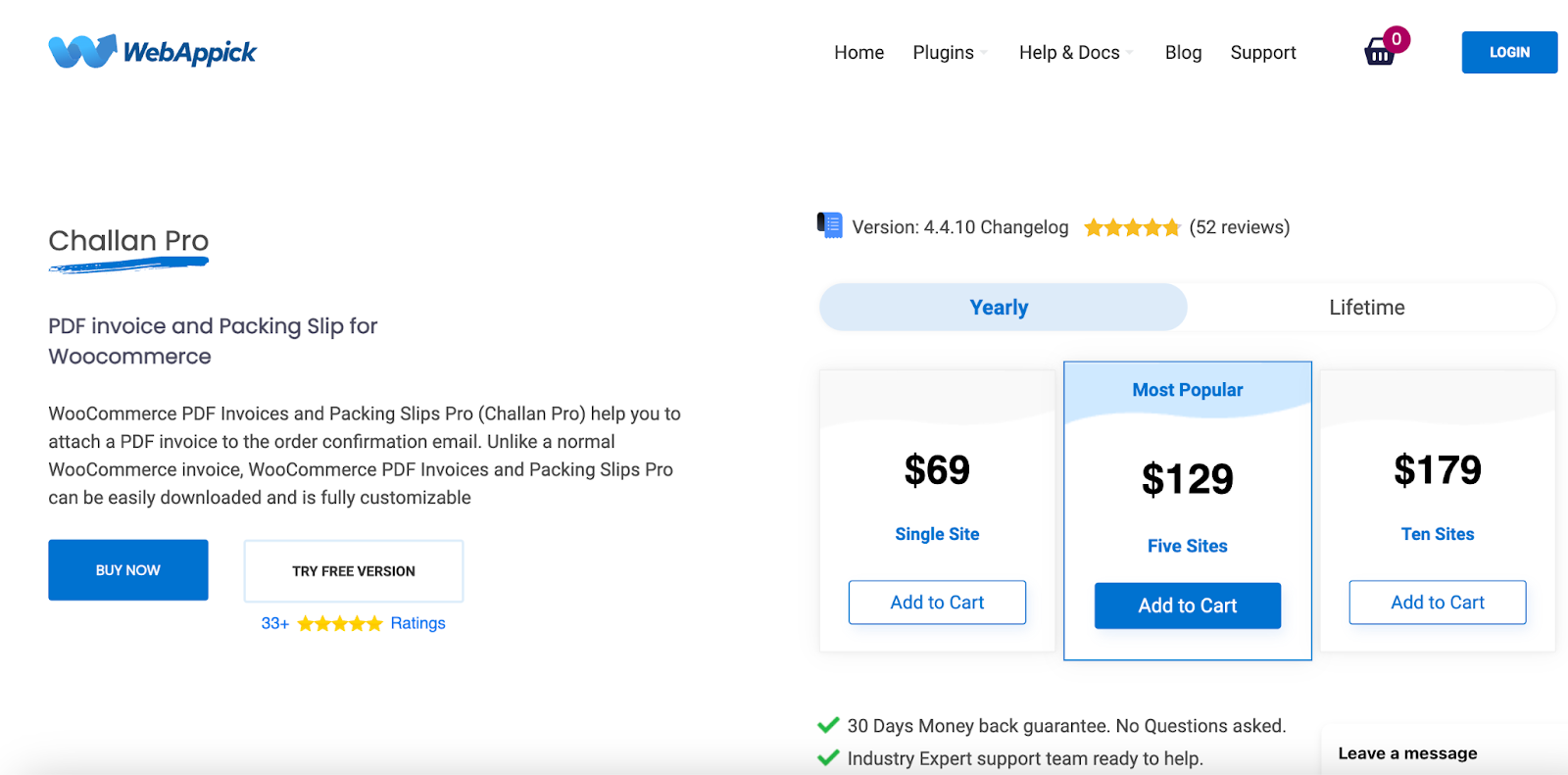
One of the stand-out features of Challan is the support for multiple languages. It supports all popular multilingual plugins as well.
So, you can generate and provide the invoice in either the language of the customer’s order or the site’s language.
In addition, Challan Pro also supports RTL format invoice creations. This means you can create invoices in Arabic smoothly as well.
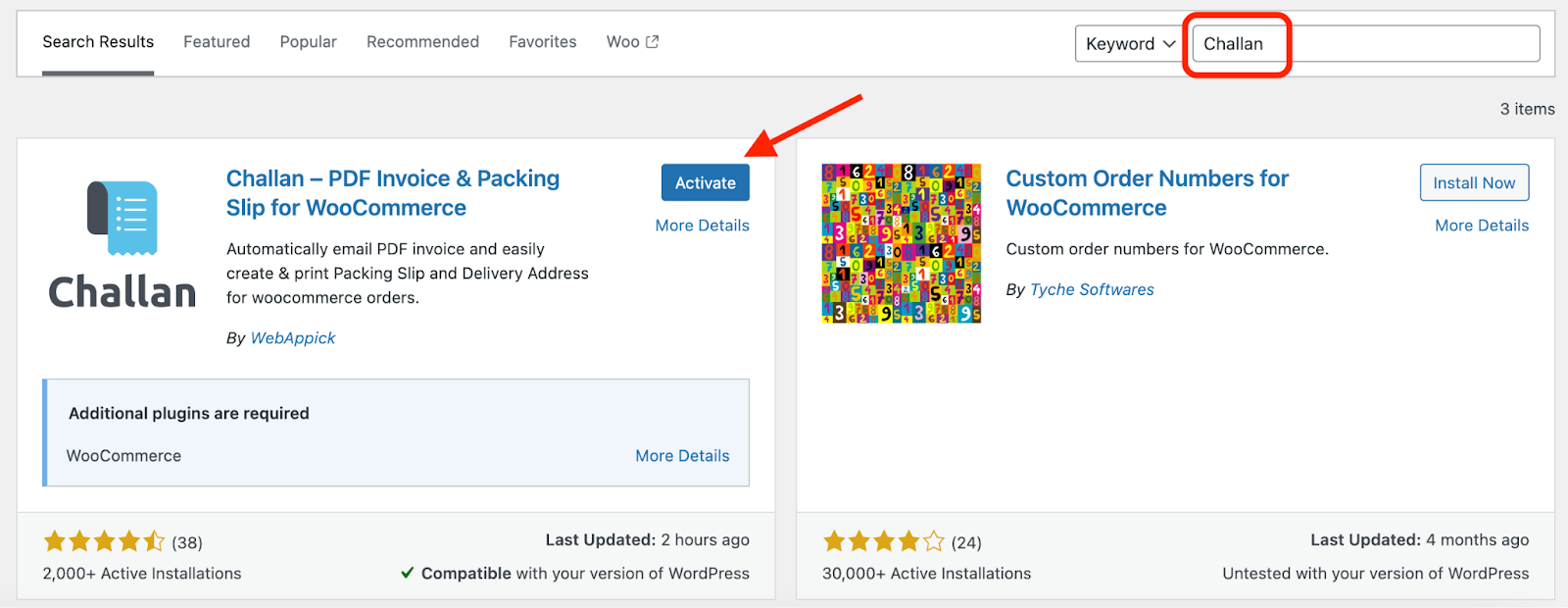
To use the Challan plugin, simply go to Plugins>>Add New Plugin from your WordPress Admin Panel.
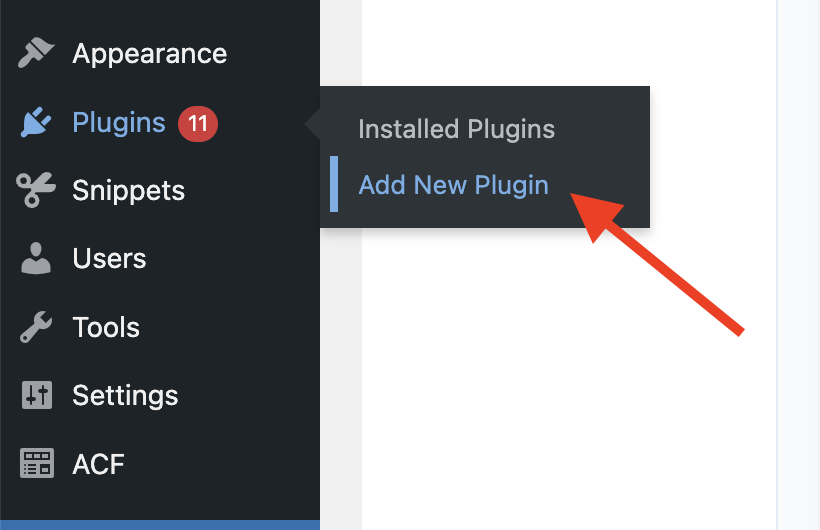
After that, type in the plugin name. Then, simply Install and activate it.
Step 2: Setting Up Your WooCommerce Translation Plugin (WPML)
By default, WordPress only allows you to run your digital store in a single core language. To handle international traffic, you must deploy a dedicated multilingual plugin. WPML is widely considered the industry benchmark for changing languages dynamically without losing indexing weight or breaking database tables.
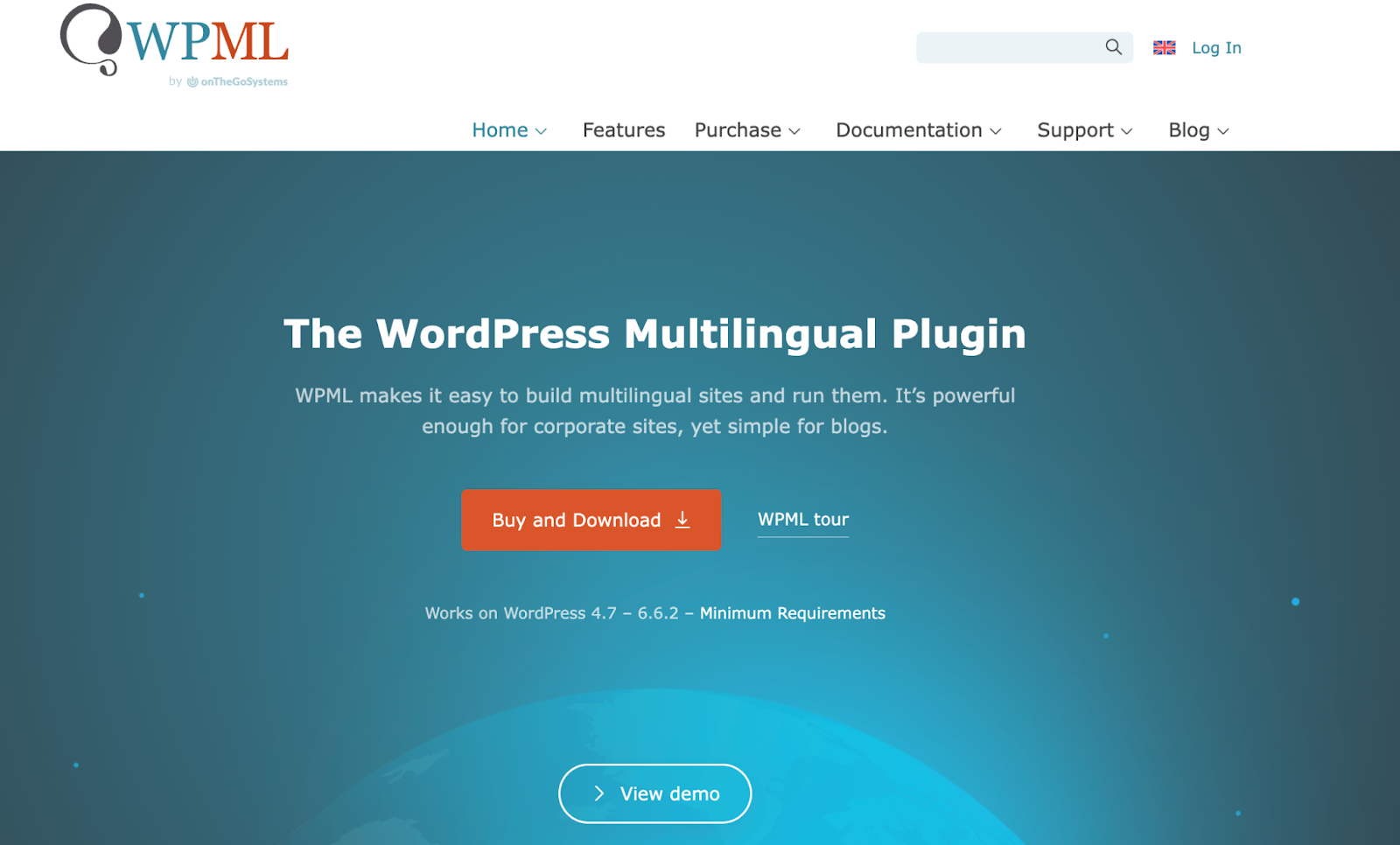
You can either translate parts of your website manually using WPML’s advanced translation tools or let WPML translate your whole website into the language of your choice.
In addition to installing WooCommerce and Challan, you must ensure your site meets WPML’s minimum requirements.
Now, to use WPML, from your WordPress dashboard, you need to go to Plugins>>Add New Plugin. Then search for “WPML” and install the plugin
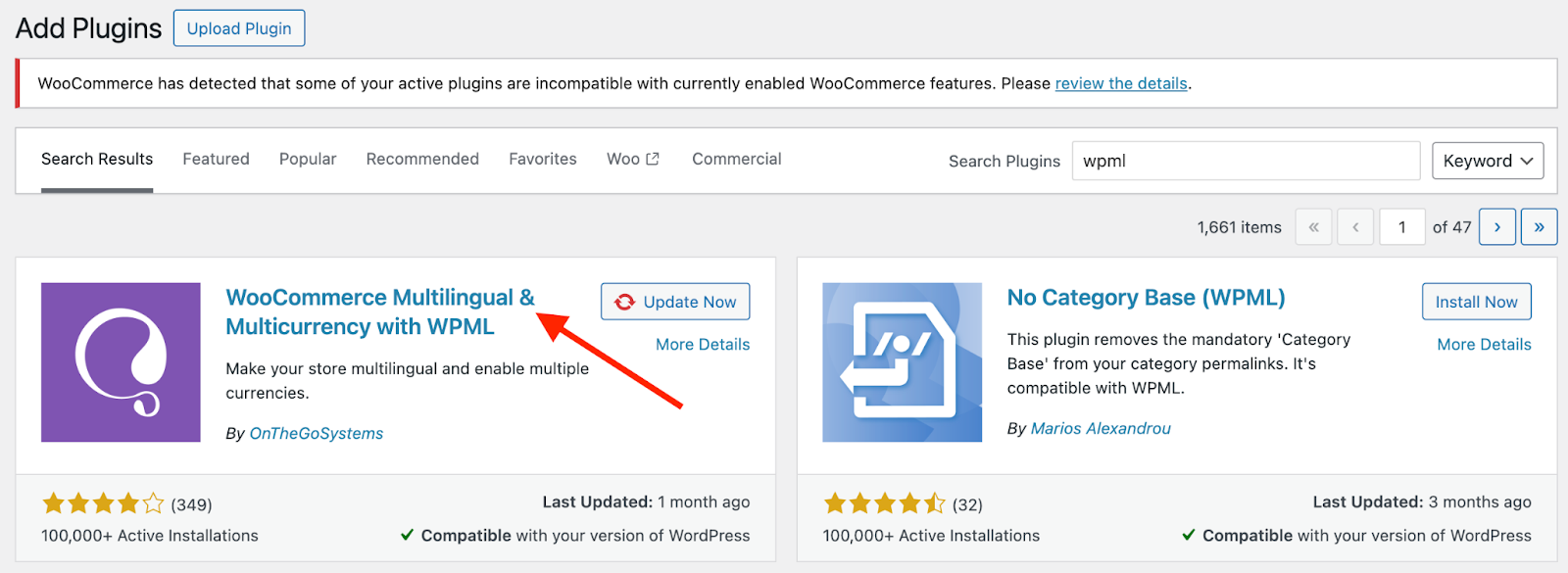
After you activate the plugin, it will prompt you to configure the settings.
Step 3: Configuring the Multilingual Options
During the initial configuration screens, WPML will prompt you with settings that define how your translation workspace will operate:
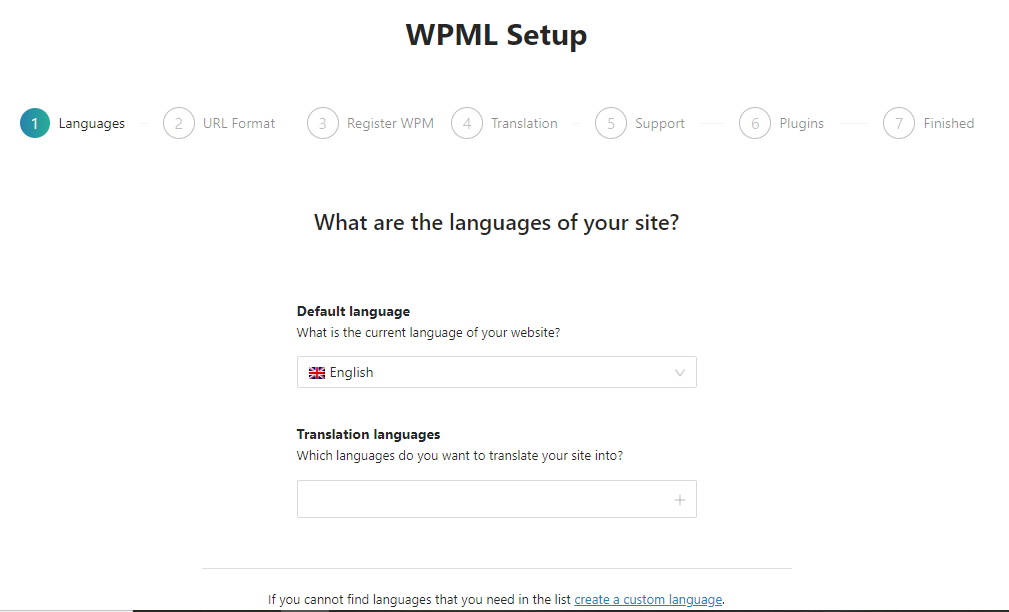
In the Translation Languages box, you can select multiple languages to which you want to translate your content.
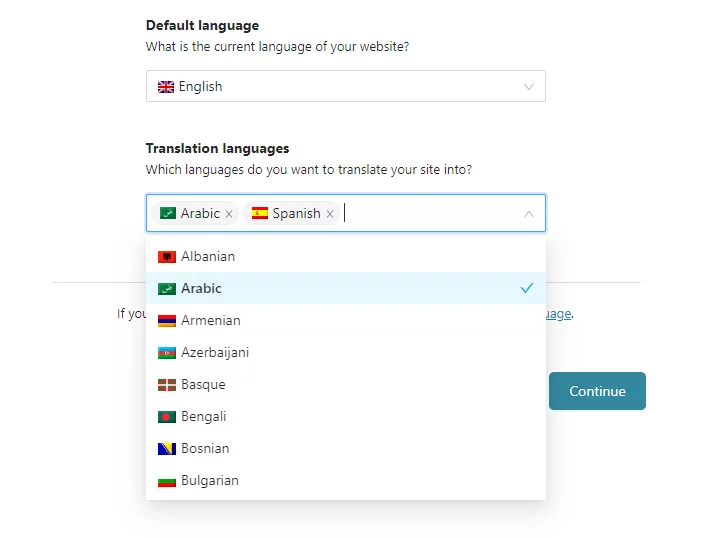
Click Continue, and in the second window, you will need to set the URL format for different language versions.
The third window will ask how you want to translate your store website. You can either let WPML translate all the contents of your website automatically or choose to translate some part of it manually.
If you choose the Translate Some option, four more options will pop up.
- Only myself (Demo): You’ll be the only person translating content on this website.
- Individual translators: You will select or create new WordPress users to serve as translators. You can choose yourself too.
- A Professional Translation Service: WPML provides seamless integration with in excess of 70 different translation services. You will have the ability to select the translation service that best suits your needs.
- Translation Manager: You will select a user from this site and give the responsibility of setting up the translators for that individual.
Once you are done configuring all the windows, click Finish to complete the setup process. Also, don’t worry about the configuration settings, you can always change it from the WPML menu.
In this tutorial, we will focus on manually entering translation updates. Select either Only myself or Individual translators and click Finish.
Step 4: Translating Products & the WooCommerce Checkout Page
To ensure line items match cleanly on your final PDF invoice, you must translate your backend catalog. If a Spanish user buys a product, the checkout screen and the generated invoice text must match their language.
So, how do you translate your products into WooCommerce?
Simply go to the “WooCommerce Multilingual & Multicurrency” from WooCommerce.
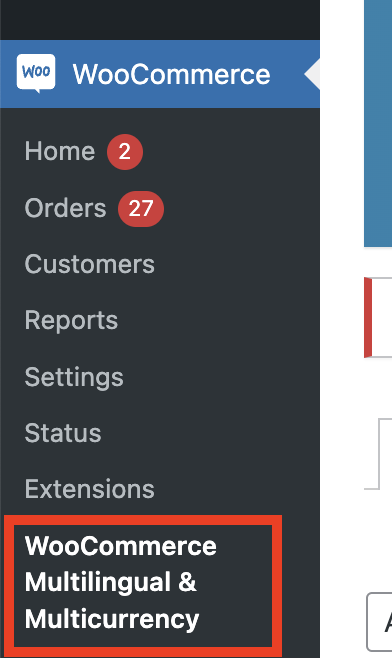
There you will find the “products” tab where you can translate your product pages easily.

What do you see? Yes, it’s a list of your WooCommerce store products.
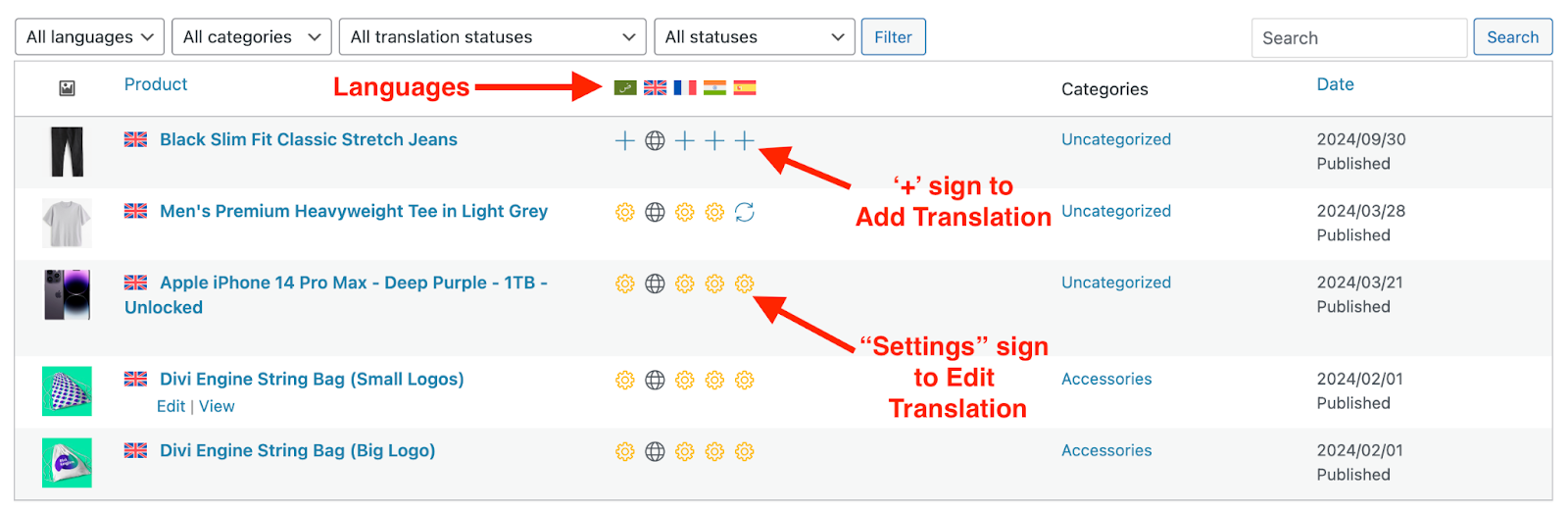
Here, you’ll see a list of languages available for translating your products. These are the same languages you selected during the initial configuration.
Next to each product, you’ll notice a “+” sign. I’m adding translations to your products for the first time. If you’ve already added a translation and need to edit it, you can use the settings option.
How to Translate the WooCommerce Checkout Page
Many store owners worry about manually translating transactional structural elements. Fortunately, when you use a core engine like WPML, default WooCommerce functional pages (like the Cart, My Account, and Checkout endpoints) change automatically. When a visitor uses your frontend language switcher widget, the form fields, payment gateways, and order terms shift dynamically to the target dialect without broken structures
Step 5: Localizing Invoices for Target Languages
When a user completes an order in a translated language, Challan hooks into WPML’s active session tracking to dynamically compile the invoice. Let’s look at how core structural fields are translated into major target languages.
1. Translate Invoice to Spanish
When your site switches to Spanish, common layout terms look clean and consistent across the document layout:
| English Field | Spanish Translation |
|---|---|
| Invoice Number | Número de factura |
| Order Number | Número de Pedido |
| Invoice Date | Fecha de la factura |
| Billing / Shipping | Facturación / Envío |
| Unit / Price | Unidad / Precio |
| Total | Total |
Since we’re assuming this is your first time adding a translation, simply click on the “+” sign to manually begin translating your products.
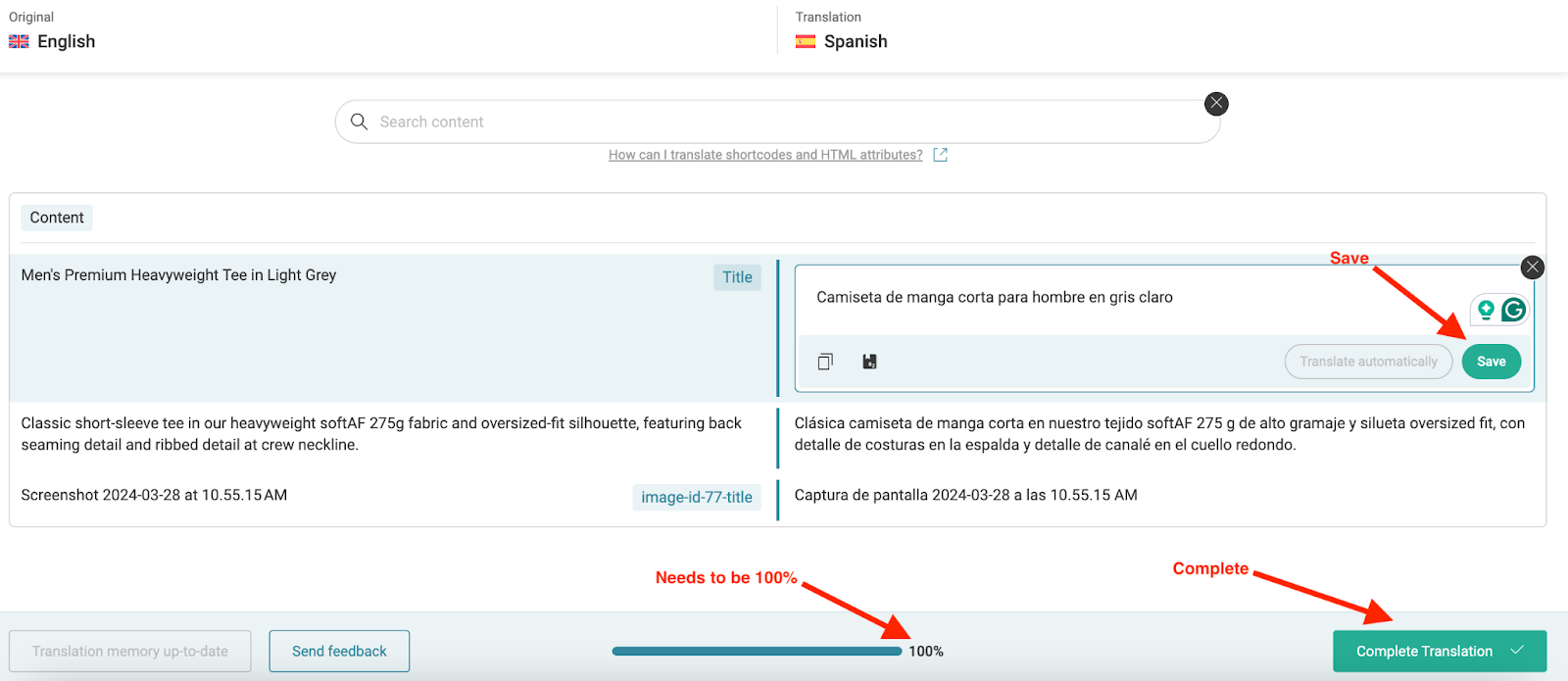
For example, we have clicked on one of our product’s Spanish (+) signs. It will redirect you to WPML’s own translation domain.
You need to click on every content section, translate it, and save it. Only when you are 100% done translating will you be able to click on the Complete button, and the page will be saved/updated in your WooCommerce back panel.
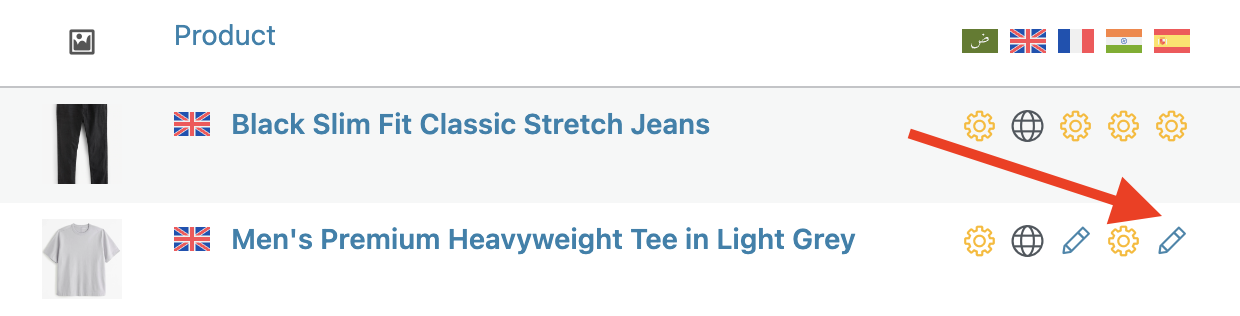
After you translate any product, the (+) sign will change into a pen icon.
Let’s check if our translation is working or not.
Visit that product page we just updated. After you configure WPML the first time, it will automatically place a WooCommerce language switcher in the footer.

Click on Espanol to change the language to Spanish.
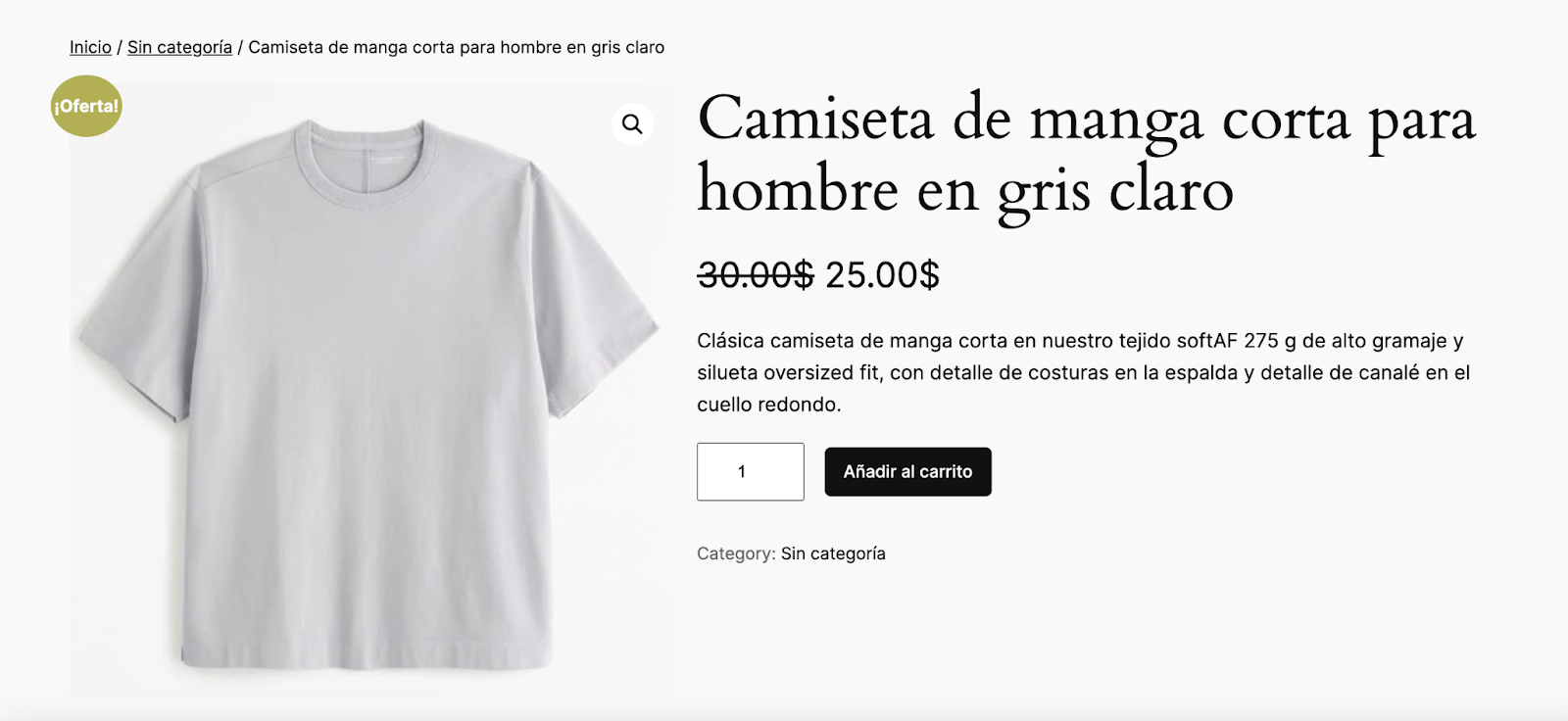
As you can see, the page content and even the navigation menu are displayed in Spanish. All the pages from then on, including the cart page and checkout page, will display titles, form elements, and contents in Spanish to make the user experience easier for the customer.
WooCommerce Translate invoice using Challan
The moment you install Challan, it will automatically start creating WooCommerce invoices, attach them to your transactional emails, and help you send them to your customers.
But what about translating invoices into different languages?
Unlike the WPML manual translation process we saw for every individual product, you don’t need to do anything to translate WooCommerce invoices when you have Challan installed.
Challan will enable automatic invoice translation for both you and your customers. Let’s check if it’s true. Go back to that page we translated and add that product to the cart. Visit the Cart page now.
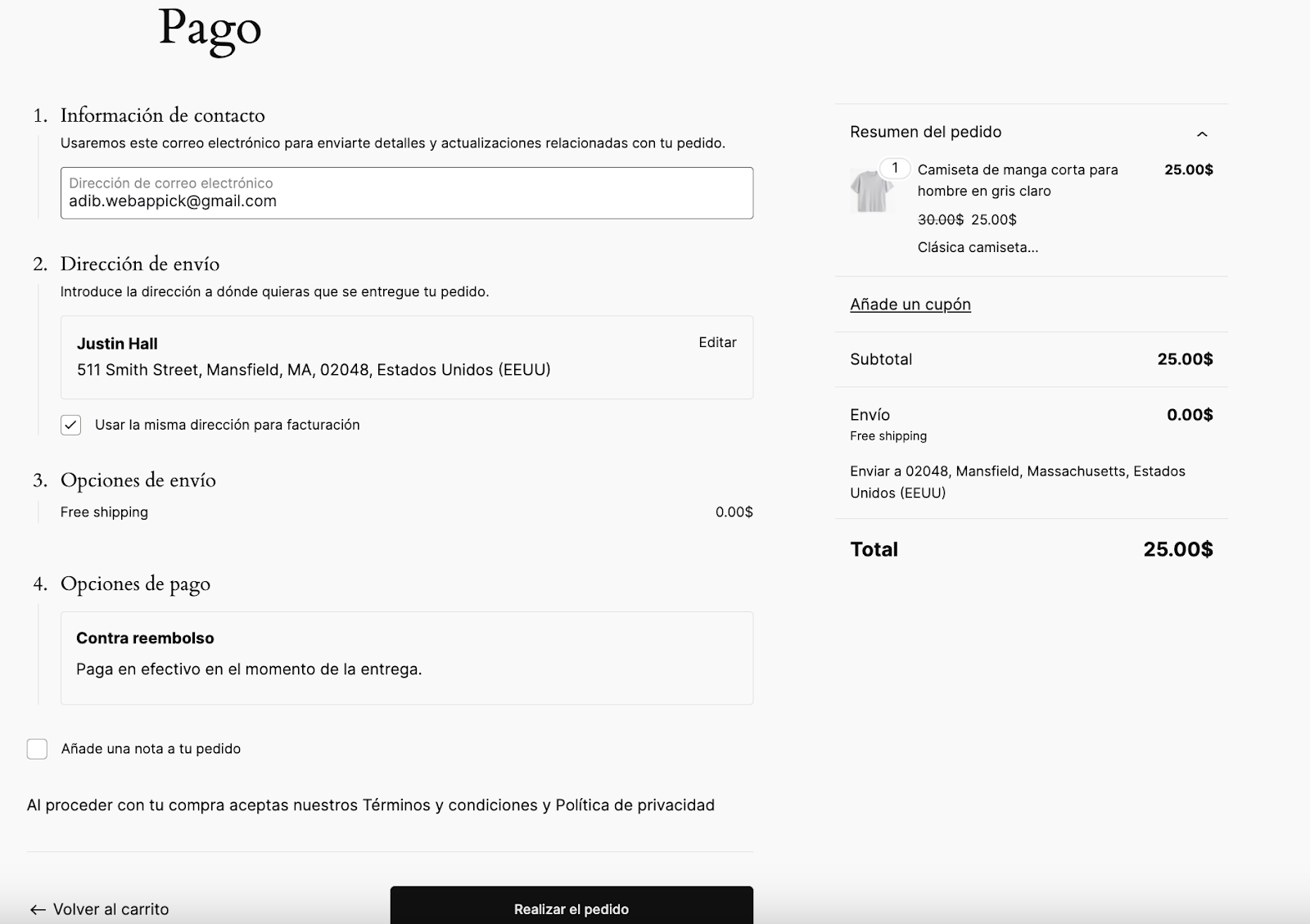
As you can see, all form contents and titles are now in Spanish. You can place the order.
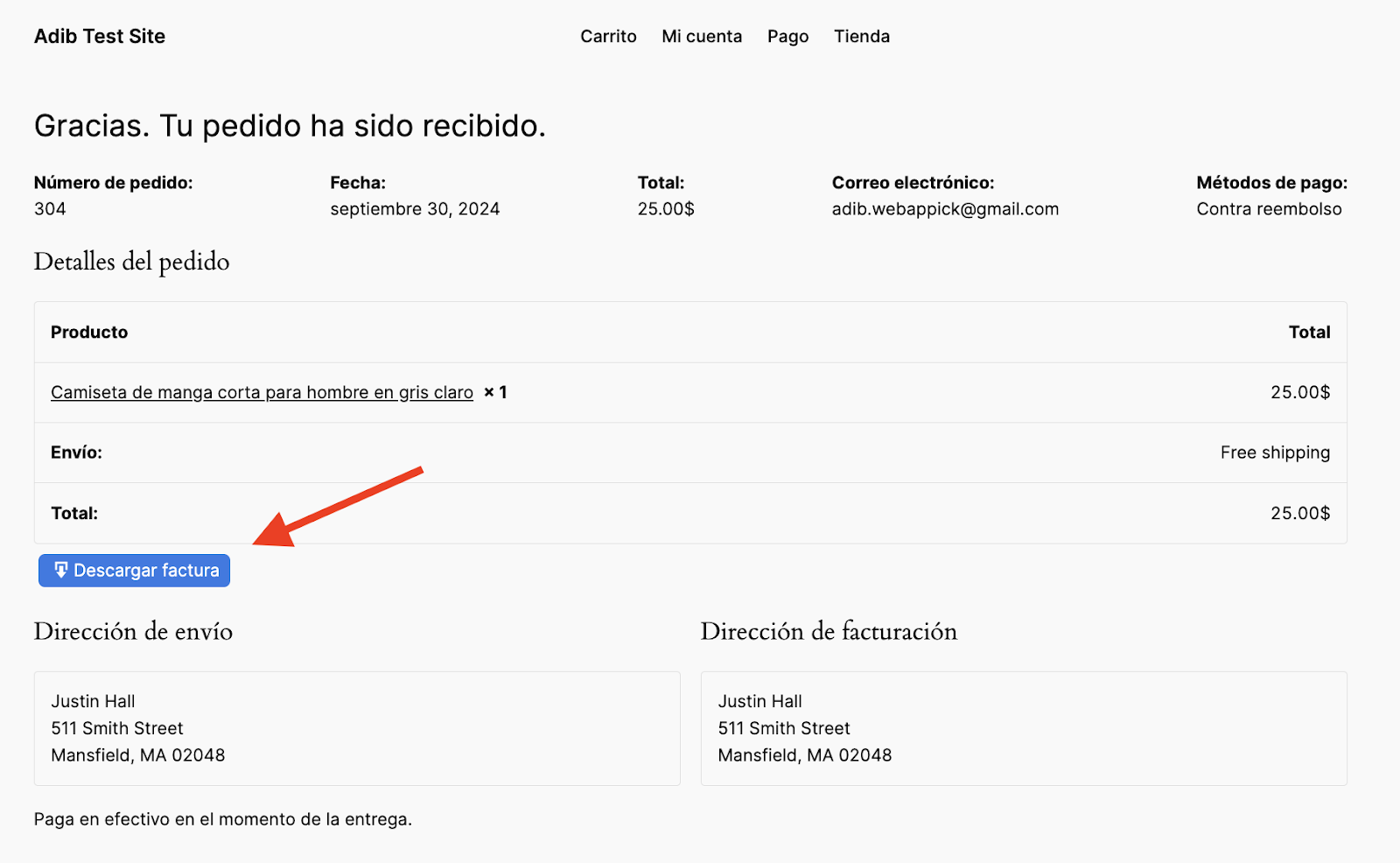
Here’s our order confirmation page, where your customer will have the option to download the invoice. Go ahead and click on the DESCARGAR FACTURA (Download Invoice) button.
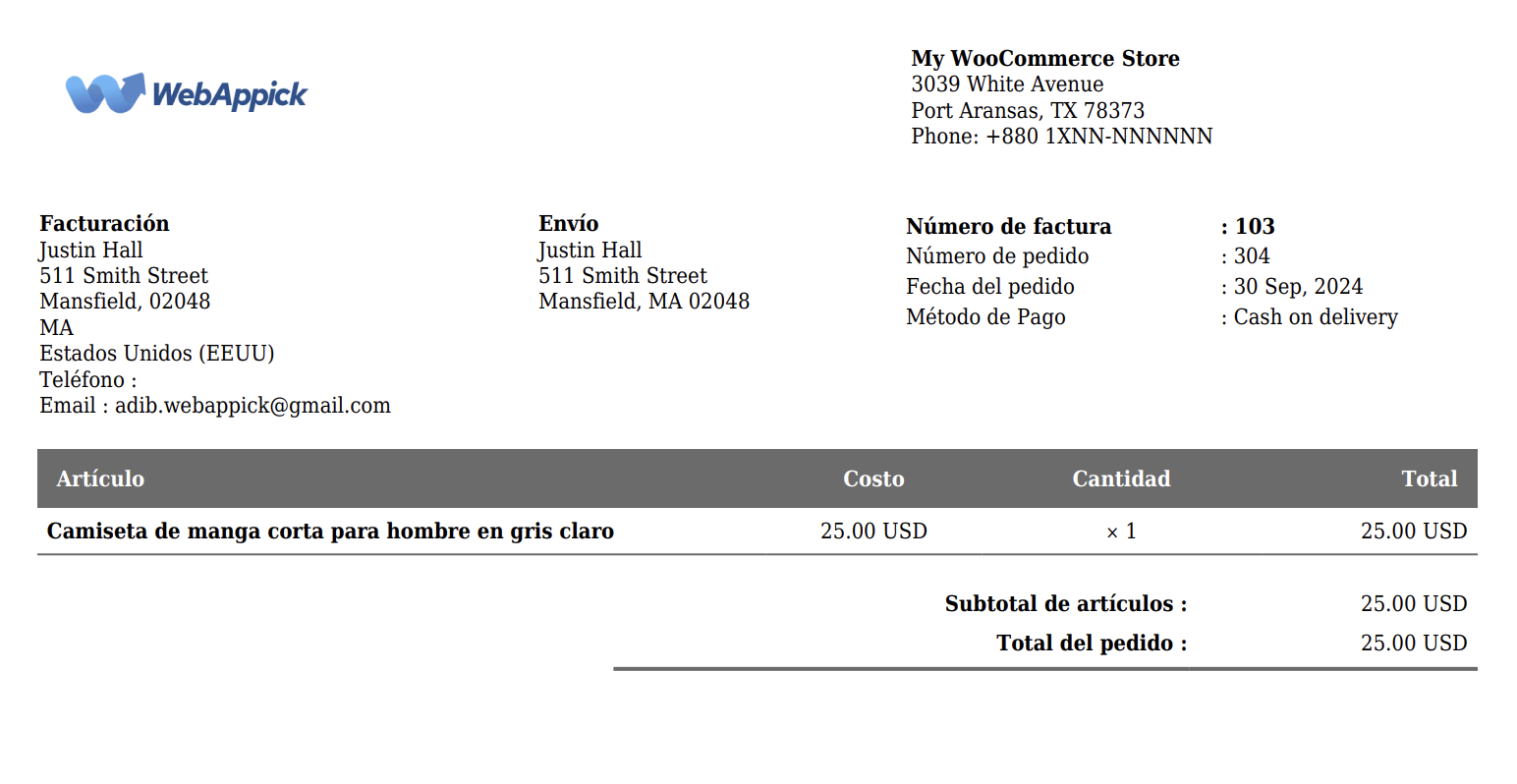
What do you see? Yes, it is a WooCommerce custom invoice created with Challan.
This way, you can easily and quickly translate invoices into Spanish, saving time and effort. Now, let’s look at some other languages.
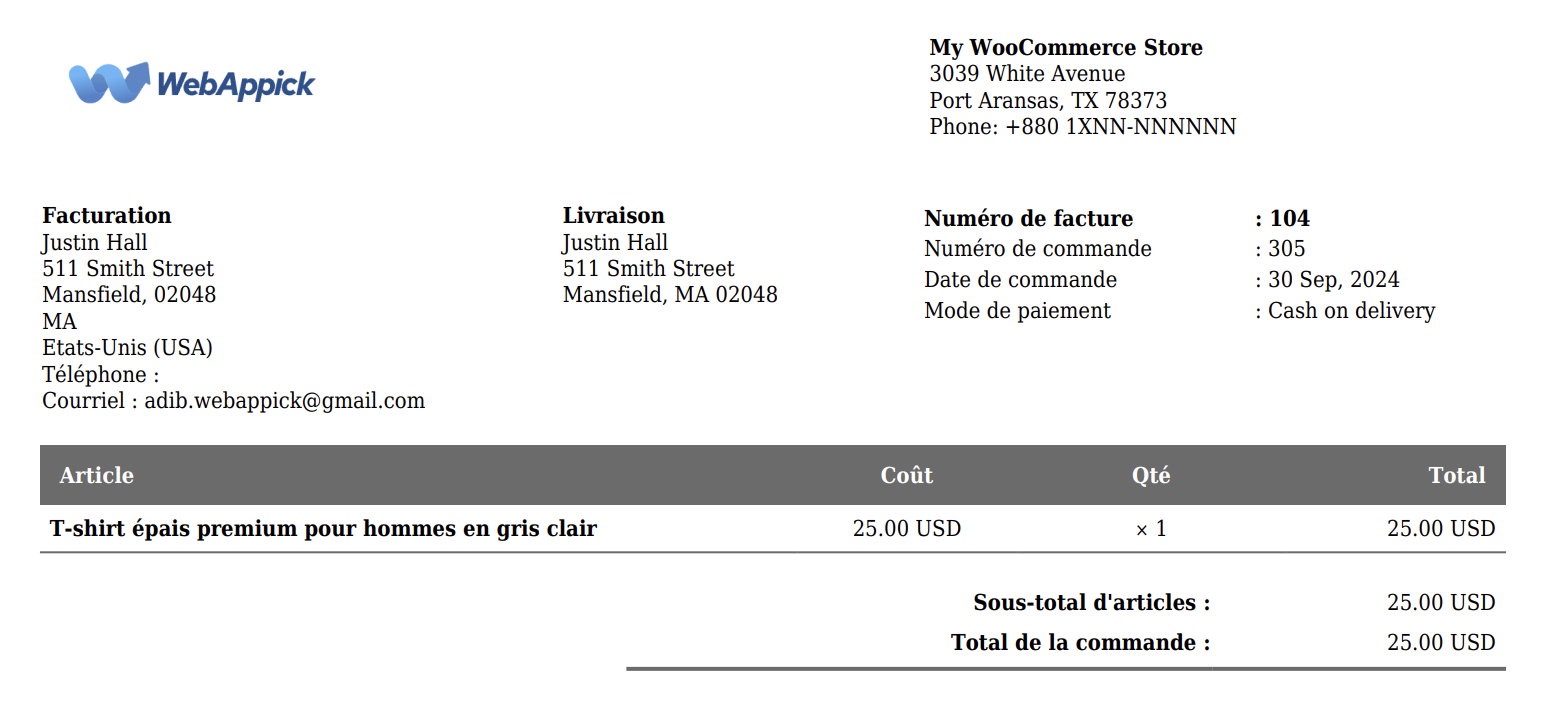
2. Translate Invoice to French
For French store variations, the system maps checkout headings and downloadable PDF titles seamlessly:
| English Field | French Translation |
|---|---|
| Invoice Number | Numéro de facture |
| Order Number | Numéro de commande |
| Order Date | Date de Commande |
| Billing / Shipping | Facturation / Livraison |
| Unit / Price | Unité / Prix |
| Order Total | Total de la Commande |
Let’s go back to the product list page from “WooCommerce Multilingual & Multicurrency”. After that, let’s click the (+) beside that same product we translated into Spanish and now translate into French.
Then, we need to translate it completely into French as well.
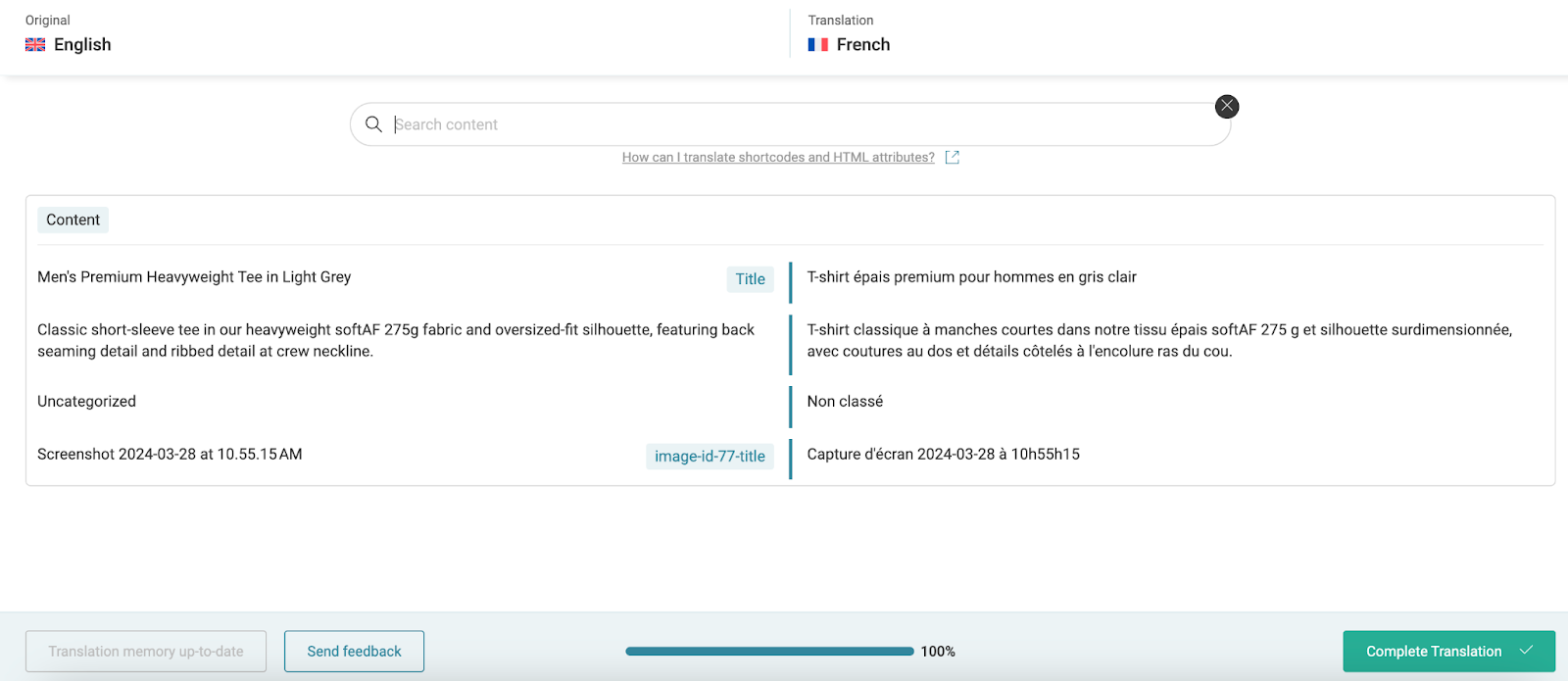
What do you do next? Simply go back to the products page. There you will find the French language this time down below.

Click on it and the language will be transferred into the French language.
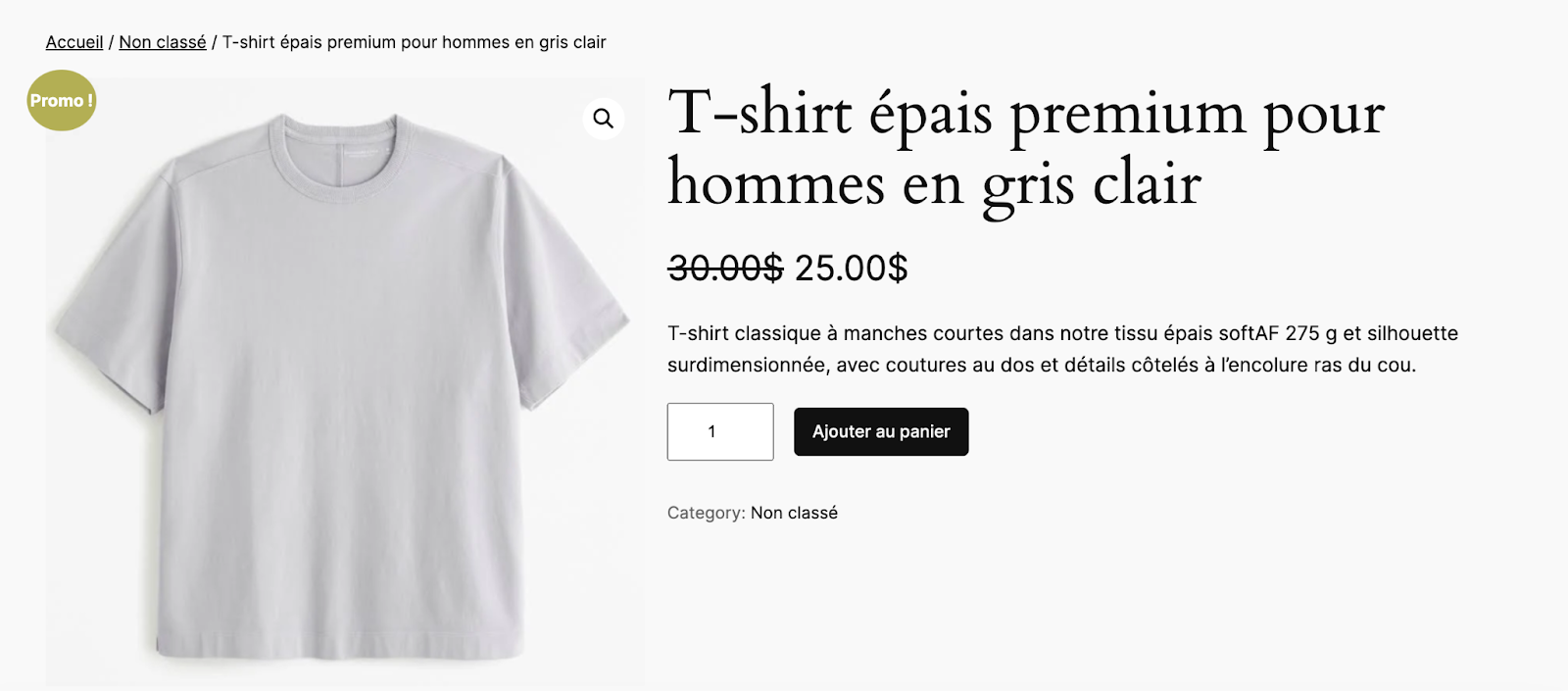
So, your customers add it to their cart and order this product.
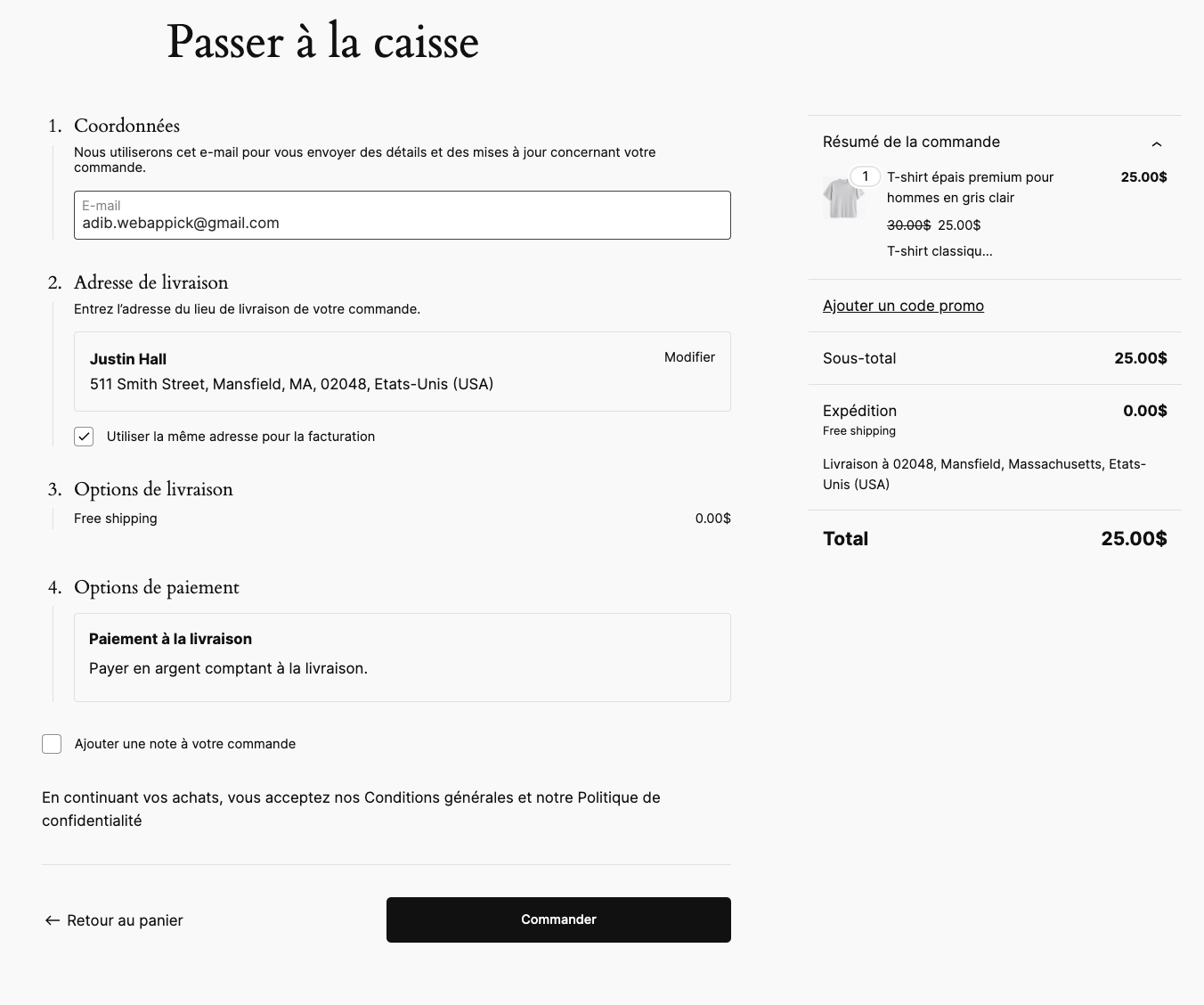
They will be able to download the invoice just like the previous process too. However, for the French language, they have to click on “Commander”.
3. Translate Invoice to Arabic (RTL Support)
Languages like Arabic use Right-to-Left (RTL) text tracking. If your PDF generator lacks special styling frameworks, Arabic characters will detach or render backwards. Challan Pro offers robust, out-of-the-box RTL template mirroring, allowing smooth rendering of Arabic billing metadata:
| English Field | Arabic Translation |
| Invoice Number | رقم الفاتورة |
| Order Number | رقم الطلب |
| Invoice Date | تاريخ الفاتورة |
| Billing / Shipping | الفواتير / الشحن |
| Unit / Price | وحدة / السعر |
| Total | الإجمالي |
Generally, the Arabic language is written in RTL (right to left) format. Challan Pro supports RTL format out of the box for WooCommerce default language.
But what about multilingual Woo stores?
Let’s find out. Let’s go back to the product list page and click the (+) beside one of your products and let’s translate it into Arabic.
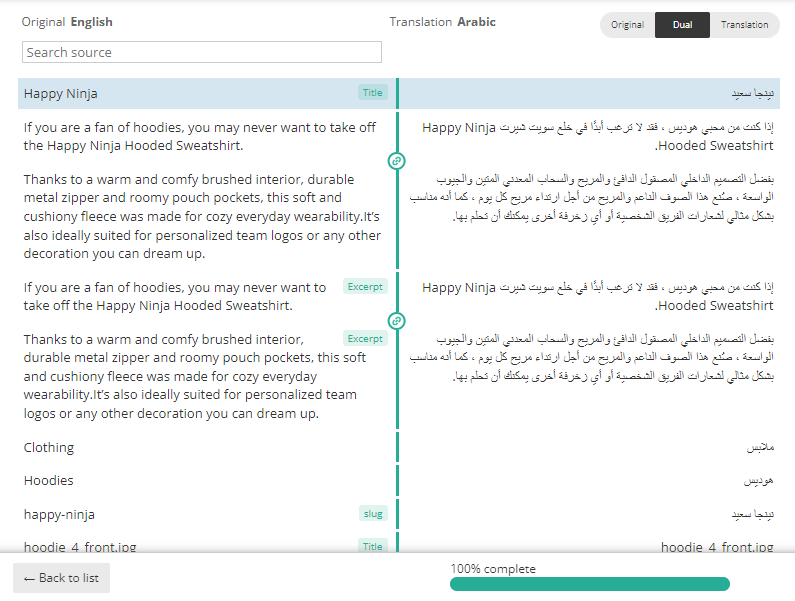
Once you are done, visit the front page and change the site language to Arabic from the footer.
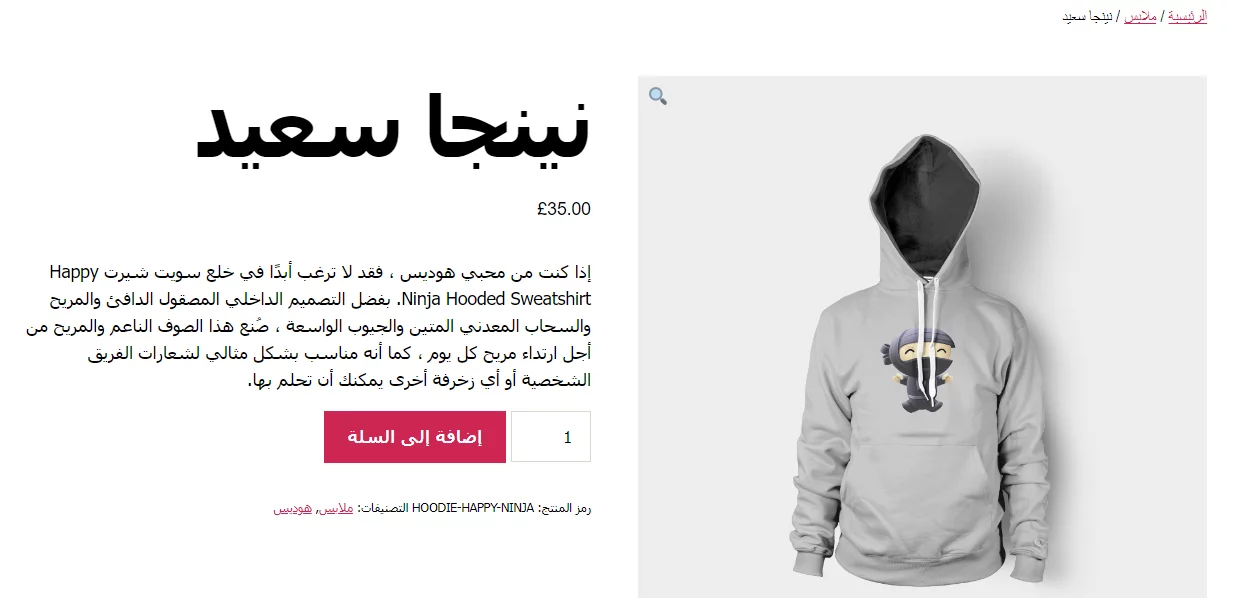
As you can see, the contents are in Arabic now. Add the product to the cart and proceed to the checkout page.
Enter customer details to complete the demo order. Here’s our order confirmation page in Arabic.
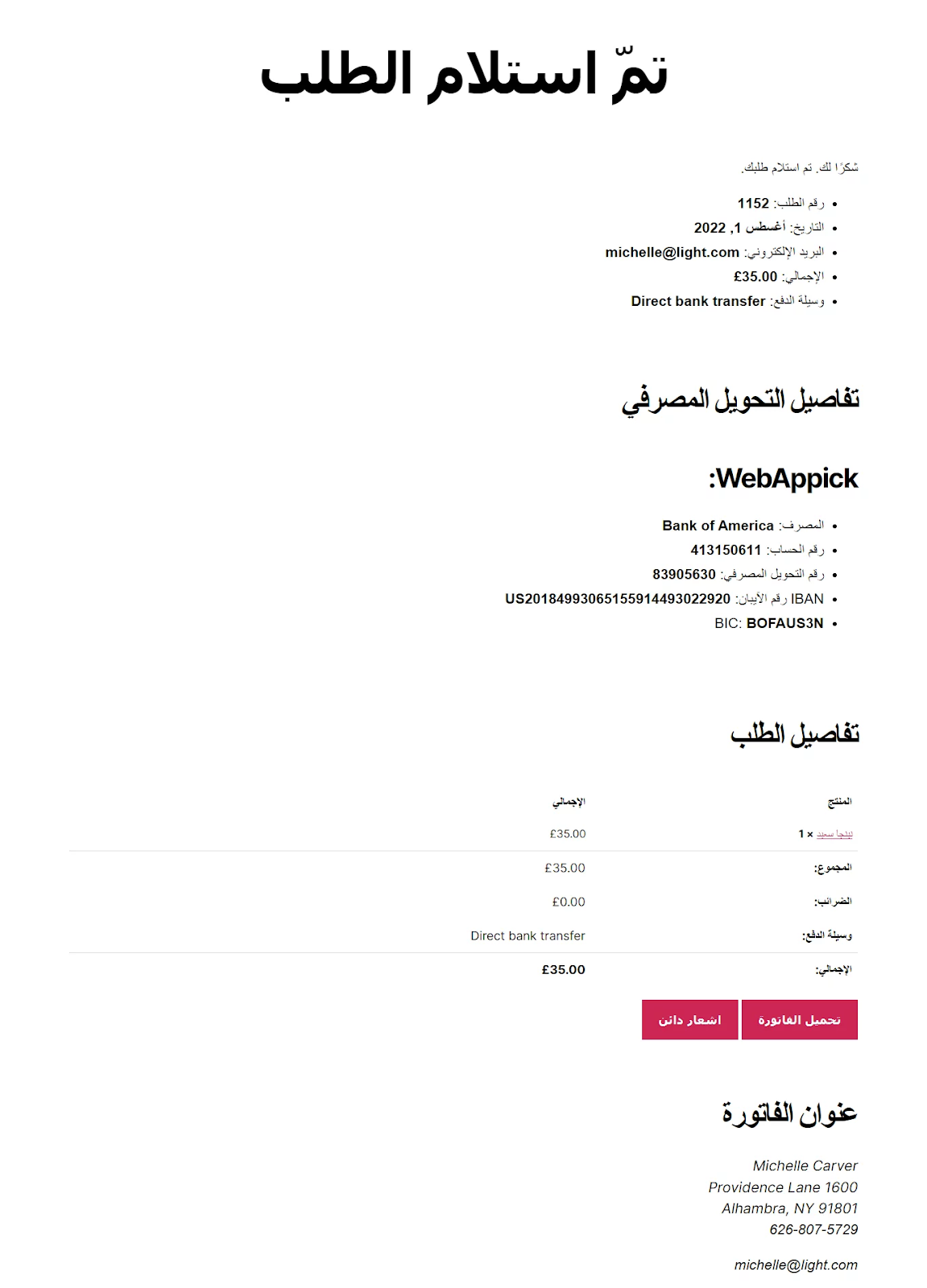
Let’s click on the Download Invoice button to check how Challan created the invoice for this order.
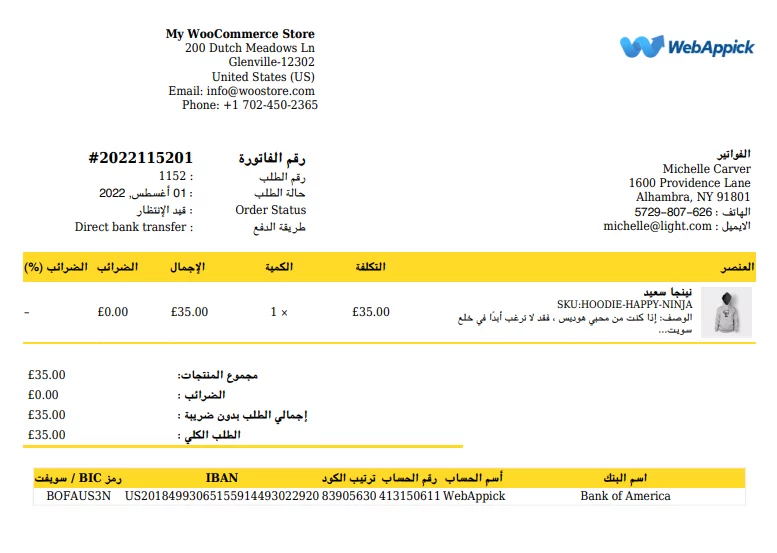
Here you go, Challan automatically and successfully created an RTL format Arabic WooCommerce invoice.
Therefore, Challan can take care of all your invoice translations automatically without you worrying about any of them.
Hopefully, you have a good idea of how to translate PDF invoices to WooCommerce. We have shown you translate invoices in 3 different languages, and in this way, you can translate invoices in any language you want.
Step 6: Testing the Front-End User Experience
Before taking your newly localized billing live, run a manual test order to verify that your strings, themes, and PDF fields are working flawlessly.
- Navigate to the frontend of your website and open a translated product page.
- Scroll to your footer or navigation block and locate your language switcher widget. Click Español.
- Verify that your menus, descriptions, and structural checkout indicators adapt cleanly into Spanish.
- Add the item to your cart, proceed through the checkout pipeline, and submit a test order.
- On your final confirmation page, look for the localized download link: DESCARGAR FACTURA.
- Click the button and check your PDF payload. The Challan engine will automatically deliver a beautifully styled, fully translated Spanish document matching your customer’s chosen language.
Advanced Feature: WooCommerce Email Translation
An invoice is only as useful as its delivery method. If your site triggers a localized Spanish system email but attaches a default English billing PDF, it looks fragmented and unprofessional.
Because Challan directly communicates with WPML’s active transaction hooks, it can identify the specific locale used during checkout. When an automated notification (like Processing Order or Completed Order) fires, the system matches both the underlying HTML email body text and the attached Challan PDF invoice to the same target language profile.
Best Practices for Multilingual Invoicing
- Ensure String Consistency: Always use matching phrases for the same operational values across your web store, system notifications, and printed invoices to avoid customer confusion.
- Adapt Local Formatting: Remember that true localization requires more than text translation. You need to verify that local date patterns (DD/MM/YYYY vs. MM/DD/YYYY), weight constants, and tax display rules fit regional standard norms.
- Run Pre-Deployment Checks: Always run an end-to-end checkout loop whenever you update plugin versions or modify your theme files to ensure your PDF generation blocks remain active and unconflicted.
Troubleshooting Common Issues
1. Language Layout Not Changing on Invoices
If your standard checkout forms translate cleanly but your downloaded PDF files stick to your default base language, inspect your tracking sync options. Ensure your primary .po and .mo plugin translation files are up to date within your active WPML text domains.
2. RTL Text Alignment Inversions
If characters appear detached or run past the template borders when processing Arabic or Hebrew scripts, your current theme layer lacks layout mirroring rules. To resolve this instantly, activate a native responsive layout option inside your settings or switch to Challan Pro to enable automated structural adjustments for RTL files.
3. Missing Custom Text Fields
If standard fields adjust but custom footnotes or checkout meta blocks stay stuck in English, go to WPML > String Translation. Simply search for the specific hidden values causing the block to manually map out their matching localized equivalents.
Frequently Asked Questions
How do I translate in WooCommerce?
You can localize any element of an e-commerce platform by installing an expansive multilingual manager plugin like WPML. This allows you to manage automated string switches or manually update specific product lines, menus, and taxonomies.
How do I translate a WooCommerce checkout page?
Once you deploy an optimization framework like WPML, default checkout structures map out automatically. When your shoppers click their target language options, your native form elements, error popups, and transactional steps shift seamlessly.
Can we change the language in WooCommerce natively?
Yes, but core WordPress configurations only let you apply one active site locale profile at a time. If you need to switch text variations on the fly for distinct incoming international traffic profiles, you must use an integration tool like WPML.
How to translate WooCommerce invoices using WPML?
Core translation plugins do not create PDF files by themselves. However, marrying a translation engine with an automated invoicing tool like Challan resolves the issue. Challan reads active language states to dynamically compile and attach perfectly translated billing documents directly to customer emails.
Wrap Up
Expanding your brand into international markets is a powerful way to scale your web traffic, boost customer conversion rates, and unlock new revenue streams.
A high-converting multilingual WooCommerce store must cater to buyers around the globe, regardless of their cultural background or primary language. True localization means making sure your international customers can navigate your store effortlessly from the moment they hit your landing page all the way through to the checkout line.
To deliver a truly professional, high-end shopping experience, providing a translated invoice is an absolute must. By combining WPML with Challan, you can automate your global billing workflows and focus on growing your business.

Free version on WordPress.org. Every Pro licence includes a 30-day money-back guarantee.

