%22%2F%3E%0A%3Cpath%20d%3D%22M59.8894%2016.6974C60.1689%2016.9331%2060.5416%2017.1216%2060.9142%2017.0745C61.5664%2017.0273%2061.8925%2016.6031%2061.6596%2015.7547C61.5198%2014.4349%2061.4267%2013.1623%2061.2869%2011.8425C61.1006%209.72149%2060.8211%207.55331%2060.5881%205.38512L60.1689%201.70863C60.0757%200.81307%2059.6099%200.294591%2058.7713%200.106053C58.4918%20-0.0353509%2058.2123%20-0.0353509%2057.9328%200.106053C57.7931%200.106053%2057.6999%200.106053%2057.6067%200.153187C56.5353%200.483129%2055.4172%200.81307%2054.3458%201.19015C53.5073%201.47295%2052.6222%201.75576%2051.7371%202.03857C50.2929%202.50991%2048.8488%203.02839%2047.4047%203.49974C46.4264%203.82967%2045.4016%204.1596%2044.3768%204.48952L44.3767%204.48956C43.6313%204.72523%2043.3518%205.24371%2043.6313%205.85646C43.7711%206.13927%2044.004%206.32781%2044.2369%206.46921C44.7028%206.79915%2045.2152%207.08196%2045.6811%207.4119C45.8674%207.55331%2046.0537%207.69471%2045.8208%208.02465C45.7276%208.21319%2045.5879%208.35459%2045.4481%208.54313L45.355%208.73167L44.5164%2010.0986L43.9108%2010.9941L43.3052%2011.8897L43.2121%2011.9839L42.1406%2013.5865L44.5867%2019.8706C45.5713%2022.1447%2048.6357%2026.5713%2052.552%2023.6277L53.9265%2022.2593L54.3458%2021.5523C54.3924%2021.458%2054.4856%2021.3637%2054.5321%2021.2694L54.5787%2021.2223C55.2309%2020.1854%2055.883%2019.1956%2056.5352%2018.2059L56.5353%2018.2057C57.0477%2017.4044%2057.5601%2016.6503%2058.0726%2015.849C58.2123%2015.6604%2058.3055%2015.6133%2058.4918%2015.7076C58.9577%2016.0375%2059.4235%2016.4146%2059.8894%2016.6974Z%22%20fill%3D%22%233D89D0%22%2F%3E%0A%3Cpath%20d%3D%22M28.0259%2022.0232C27.9793%2022.0703%2027.9793%2022.1175%2027.9327%2022.1646C27.9793%2022.1175%2028.0259%2022.0703%2028.0259%2022.0232Z%22%20fill%3D%22url(%23paint1_linear)%22%2F%3E%0A%3Cpath%20d%3D%22M53.9265%2022.3064C53.7402%2022.5892%2053.5538%2022.872%2053.3675%2023.202C53.0414%2023.7204%2052.7153%2024.1918%2052.3892%2024.7103C51.3178%2026.4071%2050.1531%2027.9625%2048.4295%2029.0938C46.9388%2030.0365%2045.4015%2030.6021%2043.6779%2030.8849C42.1872%2031.1206%2040.7896%2030.9791%2039.3921%2030.5549C37.6219%2030.0365%2036.038%2029.1409%2034.687%2027.8211C33.7088%2026.8784%2032.9634%2025.7944%2032.3578%2024.616C32.0317%2023.9561%2031.7988%2023.2491%2031.4727%2022.5421C31.0534%2021.5522%2030.1683%2019.2427%2030.1218%2019.1012C30.0752%2019.0541%2030.0752%2018.9598%2030.0286%2018.9127C29.9354%2018.7242%2029.8422%2018.5828%2029.7957%2018.3942C29.6559%2018.0172%2029.4696%2017.6401%2029.3298%2017.2159C29.2366%2017.0273%2029.1901%2016.8388%2029.0969%2016.6503C28.9571%2016.3674%2028.864%2016.0846%2028.7242%2015.7547C28.5845%2015.3776%2028.4447%2015.0005%2028.2584%2014.6235C28.1652%2014.3407%2028.0254%2014.0579%2027.9323%2013.775C27.9323%2013.7279%2027.9323%2013.7279%2027.8857%2013.6808C27.7925%2013.4922%2027.7459%2013.3037%2027.6528%2013.1152C27.4664%2012.5967%2027.2335%2012.1253%2027.0006%2011.6069C27.0006%2011.5597%2026.954%2011.5126%2026.9074%2011.4655C26.8142%2011.2769%2026.7211%2011.1355%2026.5813%2010.947C26.5347%2010.8998%2026.4882%2010.8527%2026.4882%2010.8056C26.4416%2010.7584%2026.395%2010.7113%2026.395%2010.6642C26.3484%2010.617%2026.3018%2010.5699%2026.2552%2010.5228C26.2086%2010.4756%2026.2086%2010.4285%2026.1621%2010.4285L26.1155%2010.3814C26.0689%2010.3342%2026.0223%2010.2871%2026.0223%2010.2871C25.9291%2010.1928%2025.8826%2010.1457%2025.7894%2010.0514C25.7428%2010.0043%2025.6962%209.95715%2025.6496%209.95715C25.603%209.91002%2025.5565%209.91002%2025.5099%209.86288C25.4167%209.81575%2025.3701%209.76861%2025.277%209.67435C25.2304%209.62721%2025.1838%209.62721%2025.1372%209.58008C25.0906%209.53294%2025.044%209.53294%2024.9974%209.48581C24.9509%209.48581%2024.9043%209.43867%2024.9043%209.43867C24.8577%209.39154%2024.8111%209.39154%2024.7645%209.3444C24.7179%209.3444%2024.7179%209.29727%2024.6714%209.29727C24.5782%209.25014%2024.485%209.203%2024.3918%209.15587C22.9943%208.59025%2021.1775%208.77879%2020.1992%209.10873C19.2675%209.43867%2018.2893%2010.3342%2018.2427%2010.4285C18.6619%209.72148%2019.0812%208.96733%2019.547%208.26031C20.1526%207.36475%2020.7117%206.4692%2021.3638%205.62078C22.3887%204.63095%2023.4602%203.78253%2024.6714%203.07551C27.0006%201.75575%2029.4696%201.52007%2032.0317%201.89715C33.3361%202.08569%2034.5939%202.60417%2035.7585%203.35832C36.9231%204.06534%2037.9014%204.96089%2038.7399%206.04499C39.2989%206.79914%2039.8114%207.60043%2040.1374%208.49598C40.6033%209.67435%2041.1623%2010.8056%2041.5816%2011.9839C41.7679%2012.5496%2042.0008%2013.068%2042.2338%2013.6336C42.2338%2013.6336%2042.2338%2013.6336%2042.2338%2013.6808V13.7279L45.0288%2019.8554C45.4015%2020.8452%2045.9139%2021.6465%2046.7059%2022.3535C47.2183%2022.872%2047.8705%2023.1548%2048.5227%2023.3905C48.5693%2023.3905%2048.6158%2023.4376%2048.6624%2023.4376C49.7805%2023.7676%2051.2246%2023.3905%2052.3426%2023.0134C53.088%2022.6835%2053.6936%2022.4007%2053.9265%2022.3064Z%22%20fill%3D%22url(%23paint2_linear)%22%2F%3E%0A%3Cpath%20d%3D%22M28.0255%2022.0238C27.9789%2022.0709%2027.9789%2022.118%2027.9324%2022.1652C27.9324%2022.1652%2027.9324%2022.1652%2027.9324%2022.2123C27.7926%2022.448%2027.6063%2022.6836%2027.4665%2022.9664C25.8826%2025.8416%2024.4385%2028.1512%2021.6434%2029.6595C19.3142%2030.9793%2016.8452%2031.215%2014.2831%2030.8379C14.1433%2030.8379%2014.0501%2030.7908%2013.9104%2030.7908C12.7458%2030.6022%2011.5812%2030.0838%2010.4165%2029.2825C8.78607%2028.1512%207.52829%2026.5958%206.64318%2024.8047L6.17733%2023.9091L5.01272%2021.5524L0.726927%2012.6911C0.447419%2012.0784%200.214496%2011.4656%200.121327%2010.8529C-0.437689%207.8834%200.95985%204.77252%203.80151%203.35849C5.43198%202.51007%207.24878%202.4158%208.87924%202.93428C10.6029%203.45276%2012.1402%204.67825%2013.0253%206.46937L13.1184%206.6579L14.7489%209.95732C14.7955%2010.0516%2014.7955%2010.1459%2014.8421%2010.2401C15.075%2010.8529%2015.8204%2012.4083%2016.426%2013.5867C16.4725%2013.6809%2016.5191%2013.7752%2016.5657%2013.8223C16.6123%2013.9638%2016.7055%2014.1052%2016.752%2014.1994C16.7986%2014.2937%2016.8452%2014.3408%2016.8452%2014.4351C16.8452%2014.4822%2016.8918%2014.4822%2016.8918%2014.5294C16.9384%2014.5765%2016.9384%2014.6708%2016.985%2014.7179C16.985%2014.765%2017.0316%2014.765%2017.0316%2014.8122C17.0316%2014.8593%2017.0781%2014.8593%2017.0781%2014.9064C17.0781%2014.9536%2017.1247%2015.0007%2017.1247%2015.0478C17.1247%2015.095%2017.1713%2015.095%2017.1713%2015.1421C17.3111%2015.4249%2017.4042%2015.7549%2017.544%2016.0377C17.6372%2016.2262%2017.6837%2016.4147%2017.7769%2016.6504C17.9632%2017.1689%2018.1962%2017.6402%2018.3825%2018.1587C18.5223%2018.4415%2018.6154%2018.7715%2018.7552%2019.0543C18.8018%2019.1485%2018.8484%2019.29%2018.8949%2019.3842C18.9881%2019.5728%2019.0347%2019.7613%2019.1279%2019.9498C19.3608%2020.5154%2019.5937%2021.0811%2019.9664%2021.5995C20.1993%2021.8823%2020.3857%2022.1652%2020.6652%2022.4008C22.3888%2023.9563%2024.9975%2023.862%2028.0255%2022.0238Z%22%20fill%3D%22url(%23paint3_linear)%22%2F%3E%0A%3Cpath%20d%3D%22M68.0888%2024.8694L68%207.88696H71.9963L71.8187%2018.4448L76.8806%207.88696H80.6548L81.3209%2018.3999L85.5392%207.88696H89.713L82.4754%2024.8694H78.1683L77.5466%2013.9072L72.3959%2024.8694H68.0888Z%22%20fill%3D%22%230D5293%22%2F%3E%0A%3Cpath%20d%3D%22M92.7771%2025.1385C89.2693%2025.1385%2086.7383%2022.6675%2086.7383%2019.2081C86.7383%2015.3893%2089.8021%2012.1545%2093.4431%2012.1545C96.6402%2012.1545%2098.8603%2014.4458%2098.8603%2017.7704C98.8603%2018.5342%2098.8159%2019.1182%2098.7271%2019.6124H90.4237C90.6457%2021.0501%2091.7114%2022.0385%2093.2211%2022.0385C94.1536%2022.0385%2094.9528%2021.724%2095.5301%2021.095L97.617%2023.4762C96.0185%2024.6443%2094.5976%2025.1385%2092.7771%2025.1385ZM90.6457%2017.411H95.4857C95.3081%2016.0632%2094.4644%2015.2545%2093.2211%2015.2545C92.0666%2015.2096%2091.0898%2016.0632%2090.6457%2017.411Z%22%20fill%3D%22%230D5293%22%2F%3E%0A%3Cpath%20d%3D%22M105.965%2024.9589C104.411%2024.9589%20103.167%2024.24%20102.368%2022.8473L101.924%2024.869H98.1499L101.791%207.52717L105.698%206.89819L104.322%2013.5923C105.166%2012.7836%20106.32%2012.2894%20107.519%2012.2894C110.139%2012.2894%20112.181%2014.8054%20112.181%2018.0401C112.226%2021.814%20109.428%2024.9589%20105.965%2024.9589ZM103.789%2016.3778L102.945%2020.4212C103.478%2021.185%20104.366%2021.6792%20105.388%2021.6792C107.208%2021.6792%20108.54%2020.2415%20108.54%2018.3097C108.54%2016.6474%20107.43%2015.4793%20105.92%2015.4793C105.077%2015.4793%20104.411%2015.7937%20103.789%2016.3778Z%22%20fill%3D%22%230D5293%22%2F%3E%0A%3Cpath%20d%3D%22M120.44%207.88696H125.058L127.899%2024.8694H123.725L123.193%2020.8259H117.154L114.978%2024.8694H110.582L120.44%207.88696ZM122.704%2017.5912L121.949%2011.9304L118.886%2017.5463H122.704V17.5912Z%22%20fill%3D%22%230D5293%22%2F%3E%0A%3Cpath%20d%3D%22M131.23%2012.3347H135.004L134.782%2013.5927C135.626%2012.7391%20136.736%2012.2449%20137.935%2012.2449C140.555%2012.2449%20142.597%2014.7608%20142.597%2017.9955C142.597%2021.8143%20139.8%2024.9592%20136.336%2024.9592C134.782%2024.9592%20133.539%2024.2853%20132.828%2022.9824L131.274%2030.0809H127.456L131.23%2012.3347ZM134.205%2016.3332L133.317%2020.5114C133.85%2021.2303%20134.738%2021.6796%20135.715%2021.6796C137.535%2021.6796%20138.867%2020.2419%20138.867%2018.31C138.867%2016.6477%20137.757%2015.4796%20136.247%2015.4796C135.493%2015.4796%20134.827%2015.7492%20134.205%2016.3332Z%22%20fill%3D%22%230D5293%22%2F%3E%0A%3Cpath%20d%3D%22M144.595%2012.3347H148.369L148.147%2013.5927C148.99%2012.7391%20150.101%2012.2449%20151.299%2012.2449C153.919%2012.2449%20155.962%2014.7608%20155.962%2017.9955C155.962%2021.8143%20153.164%2024.9592%20149.701%2024.9592C148.147%2024.9592%20146.904%2024.2853%20146.193%2022.9824L144.683%2030.0809H140.865L144.595%2012.3347ZM147.57%2016.3332L146.682%2020.5114C147.214%2021.2303%20148.102%2021.6796%20149.079%2021.6796C150.9%2021.6796%20152.232%2020.2419%20152.232%2018.31C152.232%2016.6477%20151.122%2015.4796%20149.612%2015.4796C148.857%2015.4796%20148.191%2015.7492%20147.57%2016.3332Z%22%20fill%3D%22%230D5293%22%2F%3E%0A%3Cpath%20d%3D%22M159.115%2024.8694H155.296L158.005%2012.3347H161.824L159.115%2024.8694ZM158.449%208.47099C158.449%207.1681%20159.559%206%20160.847%206C161.912%206%20162.8%206.85361%20162.8%207.93186C162.8%209.27967%20161.69%2010.4029%20160.358%2010.4029C159.248%2010.4029%20158.449%209.54924%20158.449%208.47099Z%22%20fill%3D%22%230D5293%22%2F%3E%0A%3Cpath%20d%3D%22M169.727%2020.6909L171.592%2023.1619C170.304%2024.4648%20168.572%2025.1387%20166.752%2025.1387C163.466%2025.1387%20161.068%2022.7126%20161.068%2019.388C161.068%2015.3446%20164.088%2012.1099%20167.862%2012.1099C170.082%2012.1099%20171.947%2013.0983%20173.013%2014.7606L170.304%2017.0069C169.727%2015.9736%20168.927%2015.4794%20167.773%2015.4794C166.13%2015.4794%20164.842%2017.0518%20164.842%2019.0286C164.842%2020.6909%20165.819%2021.6793%20167.329%2021.6793C168.261%2021.7243%20169.016%2021.4098%20169.727%2020.6909Z%22%20fill%3D%22%230D5293%22%2F%3E%0A%3Cpath%20d%3D%22M175.722%207.52717L179.629%206.89819L177.365%2017.6807L182.426%2012.3344H187L180.517%2018.6691L184.691%2024.869H180.162L177.009%2019.5676L175.899%2024.869H172.081L175.722%207.52717Z%22%20fill%3D%22%230D5293%22%2F%3E%0A%3Cdefs%3E%0A%3ClinearGradient%20id%3D%22paint0_linear%22%20x1%3D%2223.1831%22%20y1%3D%2224.7007%22%20x2%3D%2223.3049%22%20y2%3D%228.44851%22%20gradientUnits%3D%22userSpaceOnUse%22%3E%0A%3Cstop%20stop-color%3D%22%23327ACD%22%2F%3E%0A%3Cstop%20offset%3D%221%22%20stop-color%3D%22%234696D2%22%2F%3E%0A%3C%2FlinearGradient%3E%0A%3ClinearGradient%20id%3D%22paint1_linear%22%20x1%3D%2227.9436%22%20y1%3D%2222.0876%22%20x2%3D%2228.0428%22%20y2%3D%2222.0876%22%20gradientUnits%3D%22userSpaceOnUse%22%3E%0A%3Cstop%20offset%3D%220.2029%22%20stop-color%3D%22%234C51BF%22%20stop-opacity%3D%220.9%22%2F%3E%0A%3Cstop%20offset%3D%221%22%20stop-color%3D%22%235A67D8%22%20stop-opacity%3D%220.9%22%2F%3E%0A%3C%2FlinearGradient%3E%0A%3ClinearGradient%20id%3D%22paint2_linear%22%20x1%3D%2232.4583%22%20y1%3D%222.22148%22%20x2%3D%2239.8371%22%20y2%3D%2230.0298%22%20gradientUnits%3D%22userSpaceOnUse%22%3E%0A%3Cstop%20offset%3D%220.3367%22%20stop-color%3D%22%2342B9FF%22%2F%3E%0A%3Cstop%20offset%3D%220.7818%22%20stop-color%3D%22%233B97E1%22%2F%3E%0A%3Cstop%20offset%3D%221%22%20stop-color%3D%22%233784D1%22%2F%3E%0A%3C%2FlinearGradient%3E%0A%3ClinearGradient%20id%3D%22paint3_linear%22%20x1%3D%2211.252%22%20y1%3D%220.972585%22%20x2%3D%2215.8771%22%20y2%3D%2225.7529%22%20gradientUnits%3D%22userSpaceOnUse%22%3E%0A%3Cstop%20offset%3D%220.3367%22%20stop-color%3D%22%2342B9FF%22%2F%3E%0A%3Cstop%20offset%3D%220.7818%22%20stop-color%3D%22%233B97E1%22%2F%3E%0A%3Cstop%20offset%3D%221%22%20stop-color%3D%22%233784D1%22%2F%3E%0A%3C%2FlinearGradient%3E%0A%3C%2Fdefs%3E%0A%3C%2Fsvg%3E%0A)


10 Proven WooCommerce Speed Optimization Tips in 2026
 Shayak Hossain
 A slow WooCommerce store doesn’t just frustrate visitors; it can also weaken crawl efficiency, reduce engagement, and limit your visibility across search and AI-generated recommendations.
The industry has also shifted beyond traditional SEO. Modern search ecosystems, including Google AI Overviews, AI-powered search engines, and generative discovery systems, increasingly rely on fast, well-structured, and user-friendly content.
Whether you run a traditional WordPress storefront or a decoupled Headless WooCommerce architecture, speed optimization now requires more than basic caching. You need to improve server response time, frontend stability, mobile responsiveness, database performance, and first rendering so both users and search engines can access your important product content quickly.
In 2026, eCommerce performance is no longer just a technical metric; it directly affects your search visibility, user experience, and revenue. If your WooCommerce store loads slowly, shoppers are more likely to leave before viewing products, adding items to the cart, or completing checkout. That’s why improving metrics like Largest Contentful Paint (LCP), Interaction to Next Paint (INP), and Cumulative Layout Shift (CLS) has become essential for both conversions and organic performance.
What Is WooCommerce Speed Optimization?
WooCommerce speed optimization is the process of improving how quickly your WooCommerce store loads, responds, and performs for users.
It includes optimizing:
- Hosting
- Theme
- Plugins
- Images
- Caching
- CDN
- Database
- Mobile experience
- Product pages
- Category pages
- Cart page
- Checkout page
- Core Web Vitals
- Server response time
- First rendering
In simple words, WooCommerce speed optimization helps your store load faster, perform better on mobile devices, improve AI visibility & SEO rankings, reduce cart abandonment, and increase conversions.
Audit WooCommerce Performance: Measure Core Web Vitals, TTFB, and Load Time
You cannot solve a speed problem without first measuring it.
If you don’t know your current WooCommerce speed, you won’t know what improved after optimization. That’s why the first step is auditing your WooCommerce performance.
You should test:
- Page load time
- Core Web Vitals
- TTFB or Time to First Byte
- Mobile performance
- Desktop performance
- Product page speed
- Category page speed
- Checkout page speed
- Cart page speed
- Server response time
- Number of HTTP requests
- Image size
- JavaScript loading
- CSS loading
- Third-party scripts
The most useful tools for testing WooCommerce speed are:
- Google PageSpeed Insights
- GTmetrix
- Pingdom
- WebPageTest
- Lighthouse
- Google Search Console Core Web Vitals report
Google PageSpeed Insights
It is an official tool by Google that helps to measure website speed based on proper coding, next-generation image format, size of the images, and web pages.
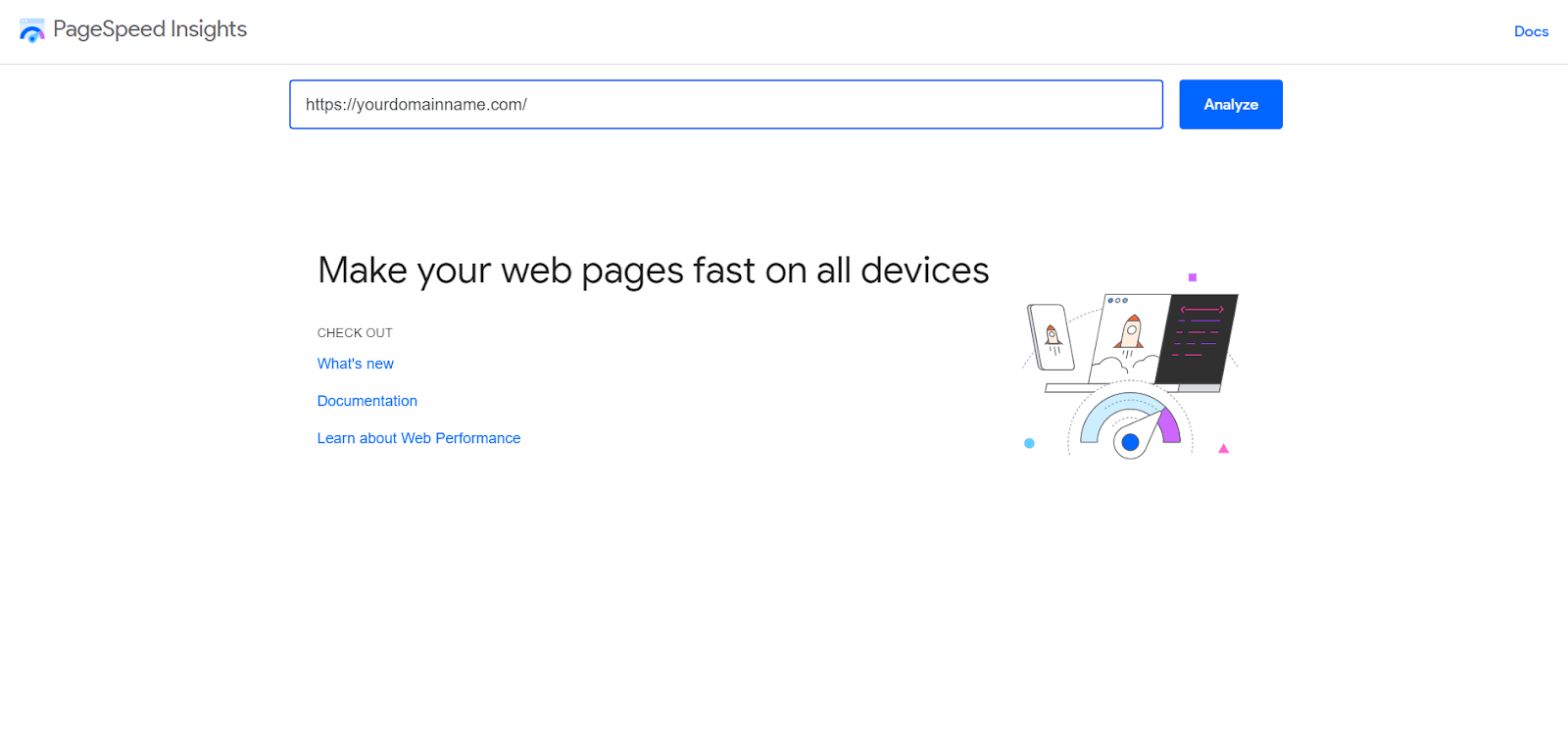
Google PageSpeed Insights is one of the most useful tools for testing WooCommerce page speed.
It gives separate performance scores for mobile and desktop. It also shows real-user experience data when available, along with lab-based performance suggestions.
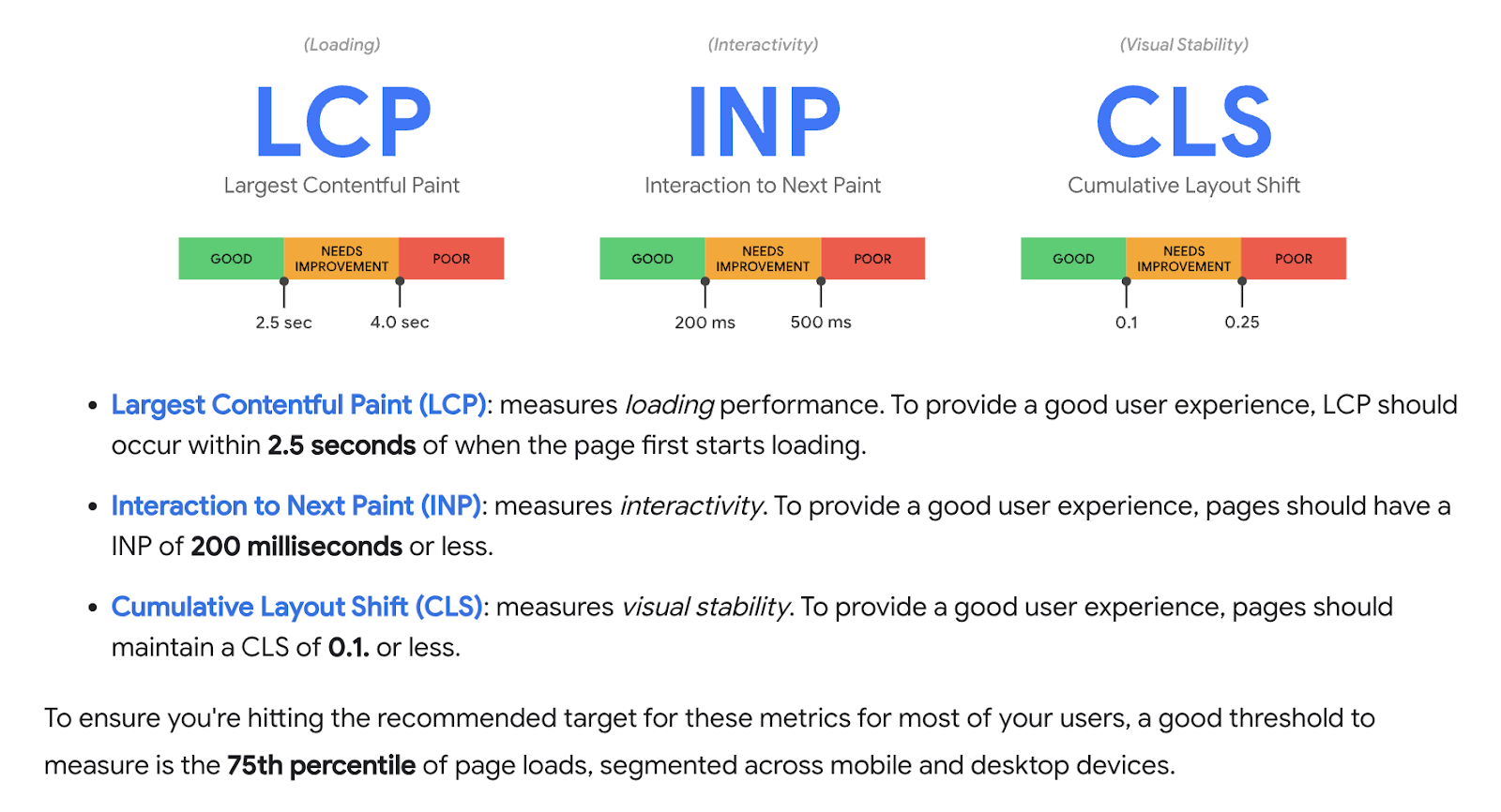
The most important Core Web Vitals are:
| Core Web Vital | What It Measures | Good Target |
|---|---|---|
| LCP | How fast the main content loads | 2.5 seconds or less |
| INP | How quickly the page responds to user interaction | 200 milliseconds or less |
| CLS | How visually stable the page is | 0.1 or less |
Google’s PageSpeed Insights documentation confirms that the current Core Web Vitals metrics are INP, LCP, and CLS, and a page passes the assessment when all three metrics are in the good range at the 75th percentile. (Google for Developers)
For WooCommerce, these metrics matter because:
- LCP affects how fast the main product image, title, or hero section appears
- INP affects how quickly buttons, filters, cart updates, and checkout actions respond
- CLS affects whether product pages or checkout pages feel visually stable
A high PageSpeed score is good, but don’t chase a perfect score blindly. Focus on real improvements that help shoppers browse and buy faster.
Pingdom – Website Speed Test

Pingdom is another useful website speed test tool.
It helps measure loading speed from different regions. This is helpful if your WooCommerce store sells products to customers in multiple countries.
Here’s a simple meaning of Pingdom grades:
| Grade | Score | Meaning |
|---|---|---|
| A | 90-100 | Excellent speed |
| B | 80-89 | Very good speed |
| C | 70-79 | Good speed, but can improve |
| D | 60-69 | Average speed |
| F | Below 60 | Slow speed |
After testing, Pingdom shows page size, load time, requests, and performance suggestions.
Use it together with Google PageSpeed Insights because one tool alone will not show the full picture.
10 Best Tactics for WooCommerce Speed Optimization
A fast WooCommerce store keeps customers engaged and improves your search performance.
Here are ten proven ways to speed up your WooCommerce site:
- Optimize your infrastructure with high-performance hosting
- Use a lightweight theme to reduce DOM size and CLS
- Audit your plugin stack to reduce code bloat and script loading
- Optimize product images to improve LCP
- Use a CDN to deliver static assets faster
- Control media loading with lazy loading
- Implement advanced caching
- Improve mobile UX and checkout flow
- Practice database hygiene
- Maintain performance stability with regular updates
Let’s get into the details.
1. Optimize Your Infrastructure: Choose High-Performance WooCommerce Hosting
The website’s loading time highly depends on your hosting service.
If your hosting is slow, overloaded, or poorly optimized, you cannot fully fix WooCommerce speed only with plugins or image compression.
A WooCommerce store is heavier than a normal blog because it handles:
- Products
- Product images
- Variations
- Cart data
- Checkout requests
- Customer accounts
- Payment gateways
- Shipping calculations
- Coupons
- Orders
- Dynamic database queries
So, you need hosting that can handle ecommerce workloads.
When choosing WooCommerce hosting, look for:
- High uptime
- Fast server response
- Strong security
- WooCommerce compatibility
- Latest PHP support
- Server-level caching
- Automatic backups
- CDN integration
- Staging environment
- 24/7 support
- Scalable resources
- Good database performance
Using cheap shared hosting may work at the beginning. But when your store grows, you should consider VPS hosting, cloud hosting, managed WooCommerce hosting, or dedicated hosting.
Some popular WooCommerce hosting providers include:
- Bluehost
- SiteGround
- Kinsta
- Cloudways
- Nexcess
- Pressable
Quick answer: The best hosting for WooCommerce speed should offer fast server response, strong uptime, caching, CDN support, updated PHP, automatic backups, and WooCommerce-friendly support.
Why Hosting Improves TTFB
TTFB means Time to First Byte. It measures how long the server takes to send the first response after a user requests a page.
High TTFB usually means the issue is deeper than images or frontend design. It can come from slow hosting, overloaded servers, heavy plugins, uncached dynamic pages, or poor database performance.
To reduce TTFB:
- Use better hosting
- Upgrade PHP
- Enable server-level caching
- Optimize the database
- Reduce plugin bloat
- Use object caching
- Use a CDN
For WooCommerce stores, TTFB is especially important on product pages, category pages, cart pages, and checkout pages.
2. Use a Lightweight Theme: Reduce DOM Size and Cumulative Layout Shift
Wondering how to make WooCommerce faster?
Start with your theme.
Themes are essential for WordPress and WooCommerce. But if you choose a heavy or poorly coded theme, your store can become slow even after using caching and image compression.
A fast WooCommerce theme is not only about file size. It should also keep the DOM size clean, avoid unnecessary layout shifts, and load product content without blocking the main thread.
A poorly coded theme can:
- Increase DOM size
- Add too many scripts
- Add unnecessary CSS
- Delay product content loading
- Create Cumulative Layout Shift
- Slow down mobile performance
- Make checkout pages unstable
CLS, or Cumulative Layout Shift, measures visual stability. If buttons, images, banners, or product sections move while the page loads, users may click the wrong thing or feel frustrated.
To choose a fast WooCommerce theme, check:
- Lightweight code
- Clean DOM structure
- Responsive design
- Low JavaScript dependency
- Good mobile performance
- WooCommerce compatibility
- Low CLS
- Fast product page loading
- Clean checkout layout
- Regular updates
- Positive reviews
Some speed-friendly WooCommerce themes are:
- Astra
- GeneratePress
- Kadence
- Blocksy
- OceanWP
- Storefront
Quick answer: A fast WooCommerce theme should reduce DOM size, avoid layout shifts, load product content quickly, and provide a smooth mobile shopping experience.
Important Note
Do not judge a theme only by design.
Many premium themes look beautiful but include too many animations, sliders, builders, scripts, and design effects. These can increase load time and hurt Core Web Vitals.
If a simple theme can do the job, choose the simple one.
3. Audit Your Plugin Stack: Reduce Code Bloat, Scripts, and HTTP Requests
If you use WordPress and WooCommerce, you already know how important plugins are.
Plugins help you add features like payment gateways, discounts, invoices, product feeds, shipping rules, reviews, filters, and email marketing.
But too many unnecessary plugins can slow down your WooCommerce store.
The real issue is not only plugin count. The real issue is plugin quality.
One poorly coded plugin can slow down your store more than several lightweight plugins.
A heavy plugin can add:
- Extra JavaScript
- Extra CSS
- More HTTP requests
- Background AJAX calls
- Database queries
- Admin-ajax requests
- Tracking scripts
- Checkout conflicts
- Slow product filters
That’s why you should audit your plugin stack regularly.
To reduce plugin bloat:
- Remove unnecessary plugins
- Delete inactive plugins
- Replace outdated plugins
- Avoid plugins that load scripts on every page
- Use lightweight alternatives
- Test speed after installing new plugins
- Avoid duplicate feature plugins
- Check plugin database usage
- Review checkout-related plugins carefully
Quick answer: Too many plugins can slow down WooCommerce because they may add scripts, styles, HTTP requests, AJAX calls, database queries, and background processes.
Plugin Audit Checklist
Ask these questions:
- Do I really need this plugin?
- Does it load scripts on all pages?
- Is it affecting checkout?
- Is it updated regularly?
- Does it slow down admin-ajax.php?
- Does it add database tables?
- Can another existing plugin already do this job?
A clean plugin stack improves WooCommerce speed, security, and long-term stability.
4. Optimize Product Images: Improve LCP with Compression, WebP, and Lazy Loading
WooCommerce stores usually contain many product images.
Each product may have multiple images, gallery images, variation images, category thumbnails, and banners. If these images are not optimized, your store will load slowly.
Images often affect LCP because the largest visible element on a WooCommerce product page is usually the product image or hero section.
So, how can you improve the loading time of WooCommerce product images?
You should:
- Compress images before uploading
- Resize images based on actual display size
- Use WebP or AVIF when possible
- Add descriptive file names
- Add SEO-friendly alt text
- Avoid uploading oversized images
- Use lazy loading for below-the-fold images
- Use a CDN for image delivery
Popular image optimization plugins include:
- ShortPixel
- Imagify
- EWWW Image Optimizer
- Optimole
- Smush
Quick answer: To optimize WooCommerce product images, compress images, resize them properly, use WebP or AVIF, add alt text, enable lazy loading, and deliver images through a CDN.
Important LCP Warning
Do not lazy load your main product image if it appears above the fold.
Your main product image should load quickly because it can affect LCP. Lazy loading is best for images lower on the page, such as related products, reviews, gallery thumbnails, and blog images.
5. Use a CDN: Deliver Static Assets Faster Across Global Locations
Thinking about how to speed up your WooCommerce site for international customers?
Use a CDN.
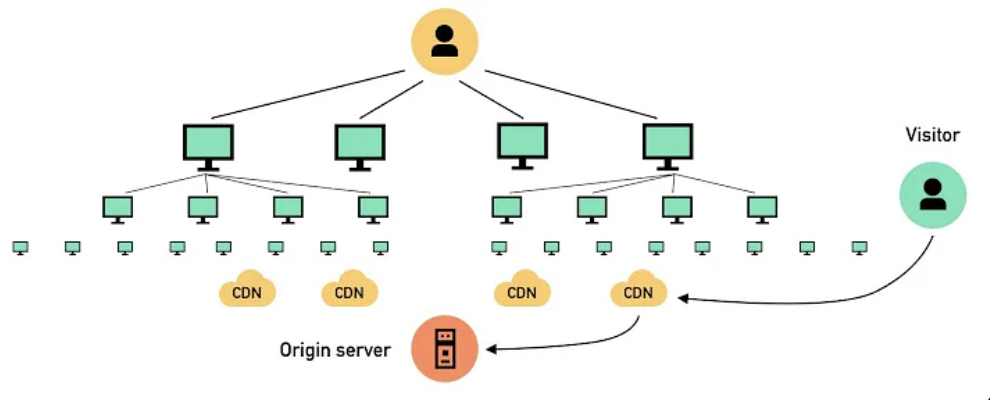
A CDN, or Content Delivery Network, is a network of servers located in different parts of the world. It stores and delivers static files such as:
- Images
- CSS
- JavaScript
- Fonts
- Videos
- Product media
- Static assets
Without a CDN, users from different countries may need to load your site from one origin server.
For example, if your server is in the USA and a customer visits from Bangladesh, the files need to travel a long distance. This can increase loading time.
With a CDN, files are delivered from the server closest to the customer.
A CDN helps with:
- Faster global loading
- Lower server load
- Better image delivery
- Better performance during traffic spikes
- Improved mobile speed
- More stable product and category pages
Popular CDN options include:
- Cloudflare
- Bunny.net
- KeyCDN
- Amazon CloudFront
Quick answer: You should use a CDN for WooCommerce if your customers come from multiple countries or regions. It helps deliver static files faster and reduces pressure on your hosting server.
6. Control Media Loading: Use Lazy Loading Without Hurting LCP
Lazy loading is a technique that delays loading images or videos until users scroll near them.
Instead of loading every image and video at once, the page loads only what the user needs first.
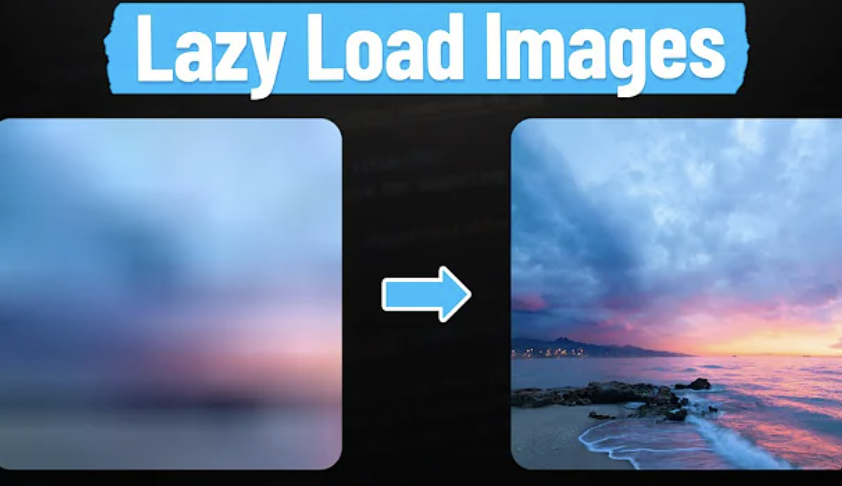
This helps reduce:
- Initial page weight
- Bandwidth usage
- Server requests
- Mobile loading delay
- Unnecessary media loading
Lazy loading is useful for:
- Product gallery images
- Related product images
- Review images
- Blog images
- Below-the-fold banners
- Embedded videos
But lazy loading should be used carefully.
Do not lazy load critical above-the-fold elements such as:
- Main product image
- Hero image
- First visible banner
- Important category image
These elements can affect LCP.
Quick answer: Lazy loading improves WooCommerce speed by loading images and videos only when needed, but important above-the-fold images should load immediately to protect LCP.
7. Implement Advanced Caching: Page Cache, Object Cache, and Opcode Cache
Caching is one of the most effective ways to speed up WooCommerce.
A caching plugin creates and serves stored versions of your website content so the server does not need to rebuild every page from scratch for every visitor.
But WooCommerce caching needs extra care because ecommerce pages are not all static.
There are different types of caching:
| Cache Type | What It Does |
|---|---|
| Page Cache | Stores full HTML pages for faster loading |
| Browser Cache | Stores files in the user’s browser |
| Object Cache | Stores database query results |
| Opcode Cache | Stores compiled PHP code |
| CDN Cache | Stores static assets across global servers |
For WooCommerce, page caching is useful for:
- Homepage
- Blog posts
- Landing pages
- Static pages
- Some category pages
- Some product pages
But be careful with dynamic pages.
You should usually exclude:
- Cart page
- Checkout page
- My Account page
- Payment pages
- Customer-specific pages
If cart or checkout pages are cached incorrectly, users may see wrong cart data, login issues, or checkout errors.
Popular caching plugins include:
- LiteSpeed Cache
- WP Rocket
- W3 Total Cache
- WP-Optimize
- Autoptimize
- FlyingPress
Quick answer: The best caching setup for WooCommerce should speed up static pages while excluding dynamic pages like cart, checkout, and account pages.
Why Object Caching Matters for WooCommerce
WooCommerce stores are database-heavy.
Object caching can help reduce repeated database queries, especially for stores with many products, variations, orders, customers, and dynamic features.
Object caching is especially helpful for:
- Large WooCommerce stores
- Product filters
- Search-heavy stores
- Membership stores
- High-traffic stores
- Stores with many product variations
If your hosting supports Redis or Memcached, object caching can improve backend and frontend performance.
8. Improve Mobile UX: Optimize INP, Navigation, and Checkout Flow
Many shoppers browse and buy products using mobile devices.
That’s why WooCommerce mobile speed is extremely important.
A WooCommerce store may look good on desktop but feel slow on mobile because of:
- Heavy images
- Large scripts
- Popups
- Poor navigation
- Layout shifts
- Slow filters
- Slow cart updates
- Complicated checkout forms
INP, or Interaction to Next Paint, measures how responsive a page feels when users interact with it.
For WooCommerce, INP can be affected by:
- Add-to-cart buttons
- Product filters
- Search bars
- Quantity buttons
- Coupon fields
- Checkout fields
- Payment method selection
- Shipping calculation
- Mobile menus
To improve mobile WooCommerce speed:
- Use a responsive theme
- Keep navigation simple
- Avoid too many popups
- Use readable font sizes
- Make buttons easy to tap
- Simplify checkout forms
- Keep add-to-cart buttons visible
- Optimize product filters
- Reduce JavaScript
- Test mobile Core Web Vitals
Quick answer: To make WooCommerce mobile-friendly, use a responsive theme, optimize images, reduce popups, simplify navigation, improve checkout, and test mobile Core Web Vitals.
9. Database Hygiene: Clean Transients, Redundant Metadata, and Expired Sessions
Many store owners ignore the WooCommerce database.
But over time, your database can collect unnecessary data that slows down your store.
This can include:
- Post revisions
- Spam comments
- Trashed posts
- Expired transients
- Unused metadata
- Old drafts
- Old plugin tables
- Abandoned cart data
- Expired sessions
- Old logs
- Temporary options
- Unused order metadata
WooCommerce stores depend heavily on database queries. So, database bloat can affect product pages, checkout, admin dashboard, search, filters, and order management.
To optimize the WooCommerce database:
- Clean expired transients
- Remove spam comments
- Delete old revisions
- Remove unused metadata
- Clear expired sessions
- Remove old logs
- Delete unused plugin tables
- Optimize database tables
- Backup before cleaning
Plugins that can help:
- WP-Optimize
- Advanced Database Cleaner
- WP Rocket database cleanup
- LiteSpeed Cache database tools
Quick answer: WooCommerce database optimization means cleaning unnecessary data, reducing database bloat, optimizing tables, removing expired transients, and keeping order and product data efficient.
Important Warning
Always take a full backup before cleaning your database.
WooCommerce stores contain sensitive and important data such as orders, customers, products, payments, and coupons. So, do not clean the database without a backup.
10. Maintain Performance Stability: Update WordPress, WooCommerce, Themes, and Plugins
Keeping everything updated is simple but very important.

Older versions of WordPress, WooCommerce, plugins, and themes can create speed, security, and compatibility problems.
Regular updates can improve:
- Performance
- Security
- Compatibility
- PHP support
- Bug fixes
- Plugin stability
- WooCommerce checkout reliability
But do not update blindly on a live WooCommerce store.
Follow this update checklist:
- Take a full backup
- Use a staging site if possible
- Update WordPress core
- Update WooCommerce
- Update active plugins
- Update your theme
- Test product pages
- Test add-to-cart
- Test cart page
- Test checkout page
- Test payment gateway
- Test coupons
- Check site speed again
Quick answer: Keeping WordPress, WooCommerce, plugins, and themes updated improves performance, security, compatibility, and long-term store stability.
Best Rendering Method for WooCommerce Speed and SEO
Rendering affects how quickly users and search engines can see your WooCommerce content. For a traditional WooCommerce store, fast rendering depends on good hosting, caching, theme quality, database performance, and server response time.
For a headless WooCommerce setup, the rendering method matters even more. SSR or ISR is usually better than CSR for SEO-critical pages because product and category content can be delivered faster to users and search engines.
| Rendering Type | Best Use Case for WooCommerce |
|---|---|
| SSR | Product pages, category pages, and SEO-critical dynamic pages |
| ISR | Headless product/category pages that need speed and periodic updates |
| SSG | Blog posts, guides, landing pages, and static content |
| CSR | App-like features, but not ideal for SEO-critical product pages |
For most WooCommerce stores, the practical goal is simple: make important product content visible as quickly as possible. Traditional WooCommerce stores should focus on TTFB, caching, and database speed. Headless WooCommerce stores should use SSR or ISR for important ecommerce pages instead of relying only on client-side rendering.
WooCommerce Speed Optimization Checklist
Here’s a quick checklist to speed up your WooCommerce store:
| Area | What to Do |
|---|---|
| Hosting | Use fast WooCommerce-friendly hosting |
| Theme | Choose a lightweight theme with low CLS |
| Plugins | Remove unnecessary and heavy plugins |
| Images | Compress, resize, and use WebP or AVIF |
| CDN | Deliver static files from nearby servers |
| Lazy Loading | Load below-the-fold media only when needed |
| Caching | Use page, browser, object, opcode, and CDN caching properly |
| Mobile | Improve INP, navigation, and checkout UX |
| Database | Clean transients, metadata, sessions, and old logs |
| Updates | Keep WordPress, WooCommerce, plugins, and theme updated |
| Rendering | Use SSR or ISR for headless SEO-critical pages |
This checklist is useful if you want a fast summary before taking action.
Troubleshooting: Common Speed Killers in WooCommerce
A WooCommerce store can still feel slow even after using caching, image compression, and a CDN. In many cases, the real problem comes from hidden performance bottlenecks such as heavy AJAX calls, high TTFB, third-party scripts, slow checkout requests, or database-heavy plugins.
Heavy AJAX Calls
WooCommerce uses AJAX for cart fragments, add-to-cart updates, product filters, live search, checkout updates, and shipping calculations. If these requests are not optimized, they can increase server load and make the store feel slow.
To fix this, audit admin-ajax.php requests, reduce unnecessary cart fragments, optimize product filters, remove heavy dynamic widgets, and use object caching where suitable.
High TTFB Issues
TTFB, or Time to First Byte, measures how long your server takes to respond after a user requests a page. High TTFB often comes from slow hosting, heavy plugins, poor database performance, uncached dynamic pages, or inefficient PHP processing.
To reduce TTFB, use better hosting, enable server-level caching, clean your database, upgrade PHP, reduce plugin bloat, and use object caching for database-heavy stores.
Third-Party Script Bloat
Tracking pixels, analytics tools, live chat widgets, review widgets, ad scripts, heatmap tools, and social embeds can quietly slow down WooCommerce pages, especially on mobile.
To fix this, remove unnecessary scripts, delay non-critical JavaScript, load scripts only where needed, avoid duplicate tracking tools, and test speed before and after adding new scripts.
How Fast Should a WooCommerce Store Load?
A WooCommerce store should load as fast as possible, but a practical target is to keep important pages within 2–3 seconds.
For Core Web Vitals, aim for:
| Metric | Good Target |
|---|---|
| LCP | 2.5 seconds or less |
| INP | 200 milliseconds or less |
| CLS | 0.1 or less |
For WooCommerce stores, speed matters because slow pages can hurt product discovery, cart actions, checkout completion, customer trust, mobile shopping experience, SEO performance, and conversion rate.
The faster your WooCommerce store loads, the smoother the shopping experience becomes.
WooCommerce Speed Optimization: Quick Fixes vs Advanced Fixes
Not every speed issue needs an advanced technical solution. Small stores can start with quick fixes, while larger stores should also focus on deeper performance optimization.
| Quick Fixes | Advanced Fixes |
|---|---|
| Compress product images | Optimize server response time |
| Remove unused plugins | Use object caching |
| Use a caching plugin | Optimize database queries |
| Enable lazy loading | Improve INP and JavaScript execution |
| Use a lightweight theme | Reduce DOM size and CLS |
| Add CDN | Configure server-level caching |
| Update plugins | Use opcode caching |
| Reduce popups | Audit AJAX requests |
| Simplify checkout | Optimize payment and shipping requests |
If your store is small, start with quick fixes. If your store has many products, variations, traffic, filters, or custom checkout features, you should also focus on advanced optimization.
Common WooCommerce Speed Optimization Mistakes
Even after applying speed optimization tactics, many store owners still make avoidable mistakes.
Here are the common issues to avoid:
- Using cheap overloaded hosting
- Installing too many unnecessary plugins
- Using a heavy theme with high DOM size
- Uploading large uncompressed product images
- Ignoring mobile speed and Core Web Vitals
- Lazy loading the main product image
- Caching cart and checkout pages incorrectly
- Not using a CDN for global customers
- Ignoring database cleanup
- Adding too many third-party scripts
- Ignoring AJAX performance
- Not optimizing checkout
- Not testing speed after major changes
If you avoid these mistakes, your WooCommerce speed optimization process will be much more effective.
Frequently Asked Questions
What is the fastest way to speed up a WooCommerce store?
The fastest way to speed up a WooCommerce store is to compress images, remove unnecessary plugins, use caching, choose a lightweight theme, use a CDN, and upgrade to better hosting.
For larger WooCommerce stores, also optimize the database, reduce AJAX requests, use object caching, and improve checkout performance.
Why is my WooCommerce store loading so slow?
Your WooCommerce store may be slow because of poor hosting, heavy themes, too many plugins, large images, no caching, no CDN, database bloat, high TTFB, too many HTTP requests, or poor mobile optimization.
Start by testing your site with PageSpeed Insights, GTmetrix, or WebPageTest. Then fix the biggest issues first.
How can I optimize WooCommerce product images?
You can optimize WooCommerce product images by compressing images, resizing them properly, using WebP or AVIF, adding image alt text, enabling lazy loading for below-the-fold images, and serving images through a CDN.
Do not lazy load the main product image if it affects LCP.
What is the best caching setup for WooCommerce?
The best caching setup for WooCommerce includes page caching, browser caching, CDN caching, object caching, and opcode caching.
However, cart, checkout, account, and customer-specific pages should not be cached incorrectly because they contain dynamic information.
Should I use object caching for WooCommerce?
Yes, object caching is useful for WooCommerce stores with many products, variations, orders, customers, product filters, or dynamic features.
Object caching can reduce repeated database queries and improve performance for database-heavy stores.
How can I reduce HTTP requests in WooCommerce?
You can reduce HTTP requests by removing unnecessary plugins, using a lightweight theme, optimizing images, reducing third-party scripts, combining files where suitable, using caching, enabling CDN, and avoiding unnecessary widgets.
Fewer HTTP requests can improve page speed, especially on mobile.
What is the best rendering method for headless WooCommerce?
For headless WooCommerce, SSR or ISR is usually better for SEO-critical product and category pages.
SSG works well for blogs, landing pages, and static content. CSR is not ideal for SEO-critical pages because important content may load late in the browser.
Is CDN necessary for every WooCommerce store?
A CDN is not mandatory for every WooCommerce store, but it is highly recommended if your customers come from multiple regions or countries.
A CDN helps deliver static files faster and reduces pressure on your hosting server.
How often should I update WordPress, WooCommerce, plugins, and themes?
Check updates at least once a week.
Before updating, take a backup and test important WooCommerce pages such as product pages, cart, checkout, payment gateway, coupons, and customer account pages.
Do WooCommerce speed and SEO have a direct connection?
Yes, WooCommerce speed and SEO are connected because speed affects user experience, page experience, mobile usability, Core Web Vitals, crawl efficiency, bounce rate, and conversion rate.
A faster WooCommerce store can help users stay longer, browse more products, and complete purchases more easily.
Final Thought
WooCommerce speed optimization is essential for any online store.
A faster WooCommerce store gives users a better shopping experience, improves Core Web Vitals, supports SEO performance, reduces cart abandonment, and increases the chance of conversion.
Start with the basics:
- Better hosting
- Lightweight theme
- Clean plugin stack
- Optimized images
- CDN
- Lazy loading
- Caching
- Mobile optimization
- Database cleanup
- Regular updates
Then move to advanced improvements:
- TTFB optimization
- Object caching
- Opcode caching
- AJAX audit
- Checkout optimization
- Third-party script control
- SSR or ISR for headless WooCommerce
Remember, WooCommerce optimization is not a one-time task. You should test, improve, monitor, and repeat.
A faster store means happier customers, better search performance, and more sales.
That’s all for today. Enjoy your WooCommerce journey!