CTX Feed builds a feed from your WooCommerce catalog, but you rarely want every product in every feed. The Filters tab on the Make Feed screen lets you decide exactly which products are written to the file — by stock status, visibility, category, specific product, product status, and more — while the Advanced filters tab adds condition-based rules for anything the standard controls can’t express. This page is a map of every filtering control and how the pieces fit together.
Most filters on this page require CTX Feed Pro. Product status, Shipping rates, Tax rates and Campaign URL work in the free plugin. On the free plugin the other sections are shown but locked, and the Advanced filters tab is a preview.
Where product filters live
Open CTX Feed → Manage Feeds, then edit a feed (or click Make Feed). Below the Feed settings card, the editor is split into tabs: Config, Filters, Advanced filters, FTP / SFTP, and Report. Product filtering happens on the two middle tabs — Filters and Advanced filters. The Filters tab shows a small count badge of how many filters are currently active.
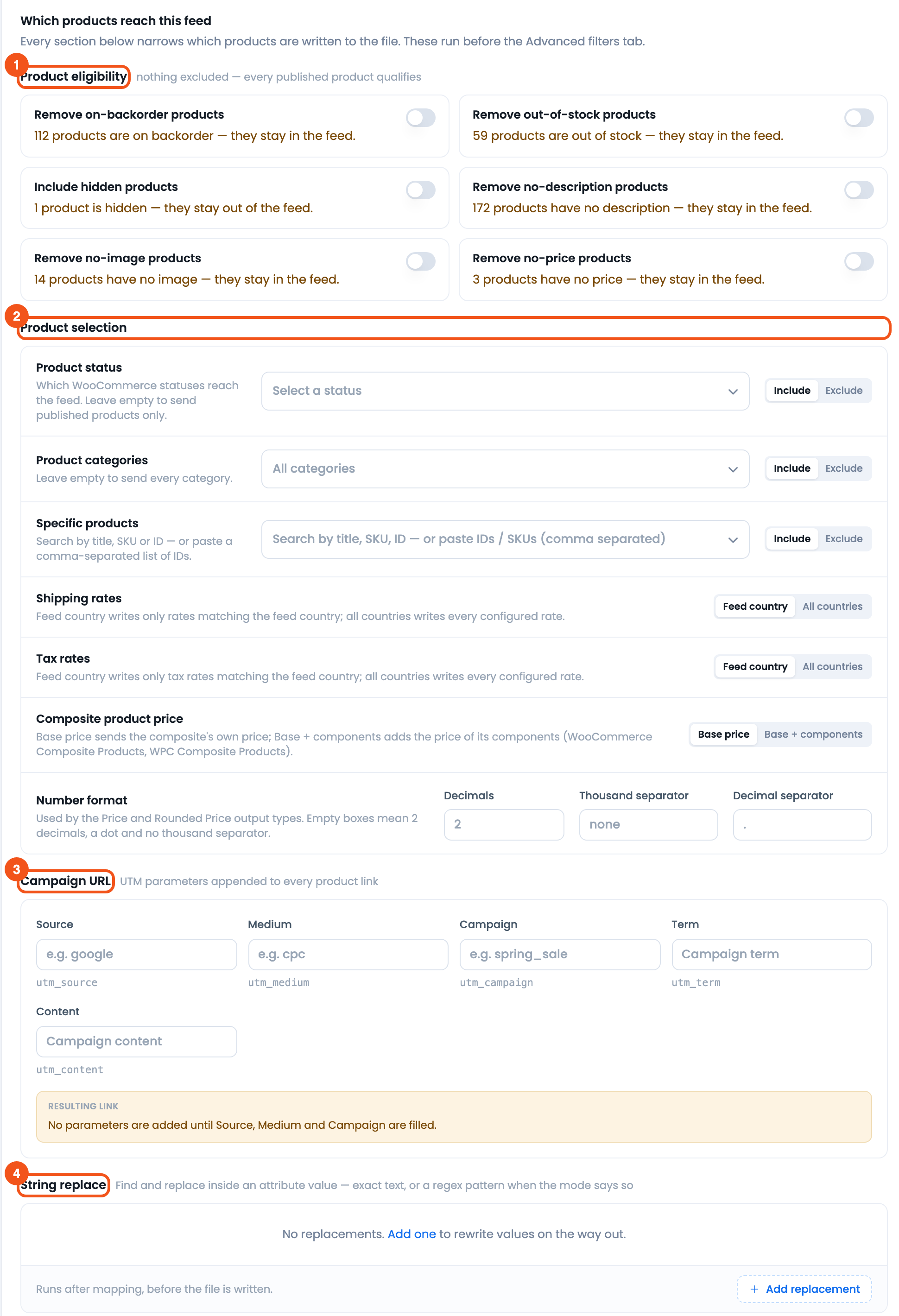
- Product eligibility — on/off rules for stock, visibility and empty fields.
- Product selection — product status, categories, specific products, shipping and tax scope, composite price and number format.
- Campaign URL — UTM parameters added to every product link.
- String replace — find-and-replace rules for attribute values.
How filtering works
Every product in your catalog is checked against your rules one by one. A product must pass all of them to be written to the feed — the first rule that rejects it drops it immediately. The Filters tab runs first; the Advanced filters run after it. Nothing here changes your products in WooCommerce; the rules only decide what ends up in this one feed file.
Product eligibility
At the top of the Filters tab is a grid of on/off cards. When a rule would affect products, the card shows how many; otherwise it shows a short hint. A Remove … card excludes matching products when turned on; an Include … or Override … card lets otherwise-hidden products back in.
- Remove on-backorder products — drops items with the On backorder stock status.
- Remove out-of-stock products — drops items that are out of stock or have a stock quantity of exactly 0 (backorder items are kept).
- Include hidden products — adds products whose catalog visibility is Hidden.
- Override out-of-stock visibility — ignores WooCommerce’s own “Hide out of stock items” setting so those items stay in the feed. This card appears only when Remove out-of-stock products is off and Include hidden products is on.
- Remove no-description products — drops products with an empty description. A variation is dropped only when both it and its parent have no description.
- Remove no-image products — drops products with no image. A variation is dropped only when both it and its parent have no image.
- Remove no-price products — drops products with an empty or zero price.
These eligibility toggles are part of CTX Feed Pro; on the free plugin they appear as a locked preview and are not applied when the feed is generated. Without Pro, hidden products are still left out and WooCommerce’s “Hide out of stock items” setting is still respected.
Product selection
Below the toggles is the Product selection list. Product status, Product categories and Specific products have an Include / Exclude mode toggle on the right; the other rows have their own choices.
- Product status — which WooCommerce statuses (Published, Draft, and so on) reach the feed. Leave it empty and the feed contains published products only; selecting Published with Include gives the same result. Pick other statuses only when you deliberately want drafts, pending or private products in a feed. (Free.)
- Product categories — include only, or exclude, the categories you choose. (Pro.)
- Specific products — include or exclude individual products; search by title, SKU, or ID, or paste a comma-separated list of IDs or SKUs. (Pro.)
- Shipping rates — write only rates matching the feed country, or every configured rate (Feed country vs All countries). A feed made before version 8 keeps the choice it had then, so a store that sent every country’s rates still does. (Free.)
- Tax rates — the same scope choice for tax rates. (Free.)
- Composite product price — for WooCommerce Composite Products and WPC Composite Products: Base price sends the composite’s own price, Base + components adds the price of its components (the default for a new feed). (Pro; locked on the free plugin.)
- Number format — the decimal places and the decimal and thousand separators used by rows whose Output is Price or Rounded Price. Leave a box empty to keep the default for it (2 decimals, no thousand separator, a dot); the free plugin always uses those defaults. (Pro.)
Campaign URL and String replace
Under the selection list are two more tools:
- Campaign URL — append UTM parameters (Source, Medium, Campaign, and optionally Term and Content) to every product link so your analytics can attribute traffic from the feed. Nothing is added until Source, Medium and Campaign are all filled, and the canonical link is never tagged. (Free.)
- String replace — find-and-replace rules applied to the generated output, for cleaning up titles, descriptions, or other fields. (Pro; saved rules are not applied while Pro is inactive.)
Advanced filters
The Advanced filters tab is for conditions the standard controls can’t express. You build condition rows — each is an attribute, an operator, and a value (for example, Title contains “sample”, or Sale price < 45) — and group them, joining rows and groups with AND / OR. The available operators are: is / equal, is not / not equal, equals or greater than, greater than, equals or less than, less than, contains, does not contain, and between (enter a Low and a High value). Text comparisons ignore upper and lower case. Advanced filters are a CTX Feed Pro feature.
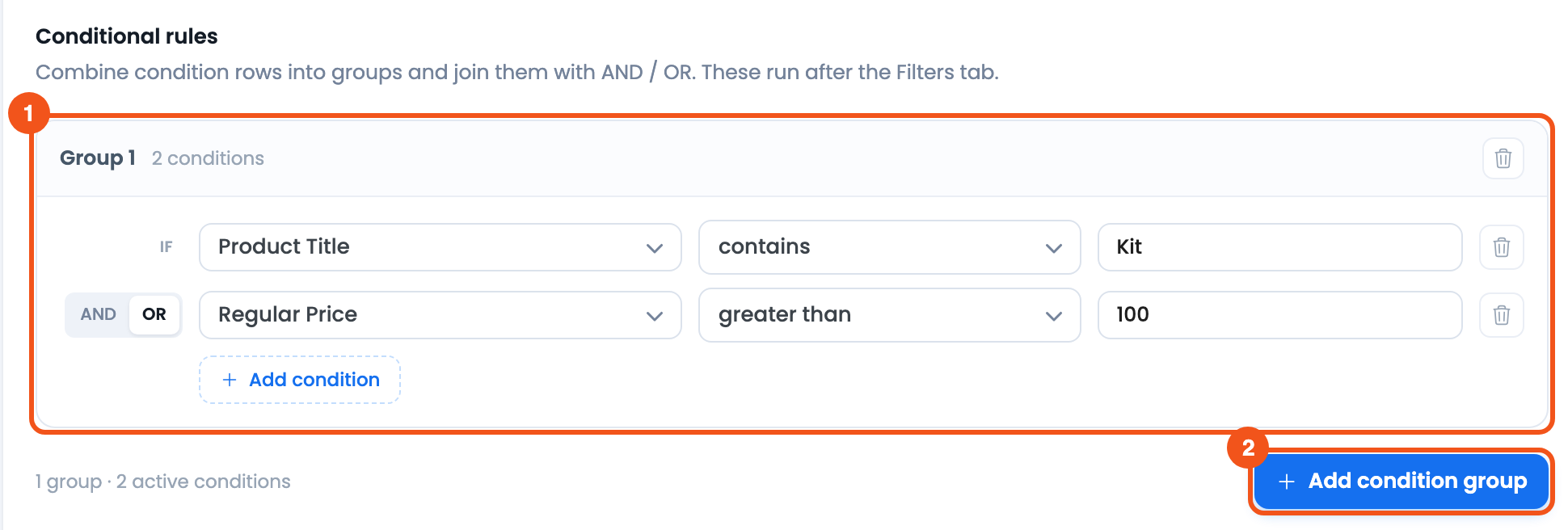
- Group 1 — two conditions, Product Title contains Kit OR Regular Price greater than 100. Rows left incomplete are ignored.
- Add condition group — add another group; groups are joined with one AND / OR choice.
Use them when you need logic like “keep products where the title contains Kit OR the price is over 100″, which a single include/exclude list can’t do.
Free vs Pro at a glance
- Available on Free: product status, shipping-rate scope, tax-rate scope, and campaign URLs.
- CTX Feed Pro: the product-eligibility toggles, category filtering, specific-product filtering, composite product price, number format, string replace, and the entire Advanced filters tab. If Pro is deactivated or its license lapses, these settings stay saved but stop being applied until Pro is active again. The free defaults still apply: published products only, hidden products left out, and WooCommerce’s “Hide out of stock items” setting respected.
Tips
- The live product counts on each eligibility card come straight from your catalog. On very large stores CTX Feed hides these counts to keep the screen fast — the toggles still work.
- After changing any filter, click Save & generate so the file reflects your new rules.
- If a product looks stale after you’ve edited it in WooCommerce, use Clear Cache on the Manage Feeds screen, then regenerate.
Related guides
- How to Make a Feed for Specific Categories
- How to Remove Out of Stock Products from Feed
- How to Remove Some Products from Feed by ID
- How to Make a Feed for Specific Product Type (Simple, Parent, and Child)
