Shoppers on Google Shopping and social channels scan titles first, and channels match search queries against your title text. A bare product name like Running Shoe converts far worse than Nike Running Shoe — Men’s, Blue, Size 10. CTX Feed lets you enrich — “extend” — the title that goes into your feed without touching the product name in WooCommerce. This guide covers the built-in ways to add brand, colour, size, SKU, or promotional text to the feed title.
Everything here edits the feed’s title only; your store’s product titles stay exactly as they are.
Where the title is set
Open your feed (CTX Feed → Manage Feeds → the feed’s name), then go to the Config tab. This is the attribute-mapping table. Each row maps a channel field (the left side, for example Google’s title) to a value pulled from your products. The title row is where you shape the title that ships in the feed.
Each row also has optional modifiers under its More button:
- Prefix — text added to the front of every value.
- Suffix — text added to the end of every value.
- Command — a transform pipeline (truncate, replace, capitalise, and more). Commands require CTX Feed Pro.
These three are the tools for extending a title.
Method 1: Add fixed text with Prefix or Suffix
Use this when you want the same text on every product’s title — a brand you sell exclusively, or a promotional tag.
- On the Config tab, find the
titlerow (or add one: set the channel attribute to Product Title [title] and the value to Product Title). - Click the row’s More button and type into Prefix and/or Suffix.
- Prefix
Acmeturns Running Shoe into Acme Running Shoe. - Suffix
- Free Shippingturns it into Running Shoe – Free Shipping.
- Prefix
- Click Save & generate, then open the feed URL to confirm the result.
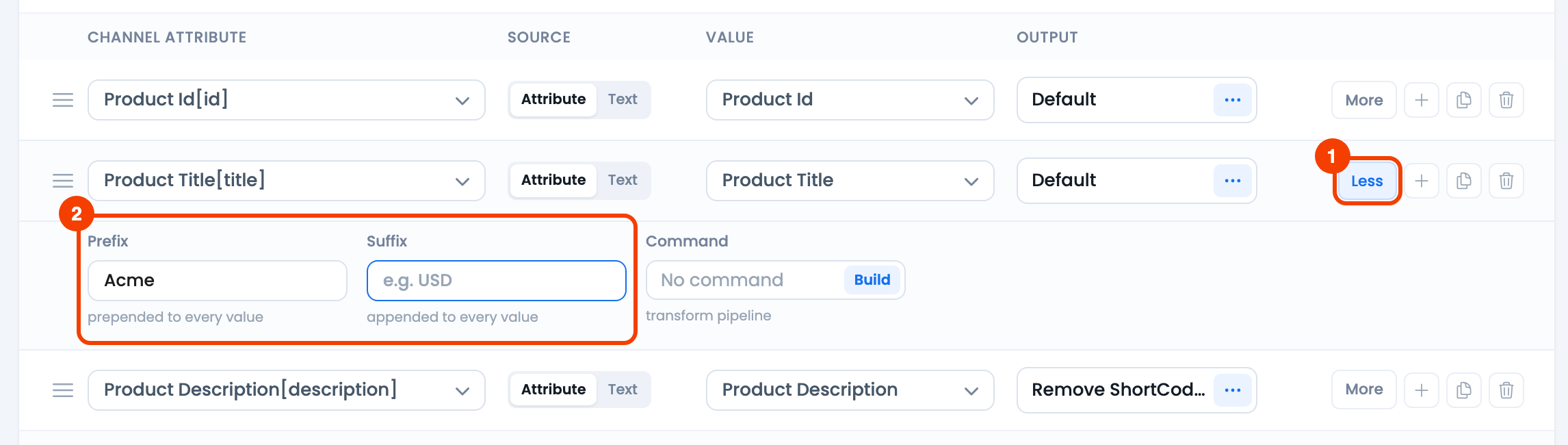
- More — opens the row’s extra settings.
- Prefix and Suffix — text added before and after every title.
Mind the spacing — CTX Feed adds the prefix/suffix exactly as typed, so include a trailing or leading space where you want a gap.
Method 2: Combine several product attributes into the title
Adding dynamic values that differ per product — brand, colour, size, SKU — is best done by building a merged attribute, then mapping that to title. In CTX Feed this is the Dynamic Attributes feature.
Dynamic attributes require CTX Feed Pro. On the free plugin the Dynamic attributes screen shows what the feature does, with an upgrade button instead of the editor.
- Go to CTX Feed → Data mapping → Dynamic attributes.
- Create a new dynamic attribute — for example
full_title— that concatenates the product Title with Brand, Colour, and Size, separated by spaces or hyphens. - Save it. The new attribute now appears in the value dropdown when you map a feed.
- Open your feed’s Config tab, set the
titlerow’s value to yourfull_titledynamic attribute, and click Save & generate.
Because a dynamic attribute is defined once and reused, you can apply the same enriched title across every feed and channel.
Method 3: Include a fixed line and dynamic value together
You can layer the methods: map title to a Brand-and-name dynamic attribute (Method 2) and still add a fixed Suffix like | Official Store (Method 1). CTX Feed applies the value first, then the prefix and suffix.
Clean up the title with Commands
Real product titles often carry leftover markup or extra words. Open the row’s Command field (the Command Builder) to tidy the output. Commands require CTX Feed Pro; on the free plugin, the row’s Output column offers simpler clean-ups such as Strip Tags.
- Remove HTML / Remove shortcodes — strip stray tags or shortcodes.
- Capitalize words — title-case the text.
- Replace — swap or delete a specific word (for example remove “Copy of”).
- Truncate — cap the length so it fits a channel’s limit (Google recommends titles under 150 characters; long titles get cut off in ads).
- Collapse spaces / Trim — remove double spaces and edge whitespace left after combining attributes.
Add several steps and they run in order, top to bottom.
A note on variations
For variable products, the variation’s title usually already includes its attributes (for example T-Shirt – Blue, Large). If you want the parent product’s plain name instead, or the variation’s fuller name, choose the matching value when you map the title row, and use the Variable product value commands (Pro) to control whether the parent’s value is used. See the dedicated guide on variation info in titles below.
Troubleshooting
- The change did not appear. Click Save & generate — edits only reach the file on the next generation. If it still looks stale, use Clear Cache, then regenerate the feed from its row on Manage Feeds.
- Double spaces or a missing gap. Prefix/suffix text is inserted verbatim. Add the space you want, or add a Collapse spaces command to normalise.
- Title is too long and gets cut off. Add a Truncate command to keep it within the channel’s limit.
- Dynamic attribute option is missing. Dynamic attributes require CTX Feed Pro — activate your licence, then create the attribute so it shows in the value dropdown.
Related guides
- Add or remove variation info from product title
- How to replace any string from feed
- How to use command to format attribute output
- How to format price or number into feed
