By default CTX Feed reads the real WooCommerce stock status for each product and outputs it in your feed — an in-stock product becomes in stock, a sold-out one becomes out of stock, and a backordered one becomes backorder. Sometimes you need the feed to say something different from what WooCommerce records. This guide shows how to override the availability value your feed sends to Google, Meta, or any other channel using a dynamic attribute — a reusable IF–THEN rule that decides each product’s stock status at generation time, without touching a single product in your store.
This feature requires CTX Feed Pro. On the free plugin the Dynamic attributes screen shows what the feature does, with an upgrade button instead of the editor.
When you’d override stock status
WooCommerce’s own stock status is correct for your shop, but merchant channels have their own rules and expectations. Common reasons to change it in the feed only:
- Keep backordered items advertising. You still fulfil backorders, so you want Google to treat them as in stock instead of pausing them.
- Hide nearly sold-out lines. Mark items at or below a low stock quantity as out of stock so you don’t pay for clicks on products that will run out mid-campaign.
- Force a fixed status. Dropship or made-to-order catalogues that never truly go out of stock can report every product as in stock.
- Follow a product signal. Set availability from a category, a product attribute, or a custom field rather than the WooCommerce stock field.
Because the rule runs during feed generation, your WooCommerce inventory, orders, and storefront stay exactly as they are — only the exported value changes.
Create the stock-status rule
- In your WordPress dashboard, open CTX Feed, then go to Data mapping → Dynamic attributes.
- Click New dynamic attribute (or Create your first attribute if the list is empty). The inline rule editor opens.
- In Attribute name, type a short, lowercase name with no spaces — for example
availability_override. This is the name you’ll pick later when editing a feed. - Build Rule 1 in the IF → OUTPUT row:
- In the IF panel, choose the product field to test in Select attribute (for example Availability or Quantity), pick a Condition, and type the value to compare against.
- In the OUTPUT panel, switch the toggle to Text and type the exact availability value the channel expects — for example
in stockorout of stock.
- To handle more cases, click Add rule and repeat. Rules are checked top to bottom, and the first one that matches wins, so put your most specific conditions first. Drag the handle on the left of a rule to reorder it.
- Set the Otherwise output (fallback) bar at the bottom — this is used when no rule above matches. Choose Attribute and pick Availability to fall back to the normal, WooCommerce-derived value, or Text to fall back to a fixed word.
- Click Save attribute.
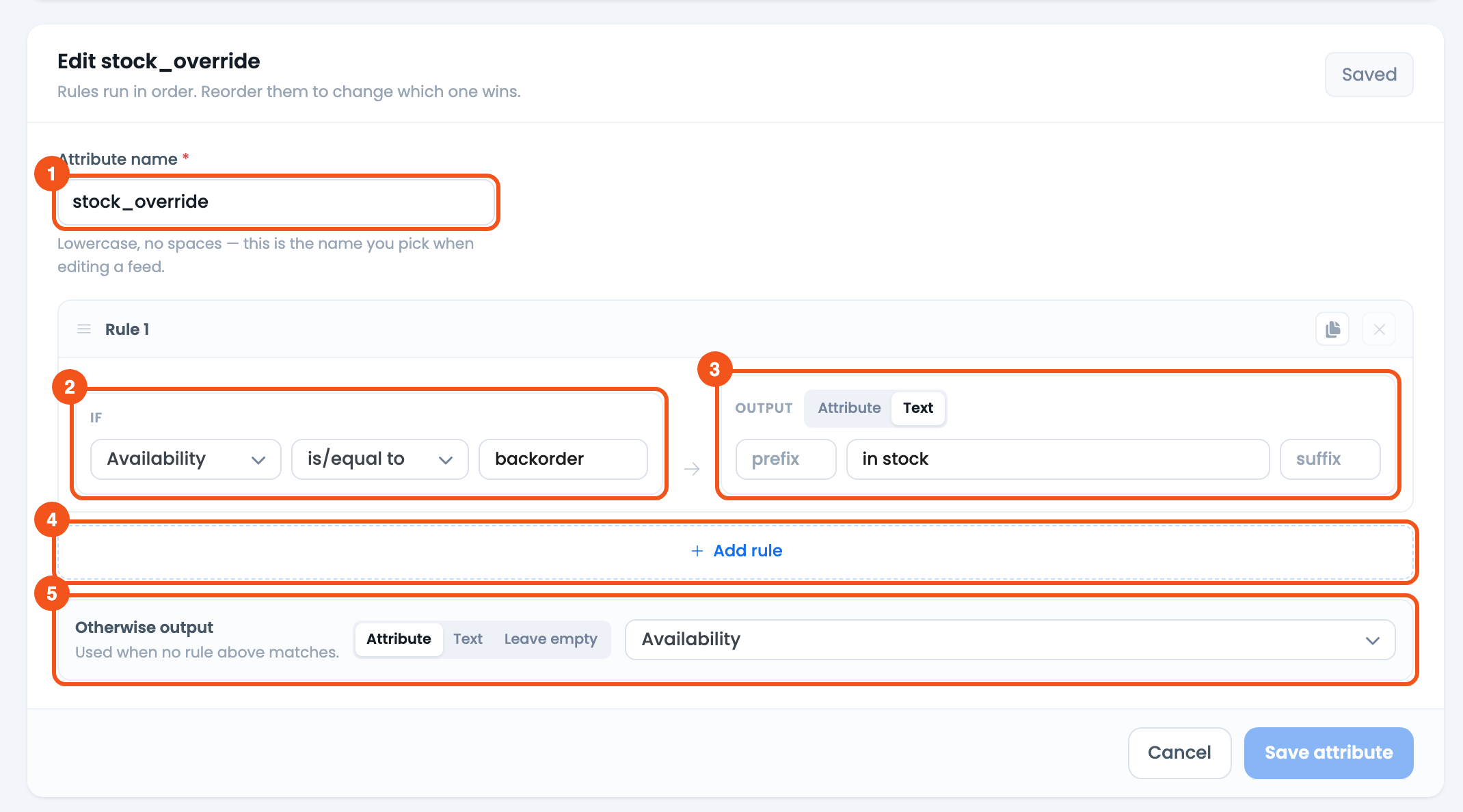
- Attribute name —
stock_override, the name you pick on the feed’s Config tab. - IF — Availability is/equal to
backorder. - OUTPUT — Text
in stock. - Add rule — add another IF → OUTPUT rule below.
- Otherwise output — Attribute → Availability, the real stock status for everything else.
Two worked examples
Show backordered products as in stock. Set one rule — IF Availability is/equal to backorder THEN Text in stock — and set Otherwise output to Attribute → Availability. Backordered items now export as in stock; every other product keeps its normal availability.
Mark low stock as out of stock. With WooCommerce stock management enabled, set IF Quantity less than or equal 2 THEN Text out of stock, and set Otherwise output to Text in stock. Products with two or fewer units left are hidden from the channel while everything else advertises normally. Products that don’t manage stock report a quantity of 1 when in stock and 0 when out of stock, so this rule would also catch them — limit it to products with stock management.
Use it in your feed
A dynamic attribute does nothing on its own — you apply it to a feed’s availability field:
- Go to CTX Feed → Make feed (or open an existing feed from Manage feeds).
- In the attribute configuration table, find the output field that carries stock status — usually availability (
g:availabilityfor Google,availabilityfor Meta). - In that row’s value column, open the value dropdown and pick your dynamic attribute from the Dynamic Attributes group (for example
availability_override). - Save the feed and click Regenerate. Open the generated file and confirm the availability values now reflect your rule.

- The
availabilityrow, with Source set to Attribute andstock_overridepicked from the Dynamic Attributes group.
The same dynamic attribute can be reused across every feed and channel — build it once, map it wherever you need it.
Choosing the right availability values
Type the output text exactly as your target channel expects it, because each channel validates a fixed vocabulary:
- Google Merchant Center:
in_stock,out_of_stock,preorder,backorder. On Google feeds CTX Feed convertsin stocktoin_stock(and so on) for you, so either spelling works. - Meta (Facebook/Instagram):
in stock,out of stock,available for order,preorder,discontinued. On Meta feeds CTX Feed turnsbackorderintoavailable for orderfor you.
CTX Feed’s built-in Availability attribute already outputs in stock, out of stock, and backorder, which is why it’s the ideal fallback for a partial override.
Troubleshooting
- The value didn’t change. Confirm the dynamic attribute is actually mapped to the feed’s availability field, then regenerate. A rule that isn’t mapped to any feed field has no effect.
- Every product got the fallback. Your rule condition never matched. Check the Select attribute, condition, and compare value — for a text match, the compared word must match what the product field actually holds (the Availability attribute holds
in stock,out of stockandbackorder, with spaces). - The channel rejected the value. You typed a word the channel doesn’t accept. Use one of the exact values listed above.
- Products look stale after editing. Use Clear Cache on the Manage feeds screen, then regenerate the feed.
Related guides
- How to Make a Dynamic Attribute
- If Field A Is Empty Then Get B Rule
- Dynamically Set the Product Brand
- Conditionally Merge Multiple Attributes
