Shopping channels file every product against their own fixed list of categories — Google’s product taxonomy, Facebook’s category tree, and so on. Your WooCommerce store has its own categories, which almost never match those lists exactly. Category mapping is where you match each store category to the channel’s category once, save it as a reusable set, and then point any feed at that set. This guide walks through building a mapping set and using it in a feed.
What category mapping does, and why it matters
When you map Clothing in your store to Apparel & Accessories > Clothing (Google category 1604), every product in that store category reports the correct channel category in the feed — automatically, for all products, without editing them one by one. Getting this right is important because a missing or wrong google_product_category is one of the most frequent causes of product disapprovals. Mapping is set-and-forget: build the set once, reuse it across feeds, and update it only when your categories change.
Where to find category mapping
In your WordPress dashboard, open CTX Feed, then go to Data mapping → Category mapping.
- If you have not created any sets yet, you will see a short empty state with a Create your first mapping set button.
- Once you have at least one set, the page lists them in a table showing the Set name, its Channel Taxonomy, and its Coverage (how many of your store categories are mapped).
Create a mapping set
- Click New mapping set (or Create your first mapping set). This opens the inline editor.
- Enter a Mapping set name — something you will recognise later, for example Google Shopping categories.
- Choose the Channel taxonomy — pick the same channel your feed targets (Google, Facebook, Pinterest, Idealo, and so on). It decides what the Mapped To column accepts; until you choose one, every row reads Choose a channel taxonomy first.
- The table below lists every store category, with parent categories in bold and sub-categories indented beneath them. Each row shows the store category, a Mapped To control, a Status pill (Mapped / Unmapped), and — for parents — a copy-down action.
- For each store category, fill in Mapped To. What the control does depends on the channel:
- Channels with a published category list — Google Shopping and the channels that reuse Google’s taxonomy (Pinterest, Bing, Snapchat, TikTok and the other Google feed types), plus Facebook / Instagram — show a search box with a magnifier. Start typing a category name or its ID, then pick the match; the ID and full path (for example 1604 – Apparel & Accessories > Clothing) are filled in for you. Only categories from the channel’s list can be saved for these channels. If a row ever shows an Unknown category status (a value written by an integration that is not in the list), pick a category from the search to replace it.
- Every other channel shows a plain text box. Type the category exactly as that channel expects it (for example Fashion > Clothing); the feed carries it word for word. CTX Feed does not offer Google’s list for these channels, because the merchant would not recognise it.
The status pill turns green and the “M of N categories mapped” counter at the top updates live.
- Click Save mapping set when you are done.
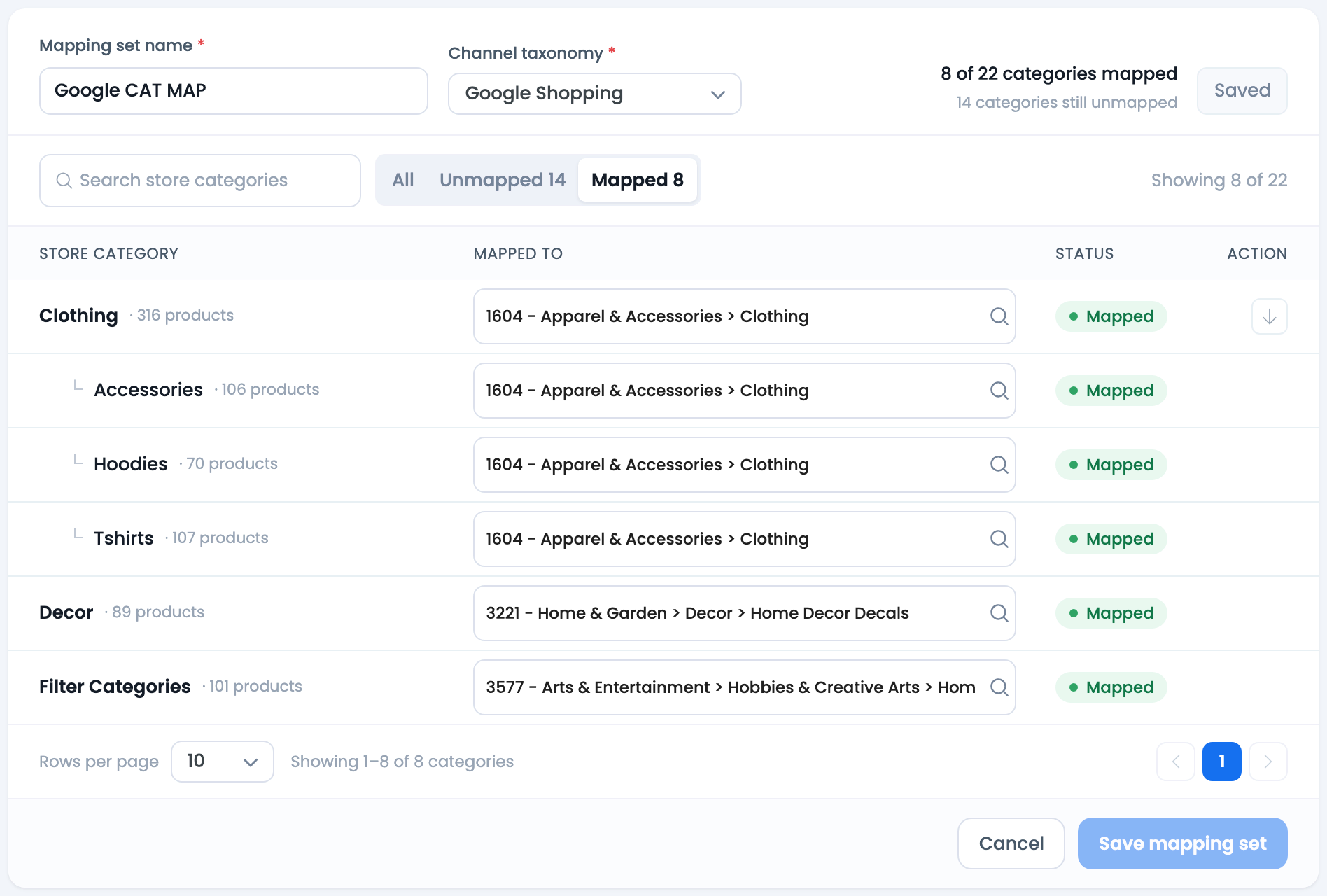
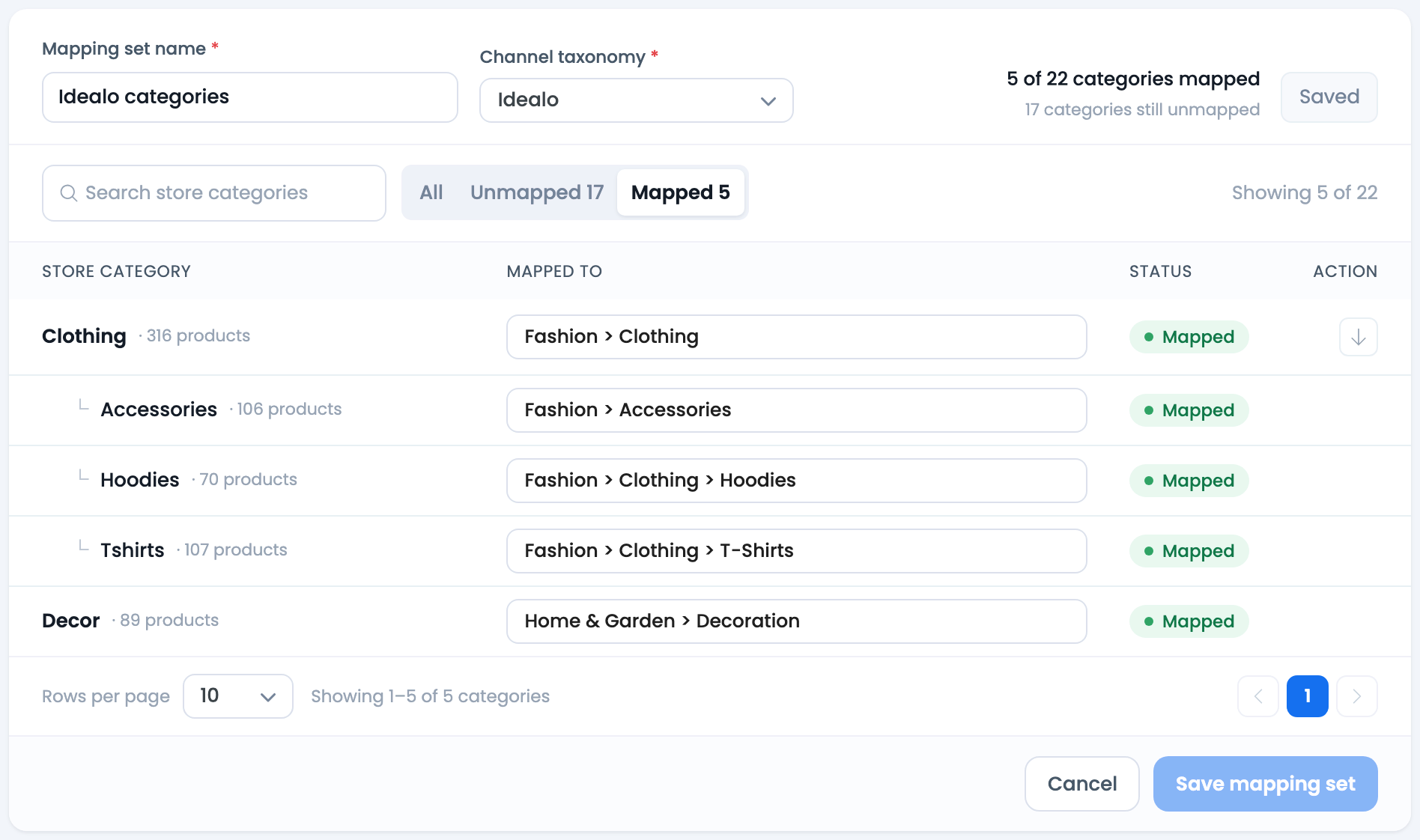
The top of the editor always shows how many categories are mapped versus the total, so you can see at a glance whether anything is still unmapped.
Copy a parent mapping down to its sub-categories
Most sub-categories belong under the same channel category as their parent. Instead of mapping each one:
- Map the parent category first.
- Click the copy-down (downward arrow) button on the parent’s row.
- The parent’s mapped value is applied to every sub-category beneath it. You can still override any individual child afterward.
This is the fastest way to reach full coverage on a deep category tree.
Find categories quickly
The editor’s toolbar helps on large stores:
- Search store categories filters the list as you type.
- The All | Unmapped | Mapped segmented filter (with live counts) lets you jump straight to the categories that still need a channel match.
- Rows per page and numbered pagination page through long lists. CTX Feed saves your progress before turning the page, so nothing is lost as you work through the tree.
Use the mapping set in a feed
A saved set does nothing until a feed references it. To wire it into a feed:
- Open CTX Feed → Make feed, or edit an existing feed from Manage feeds.
- On the Config tab, find the channel attribute that carries the merchant category — for a Google feed this is google_product_category. Add the row if it is not already there.
- Set that row’s Source to Attribute.
- In Value, open the Category Mapping group and select your mapping set by name.
- Save & Generate. Each product now reports the channel category its own store category is mapped to — the taxonomy ID you picked, or the text you typed for channels without a list.
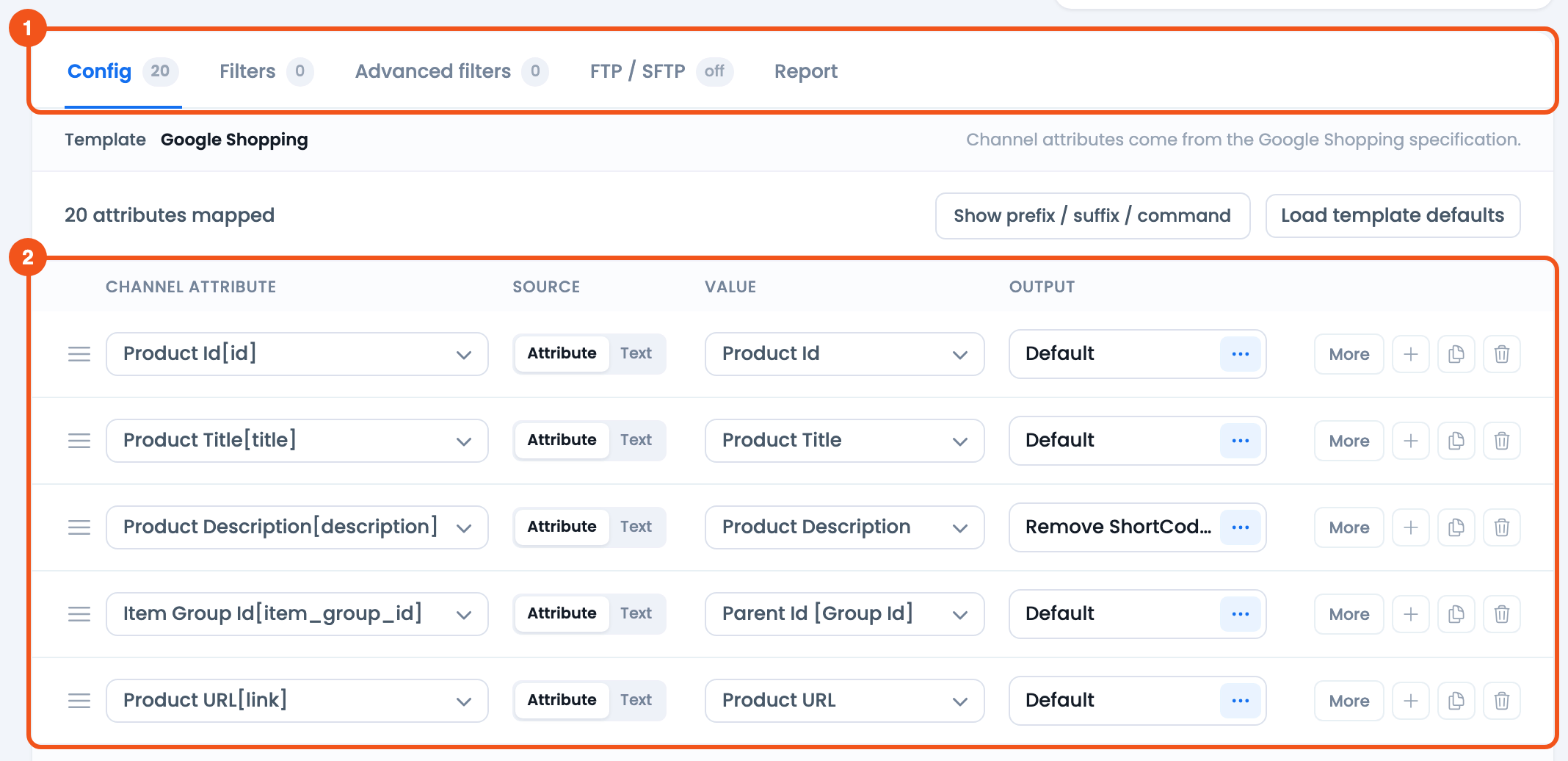
- The tab bar — Config, Filters, Advanced filters, FTP / SFTP, and Report.
- The attribute mapping table — set that row’s Source to Attribute and pick your mapping set from the Category Mapping group in Value.
The dropdown lists every saved mapping set, so pick the one whose Channel taxonomy matches the feed’s channel — a Facebook map attached to a Google feed would send Facebook categories.
Editing, coverage, and reuse
- Reuse across feeds. The same set can be attached to any number of feeds for the same channel — you never rebuild it per feed.
- Update anytime. Open the set from the Category mapping list, adjust rows, and save. Feeds using it pick up the change on their next generation.
- Coverage. The list view’s Coverage column and the editor’s counter tell you how many store categories still lack a channel match. Aim for full coverage so no product ships without a category.
Troubleshooting
- I mapped categories as text in an older version (before 8.0). When you update, CTX Feed turns every Google category you typed as text into its official ID, as long as the text matches a Google category exactly, for example Arts & Entertainment > Hobbies & Creative Arts > Collectibles > Scale Models becomes 37. Your feed then sends the ID, which Google recommends. Rows whose text doesn’t match a Google category stay as they were and show Unknown category; pick the right category from the search to fix them. You can still save the set while such rows remain. Facebook and free-text channels are not changed.
- The Mapped To control says “Choose a channel taxonomy first.” Select the Channel taxonomy at the top of the editor before mapping rows — it decides which list the control searches.
- There is no search box for my channel, just a text field. Only Google, Facebook and the channels that reuse their taxonomies ship a searchable category list. For any other channel, type the category path the merchant documents and it is exported as typed.
- My set is not in the feed’s Value dropdown. The set must be saved. Re-open it, click Save mapping set, then reload the feed editor (use Purge cache now in Settings if it still does not appear).
- Google rejects categories after mapping. Google’s list changes over time. Refresh it from CTX Feed → Settings → Update taxonomies, then reopen the set and re-check any categories that no longer match.
- A sub-category is wrong after copy-down. Copy-down applies the parent’s value to all children; just override the individual sub-category row and save.
- Deleting a set that a feed still uses. The feed keeps generating, but those products ship with the mapped value dropped (unmapped). Re-map or point the feed at another set.
Related guides
- Configure product category into feed
- Category mapping in a multilingual store
- How to make feed for specific categories
- Introduction to CTX Feed plugin settings

error has started to occur in Google Merchant. Google Marchant Support identify the Product Review Feed is as under:
Hi Khalid,
Thanks for reachign us. To get help for such technical issue, you are requested to contact our support team from here – webappick.com/contact or here if you are a pro user – https://webappick.com/my-account/contact-support/
Best Regards,
Hi We are getting issue with Feed in Dynamic and Shopping ads on Google asked to Set up Shipping Attributes
Please guide anyone
Hi, To get a solution to any issues related to our plugin, please, contact our Support team from here. Thank you!
hi- I’ve created a category map and cleared my cache, I don’t have a group header in the drop down called “Category Mapping Attributes” as shown in the video. Not sure what else to do here. Thanks
Hi! The clear cache button here should add the newly added attribute to the dropdown list under category mapping. But, if you are not getting it even after clearing the cache, please, contact our support team from here. Thank you!
Good evening,
When mapping the categories and choosing Google Shopping, I can’t find any Google category that is related to my categories.
Specifically, I have a bookstore. The categories are: history, philosophy, biographies, theology, etc.
Nothing similar with suggestions of Merchant Category. Should I skip this categories step and create my feed without it?
Thank you in advance.
Hi!
If your item titles and descriptions are correct, you can skip the Google product category attribute, as google will assign categories automatically based on the title and description. To know more about Google Product Category attribute, please, follow this link.
You need to deactivate and activate the plugin.
Hi Marcos,
No, you don’t need to deactivate and activate the plugin. Once a new category mapping is created, you need to Clear the cache from here to find the newly created Category Mapping attribute on the attribute list.